
Are you frustrated because Prime Video won’t work on your Samsung TV? You’re not alone.
Many users face this issue when their favorite shows or movies suddenly stop streaming. It’s annoying when you just want to relax and watch, but the app won’t load, freezes, or shows error messages. The good news is, you don’t have to give up or call for expensive repairs.
You’ll discover simple, step-by-step fixes that you can try right now to get Prime Video running smoothly on your Samsung TV again. Keep reading to reclaim your streaming experience without hassle!
Common Causes For Prime Video Issues
Updating and reinstalling Prime Video can solve many app issues on your Samsung TV. These steps refresh the app and remove corrupted data. This improves app performance and fixes loading or playback problems.
Start by checking for updates. Keeping the app up to date ensures compatibility with your TV’s software. If updates do not fix the issue, reinstalling the app can help.
Checking For App Updates
Turn on your Samsung TV and press the Home button on the remote. Navigate to the Apps section and open it. Find Prime Video in the list of installed apps.
Select Prime Video and look for an Update option. If available, click Update to install the latest version. Wait until the update completes, then open the app to test it.
Updating the app fixes bugs and brings new features. Missing updates often cause app crashes or errors.
Reinstalling The Prime Video App
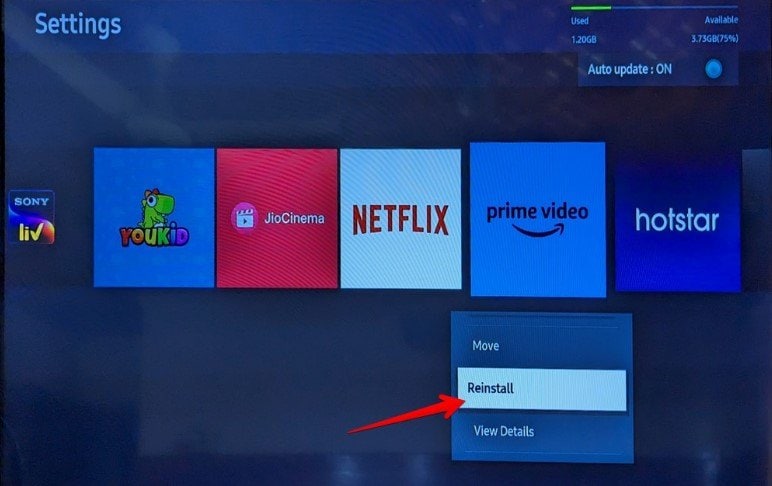
Go to the Apps section on your Samsung TV. Highlight Prime Video and press the Tools or Options button on your remote.
Select Delete or Uninstall to remove the app from your TV. Confirm the action if prompted. After uninstalling, return to the Apps store.
Search for Prime Video and select Install. Wait until the installation finishes. Open Prime Video and sign in again with your Amazon account.
Reinstalling removes corrupted files and resets app settings. This often solves persistent loading or playback issues on Samsung TVs.
Restart And Reboot Options
Managing your Samsung TV settings can resolve many issues with Prime Video. Sometimes, simple adjustments improve app performance and fix errors. Focus on key settings that affect app functionality. These tweaks can restore smooth streaming and prevent interruptions.
Updating Tv Firmware
Keeping your Samsung TV firmware updated is crucial. Firmware updates fix bugs and improve app compatibility. To update, press the Home button on your remote. Select Settings, then Support, and click Software Update. Choose Update Now to install the latest version. Restart your TV after the update completes.
Clearing App Cache And Data
Clearing the Prime Video app cache removes temporary files that may cause issues. Go to Settings, then Support, and select Device Care. Choose Manage Storage and find Prime Video. Clear the cache to free up space and refresh the app. You can also clear app data to reset app settings if needed.
Adjusting Date And Time Settings
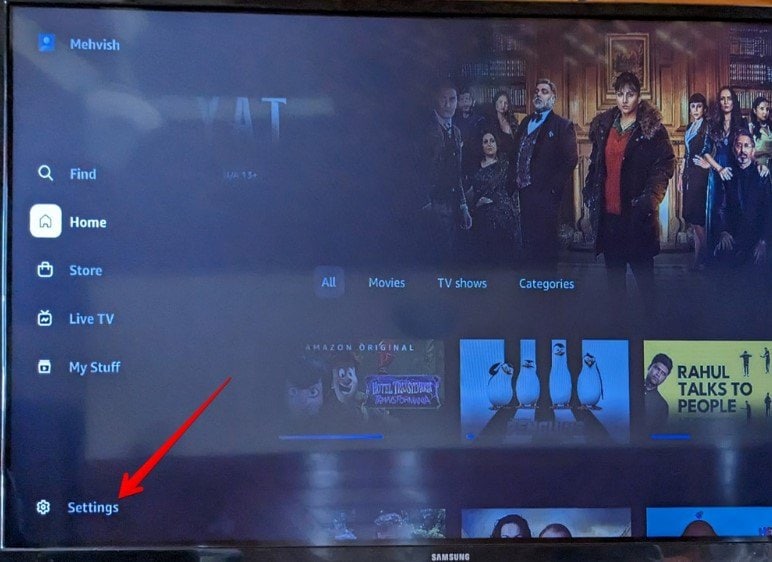
Incorrect date and time settings can block app access. Check your Samsung TV’s date and time accuracy. Open Settings, select General, and then Date and Time. Enable Set Automatically to sync with the network. If automatic sync fails, set the date and time manually. Correct time settings ensure proper app function.
Update And Reinstall Prime Video
When Prime Video stops working on your Samsung TV, alternative streaming methods come in handy. These options help you enjoy your favorite shows without relying on the built-in app. They provide easy, quick ways to keep streaming without interruption.
These methods use different devices or tools you might already have. They work well and often deliver smooth streaming experiences. Here are some simple alternatives to try.
Using External Streaming Devices
External streaming devices like Amazon Fire Stick, Roku, or Chromecast connect to your TV’s HDMI port. They have their own Prime Video apps, offering a stable way to watch content. These devices update regularly, reducing app errors you may face on your TV.
Simply plug the device in, connect to Wi-Fi, and log in to your Prime Video account. This method bypasses your TV’s app, which may solve many streaming problems.
Casting From Mobile Or Pc
Casting lets you send videos from your phone or computer to your Samsung TV. Use apps like Amazon Prime Video on your smartphone or browser on your PC. Tap the cast icon and select your TV from the list of available devices.
This option requires both devices on the same Wi-Fi network. Casting is quick and keeps your TV app free from errors. It also allows you to control playback from your mobile or PC easily.
Accessing Prime Video Via Browser
If your TV supports a web browser, open it and visit the Prime Video website. Log into your account and stream shows directly from the browser. This method avoids using the Prime Video app completely.
While not all TVs offer smooth browser streaming, it works well on many models. It’s a useful backup when other options fail, keeping your entertainment uninterrupted.
Manage Samsung Tv Settings
Knowing when to contact support is key for fixing Prime Video issues on your Samsung TV. Troubleshooting helps, but some problems need professional help. If basic fixes do not work, reaching out saves time and frustration.
Persistent errors, app crashes, or login problems often require expert assistance. Support teams can provide solutions tailored to your device and account. They also update you on outages or known bugs affecting service.
Samsung Customer Service
Samsung Customer Service assists with TV hardware and software issues. They help with firmware updates, app installations, and connectivity problems. Contact them if your TV has system errors or the Prime Video app won’t open after updates.
Use their official website or call the support hotline. Have your TV model number and purchase details ready. This speeds up diagnosis and repair options.
Amazon Prime Video Help Center
The Amazon Prime Video Help Center offers guides for account and app troubles. They cover sign-in problems, streaming errors, and payment issues. Check their FAQs before contacting support for faster answers.
Use the chat or call options on their website for direct help. They can check your account status and fix streaming glitches from their side.
Reporting Persistent Issues
Keep a record of error messages and steps taken before contacting support. Report the exact problem, including when and how it happens. This information helps support teams solve issues faster.
If neither Samsung nor Amazon resolves your issue, report it through official forums or consumer protection services. Persistent problems may indicate a wider app or device fault needing attention.
Frequently Asked Questions
Why Won’t Amazon Prime Work On My Samsung Tv?
Amazon Prime may not work on your Samsung TV due to outdated firmware, app glitches, or account issues. Update software, reinstall the app, and check account limits. Restart your TV and router. Use an external streaming device if problems persist or the app faces temporary outages.
How Do I Reset Amazon Prime On My Samsung Tv?
To reset Amazon Prime on your Samsung TV, uninstall and reinstall the Prime Video app. Then, update your TV’s firmware via Settings > Support > Software Update. Clear the app cache if available. Finally, sign back into your Prime account to restore access.
Why Has Amazon Prime Stopped Working On My Tv?
Amazon Prime may stop working on your TV due to outdated app or firmware, cache issues, account limits, or temporary outages. Reinstall the app, update your TV software, clear cache, and check device limits. Use a streaming device if problems persist.
How Do I Update Prime Video On My Samsung Tv?
Press the Home button on your Samsung remote. Go to Apps, select Prime Video, then choose Update or Reinstall. Also, update your TV firmware in Settings > Support > Software Update. Clear the app cache under Settings > Support > Device Care if available.
Why Is Prime Video Not Working On My Samsung Tv?
Prime Video may not work due to outdated software or app issues. Check for updates and restart the TV to fix common problems.
Conclusion
Troubles with Prime Video on Samsung TV can feel frustrating. Simple steps often solve the issue quickly. Reinstalling the app or updating your TV’s software helps most users. Clearing the cache and checking your account limits also work well. When these do not fix the problem, try another streaming device.
Sometimes, the app itself faces temporary outages. Staying patient and following these tips can restore your streaming joy. Enjoy your favorite shows without long delays or errors. Keep your TV and apps updated for smooth viewing.