
Is your Apple TV turning on by itself, leaving you wondering why this keeps happening? You’re not alone—and it can be pretty frustrating when your TV powers up unexpectedly, disrupting your peace or wasting energy.
The good news is, this issue usually has simple causes, like settings that sync your devices, a stuck remote button, or even your iPhone waking up your Apple TV without you realizing it. You’ll discover the most effective ways to stop your Apple TV from turning on randomly.
Keep reading, and you’ll soon regain full control over your viewing experience.

Causes Of Apple Tv Turning On
Apple TV turning on by itself can puzzle many users. Various causes trigger this issue. Understanding these causes helps you manage and prevent unwanted power-ons. Below are the common reasons why your Apple TV might wake up without your command.
Hdmi-cec Power Sync
HDMI-CEC allows devices to control each other over HDMI. When your TV turns on, it can send a signal to Apple TV to power on too. This syncing can cause Apple TV to start even without pressing any button. Sometimes, false signals trigger the power-on action.
Stuck Remote Buttons
A stuck or faulty remote button can continuously send power-on commands. Dirt or damage may cause the power button to stick. This makes Apple TV think you pressed the button repeatedly. Testing or removing the remote can reveal if it causes the issue.
Mobile Device Wake Signals
Connected iPhones or iPads can wake Apple TV via Bluetooth or Wi-Fi. Apps or system features sometimes send wake signals automatically. These signals can cause Apple TV to power on without your knowledge. Checking and adjusting mobile device settings helps stop this.
Network Activity Triggers
Apple TV listens for network traffic that may wake it up. Certain network activities or app updates can trigger it to turn on. Wake-on-LAN or streaming commands from other devices also cause this behavior. Managing network settings reduces unintentional wake-ups.
Disabling Hdmi-cec Control
Disabling HDMI-CEC control can solve issues with Apple TV turning on by itself. HDMI-CEC lets devices control each other through HDMI cables. Apple TV might send signals that wake your TV without warning. Turning off this feature stops automatic power syncing. It also prevents false wake commands from your Apple TV.
Some TVs and receivers have different names for HDMI-CEC. Common labels include Anynet+, Bravia Sync, or Simplink. You will need to find this setting on both your TV and receiver to fully disable it. This step ensures no device can turn on your Apple TV or TV unexpectedly.
Accessing Tv And Receiver Settings
Start by opening your TV’s main menu with your remote. Look for the settings or setup section. Navigate to the system or general settings area. Find the HDMI-CEC option—this may be named differently depending on your TV brand. If you have a receiver, open its menu next. Locate the HDMI-CEC or control settings there as well. Turn off HDMI-CEC on both devices to avoid conflicts.
Steps To Turn Off Hdmi-cec On Apple Tv
Turn on your Apple TV and open the Settings app. Select “Remotes and Devices” from the menu. Scroll down to “Control TVs and Receivers.” Toggle this option off to disable HDMI-CEC. This action stops Apple TV from controlling your TV’s power state. Restart your devices to apply the changes fully. This simple fix often stops your Apple TV from waking up on its own.
Checking And Fixing The Remote
Checking and fixing the remote is a key step if your Apple TV turns on by itself. The remote controls many functions, including power. A stuck button or a faulty remote can send unwanted signals. This causes your Apple TV to wake up randomly. Examining the remote carefully helps find any problems. Small fixes may stop the device from turning on unexpectedly.
Identifying Stuck Buttons
First, look closely at each button on the remote. Press every button a few times to check if any feel sticky or jammed. Dirt or debris can cause buttons to stick. Pay special attention to the power button since it often causes wake-up issues. Clean the remote gently with a soft cloth if needed. Sometimes, a stuck button keeps sending a signal, turning the Apple TV on by itself.
Testing Without The Remote
Remove the remote from the area to test the Apple TV’s behavior. Leave it in another room or turn it off temporarily. Watch if the Apple TV still turns on without the remote nearby. If it stops turning on by itself, the remote is likely the cause. Replace the batteries or try a different remote to confirm. Testing without the remote helps isolate the problem quickly.
Adjusting Mobile Wake Settings
Adjusting mobile wake settings can help stop your Apple TV from turning on by itself. Mobile devices like iPhones or iPads can wake your Apple TV through network connections. Changing these settings limits unwanted wake signals. It improves your control over when the Apple TV powers on.
These settings are easy to find and adjust in your Apple TV menu. Making small changes reduces the chance of your device waking up unexpectedly. It also saves energy and avoids interruptions.
Disabling Remote App And Devices Wake
Your Apple TV may wake due to commands from remote apps or connected devices. Disabling this feature blocks these signals. Go to Settings > General > Remote App and Devices. Turn off the option that allows devices to wake the Apple TV. This stops your phone or tablet from turning on the Apple TV without your permission.
Turning off this setting ensures only your physical remote controls the device. It cuts down on accidental wake-ups caused by apps or other gadgets. This is a simple step to try if your Apple TV turns on by itself.
Managing Bluetooth And Wi-fi Connections
Bluetooth and Wi-Fi connections can trigger your Apple TV to turn on. Devices connected via these networks can send wake signals. To control this, check your Apple TV’s Bluetooth and Wi-Fi settings. You can disconnect or forget devices that might cause the issue.
Go to Settings > Network and review the list of connected devices. Remove or disable any device you do not use often. Also, disable Bluetooth if you do not need it active. This reduces the chance of random wake signals.
Managing these connections helps keep your Apple TV off until you want to use it. It also keeps your network more secure by limiting device access.
Modifying Tv Settings To Prevent Wake
Modifying your TV settings can stop your Apple TV from turning on by itself. Adjusting specific features helps prevent unwanted wake-ups. These settings often control how your TV responds to signals from connected devices.
Turning off certain options reduces false power signals. This keeps your Apple TV and TV from powering on without your command. Simple changes in the menu can make a big difference in your viewing experience.
Turning Off Quick Start Features
Quick Start helps your TV turn on faster by waking it from standby. This feature can cause your Apple TV to power up unexpectedly. Disable Quick Start in your TV settings to stop this.
Go to your TV’s General settings. Find the Quick Start option and switch it off. This stops your TV from waking automatically with connected devices.
Disabling Mobile Tv On Options
Mobile TV On allows mobile devices to wake your TV via Wi-Fi or Bluetooth. This can trigger your Apple TV to turn on without your input. Turn off this option to prevent mobile devices from waking your TV.
Navigate to the General menu on your TV. Locate Mobile TV On or similar settings. Disable this feature to keep mobile devices from powering on your Apple TV.

Other Troubleshooting Steps
Other troubleshooting steps can help when your Apple TV turns on by itself. These steps focus on simple fixes you can do at home. They often solve the problem without the need for extra tools or help.
Restarting Apple Tv And Tv
Turn off your Apple TV and your television completely. Unplug both devices from the power source. Wait for about 30 seconds before plugging them back in. Turning devices off and on again resets temporary glitches. This simple step often stops the Apple TV from turning on by itself.
Updating Software And Firmware
Check for software updates on your Apple TV. Go to Settings, then System, and select Software Updates. Install any available updates. Updated software fixes bugs that cause unwanted behavior. Also, update your TV’s firmware from its settings menu. Keeping both devices current improves performance and stability.
Checking Power Cable And Connections
Inspect the power cable of your Apple TV and TV. Make sure the cables are firmly plugged in. Look for any signs of damage or wear. Loose or damaged cables can cause power issues. Secure all connections to ensure stable power flow. This step can prevent random power-ons caused by faulty wiring.
Preventing Network-related Wake Issues
Network activity often causes Apple TV to wake up on its own. Devices connected to the same network can send signals that turn on the Apple TV. Understanding how network interactions work helps stop this issue.
Preventing network-related wake problems involves managing how your Apple TV responds to network traffic. Adjusting settings can reduce unwanted wake-ups and save energy.
Managing Network Activity
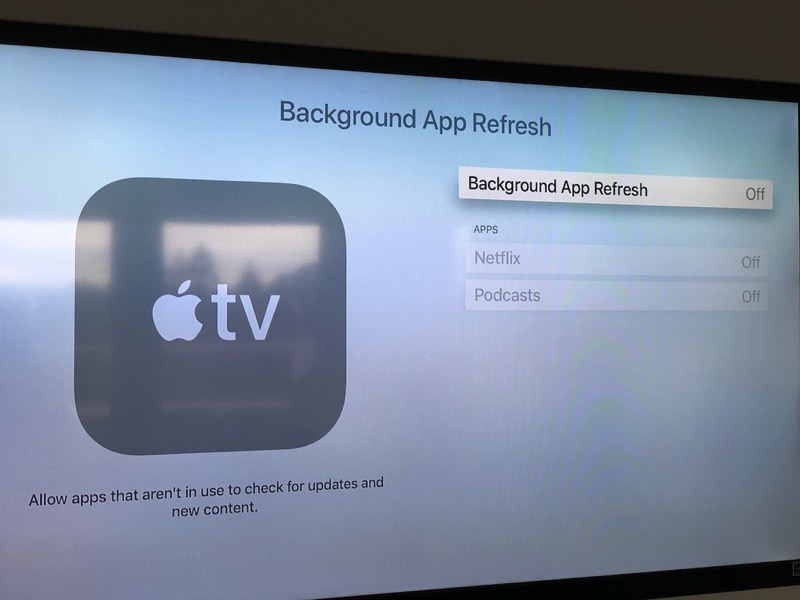
Check the settings for apps that use the network on your Apple TV. Some apps keep your device awake by running background tasks. Disable or limit background app refresh to reduce network traffic.
Turn off features like Home Sharing or AirPlay if you do not use them regularly. These services can trigger your Apple TV to wake when another device connects. Control your network devices to avoid automatic wake signals.
Adjusting Sleep And Wake Timers
Set your Apple TV to sleep after a short period of inactivity. Go to Settings and find the Sleep After option. Choose a time that fits your usage, such as 15 or 30 minutes.
Disable any settings that allow devices to wake your Apple TV remotely. Check Remote App and Devices settings to stop mobile devices from waking it. These steps help keep your Apple TV off when you want it to stay off.
Frequently Asked Questions
Why Does My Apple Tv Keep Turning On And Off By Itself?
Your Apple TV turns on and off by itself due to HDMI-CEC power syncing, a stuck remote button, or network devices waking it. Disable HDMI-CEC, check the remote, and adjust mobile wake settings to fix the issue.
Why Is My Tv Suddenly Turning On By Itself?
Your TV may turn on by itself due to HDMI-CEC syncing, a stuck remote button, or a connected device waking the network. Disable HDMI-CEC or check your remote to fix this issue.
Does Apple Tv Turn On Automatically?
Apple TV can turn on automatically due to HDMI-CEC syncing, a stuck remote button, or network device activity waking it. Disable HDMI-CEC or check remote settings to prevent this behavior.
How Do I Stop My Tv From Turning On Automatically?
Disable HDMI-CEC in your TV and Apple TV settings to stop auto power-on. Check and unstick remote buttons. Turn off mobile device wake options.
Why Does My Apple Tv Turn On By Itself Randomly?
Your Apple TV may turn on due to HDMI-CEC syncing with your TV’s power. A stuck remote button or an iOS device on the same network can also wake it.
Conclusion
Apple TV turning on by itself can feel frustrating and confusing. Most often, HDMI-CEC or a stuck remote button causes this issue. Checking your remote and adjusting settings usually solves the problem quickly. Disabling mobile wake options also helps stop unwanted power-ons.
These simple steps keep your Apple TV working as you want it. Stay patient and try each fix carefully. This way, you can enjoy your Apple TV without interruptions.