
Is your Print Screen key not working with Snagit? You’re not alone, and it can be frustrating when a simple screenshot tool stops responding right when you need it most.
Whether you rely on Snagit for work presentations, tutorials, or quick captures, a malfunctioning Print Screen shortcut can slow you down. But don’t worry—there are clear, easy fixes you can try right now to get Snagit snapping screenshots again. You’ll discover why your Print Screen key might not be working with Snagit and how to fix it step-by-step.
Keep reading, and you’ll be back to capturing your screen in no time.
Check Snagit Hotkey Settings
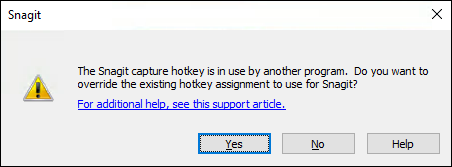
Check Snagit hotkey settings to fix the Print Screen issue. Sometimes, Snagit’s hotkey is not assigned correctly. Other times, Windows or OneDrive may take over the Print Screen key. This stops Snagit from capturing screenshots using the Print Screen button.
Adjusting hotkey settings in Snagit helps restore the Print Screen function. It makes sure Snagit responds as expected when you press the key. Follow these simple steps to check and fix your hotkey settings.
Assign Print Screen Key In Snagit
Open Snagit and find the Capture window. Look below the red Capture button for the hotkey setting. Click the current hotkey or “Add Key” option. Press the Print Screen key on your keyboard to assign it. This maps the key to Snagit’s capture function.
Confirm the Print Screen key appears as the hotkey. Test by pressing Print Screen to start a capture. If it works, Snagit listens to your hotkey again. If not, try reassigning or checking for conflicts with other apps.
Enable Snagit To Run At Startup
Snagit must run in the background for hotkeys to work. Open Snagit’s settings or preferences menu. Find the option to run Snagit at startup. Turn this option on so Snagit launches with Windows automatically.
Restart your computer to apply the change. Snagit will now run every time you log in. This prevents other programs from blocking the Print Screen key. You can capture screenshots anytime without opening Snagit manually.
Credit: support.techsmith.com
Adjust Windows Keyboard Settings
Adjusting your Windows keyboard settings can resolve many issues with Snagit’s Print Screen function. Sometimes, the default Windows shortcut conflicts with Snagit, preventing it from capturing screenshots. Changing these settings helps Snagit regain control over the Print Screen key.
These tweaks require only a few clicks and do not affect your overall keyboard performance. Follow the steps below to disable Windows’ Print Screen shortcut and make sure Snagit works smoothly.
Disable Windows Print Screen Shortcut
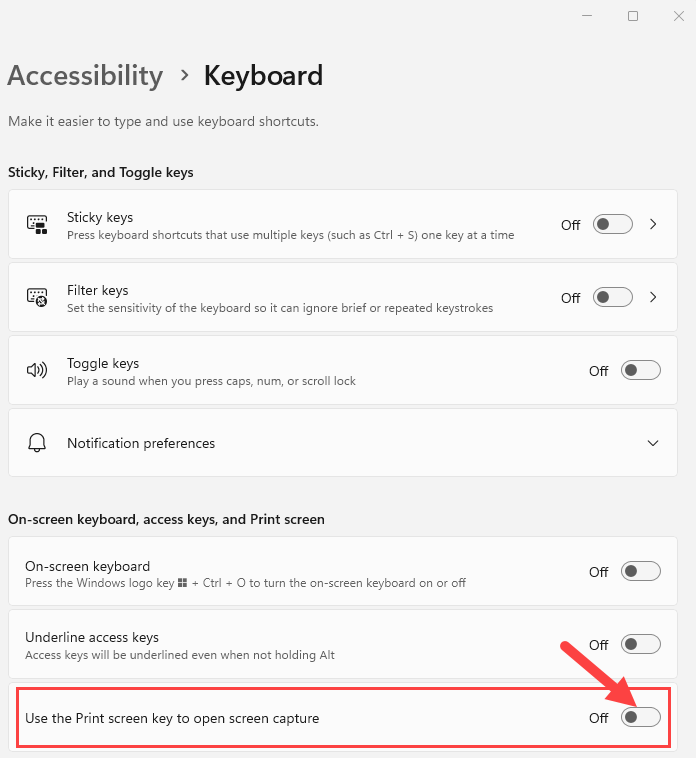
Open the Windows Settings by pressing Windows + I. Select Ease of Access or Accessibility depending on your version.
Navigate to the Keyboard section. Find the option labeled Use the Print Screen key to open screen snipping.
Turn this option off. Disabling this frees up the Print Screen key for Snagit to use. This simple step removes conflict between Windows and Snagit shortcuts.
Restart To Apply Changes
After changing keyboard settings, restart your computer. A restart applies the new configurations fully.
Once your PC restarts, open Snagit and test the Print Screen key. It should now trigger Snagit’s capture window.
Restarting ensures no background processes block the Print Screen key. This step is crucial for the fix to work properly.
Resolve Conflicts With Other Apps
Conflicts between Snagit and other apps often block the Print Screen key. These apps may capture the key first, stopping Snagit from working. Resolving these conflicts can restore Snagit’s screenshot function quickly. Focus on apps that save screenshots automatically or use global hotkeys.
Turn Off Onedrive Screenshot Saving
OneDrive can take control of the Print Screen key. It saves screenshots automatically to the cloud. This feature blocks Snagit from capturing the screen. To stop this, open OneDrive settings from the system tray.
Go to the Backup tab and find the Screenshots section. Uncheck the box that says “Automatically save screenshots I capture to OneDrive.” This frees the Print Screen key for Snagit’s use. Close the settings and try Snagit again.
Allow Snagit To Override Hotkeys
Snagit may lose control if other apps use the same hotkeys. It has a setting to override these conflicts. Open Snagit, then click on the gear icon for Preferences.
Navigate to the Hotkeys tab. Check the box labeled “Allow Snagit to override other hotkeys.” This setting lets Snagit take priority. Save changes and restart Snagit to apply them.

Credit: www.youtube.com
Fix Laptop Keyboard Function Keys
Fixing laptop keyboard function keys can solve Print Screen issues in Snagit. Some laptops use function (Fn) keys differently. These keys may need adjustment to work with Print Screen and Snagit.
Function keys sometimes lock in media or special mode. This stops the usual Print Screen action. Changing these settings often restores normal key function.
Disable Function Lock
Function Lock (Fn Lock) changes how function keys behave. When enabled, it may block Print Screen from working. To disable it, look for an Fn Lock key on your keyboard. This key often shows a lock icon with “Fn.”
Press the Fn Lock key once. This can switch the keys back to standard mode. Try pressing Print Screen again after that. If your keyboard does not have Fn Lock, check your laptop’s manual or settings for function key options.
Use Fn Key Combinations
Some laptops require you to press the Fn key with Print Screen. This means pressing Fn + PrtScn together. Try pressing and holding the Fn key first, then tap Print Screen.
This combination sends the correct signal to Snagit. It can fix problems where pressing Print Screen alone does not work. Test this method to see if Snagit recognizes the screenshot command.
Update Or Reinstall Snagit
Updating or reinstalling Snagit can solve many issues with the Print Screen function. Sometimes the software may have bugs or corrupted files. Fresh updates or a clean install can restore proper function.
Software updates bring important fixes and improvements. Reinstalling refreshes all program files. Both actions help avoid conflicts with Windows or other apps.
Check For Software Updates
Open Snagit and go to the Help menu. Select “Check for Updates” to see if a new version is available. Updates often fix bugs that stop Print Screen from working. Download and install any available updates. Restart your computer after updating. Test the Print Screen key again in Snagit.
Reinstall Snagit For Fresh Setup
Uninstall Snagit from your computer using the Control Panel. This removes all program files and settings. Download the latest version from the official TechSmith website. Run the installer and follow the steps to reinstall. Reinstalling clears corrupted files that cause errors. After installation, restart your computer. Open Snagit and set up the Print Screen hotkey again. This fresh setup often restores normal screenshot capture.
Troubleshoot Keyboard Hardware
When Snagit’s Print Screen function fails, the keyboard might be the cause. Hardware issues can stop the Print Screen key from working correctly. Checking the keyboard ensures it sends the right signals to your computer. Fixing hardware problems often restores Snagit’s screenshot feature quickly.
Try simple steps first to find the problem. These steps help confirm if the keyboard or its drivers cause the issue. Fixing these saves time and effort before deeper software troubleshooting.
Test Keyboard Connection
Start by checking if the keyboard is properly connected. For wired keyboards, unplug and replug the USB or PS/2 cable. Use a different port to rule out port problems. For wireless keyboards, check the batteries and connection status. Re-pair the device if needed.
Test the Print Screen key in another program. Use Paint or Word and press Print Screen to see if it captures the screen. If it doesn’t work there, the keyboard connection or hardware likely has an issue.
Update Keyboard Drivers
Outdated or corrupt keyboard drivers can block the Print Screen key from working. Open Device Manager on your PC. Find the keyboard in the device list and right-click it. Select “Update driver” and let Windows search automatically.
Restart your computer after the update. This refreshes the driver and system settings. If the problem persists, visit the keyboard manufacturer’s website. Download and install the latest driver version manually for better results.
Use Alternative Screenshot Methods
When Snagit’s Print Screen function fails, alternative screenshot methods help capture your screen quickly. These options work without relying on the Print Screen key. They provide simple ways to take screenshots on both Mac and Windows.
Using Snagit’s built-in tools or keyboard shortcuts ensures you never miss an important capture. These methods are easy to use and require minimal setup.
Snagit Capture Window Tools
Snagit includes a Capture window with several options to grab your screen. Open Snagit, then click the red Capture button to open this window. You can choose between full screen, window, or region capture.
Use the “All-in-One” tab for flexible selection. Drag the orange crosshairs to select the exact area you want. The Capture window also lets you delay captures, useful for menus or tooltips.
These tools work even if the Print Screen key is disabled or unassigned. You can start capture directly from Snagit without relying on keyboard shortcuts.
Keyboard Shortcuts For Mac And Windows
Keyboard shortcuts offer fast access to screenshots without needing the Print Screen key. On Windows, press Windows + Shift + S to open the Snip & Sketch tool. This lets you select an area to copy to the clipboard.
For Mac users, press Command + Shift + 4 to capture a selected region. Pressing Command + Shift + 3 captures the entire screen.
Snagit also supports custom shortcuts. You can assign your preferred keys inside Snagit’s settings to avoid conflicts with other programs.
Seek Advanced Support
When Snagit’s Print Screen function fails, basic fixes might not help. Seek advanced support for deeper solutions. This step guides users through official resources and community insights. It ensures access to expert advice and practical troubleshooting tips.
These resources often cover issues unique to certain setups or software conflicts. They provide detailed instructions beyond standard troubleshooting. Users can learn from others’ experiences or contact support directly. This approach increases chances of a quick, lasting fix.
Visit Techsmith Support Articles
TechSmith offers a vast library of support articles. These cover common and rare Snagit problems. Articles include step-by-step guides and troubleshooting tips. They also explain new features and updates.
Search for articles about Print Screen not working. Follow instructions carefully to avoid mistakes. Regularly updated content reflects the latest fixes and software changes. This resource is reliable and easy to access anytime.
Explore User Forums And Communities
User forums host discussions from Snagit users worldwide. These communities share real-world solutions and advice. Posting your problem can get personalized help quickly.
Browsing forums reveals common issues and successful fixes. Users often post screenshots and error messages. This helps others understand and solve similar problems. Active forums provide ongoing support beyond official channels.
Frequently Asked Questions
Why Is My Print Screen Not Working With Snagit?
Your Print Screen may not work with Snagit if the hotkey is unassigned or Windows/OneDrive overrides it. Assign Print Screen in Snagit’s capture window and disable conflicting Windows settings. Ensure Snagit runs in the background and override other hotkeys in Snagit preferences.
How To Activate Snagit With Print Screen?
Open Snagit, click below the Capture button, press Print Screen to assign it. Disable Windows Print Screen shortcut in Accessibility settings. Ensure Snagit runs at startup and allows hotkey override in preferences. Close apps like OneDrive that may intercept Print Screen.
Press Fn + Esc on laptops to disable Function lock.
Why Is My Prtsc Not Working?
Your Print Screen might not work due to unassigned hotkeys, conflicting apps, or disabled settings. Check Snagit hotkey, disable OneDrive screenshot saving, and ensure keyboard drivers are updated. Press Fn + Esc on laptops to unlock Print Screen if needed.
Restart your PC after changes.
How To Take A Screenshot From Snagit?
Open Snagit, click the All-in-One tab, then press the Capture button or Print Screen key. Drag to select the area to capture.
Why Is Snagit Print Screen Not Capturing Screenshots?
Snagit may not capture if the Print Screen hotkey is unassigned. Also, other apps or Windows might override this key. Check Snagit’s hotkey settings and reassign if needed.
Conclusion
Troubles with Snagit’s Print Screen key are common but fixable. Check your hotkey settings in Snagit first. Make sure no other apps block the Print Screen key. Also, verify Windows keyboard settings to avoid conflicts. Restarting your computer can often clear minor glitches.
Keeping Snagit updated helps prevent issues too. Follow these simple steps to get your screenshots working again. Quick fixes save time and frustration. Stay patient and try one solution at a time. Soon, Snagit will capture your screen smoothly once more.