
Is your HP printer refusing to print black ink, even when you know the cartridge isn’t empty? You’re not alone, and it’s incredibly frustrating when your important documents come out blank or only in color.
But don’t worry—this problem is often fixable without needing to buy a new printer or cartridge. In this guide, you’ll discover simple, effective steps to get your black ink working again. Whether it’s clogged nozzles, protective tape left on the cartridge, or a quick software tweak, you’ll learn how to troubleshoot your HP printer like a pro.
Keep reading to bring your black ink back to life and make your printer work just as it should.

Check Ink Cartridge
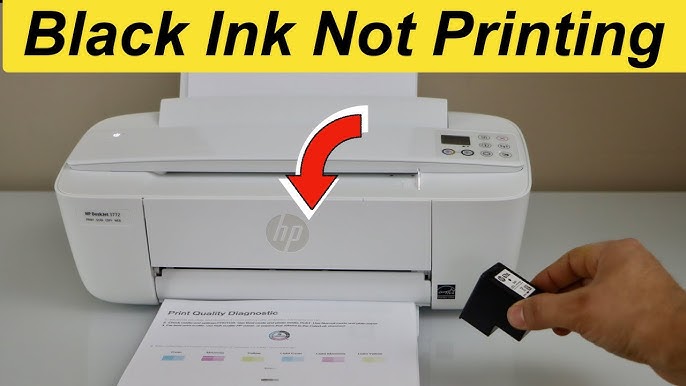
Checking the ink cartridge is a key step when the black ink stops working in your HP printer. Problems with the cartridge can cause the printer to miss black ink prints. It is important to handle the cartridge carefully and verify it is correctly installed and clean.
Follow simple checks to fix cartridge issues. These steps help restore proper ink flow and improve print quality.
Remove Protective Tape
New cartridges come with a protective tape to keep ink fresh. This tape covers the ink nozzles and contacts. Remove all tape before inserting the cartridge into the printer. Leaving tape on blocks ink from flowing and prevents the printer from recognizing the cartridge. Check every side carefully to avoid missing small pieces of tape.
Reseat The Cartridge
Sometimes cartridges are not fully seated. Open the printer’s cartridge access door. Gently remove the black ink cartridge. Reinsert it firmly until it clicks or feels secure. This ensures the cartridge connects well with the printer. A loose cartridge can cause printing errors and black ink problems.
Inspect Cartridge Contacts
Look at the copper or gold contacts on the cartridge and inside the printer. These contacts send signals and power to the cartridge. Dirt or ink buildup can block communication. Clean the contacts with a soft, lint-free cloth. Avoid touching contacts with bare hands to prevent oils or damage. Clean contacts help the printer detect the cartridge correctly and print black ink properly.
Credit: www.youtube.com
Clean Print Head
Cleaning the print head is a key step if your HP printer’s black ink is not working. The print head can get clogged from dried ink or dust. This stops the ink from flowing properly and causes printing issues. Regular cleaning helps keep the print quality sharp and clear.
There are easy ways to clean the print head. You can use the HP Smart app for quick automatic cleaning. For deeper cleaning, manual methods work well. Unclogging dried nozzles also restores ink flow and improves print results.
Use Hp Smart App
Open the HP Smart app on your computer or phone. Select your printer and find the print head cleaning tool. The app guides you to start the cleaning process. It runs the cleaning cycles automatically. This clears minor clogs and improves ink flow. Repeat the process if needed, but avoid overdoing it.
Manual Cleaning Tips
Turn off the printer and unplug it. Remove the ink cartridges carefully. Take a soft, lint-free cloth and dampen it with distilled water. Gently wipe the print head and contacts to remove dirt and ink build-up. Do not touch the nozzles with fingers. Let the parts dry before reinserting the cartridges. This simple step can solve many printing problems.
Unclog Dried Nozzles
For stubborn clogs, soak a clean cloth in warm water mixed with a drop of mild dish soap. Place the cloth under the print head nozzles for a few minutes. The warm water softens dried ink. Use a gentle touch to wipe away loosened ink. Avoid using harsh chemicals or sharp objects. This method helps restore proper ink flow without damage.
Run Printer Tests
Running printer tests helps find issues with your HP printer’s black ink. These tests check the printhead and ink flow. They show if the printhead needs alignment or cleaning. Test results guide you on the next steps to fix the problem.
Printhead Alignment
Printhead alignment ensures ink lands correctly on the paper. Misalignment causes blurry or streaky prints. Access your printer’s control panel or software to start this test. Follow the prompts to print an alignment page. Review the results and let the printer adjust the printhead if needed. Proper alignment improves print quality and can restore black ink output.
Test Print Quality
Test print quality checks if the black ink flows smoothly. It prints a sample page with black and color patterns. Look for missing lines or faded areas in the black ink sections. Poor print quality may mean clogged nozzles or low ink levels. Use the printer’s cleaning tools or replace the cartridge based on the test results. This test helps confirm if black ink not printing is a hardware or ink issue.
Update Software
Updating your HP printer’s software can fix black ink printing problems. Software updates improve printer performance and fix bugs. Keeping your printer’s software current helps it work smoothly.
Software updates include printer drivers and firmware. Both are important for proper printing. Outdated software can cause black ink issues or prevent printing altogether.
Update Printer Drivers
Printer drivers connect your computer and printer. They translate commands so the printer knows what to print. Old drivers may not support your printer’s features well.
Visit HP’s official website to find the latest driver for your model. Download and install the driver following the instructions. Restart your computer and printer after installation.
Updated drivers can solve black ink not printing errors. They also improve print quality and speed. Check for driver updates regularly to avoid problems.
Install Firmware Updates
Firmware is the software inside your printer’s hardware. It controls how the printer works at a basic level. Updating firmware fixes bugs and adds new features.
Use HP’s support tools or the printer’s control panel to check for firmware updates. Download and install any available updates carefully. Do not turn off the printer during the update process.
Firmware updates often fix issues with ink detection and printhead control. Installing them can restore black ink printing without needing new cartridges. Keep firmware up to date for best results.
Check Print Settings
Checking your printer’s settings is a key step when black ink does not print. Incorrect settings can cause the printer to skip black ink or use color ink instead. Adjusting these settings often solves the problem quickly. Below are two important areas to review in your print settings.
Color Vs Grayscale Mode
Make sure your printer is set to print in color or grayscale, not only in color mode. If it is set to color mode only, the printer may not use the black ink cartridge properly. Grayscale mode uses black ink and shades of gray, which can help if black ink is not printing. Check your print preferences and switch to grayscale to test if black ink prints.
Ink Cartridge Recognition
The printer must recognize the black ink cartridge to use it. Sometimes, cartridges are not detected due to poor contact or incorrect installation. Open the printer and remove the cartridge, then reinstall it carefully. Check for any protective tape on the cartridge that may block recognition. Also, confirm the cartridge is genuine and compatible with your printer model.
Replace Ink Cartridge
Replacing the ink cartridge is a key step when black ink stops working in your HP printer. Over time, cartridges can dry out or become faulty. Installing a new cartridge often restores print quality quickly. Proper handling during replacement also prevents damage and ensures smooth printing.
Follow these simple tips to choose and install the right cartridge for your HP printer. This helps avoid common issues like poor ink flow or error messages.
Use Genuine Hp Cartridges
Always choose genuine HP cartridges for your printer. They fit perfectly and match the printer’s technology. Genuine cartridges deliver reliable ink flow and sharp print results. Non-genuine cartridges may cause ink clogs or printer errors. Using original cartridges supports printer longevity and consistent print quality.
Handle Refills Carefully
If you refill cartridges, handle them with care. Avoid spills and keep ink contacts clean. Refills can cause blockages if not done correctly. Clean the cartridge nozzles gently before reinstalling. Proper handling reduces chances of printer errors and poor black ink printing.
Prevent Future Issues
Preventing black ink issues in your HP printer saves time and frustration. Simple steps can keep your printer running smoothly. Avoid common problems with regular care and smart storage.
Taking precautions helps maintain print quality and extends cartridge life. Follow these easy tips to reduce the chances of black ink not working.
Regular Printer Maintenance
Clean the print heads often to stop clogs. Use the HP Smart app or printer settings to run a cleaning cycle. Check for any dried ink or dust on the cartridge contacts. Wipe gently with a lint-free cloth if needed.
Run test pages to catch problems early. Replace cartridges before they are completely empty. Keep the printer firmware up to date. Regular maintenance keeps ink flowing and prints sharp.
Store Cartridges Properly
Keep unused cartridges sealed in their original packaging. Store them in a cool, dry place away from sunlight. Avoid extreme temperatures that can dry out the ink or damage cartridges.
Use cartridges soon after opening to prevent ink from drying. Always place cartridges in the printer securely. Proper storage protects ink quality and prevents future printing failures.

Frequently Asked Questions
Why Is My Hp Printer Not Printing Black When Ink Is Full?
Check for protective tape on the cartridge and remove it. Clean the printhead using printer settings or the HP Smart app. Reseat or replace the black ink cartridge. Update printer drivers and run a printhead alignment to fix printing issues.
Why Is My Black Ink Cartridge Not Working In My Hp Printer?
Check if protective tape covers the cartridge contacts. Remove it and reseat the cartridge firmly. Clean the printhead via printer settings or the HP Smart app. Run a printhead alignment test. Replace the cartridge if ink is dried or clogged.
Update printer drivers and firmware if needed.
How Do I Reset My Hp Black Ink Cartridge?
Remove any protective tape from the black ink cartridge. Reinstall it firmly. Clean the cartridge contacts with a lint-free cloth. Use the printer’s software or HP Smart app to run a printhead cleaning and alignment. Replace the cartridge if problems persist.
Why Is My Black Ink Not Working But The Color Is?
Check for protective tape on the black cartridge and remove it. Reseat the cartridge firmly. Clean printhead and contacts via printer settings to clear clogs. Update printer drivers if needed. Replace cartridge if black ink still won’t print.
Why Is My Hp Printer Black Ink Not Printing?
Black ink may be clogged or the cartridge might be empty. Cleaning the print head or replacing the cartridge often solves this issue.
Conclusion
Black ink issues with your HP printer often have simple fixes. Check for protective tape on the cartridge first. Clean the printhead regularly to avoid clogs. Make sure the cartridge is seated firmly in place. Replace the cartridge if cleaning does not help.
These steps usually restore black ink printing quickly. Keep your printer in good condition to prevent future problems. Taking small actions can save time and frustration. Stay patient and try each solution carefully. Your printer should print black again soon.