
Is your LastPass extension on Chrome suddenly not working? You rely on it to keep your passwords safe and autofill your login details instantly.
When it stops responding, it can throw a wrench in your day. But don’t worry—you’re not alone, and there are simple fixes you can try right now. You’ll discover easy steps to get your LastPass extension back in action quickly, so you can regain control and browse securely without frustration.
Keep reading to solve the problem and prevent it from happening again.
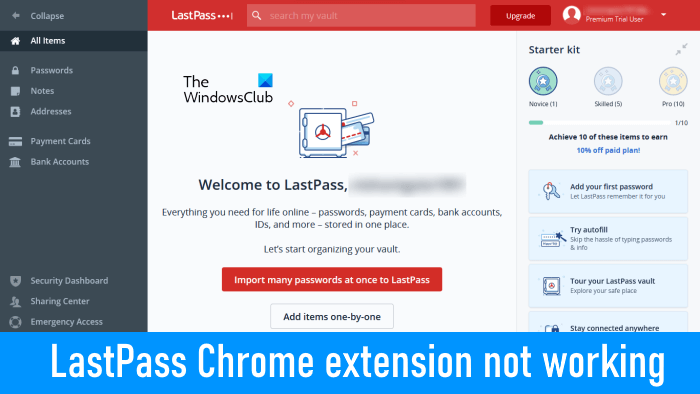
Credit: www.thewindowsclub.com
Common Reasons For Extension Failure
The LastPass extension in Chrome may stop working due to several common problems. These issues often cause the extension to freeze, not autofill, or not respond at all. Knowing the typical reasons helps in quick troubleshooting. Below are the main causes that affect the extension’s performance.
Browser Updates Impact
Chrome updates can sometimes break extension functions. New versions may change browser settings or security rules. These changes can stop LastPass from working properly. Updating the extension after a browser update is important. Sometimes, the extension needs to be reinstalled to match the new browser version.
Extension Conflicts
Other extensions running on Chrome can conflict with LastPass. Some extensions block scripts or change page behavior. This interference causes LastPass to freeze or fail to autofill passwords. Disabling other extensions one by one helps find the culprit. Running only LastPass can confirm if conflicts cause the problem.
Cache And Cookies Issues
Corrupted cache or cookies often disrupt LastPass functionality. Old or damaged data can block login sessions or autofill features. Clearing the browser cache and cookies refreshes stored data. This step often fixes the extension without reinstalling. Make sure to allow cookies for lastpass.com to keep it working well.

Credit: www.youtube.com
Quick Restart Techniques
Quick restart techniques can often resolve issues with the LastPass extension in Chrome. These methods refresh the extension’s connection without complex steps. They help fix common problems like unresponsiveness or autofill failure.
Restarting the extension or browser resets temporary glitches. It also clears minor cache problems that block proper function. These simple tricks save time before trying more detailed fixes.
Toggle Extension Off And On
Start by toggling the LastPass extension off and on in Chrome. Click the puzzle icon near the address bar to open the Extensions menu. Find LastPass and click “Manage Extensions.”
Switch the toggle off, wait a few seconds, then switch it back on. This action reloads the extension and refreshes its connection. Test if the extension works properly after this step.
Restart Chrome Browser
Close all Chrome windows to fully stop the browser. Wait a moment before reopening Chrome. Restarting clears temporary files and resets the browser’s state.
Open Chrome again and check the LastPass extension. This restart can fix loading errors or frozen extensions. It helps restore smooth functionality quickly.
Reinstalling Lastpass Extension
Reinstalling the LastPass extension can solve many common issues in Chrome. This process removes corrupted files and refreshes the extension’s settings. It ensures you have the latest version working properly with your browser. Follow simple steps to uninstall and download a fresh copy of LastPass.
Uninstalling The Extension
First, open Chrome and click the puzzle piece icon at the top right. This shows all your installed extensions. Find LastPass in the list and click the three dots next to it. Select “Remove from Chrome” to uninstall it. Confirm the removal when prompted. After uninstalling, close and restart Chrome to clear any leftover data.
Downloading Latest Version
Next, go to the Chrome Web Store using your browser. Search for “LastPass” in the store’s search bar. Click on the official LastPass extension from the results. Press the “Add to Chrome” button. Wait for the download and installation to finish. Once added, check that the extension icon appears next to the address bar. This confirms the extension is ready to use.
Adjusting Chrome Settings
Adjusting Chrome settings can solve many LastPass extension issues. These settings control how extensions behave and interact with websites.
Simple changes in Chrome often restore LastPass’s full functionality. Focus on site access, cookies, and permissions to fix common problems.
Enable Site Access For Lastpass
Open Chrome and go to chrome://extensions. Find LastPass in the list and click Details.
Look for Site access and select On all sites. This lets LastPass work on every webpage you visit.
Without site access, LastPass cannot fill passwords or save new entries. Enabling access often fixes blank or inactive extension issues.
Manage Cookie And Site Data
Cookies let LastPass remember your login info. Go to Chrome’s Settings, then Privacy and security.
Click Cookies and other site data. Make sure Block third-party cookies is off or add lastpass.com to the Allow list.
Strict cookie blocking stops LastPass from logging in or autofilling. Adjusting cookie settings helps maintain smooth password management.
Check Extension Permissions
Permissions control what LastPass can do in Chrome. Open chrome://extensions and click Details for LastPass.
Scroll to Permissions. Confirm LastPass has access to read and change data on websites.
Missing permissions can cause errors or prevent autofill. Granting full permissions restores extension functions.
Using Chrome Task Manager
Using Chrome Task Manager can help fix issues with the LastPass extension. This tool shows all processes running in Chrome, including extensions. It lets you see if LastPass is stuck or not responding. You can then stop problem processes to restore normal function. This method is quick and does not require restarting your whole browser.
Identify Lastpass Processes
Open Chrome Task Manager by pressing Shift + Esc on Windows or Search + Esc on a Chromebook. A window appears listing all active Chrome processes. Look for any entries with “LastPass” in the name. These are the processes related to the extension. Check if these processes use high memory or CPU or show as “Not Responding.”
Kill Unresponsive Processes
Select any LastPass process that seems frozen or uses too many resources. Click the End Process button at the bottom right of the Task Manager. This stops the process immediately. Chrome will restart the extension’s process automatically. This can clear errors and make LastPass work smoothly again without a full browser restart.
Troubleshooting Autofill Problems
Autofill problems with the LastPass Chrome extension can disrupt your browsing experience. These issues often prevent LastPass from filling in passwords automatically. Troubleshooting these problems helps restore smooth access to your accounts.
Start with simple checks to identify common causes. Adjusting settings and handling browser restrictions often fixes the issue quickly.
Verify Autofill Settings
Open the LastPass extension menu in Chrome. Check if the autofill feature is enabled. Sometimes, it turns off after updates or crashes. Make sure the setting for autofill is active for all sites you use.
Next, review the password vault inside LastPass. Confirm your login details are saved correctly. Incorrect or missing entries stop autofill from working properly. Save any new passwords or update existing ones if needed.
Handle Third-party Cookie Blocks
Chrome may block third-party cookies by default. This block can stop LastPass from working correctly. Go to Chrome settings and open the Cookies section.
Allow cookies for lastpass.com to avoid interruptions. You can add lastpass.com to the list of allowed sites. This step ensures LastPass can access necessary data for autofill.
Clearing cookies and cache can also help if the extension acts strangely. Restart Chrome after these changes to refresh the browser environment.
Lastpass Debugging Tools
LastPass debugging tools help identify and fix issues with the Chrome extension. These tools provide detailed information about the extension’s behavior. They allow users to spot errors and performance problems quickly.
Using debugging tools can save time and reduce frustration. It helps users understand why LastPass might not work properly. These tools are built into the extension and easy to access.
Accessing Lastpass Debug Mode
Open Chrome and click the LastPass icon in the toolbar. Next, select the menu option labeled “More Options.” Find and click “Advanced Options.”
Choose “Debug” or “Debug Mode” from the list. This opens a new tab with detailed logs and settings. Users can watch real-time activity and error messages here.
Enable debug mode to monitor extension processes. This mode gathers data for troubleshooting without affecting normal use.
Common Debug Actions
Clear cache and cookies from LastPass to fix login problems. This removes corrupted data that may block functionality.
Check for errors in the debug log. Look for repeated warnings or failures related to autofill or vault access.
Restart the extension using the debug menu. This refreshes LastPass without needing to restart Chrome.
Test password autofill and form filling while debug mode runs. Watch the debug output for any issues during these actions.
Use the debug tools to identify conflicts with other Chrome extensions. Disable suspicious extensions and retest LastPass.
Additional Tips From Users
Many users face issues with the LastPass extension on Chrome. They often share useful tips that can help fix the problem quickly. These tips come from real experiences and provide practical solutions. Below are some additional user-recommended methods to try when the LastPass extension stops working.
Temporary Workarounds
Some users suggest disabling and enabling the extension to fix it temporarily. Click the puzzle icon, find LastPass, and toggle it off and on again. This simple step can restore functionality for a short time.
Others recommend clearing the browser cache and cookies. This can remove corrupted data that might block LastPass from working. Restart Chrome after clearing cache for best results.
If autofill is not working, try manually copying passwords from the vault. Users report this helps while waiting for a full fix. Keeping a backup of important passwords offline is also wise.
Community Solutions
Many users share fixes on forums like Reddit and LastPass community boards. One common tip is to check site access permissions. Ensure LastPass can run on all sites by adjusting settings in chrome://extensions.
Some community members suggest using Chrome’s Task Manager to end the LastPass process. This forces the extension to restart fresh. Open Task Manager with Shift + Esc and look for LastPass to kill the process.
Others advise reinstalling the extension completely. Remove LastPass from Chrome, restart the browser, then reinstall from the official Chrome Web Store. This often clears bugs that cause failures.
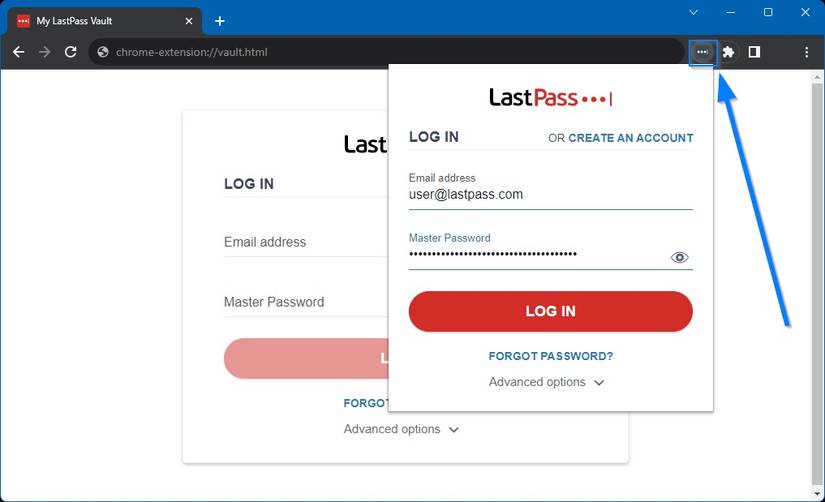
Credit: www.makeuseof.com
Frequently Asked Questions
Why Are My Extensions Not Working On Chrome?
Extensions may not work on Chrome due to outdated versions, disabled settings, conflicting extensions, or browser cache issues. Update Chrome and extensions, enable them in settings, clear cache, and restart the browser to fix the problem.
How Do I Enable The Lastpass Extension In Chrome?
Click the puzzle icon in Chrome’s top right, select Manage Extensions, then toggle LastPass on. Ensure site access is enabled. Restart Chrome if needed.
Why Are People Leaving Lastpass?
People are leaving LastPass due to recent security breaches, changes in pricing, and declining user trust in its service.
Why Is Lastpass Autofill Not Working In Chrome?
LastPass autofill may not work in Chrome due to outdated extension, disabled permissions, or cookie restrictions. Toggle the extension off and on, check site access, clear cookies, or reinstall LastPass from the Chrome Web Store to fix the issue.
Why Is My Lastpass Extension Not Working In Chrome?
The LastPass extension may stop working due to outdated versions or browser conflicts. Clearing cache or reinstalling the extension often fixes the issue.
Conclusion
Troubles with the LastPass extension in Chrome can be frustrating. Simple fixes like toggling the extension or reinstalling it often help. Checking your browser’s settings ensures LastPass works smoothly. Keep your Chrome browser and LastPass updated for best results. These steps improve your password management experience quickly.
Stay patient and try each solution carefully. You’ll get your LastPass extension working again soon.