
Is your Canon printer’s error light blinking, leaving you stuck and unsure what to do next? You’re not alone and the good news is that blinking lights aren’t just random signals.
They actually communicate specific problems your printer is facing. Once you learn to decode these flashing patterns, you can quickly identify the issue and get your printer back to work without the usual frustration. You’ll discover easy-to-follow steps to fix common Canon printer error light blinking problems.
Whether it’s paper jams, cartridge issues, or other glitches, you’ll find clear solutions that save you time and hassle. Keep reading, and take control of your Canon printer’s blinking error light today.
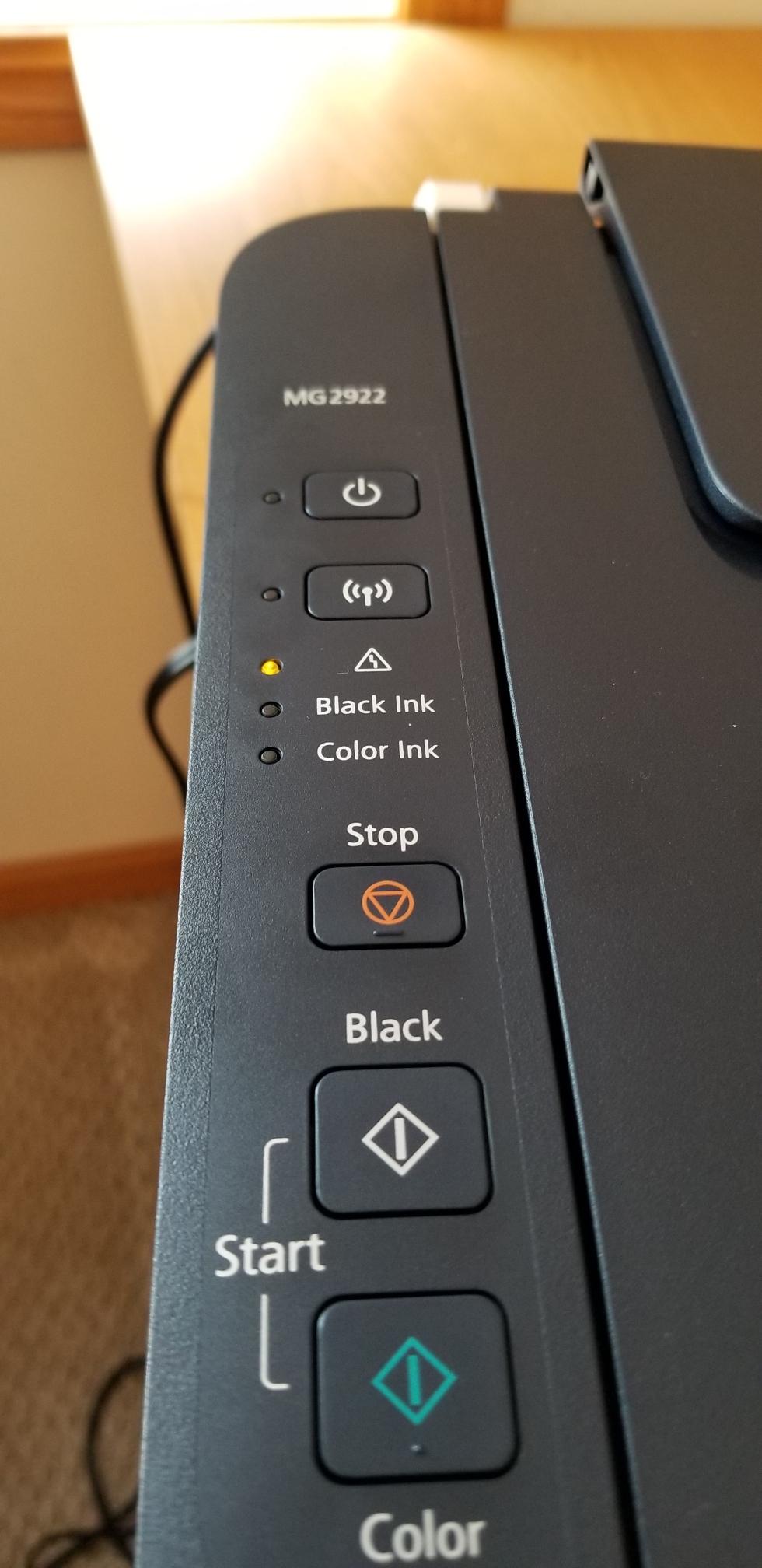
Error Light Codes
Paper issues often cause the Canon printer error light to blink. Problems like misaligned paper, jams, or scraps can stop printing. Addressing these issues quickly can restore smooth printing. Follow these steps to check and fix paper-related problems.
Checking Paper Tray And Guides
First, open the paper tray carefully. Check if the paper is loaded correctly. The stack should be neat and not bent or folded. Adjust the paper guides so they fit snugly against the paper edges. Loose guides can cause feeding errors. Use the correct paper size for your print job.
Clearing Paper Jams
Paper jams cause the printer light to blink repeatedly. Open all printer covers and trays. Gently pull out any stuck paper in the printer path. Avoid tearing the paper to prevent scraps inside. Check the rollers for stuck bits of paper. Remove any visible jam carefully to avoid damage.
Removing Small Paper Scraps
Small scraps of paper can block sensors and rollers. Use a flashlight to look inside the printer. Remove any tiny pieces of paper left after a jam. These scraps might cause repeated errors. Clean the paper path gently with a soft cloth. Keeping the printer clear helps avoid blinking error lights.

Paper Issues
Ink cartridge problems often cause the Canon printer error light to blink. These issues stop the printer from working correctly. Many errors happen because the cartridges are not installed right or are blocked by protective tape. Understanding how to handle these problems can help fix the blinking error light quickly.
Proper Cartridge Installation
Cartridges must fit snugly into their slots. Loose or incorrect placement triggers the error light. Push the cartridges gently but firmly until they click. Avoid forcing them, which can damage the printer. Check that each cartridge matches its color-coded slot. This step prevents ink flow problems and error signals.
Removing Protective Tape
New cartridges come with protective tape covering the ink nozzles. This tape stops ink from leaking during shipping. The printer cannot print if the tape stays on. Peel off the tape carefully before installing the cartridge. Use your fingers to avoid tearing or leaving residue. Missing this step is a common cause of blinking lights.
Resetting Cartridges
Sometimes cartridges need a reset to clear the error light. Turn off the printer and open the cartridge cover. Remove the cartridges and wait for 10 seconds. Reinsert them properly and close the cover. Turn the printer back on. This process resets the cartridge sensors and can stop the blinking light.
Ink Cartridge Problems
A blinking error light on your Canon printer signals a problem. This light flashes in a certain pattern to show specific issues. General troubleshooting helps fix common errors quickly. Following simple steps often clears the error and resumes printing.
Try easy methods before calling for help. These steps check basic problems like paper jams, cartridge issues, or connectivity troubles. Most users can solve errors by restarting devices or using the Canon PRINT app. Keep your printer ready to print with these quick fixes.
Restarting Printer And Computer
Turn off the printer and unplug it from the power source. Wait for 30 seconds before plugging it back in. Power on the printer and check if the error light stops blinking.
Restart your computer as well. This clears temporary glitches that may block communication with the printer. After both devices restart, try printing again to see if the issue is resolved.
Using Canon Print App
Download the Canon PRINT app on your smartphone or tablet. This app helps you manage printer settings and diagnose errors easily. Open the app and connect it to your Canon printer through Wi-Fi.
The app shows error messages and guides you through simple fixes. Follow the instructions step-by-step to clear the blinking error light. The app also lets you check ink levels and print status remotely.
Consulting Canon Support
If the error light keeps blinking, contact Canon Support for help. Visit the official Canon website or call their support line. Provide the error light pattern and printer model for quick assistance.
Canon experts can guide you through advanced troubleshooting or arrange repairs. Keep your printer manual and purchase details handy when contacting support. Professional help ensures your printer works correctly again.

Frequently Asked Questions
Why Is My Canon Printer Flashing Error?
Your Canon printer flashes error lights to signal specific issues like paper jams, misaligned paper, or improperly installed ink cartridges. Count the flashes to identify the problem. Check paper trays, clear jams, reinstall cartridges correctly, or clean contacts to fix most errors.
Contact support if the waste ink pad is full.
How Do I Get My Canon Printer Out Of Error State?
Restart your Canon printer and computer. Check for paper jams and remove any stuck paper. Reinstall ink cartridges properly. Clean cartridge contacts gently. Verify paper size and tray alignment. Use the Canon PRINT app or contact support if the error persists.
What Does The Blinking Triangle Mean On A Canon Printer?
A blinking triangle on a Canon printer signals an error. It often indicates paper jams, cartridge issues, or an internal waste ink pad nearing full. Check paper trays, cartridges, and remove jams. For precise error codes, count the blinks and consult the printer manual or Canon Support.
How To Fix Blinking Orange Light On Printer?
Check paper tray and align guides properly. Remove jammed paper inside. Reinstall ink cartridges firmly after removing protective tape. Clean cartridge contacts gently with a lint-free cloth. Restart printer. Contact Canon Support if the waste ink pad is full.
What Does Canon Printer Error Light Blinking Mean?
A blinking error light on a Canon printer signals a specific problem. The number of flashes helps identify the exact issue quickly.
Conclusion
A blinking error light on your Canon printer signals a specific problem. Counting the flashes helps identify the issue quickly. Common fixes include checking paper alignment, clearing jams, or reseating ink cartridges. Regular maintenance can prevent many errors from occurring.
Staying calm and following simple steps saves time and frustration. Your printer will be ready to use again soon.