
Are you struggling with copy and paste not working in your Citrix Workspace? You’re not alone, and it can be frustrating when you need to move text or files quickly between your local device and your virtual session.
Whether you’re in Austin, Texas, or anywhere else, this issue can slow down your workflow and cause unnecessary headaches. But don’t worry—there are simple steps you can take to fix this problem fast. You’ll discover why copy-paste stops working in Citrix Workspace, what common mistakes to avoid, and easy troubleshooting tips you can try right now to get things running smoothly again.
Keep reading to regain control over your clipboard and boost your productivity instantly.
Common Causes
Copy and paste issues in Citrix Workspace usually result from a few common problems. Understanding these can help you fix the issue quickly. Most problems come from clipboard mapping errors, session glitches, or security rules. Each affects how data moves between your local device and the Citrix environment. Troubleshooting starts with these key areas.
Clipboard Mapping Issues
Clipboard mapping links your local clipboard to the Citrix session clipboard. If this link breaks, copying and pasting stops working. This can happen if the clipboard service inside Citrix crashes. The vclip.exe process manages clipboard sharing. If it fails, the clipboard won’t sync. Restarting the Citrix session or ending vclip.exe can fix this.
Session Glitches
Temporary glitches inside your Citrix session can disrupt clipboard functions. These glitches may appear after long sessions or network hiccups. Logging off and reconnecting the session often restores clipboard features. A full reboot of your local computer can also clear session-related errors. Keeping your Citrix Workspace app updated helps reduce such glitches.
Security Policy Restrictions
Company security policies may block clipboard sharing to protect sensitive data. IT admins can disable clipboard redirection using Group Policy settings. This stops copying files or text between your device and Citrix. If copy-paste suddenly stops working, check with your IT team. They might have changed clipboard rules to tighten security.
Basic Fixes
Basic fixes help resolve common copy-paste issues in Citrix Workspace. These simple steps reset clipboard functions and clear temporary glitches. They often restore normal clipboard behavior without complex changes. Start with these easy methods before trying advanced solutions.
Log Off And Reconnect
Fully log off your Citrix session instead of just disconnecting. Logging off resets the clipboard mapping inside the virtual session. Reconnect to start a fresh session. This step often solves clipboard syncing issues quickly.
Restart Local Computer
Restart your local computer to clear any software conflicts. A reboot refreshes system drivers and services related to Citrix. This step fixes many underlying problems affecting clipboard functionality.
Force Restart Clipboard Service
Open Task Manager inside the Citrix session. Find the process named vclip.exe, which handles clipboard functions. End this process to force it to restart automatically. This can solve clipboard freezing or failure to copy and paste.
Advanced Solutions
Advanced solutions help resolve stubborn copy-paste problems in Citrix Workspace. These methods focus on settings and permissions that control clipboard functionality. Adjusting these options can restore smooth clipboard operation between your local device and Citrix sessions.
Enable Client Clipboard Redirection
Client Clipboard Redirection allows copying and pasting between your device and Citrix session. Check if this feature is enabled in Citrix policies. Administrators can activate it through Citrix Studio or Group Policy. Without this setting, clipboard sharing will not work properly. Enabling it ensures data flows freely between your local and virtual environments.
Check Active Directory Group Membership
Clipboard access can be limited by group membership in Active Directory. Confirm your user account belongs to groups allowed clipboard use. Sometimes, IT restricts clipboard functions to certain users for security reasons. Request your administrator to verify and update your group memberships if needed. Proper group assignment grants necessary permissions for copy and paste.
Adjust Browser Clipboard Permissions
Browsers control clipboard access through permissions and security settings. If you access Citrix Workspace via a browser, check clipboard permissions there. Browsers like Chrome and Edge ask for user approval before allowing clipboard actions. Grant permission for the Citrix web app to use clipboard features. This step ensures clipboard functions work inside your browser session.

Troubleshooting Tools
Effective troubleshooting tools are vital for resolving Citrix Workspace copy-paste issues. These tools help identify and fix clipboard problems quickly. Using simple methods, users can restore clipboard functionality without needing deep technical knowledge.
Below are key tools and settings that aid in troubleshooting clipboard problems in Citrix Workspace.
Using Task Manager To Kill Vclip.exe
The vclip.exe process handles clipboard operations in Citrix sessions. Sometimes, it gets stuck or crashes, causing copy-paste to stop working. To fix this, open Task Manager inside your Citrix session.
Locate vclip.exe in the Processes tab. Right-click it and choose End Task. This action forces the clipboard service to restart. After killing the process, test copy-paste again. This simple step often resolves clipboard glitches.
Session Toolbar Clipboard Controls
The Citrix session toolbar offers clipboard controls to manage copy-paste actions. Look for the clipboard icon on the toolbar during your session. Clicking this icon opens the clipboard panel.
This panel shows copied content and lets you paste into your virtual desktop. Sometimes, data must be manually updated here. Using the session toolbar ensures clipboard data syncs correctly between your local device and the Citrix session.
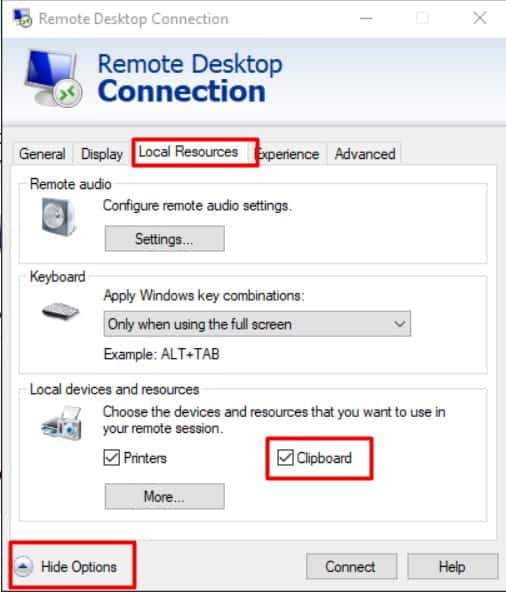
Remote Desktop Clipboard Settings
Clipboard redirection settings affect copy-paste functionality in remote sessions. Within Citrix, verify that clipboard redirection is enabled on both client and server sides. Network or security policies might block clipboard sharing.
Check Remote Desktop settings for any restrictions on clipboard sharing. Enabling clipboard redirection allows text, images, and files to move smoothly between your computer and Citrix workspace. Adjust these settings to restore copy-paste features.
Mobile And Tablet Tips
Using Citrix Workspace on mobile devices like smartphones and tablets often comes with unique challenges. Copy and paste features may not work as smoothly as on desktops. Understanding mobile-specific issues helps improve your workflow. Here are some tips to handle clipboard problems on mobile and tablet devices.
Clipboard Limitations On Mobile Devices
Mobile operating systems restrict clipboard access for security reasons. This limits how apps share data through copy and paste functions. Citrix Workspace inherits these restrictions, which can block clipboard redirection. Some data types, like images or formatted text, may not transfer properly. Clipboard size limits can also cause failures during large copy-paste actions.
Touchscreen controls add complexity, making selection and copying harder. Network interruptions on mobile data or Wi-Fi can disrupt clipboard syncing. These factors contribute to inconsistent copy-paste behavior in Citrix Workspace on mobile.
App-specific Workarounds
Certain mobile apps offer workarounds to improve clipboard use within Citrix Workspace. Use the session toolbar’s clipboard icon to manually paste copied content. This method bypasses some automatic syncing issues. Some users switch to plain text format before copying to avoid formatting problems.
Third-party clipboard manager apps can help store and manage copied data on your device. These apps support clipboard history and sometimes improve integration with Citrix sessions. Always test app compatibility before relying on these tools for critical work.
Preventive Measures
Preventing copy-paste issues in Citrix Workspace starts with simple, regular actions. These measures keep your workspace running smoothly and reduce frustrations. Follow best practices to avoid common problems before they occur.
Regular App Updates
Keep Citrix Workspace updated to the latest version. Updates fix bugs that cause clipboard problems. They also improve compatibility with your device’s operating system. Enable automatic updates to avoid missing critical patches. Check for updates weekly if automatic updates are off.
Policy Configuration Checks
Review clipboard policies regularly. Some policies block copy-paste features to protect data. Confirm that “Client Clipboard Redirection” is enabled in Citrix policy settings. Work with your IT team to adjust policies if needed. Proper policy settings prevent unexpected blocking of clipboard functions.
User Training On Clipboard Use
Train users on how to use the clipboard correctly in Citrix. Explain clipboard icons and toolbar functions clearly. Teach users to copy from the local device before pasting into the session. Show how to update clipboard content inside Citrix Workspace. Proper training reduces user errors and support tickets.
Credit: docs.citrix.com
Frequently Asked Questions
How Do I Enable Copy And Paste In Citrix Workspace?
To enable copy and paste in Citrix Workspace, open your virtual session, click the clipboard icon, paste content, and click Update. Ensure “Client Clipboard Redirection” is enabled in policies. Restart your session or local computer if issues persist.
Why Is My Copy And Paste Not Working Anymore?
Copy-paste may stop working due to broken clipboard mapping, session glitches, or security restrictions. Restart your session, reboot your computer, or kill the vclip. exe process to fix it. Contact IT if issues persist, as clipboard redirection might be disabled by policy.
Does Citrix Allow Clipboard Redirection?
Yes, Citrix allows clipboard redirection by default. It enables copying and pasting text, images, and files between local and virtual sessions. Administrators can control this feature through policy settings to enhance security or functionality.
How To Use Ctrl+alt+del In Citrix Session?
Press Ctrl+Alt+End inside the Citrix session to open the security options menu. This substitutes Ctrl+Alt+Del within Citrix.
Why Is Copy And Paste Not Working In Citrix Workspace?
Copy-paste issues often occur due to broken clipboard mapping or session glitches. Security policies may also restrict clipboard use. Restarting the session or local computer often fixes this.
Conclusion
Copy and paste issues in Citrix Workspace can disrupt work. Simple steps often fix the problem quickly. Restart your session or local computer first. Ending the vclip. exe process can also help. Check with IT if policies block clipboard use.
Ensuring proper permissions and settings matters. These actions restore smooth copying between devices. Keep these tips handy for future troubles. Staying patient and methodical solves most problems fast.