
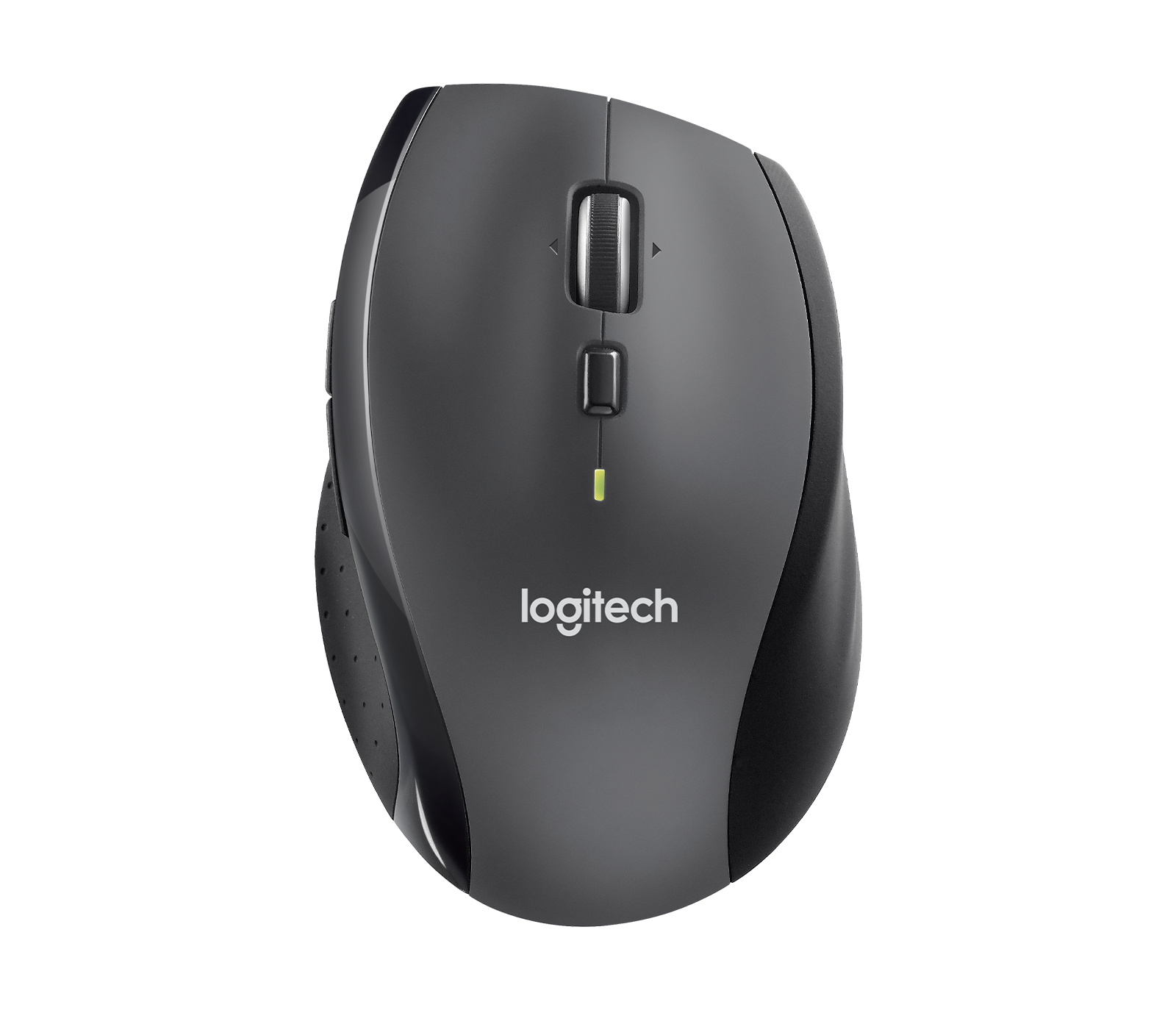
Is your Logitech M705 mouse suddenly not working? It’s frustrating when a reliable device like this stops responding just when you need it most.
But don’t worry—you’re not alone, and there are simple steps you can take to get it back up and running quickly. Whether your mouse won’t connect, the cursor won’t move, or the buttons aren’t responding, this guide will walk you through easy fixes that anyone can do.
Keep reading, and you’ll have your Logitech M705 working smoothly again in no time.
Common Causes
The Logitech M705 mouse may stop working due to several common issues. Identifying the cause helps fix the problem quickly. These issues often involve power, connection, or software errors. Understanding each cause makes troubleshooting easier.
Battery Issues
Weak or dead batteries are a frequent cause of mouse failure. The mouse needs fresh batteries to work properly. Even partially drained batteries can cause erratic behavior. Replacing the batteries with new ones often solves the problem. Always check the battery orientation before inserting them.
Usb Receiver Problems
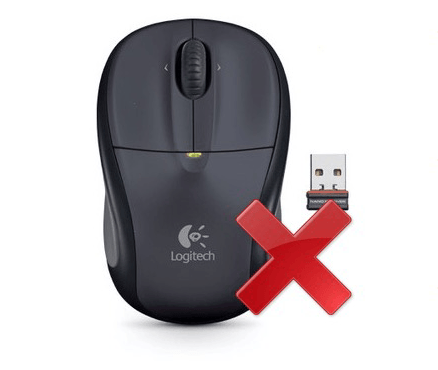
The USB receiver connects the mouse to the computer. Problems with this receiver can stop the mouse from working. The receiver may be loose or not fully plugged in. Dust or damage to the USB port can cause connection issues. Try plugging the receiver into a different USB port. Avoid using USB hubs as they can block signals.
Sensor Blockage
The mouse sensor tracks movement on surfaces. Dust or debris covering the sensor can block tracking. Clean the sensor gently with a soft, dry cloth. Avoid using liquids that might damage the sensor. Use the mouse on a smooth, clean surface for best results.
Software Glitches
Software problems can disrupt mouse functionality. Outdated or corrupted drivers may cause issues. The Logitech software might need updating or reinstalling. Restart the computer to clear temporary glitches. Resetting the mouse using Logitech’s software can restore normal function.

Credit: www.youtube.com
Basic Troubleshooting
Basic troubleshooting helps identify simple problems with your Logitech M705 mouse. Trying easy fixes first saves time and effort. Many issues come from power, connection, or dirt on the sensor. Follow these steps to check the mouse and receiver before deeper fixes.
Replace Batteries
Old or weak batteries cause the mouse to stop working. Remove the battery cover and take out the old batteries. Put in new, fresh batteries with the correct polarity. Turn the mouse back on and test if it works. Low power often leads to unresponsive clicks or movement.
Check Usb Ports
Plug the Unifying receiver into a different USB port. Sometimes, ports fail or lose power. Use a USB port directly on your computer, not a keyboard or monitor. Make sure the port is clean and free from dust. A working port is essential for proper mouse connection.
Clean The Sensor
Dust or dirt on the optical sensor blocks the mouse from tracking. Turn the mouse over and find the sensor window. Gently wipe the sensor with a soft, dry microfiber cloth. Avoid using liquids or rough materials that could damage the sensor. A clean sensor improves cursor movement.
Bypass Usb Hubs
USB hubs can cause interference or power issues. Unplug the Unifying receiver from any USB hub or extension. Connect it directly to a USB port on your computer’s motherboard. This direct connection helps prevent signal loss and improves mouse performance. Test the mouse again after bypassing hubs.
Reconnecting The Mouse
Sometimes the Logitech M705 mouse stops working because it loses connection. Reconnecting the mouse can fix this issue quickly. This step restores communication between the mouse and your computer.
Try reconnecting before considering other troubleshooting methods. The process is simple and can solve many common problems.
Using Logitech Options+ Software
Start by downloading and installing Logitech Options+ software. This tool helps manage and connect Logitech devices easily.
Open the software and look for the option to add a new device. Follow the on-screen instructions carefully. You might need to turn your mouse off and on again to activate pairing mode.
The software will search for your mouse and pair it automatically. This method ensures your mouse connects properly without extra steps.
Pairing Mode Activation
Activate pairing mode on your Logitech M705 to reconnect manually. Locate the power switch and turn off the mouse first.
Press and hold the pairing button on the bottom of the mouse. While holding the button, turn the mouse back on. Keep holding until the light blinks rapidly. This indicates the mouse is in pairing mode.
Next, press the connect button on the Logitech Unifying Receiver plugged into your computer. The blinking light should stop, showing a successful connection.
If pairing fails, repeat the steps or try reconnecting the receiver to a different USB port.
Performing A Hard Reset
Performing a hard reset on your Logitech M705 mouse can fix many issues. It clears temporary glitches that stop the mouse from working. This simple process restores the device to its default state.
Try a hard reset if the mouse is unresponsive or not connecting. It can solve problems caused by software or hardware bugs. The reset takes just a few minutes and needs no special tools.
Steps To Reset
- Turn off the mouse using the power switch.
- Unplug the USB Unifying receiver from the computer.
- Remove the batteries from the mouse.
- Press and hold the left click, right click, and scroll wheel buttons simultaneously.
- While holding the buttons, reinsert the batteries into the mouse.
- Turn the mouse power switch back on while still holding the buttons.
- Release all buttons after the mouse powers up.
- Plug the USB receiver back into your computer.
When To Use A Hard Reset
Use a hard reset if your mouse stops responding. It helps if the pointer freezes or the clicks don’t register. It also works when the mouse won’t connect to the receiver.
Try this reset before uninstalling drivers or replacing the mouse. It solves many common connection and performance issues. Use it when other troubleshooting steps fail to fix the problem.
Advanced Fixes
Advanced fixes target issues beyond basic troubleshooting. They involve checking internal parts and external compatibility. These steps need careful handling to avoid damage. Follow each step slowly and patiently.
Reseat Internal Sensor Cable
The sensor cable inside the Logitech M705 may loosen over time. To reseat it, first remove the battery cover and batteries. Use a small screwdriver to open the mouse shell carefully. Locate the sensor cable connecting the sensor to the circuit board.
Gently unplug the cable and then plug it back in firmly. Ensure the connection is secure without forcing it. Close the mouse shell and insert the batteries. Test the mouse to see if it works now.
Test On Another Computer
Testing the mouse on a different computer helps identify if the issue is with the mouse or the original PC. Connect the Logitech M705 and its receiver to another computer’s USB port. Avoid using USB hubs or extension cables.
Check if the mouse responds as expected. If it works, the problem lies in the first computer’s settings or ports. If it still does not work, the mouse or receiver may be defective. This test narrows down the cause effectively.
Credit: www.drivereasy.com
Preventive Tips
Preventing issues with your Logitech M705 mouse can save time and frustration. Simple habits keep your mouse working smoothly and extend its life. Follow these preventive tips to avoid common problems.
Proper Storage
Store your mouse in a dry, dust-free place. Avoid leaving it near liquids or food. Keep it away from extreme heat or cold. Use a protective case if you travel often. This prevents damage and dirt buildup.
Regular Maintenance
Clean your mouse regularly to keep it responsive. Use a soft, dry cloth to wipe the surface. Gently clean the sensor area to avoid tracking issues. Replace batteries before they run out to prevent power loss. Check the USB receiver for dust and clean it carefully.
Frequently Asked Questions
How Do I Reset A Logitech M705 Mouse?
To reset a Logitech M705 mouse, turn it off and remove the batteries. Hold left, right, and scroll wheel buttons simultaneously. While holding, reinsert batteries and power it on. Plug the USB receiver back into your computer. This performs a hard reset and restores connection.
How Do I Fix My Logitech Unresponsive Mouse?
Replace batteries and clean the sensor gently. Replug the USB receiver into a different port. Re-pair using Logitech software. Perform a hard reset by holding buttons while reinserting batteries. Test on another PC to rule out hardware failure.
Where Is The Reset Button On A Logitech Mouse?
Logitech mice don’t have a dedicated reset button. To reset, turn off the mouse, remove batteries, hold left and right buttons plus the scroll wheel, reinsert batteries, and turn it on. Use Logitech software to re-pair if needed.
Where Is The Easy Switch Button On Logitech Mouse M705?
The Easy-Switch button on the Logitech M705 mouse is located on the bottom side near the power switch. Press it to switch between paired devices.
Why Is My Logitech M705 Mouse Not Responding?
Your mouse may have dead batteries or a loose USB receiver. Check battery power and reconnect the receiver to the computer.
Conclusion
Troubles with the Logitech M705 mouse can be frustrating. Simple steps often fix the problem quickly. Check the batteries and clean the sensor first. Reconnect the receiver directly to the computer’s USB port. Use Logitech software to re-pair the mouse if needed.
A hard reset can also solve firmware issues. Testing the mouse on another computer helps identify hardware failure. Following these tips can restore your mouse’s function. Stay patient and try each step carefully. Your Logitech M705 can work well again.