
The world of streaming has changed how we watch TV. Devices like the Amazon Firestick have made it possible to access thousands of shows, movies, and apps on almost any screen. But does the Firestick really work on any TV? Many people want to know if they can plug a Firestick into their old television or if they need a special model for it to work. Others wonder if it’s as simple as plugging in and watching, or if there are hidden steps involved.
In this guide, you’ll get clear, detailed answers to these questions. You’ll learn what you need for a Firestick to work, which TVs are compatible, and what to do if your TV is older. We’ll explore different TV types, cover common problems, and even compare Firestick with other devices.
If you’re thinking about buying a Firestick or just want to use one on a different TV, you’ll find everything you need right here.
Understanding How The Firestick Works
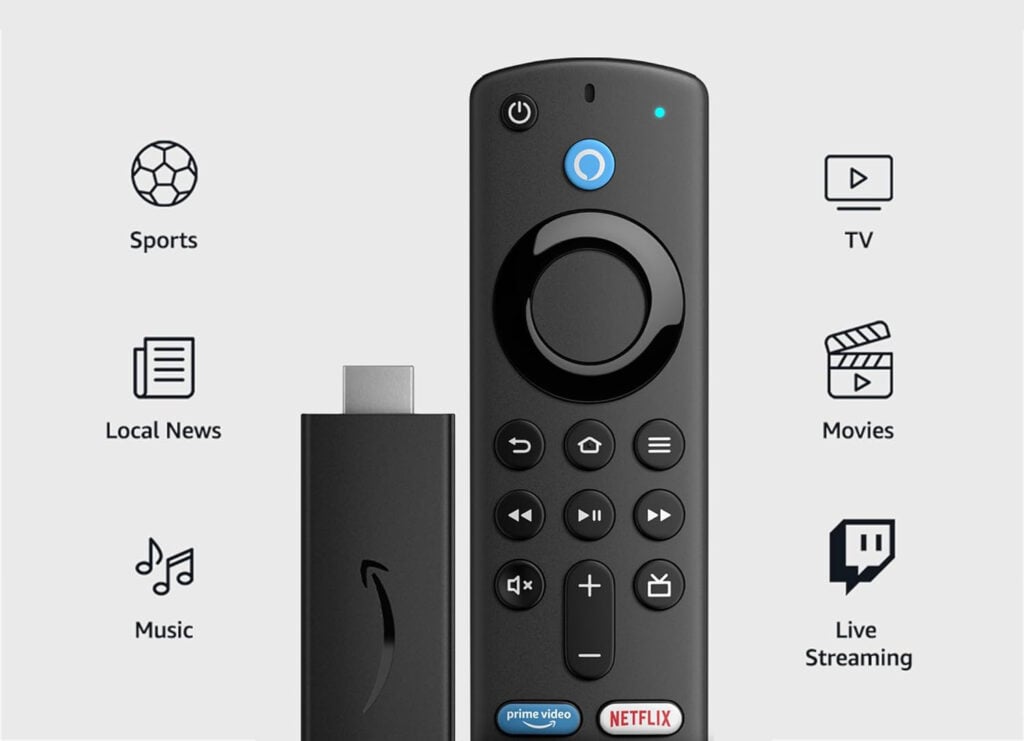
The Amazon Firestick is a small device that plugs into your TV. It connects to the internet and lets you stream content from platforms like Netflix, Amazon Prime Video, Hulu, and many others. You control it with a remote, and the interface appears on your TV screen.
How The Firestick Connects
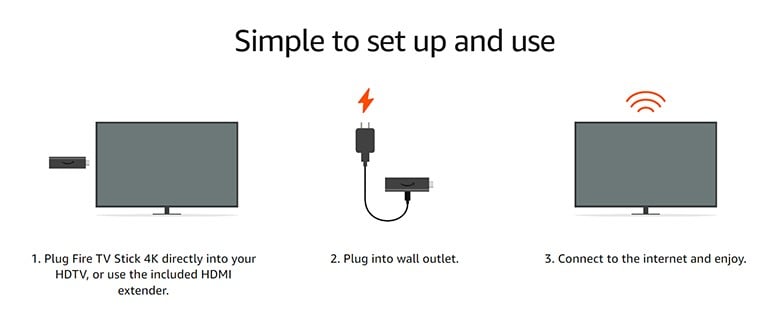
The main way the Firestick connects to your TV is through an HDMI port. HDMI stands for High-Definition Multimedia Interface, and it’s the standard for modern TVs. The Firestick gets power from a USB cable, which you can plug into your TV’s USB port or into a wall adapter.
What The Firestick Needs To Work
For the Firestick to work, it needs:
- An HDMI port on your TV
- A power source (USB port or wall plug)
- Wi-Fi connection for streaming
If your TV meets these three requirements, the Firestick should work. But there are some exceptions and extra steps, especially with older TVs.
Which Tvs Are Compatible With Firestick?
Not every TV is the same. Some are brand new, while others are decades old. Let’s look at how the Firestick works with different types of TVs.
Modern Smart Tvs
Most Smart TVs made in the last 10 years have HDMI ports and USB power. These TVs work perfectly with the Firestick. Even if your TV already has built-in apps, you can use a Firestick for a different experience or to access apps not available on your TV.
Regular Flat-screen Tvs
Many TVs are not “smart,” but they have HDMI ports. These are called HD TVs or LED TVs. If your TV has at least one HDMI port, you can use a Firestick. Plug it in, power it up, and connect to Wi-Fi.
Older Tvs (no Hdmi)
Some older TVs, especially those made before 2006, don’t have HDMI ports. They might have RCA (red, white, yellow) or component connectors. The Firestick does not plug directly into these TVs, but you can use an HDMI to RCA converter. This device changes the HDMI signal to one your old TV can use.
4k Tvs
The Firestick also works with 4K TVs. In fact, there’s a special Fire TV Stick 4K designed for ultra-high-definition TVs. If you want to watch content in 4K, your TV needs to support 4K, and you should use the Firestick 4K model.
Portable Tvs And Projectors
Some people want to use a Firestick with portable TVs or projectors. As long as the device has an HDMI port and a way to power the Firestick, it will work. For projectors, you may need to use external speakers since some don’t send audio through HDMI.
Quick Compatibility Checklist
Before you buy or try a Firestick on your TV, check these points:
- Does your TV have an HDMI port?
- Can you power the Firestick with USB or a wall outlet?
- Do you have Wi-Fi in your home?
- Does your TV support HD or 4K (if you want those features)?
If you answer yes to all, your TV is compatible. If not, you might need an adapter or extra equipment.
How To Connect A Firestick To Your Tv
Setting up a Firestick is usually simple. Here are the basic steps:
- Plug the Firestick into an HDMI port on your TV.
- Connect the USB cable to the Firestick and plug the other end into the TV’s USB port or a wall adapter.
- Turn on your TV and select the correct HDMI input.
- Use the Firestick remote to set up Wi-Fi and sign in to your Amazon account.
If your TV is older or has different connectors, you’ll need to add a few extra steps with adapters.
What If My Tv Doesn’t Have Hdmi?
Many people wonder what to do if their TV is too old for HDMI. You’re not alone. Here’s how you can still use a Firestick:
Hdmi To Rca Converters
These small devices let you use a Firestick on a TV with only RCA (red, white, yellow) inputs. You connect the Firestick to the converter, then plug the converter into your TV’s RCA ports.
Example Setup
- Plug the Firestick into the HDMI port on the converter.
- Connect the RCA cables from the converter to your TV.
- Plug in the Firestick’s power.
- Set your TV to the correct input channel (usually AV or Video).
Things To Know
- The picture quality will not be HD. It will look more like a DVD.
- Some converters need their own power supply.
- Not all converters work with all TVs, so check reviews before buying.
Limitations
While this setup works, it’s not perfect. The Firestick was designed for HD screens, so some menus or text may be hard to read. Also, streaming services sometimes block non-HD outputs for copyright reasons. If you have trouble, try a different converter or check if your TV supports any HDMI options.
Firestick On Tvs With Limited Hdmi Ports
Many TVs have only one or two HDMI ports. If you have many devices (like a cable box, game console, or DVD player), you might run out of space.
Hdmi Switches
An HDMI switch lets you connect multiple devices to a single HDMI port. You press a button to switch between the Firestick and your other devices.
Setup Example
- Plug the HDMI switch into your TV.
- Plug the Firestick and other devices into the switch.
- Use the switch’s remote or button to choose which device is active.
This is an easy way to use a Firestick even if your TV has limited ports.

Does Firestick Work On Non-smart Tvs?
Many people buy a Firestick because their TV is not a “smart TV. ” The good news is that the Firestick can turn almost any TV into a smart TV, as long as it has an HDMI port.
With a Firestick, you get:
- Streaming apps (Netflix, Prime Video, Disney+, etc.)
- Voice control with Alexa
- Access to games and music apps
Your TV does not need to be smart. The Firestick provides all the smart features through its own interface.
Powering The Firestick: What Are Your Options?
The Firestick needs power to work. It usually comes with a USB cable and a small wall adapter.
Using The Tv’s Usb Port
Many TVs have a USB port. You can plug the Firestick’s USB cable here. However, some TV USB ports don’t provide enough power, causing the Firestick to restart or not work properly.
Using A Wall Adapter
The most reliable method is to plug the USB cable into the included wall adapter. This ensures the Firestick always gets enough power, even when your TV is off.
Using A Power Bank
Some people use a power bank (portable battery) for the Firestick, especially with portable TVs or during camping. This works, but the Firestick will only run as long as the power bank lasts.
Comparing Firestick With Other Streaming Devices
The Firestick is popular, but it’s not the only streaming device. Here’s how it compares to other options for TV compatibility.
| Device | HDMI Required? | Works with Non-Smart TVs? | Special Features |
|---|---|---|---|
| Amazon Firestick | Yes | Yes, with HDMI or adapter | Alexa voice, Amazon apps |
| Roku Streaming Stick | Yes | Yes, with HDMI or adapter | Simple interface, many free channels |
| Google Chromecast | Yes | Yes, with HDMI or adapter | Cast from phone, Google integration |
| Apple TV | Yes | Yes, with HDMI or adapter | Apple apps, AirPlay, Siri |
All these devices need an HDMI port or an adapter if you use an older TV.
Common Problems And Solutions
Even with the right TV, you might face some issues. Here’s how to solve them.
No Signal Or Black Screen
- Make sure the Firestick is fully plugged in.
- Check you’re on the correct HDMI input.
- Try using the wall adapter for power.
Remote Doesn’t Work
- Insert new batteries.
- Pair the remote again (hold the Home button for 10 seconds).
- Move closer to the TV.
Poor Picture Quality
- If using an HDMI-to-RCA converter, the picture won’t be HD.
- Make sure your Wi-Fi signal is strong.
- Try another HDMI port if possible.
Firestick Restarts Or Freezes
- Use the wall adapter for more stable power.
- Unplug and replug the device.
- Restart your router.
Firestick And Tv Brands: Are There Differences?
Most TVs, regardless of brand, work with the Firestick as long as they have HDMI. This includes Samsung, LG, Sony, Vizio, Panasonic, TCL, Hisense, and many others.
Some TVs have special HDMI features like CEC (Consumer Electronics Control), which lets you control the Firestick with your TV remote. If your TV supports CEC, you may have to enable it in the settings menu.
Examples Of Cec Features
- Turn on your TV when you press the Firestick remote.
- Control volume or inputs.
The name for CEC can vary by brand (for example, Samsung calls it Anynet+), but it works the same way.
Using Firestick With Computer Monitors
Some people want to use a Firestick with a computer monitor. This works if your monitor has an HDMI port. However, not all monitors have built-in speakers. You may need:
- External speakers connected to the monitor’s audio output
- A monitor with built-in audio
The Firestick won’t work with VGA-only monitors unless you use an HDMI-to-VGA adapter, and even then, you need a way to handle audio separately.
Firestick With Hotel And Public Tvs
Travelers often bring their Firestick to use in hotels or at friends’ houses. Here’s what to know:
- Many hotel TVs have HDMI ports, but some are locked or hard to reach.
- Some TVs require you to switch inputs using the hotel’s own remote.
- Public or hotel Wi-Fi networks may require a sign-in page. The Firestick can connect if you use the built-in browser for sign-in.
Tips For Travelers
- Bring the wall adapter in case the TV’s USB port is weak.
- Pack an HDMI extender if the TV’s ports are hard to reach.
- Consider a portable HDMI switch if you need to share the port with other devices.
Advanced Setups: Surround Sound And 4k
If you have a home theater system or a 4K TV, you can get more from your Firestick.
Surround Sound
Many Firesticks support Dolby Audio or Dolby Atmos. To enjoy this, your TV or sound system must support these formats. Sometimes, you need to plug the Firestick into an AV receiver instead of directly into the TV.
4k Streaming
To watch in 4K:
- Use the Fire TV Stick 4K model.
- Plug into a TV that supports 4K.
- Use a high-speed HDMI cable if your TV is older.
- Make sure your Wi-Fi is fast enough (at least 25 Mbps for 4K).
Real-world Examples
Let’s look at some actual cases:
- Old TV with only RCA: Maria used a Firestick with a $15 HDMI-to-RCA converter. She can now watch Netflix on her 20-year-old TV, though the picture is not as sharp as on newer TVs.
- Smart TV with missing apps: John’s Smart TV didn’t have Disney+. He plugged in a Firestick and now has access to more streaming apps.
- TV with only one HDMI port: Mike used an HDMI switch to connect his Firestick and game console to the same port.
- Projector movie night: Priya plugged her Firestick into a portable projector for an outdoor movie. She used Bluetooth speakers for better sound.
These examples show that with the right adapters and setup, the Firestick is flexible.
Data: Streaming Device Popularity
Statistics show the Firestick is one of the most popular streaming devices in the US. According to Statista, there were over 50 million active Fire TV users worldwide in 2023. This popularity means there are many resources, accessories, and support options available.
Adapter Types: What To Choose
If your TV lacks HDMI, picking the right adapter matters. Here’s a quick comparison:
| Adapter Type | TV Connector | Pros | Cons |
|---|---|---|---|
| HDMI to RCA | RCA (red, white, yellow) | Works with very old TVs | Low picture quality |
| HDMI to VGA | VGA (blue port) | Works with some monitors | No sound unless adapter supports audio |
| HDMI Switch | HDMI | Connect multiple devices | Needs power for some models |
For most people, HDMI to RCA is best for old TVs, while an HDMI switch is good for modern TVs with few ports.
Two Insights Beginners Often Miss
- Not all USB ports give enough power: Many users try to power their Firestick from their TV’s USB port, but some TVs only provide 0.5 amps, while the Firestick may need 1 amp. This can cause random restarts or slow performance. Always test with the included wall adapter if you have problems.
- Some streaming apps block analog output: If you use an HDMI-to-RCA adapter, certain apps (like Disney+ and some versions of Netflix) may not play content due to copyright protection. This is called HDCP (High-bandwidth Digital Content Protection), and it’s a common reason for black screens or error messages on old TVs.
What Really Matters When Choosing A Tv For Firestick
- HDMI Port: The most important feature.
- Screen Resolution: For HD or 4K content, your TV must support those resolutions.
- Audio Output: If your TV has poor speakers, consider connecting to a soundbar or receiver.
- Size of TV: Larger screens make streaming more enjoyable, but the Firestick works on any size.
- Age of TV: Very old TVs need adapters, which can reduce picture quality.
Avoid buying adapters or converters without checking reviews—some cheap ones don’t work well with the Firestick.
Environmental Impact And Recycling
Upgrading to a Firestick can save energy compared to buying a new smart TV. The Firestick uses less power and can extend the life of your old TV. If you upgrade your TV, recycle your old one responsibly. Many electronics stores and local governments offer recycling programs.
For more on responsible recycling, visit the EPA’s Electronics Recycling Guide.
Firestick Software Updates And Tv Compatibility
Amazon regularly updates Firestick software. Most updates work with any compatible TV, but very old adapters may not support new features. If you notice the Firestick slowing down or crashing, check for software updates in the Firestick settings.
Security And Privacy On Any Tv
Using a Firestick adds smart features to your TV, but also means you should think about security:
- Always use strong Wi-Fi passwords.
- Sign out of streaming apps before selling or giving away your Firestick.
- Use a guest network for visitors if you share your Firestick.
Summary: Does Firestick Work On Any Tv?
The Firestick works on almost any TV that has an HDMI port. For older TVs, you can use an adapter. While the experience is best on modern TVs, even old models can join the streaming era with a few extra steps.
Make sure your TV can power the device, consider adapters if needed, and enjoy a new world of content.
Frequently Asked Questions
Does Firestick Need A Smart Tv?
No, the Firestick does not need a smart TV. It works with any TV that has an HDMI port, even if the TV is not smart. The Firestick provides all the smart features.
Can Firestick Work On A Tv Without Hdmi?
Yes, but you’ll need an HDMI-to-RCA or HDMI-to-VGA adapter. These let you connect the Firestick to TVs without HDMI, but picture quality will be lower.
Why Does My Firestick Keep Restarting?
This usually happens if the Firestick is not getting enough power. Use the included wall adapter instead of your TV’s USB port for more stable power.
Can I Use Firestick On Multiple Tvs?
Yes. You can unplug the Firestick and move it to another TV, as long as that TV has an HDMI port and Wi-Fi. Your apps and accounts stay on the Firestick.
Do I Need An Amazon Account For Firestick?
Yes. You need an Amazon account to set up and use the Firestick. It’s free to create one if you don’t have it.
The Firestick is a versatile device that works with most TVs. With a little know-how, you can enjoy streaming no matter how old your TV is. Happy watching!