
If your LG TV is not connecting to WiFi, it can feel frustrating and confusing. Watching shows, streaming movies, or using smart features depends on a strong internet connection. Many people face this issue, and often, the solution is simple once you know where to look. In this article, you’ll find practical advice, expert insights, and step-by-step guidance to fix your LG TV WiFi problem. Even if you aren’t tech-savvy or English isn’t your first language, this guide will help you understand and solve the issue. You’ll also learn some non-obvious tricks that most beginners miss. Let’s dig in and make your TV smart again.
Understanding Lg Tv Wifi Connectivity
Before fixing the problem, it’s important to know how your LG TV connects to WiFi. LG Smart TVs use built-in wireless adapters to connect to your home router. When the TV cannot connect, it may be due to hardware, software, or network issues. Sometimes, the TV tries to connect but fails, or it doesn’t see the WiFi at all. Knowing these basics helps you troubleshoot more confidently.
How Lg Tvs Connect To Wifi
- WiFi Adapter: Inside your LG TV is a small wireless chip that finds and connects to WiFi networks. This chip is designed to detect signals from your router and link up automatically when you select your WiFi network.
- Operating System: LG uses webOS for smart features. If webOS has a bug, WiFi may not work. For example, some updates in webOS can temporarily disable WiFi until a patch is released, so it’s important to keep your software updated.
- Router Settings: Your router controls who connects to your home network. Wrong settings can block your TV. For instance, if the router’s security settings are too strict, it might prevent the TV from joining.
- Firmware Updates: LG often releases updates to improve connectivity and fix bugs. These updates not only address security holes but also improve compatibility with new router models and WiFi standards.
Common Symptoms
- TV cannot find WiFi networks.
- TV connects, then disconnects after a few seconds.
- TV shows “WiFi is turned off” or “Network not found.”
- Streaming apps buffer or fail to load.
- Sometimes, the TV connects to WiFi but cannot access the internet, which means the connection is incomplete.
Causes Of Lg Tv Wifi Issues
Understanding the cause is the first step to solving the problem. LG TVs may not connect to WiFi due to several reasons:
- Weak Signal: If your TV is far from the router, the signal may be too weak. Walls, floors, and furniture can block the signal.
- Incorrect Password: A wrong WiFi password stops the TV from connecting. Sometimes, after changing your WiFi password, the TV tries to connect with the old one.
- Network Congestion: Too many devices can slow the network, causing connection drops. For example, if your family is streaming videos or playing games, the TV may struggle to get enough bandwidth.
- Router Settings: Some routers block new devices or use unsupported WiFi bands. If your router uses a hidden SSID, your TV may not see it.
- Firmware Bugs: Outdated software can cause connection problems. Sometimes, an update may introduce a bug that makes WiFi unstable until LG releases a fix.
- Hardware Failure: The TV’s WiFi adapter can break or malfunction. This is rare but possible, especially after years of use or a power surge.
- Interference: Other electronics may interfere with the signal. Microwave ovens, cordless phones, or Bluetooth devices can create WiFi noise.
- MAC Filtering: Routers with MAC filtering block unknown devices. If your TV’s MAC address isn’t allowed, it won’t connect.
- DNS Issues: Bad DNS settings can prevent internet access. Sometimes, apps load slowly or not at all due to DNS problems.
- ISP Problems: Sometimes, your internet provider is the culprit. Outages, slowdowns, or regional issues can block connectivity.
Many users assume the problem is with the TV, but often the router or network is the real cause. Don’t skip checking your router and internet settings. Also, sometimes, the issue is temporary and resolves itself after a few hours or days.

Step-by-step Solutions For Lg Tv Wifi Not Connecting
You don’t need to be an expert to fix most WiFi problems. Below are clear steps, from simple to advanced, to get your LG TV back online.
1. Restart Your Tv And Router
The classic “turn it off and on again” trick works because it resets temporary glitches.
- Turn off your TV and unplug it from power for 30 seconds. This drains residual power, which can clear errors.
- Restart your router by unplugging it for 30 seconds. Many routers need a full power cycle to clear network cache.
- Plug both back in and try connecting again.
This step solves about 60% of minor WiFi issues. Sometimes, restarting your TV and router together gives the best results.
2. Check Wifi Signal Strength
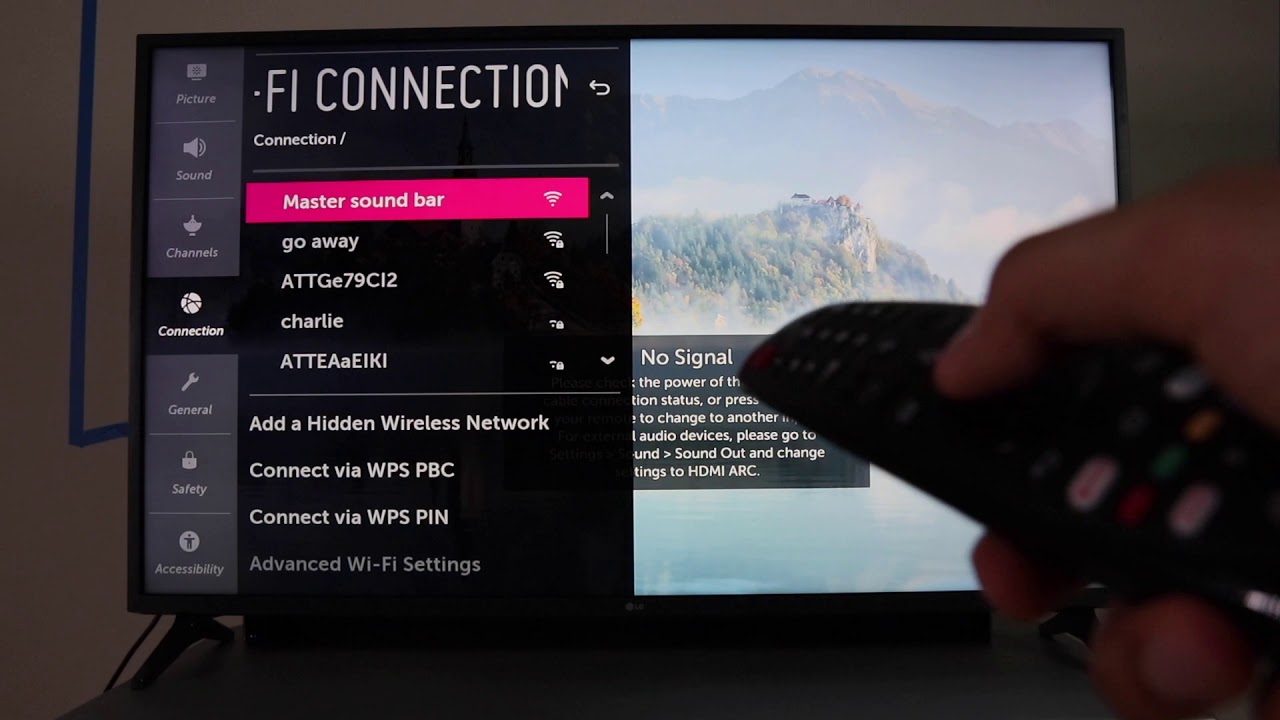
LG TVs show signal strength when you select your WiFi network.
- Go to Settings > Network > WiFi Connection.
- Look for the signal bars. Fewer bars mean weak signal.
- Move your router closer to the TV or use a WiFi extender.
If the signal is strong, move to the next step. If it’s weak, try to reduce obstacles like thick walls or metal objects between the TV and router. For best results, place the router in an open area.
3. Verify Wifi Password
Typing errors are common, especially with complex passwords.
- On your TV, forget the WiFi network and reconnect.
- Enter the password slowly and double-check each character.
- Use the “Show Password” option if available.
If you’re not sure about the password, check your router label or ask your ISP. If your password has special characters, make sure you type them correctly. A single wrong letter can stop the connection.
4. Update Lg Tv Firmware
Outdated firmware is a hidden cause of WiFi problems.
- Go to Settings > All Settings > Support > Software Update.
- Select “Check for updates.”
- If an update is available, install it and restart the TV.
Firmware updates fix bugs and improve WiFi performance. Sometimes, after an update, you need to re-enter your WiFi details. It’s wise to check for updates every month.
5. Reset Network Settings
If nothing works, try resetting all network settings.
- Go to Settings > All Settings > General > Reset to Initial Settings.
- Confirm the reset.
- Reconnect to your WiFi network.
This erases saved networks and settings, so you must re-enter your WiFi password. It also clears any incorrect settings that might block your TV from connecting.
6. Check Router Settings
Sometimes, the router blocks new devices by accident.
- Log in to your router’s admin page (usually 192.168.1.1 or 192.168.0.1).
- Check for MAC filtering. If enabled, add your TV’s MAC address.
- Make sure SSID broadcast is enabled (your WiFi should be visible).
- Try switching the WiFi band from 5GHz to 2.4GHz, as some TVs don’t support 5GHz.
If you don’t know how to change these settings, ask your ISP or check the router manual. Also, look for “guest mode,” which sometimes blocks smart TVs.
7. Test With Ethernet Cable
If WiFi still fails, use a wired connection.
- Connect your TV to the router with an Ethernet cable.
- Go to Settings > Network > Wired Connection.
If the TV works with Ethernet, the problem is with the WiFi signal or adapter. Using Ethernet is a good way to check if your TV’s smart features work with a stable network.
8. Use A Mobile Hotspot
This is a non-obvious trick. Sometimes, your home WiFi is the issue, not the TV.
- Turn on the hotspot feature on your smartphone.
- Connect your LG TV to the hotspot.
- If it connects, your router may need a reset or update.
Many beginners miss this step. It helps separate TV problems from router issues. For example, if your TV connects to the hotspot but not your home WiFi, it’s clear the router is the problem.
9. Change Dns Settings
Bad DNS can block apps and web access.
- Go to Settings > Network > WiFi Connection > Advanced Settings.
- Set DNS to 8.8.8.8 (Google DNS) or 1.1.1.1 (Cloudflare DNS).
- Save and reconnect.
Changing DNS often solves streaming app problems. This can also speed up your connection if your default DNS is slow or unreliable.
10. Factory Reset The Tv
If all else fails, a factory reset may help.
- Go to Settings > All Settings > General > Reset to Initial Settings.
- Confirm and wait for the TV to restart.
- Set up your TV from scratch and connect to WiFi.
Warning: This erases everything, including apps and settings. Only do this if you’re sure nothing else worked.
Advanced Troubleshooting For Persistent Wifi Problems
Sometimes basic steps are not enough. Here are more advanced fixes for stubborn issues.
Inspect The Wifi Module
LG TVs use a small WiFi module inside. If this module is loose or faulty, WiFi won’t work.
- Turn off and unplug your TV.
- Remove the back panel carefully (only if you are comfortable).
- Check if the WiFi module is securely connected.
- If you see damage, contact LG support or a technician.
This step is for confident users. If unsure, get professional help. Sometimes, dust or physical damage can cause the module to fail.
Update Router Firmware
Routers also need updates.
- Log in to your router’s admin page.
- Look for Firmware Update.
- Download and install updates if available.
Updated routers are more stable and secure. Outdated routers may have bugs that block smart TVs.
Check For Interference
Microwaves, cordless phones, and other electronics may interfere.
- Move your router away from such devices.
- Use 5GHz WiFi if your TV supports it (less interference).
If you live in a busy apartment, WiFi interference may be higher. Try to keep your router in a central location.
Assign Static Ip Address
Sometimes, the TV cannot get a dynamic IP.
- Go to Settings > Network > Advanced Settings.
- Set IP address manually (e.g., 192.168.1.100).
- Enter correct Gateway and Subnet Mask.
Static IP can solve connection drop issues. Make sure the IP is not used by other devices.
Compare Lg Tv Models For Wifi Reliability
Not all LG TVs are equal. Some models handle WiFi better.
Here’s a comparison of popular LG TV models and their WiFi features:
| Model | WiFi Standard | 2.4GHz Support | 5GHz Support | Firmware Updates |
|---|---|---|---|---|
| LG OLED C1 | 802.11ac | Yes | Yes | Frequent |
| LG NanoCell 90 | 802.11ac | Yes | Yes | Regular |
| LG UHD 43UN7300 | 802.11n | Yes | No | Occasional |
| LG Smart TV 32LM6300 | 802.11n | Yes | No | Rare |
Newer models handle WiFi better and get more updates. If your TV is older, WiFi issues are more common. Also, newer models often support faster WiFi speeds and more stable connections.

Data On Lg Tv Wifi Problems
LG TVs are popular, but WiFi issues are frequent. According to a 2023 user survey, about 22% of LG TV owners report at least one WiFi problem per year. Most problems happen after a software update or router change.
Here’s a breakdown of the most common causes:
| Cause | % of Cases | Typical Fix |
|---|---|---|
| Router Settings | 35% | Reset Router |
| Firmware Bugs | 28% | Update TV |
| Weak Signal | 20% | Move Router |
| Hardware Failure | 9% | Repair TV |
| Other | 8% | Advanced Troubleshooting |
This data shows that most fixes are easy and don’t need technical skills. The numbers also show that updating firmware and checking router settings are the most effective solutions.
Comparing Lg Tv Wifi To Other Brands
LG TVs compete with Samsung, Sony, and TCL. WiFi reliability is a key factor.
Here’s a quick comparison:
| Brand | WiFi Reliability | Average Issue Rate | Support Quality |
|---|---|---|---|
| LG | Good | 22% | Above Average |
| Samsung | Very Good | 16% | High |
| Sony | Good | 20% | Average |
| TCL | Fair | 27% | Below Average |
Samsung TVs have fewer WiFi problems, but LG support is often more helpful. If you have an LG TV, you’re not alone with WiFi issues. Sony TVs usually have good hardware, but their software updates can be slow.
Practical Tips To Prevent Lg Tv Wifi Issues
Solving the problem is good, but preventing it is even better. Here are tips to avoid future WiFi headaches:
- Keep TV Firmware Updated: Set your TV to auto-update for best performance. This ensures you always have the latest bug fixes and features.
- Update Router Firmware: Old routers cause many problems. Check for updates at least every six months.
- Use Strong Passwords: But keep them simple enough to type easily. Avoid passwords with confusing symbols if possible.
- Limit Devices: Too many devices slow your network. Disconnect unused devices to free up bandwidth.
- Place Router Carefully: Avoid corners and metal objects. Position your router in a central location for even coverage.
- Use WiFi Extenders: If your home is large, extenders help. These devices boost your signal and reduce dead spots.
- Check for Interference: Keep routers away from microwaves and phones. Also, avoid placing routers near baby monitors.
- Restart Devices Monthly: Regular restarts clear glitches. Schedule a monthly restart for your router and TV.
- Label Your WiFi Networks: Use unique names to avoid confusion. This helps you connect to the correct network, especially if you have multiple routers.
- Monitor Network Usage: Streaming and gaming use lots of bandwidth. If your TV buffers often, check if other devices are using the network heavily.
Many people ignore these steps until problems start. Doing them early keeps your TV reliable. For example, a simple monthly restart can prevent many common issues.
When To Call Professional Help
Sometimes, you need expert help. If your TV’s WiFi adapter is broken, or you can’t access router settings, a professional can help. Signs you should call for help:
- TV cannot find any WiFi network, even after reset.
- WiFi module is damaged or loose.
- Router admin page is locked or confusing.
- Hardware repair is needed.
LG customer support and certified technicians fix these problems safely. Also, if your TV is under warranty, repairs are often free or low-cost.
Non-obvious Insights Most Beginners Miss
Many guides skip these key points:
- Mobile Hotspot Test: Using your phone’s hotspot is a quick way to separate TV vs router problems. If your TV connects to the hotspot, the issue is your home WiFi, not the TV. This saves hours of guessing.
- Router Band Compatibility: Some LG TVs only support 2.4GHz WiFi. If your router is set to only 5GHz, the TV cannot see it. Check your router’s settings and enable both bands. Many homes have dual-band routers but don’t realize older TVs may not support the faster band.
- DNS Setting Fix: Changing DNS to Google or Cloudflare solves many streaming issues. Most beginners don’t try this step. Apps like Netflix or YouTube often work better with custom DNS.
- Firmware Update Timing: Sometimes, WiFi fails right after a TV update. Waiting for a second patch or rolling back can help. If your TV worked before the update, this is worth considering.
- MAC Filtering Problem: Routers with MAC filtering block new devices. Beginners rarely check this, but it’s a common cause. Always add your TV’s MAC address if you use this feature.
Knowing these tricks gives you an advantage and saves time. Also, being aware of router compatibility and network settings will prevent many headaches.
Frequently Asked Questions
Why Does My Lg Tv Say “wifi Is Turned Off”?
This message means your TV’s WiFi adapter is disabled or broken. Try restarting the TV and router. If the message stays, check for firmware updates or do a factory reset. If nothing works, the WiFi module may need repair. Sometimes, this error appears after a power outage or update.
Can I Use A Wifi Dongle With My Lg Tv?
Most LG TVs have built-in WiFi and do not support external dongles. If your TV’s WiFi adapter is broken, use an Ethernet cable or call a technician for repair. Some older models may accept LG-branded dongles, but it’s rare. Always check your user manual for compatibility.
How Do I Find My Lg Tv’s Mac Address?
Go to Settings > All Settings > Network > WiFi Connection > Advanced Settings. The MAC address is shown here. You need this for router MAC filtering or advanced troubleshooting. Write it down before making changes to your router.
What Is The Best Wifi Band For Lg Tv?
Most LG TVs work best with 2.4GHz WiFi. Some newer models support 5GHz, which is faster and less crowded. If your TV cannot see the WiFi, switch your router to 2.4GHz. If you have a newer TV, try both bands to see which works better.
How Often Should I Update My Lg Tv Firmware?
Update your TV firmware every few months or when prompted. Regular updates fix bugs and improve WiFi reliability. Set your TV to auto-update if possible. Firmware updates can also add new features.
Final Thoughts
Fixing LG TV not connecting to WiFi can be easy or complex, depending on the cause. Most issues are solved with simple steps like restarting, checking passwords, or updating firmware. Advanced problems may need router changes or hardware checks. Don’t ignore non-obvious fixes like testing with a mobile hotspot or changing DNS settings. If you follow this guide, you will solve your TV’s WiFi issue or know when to call an expert. For more tips on home networking, check trusted sources like Consumer Reports.
Enjoy your LG TV and all its smart features—without WiFi headaches.