
If your Dynex TV DVD combo is not working as expected, you are not alone. Many people face issues with this type of device. Sometimes, the TV works, but the DVD player does not. Other times, the picture is fine, but there is no sound. These problems can be frustrating, especially if you do not know where to start. The good news is, most issues with a Dynex TV DVD combo can be fixed at home with a bit of guidance. This guide will take you through common problems, step-by-step solutions, and tips to keep your device running smoothly. You will also find answers to questions that new users often miss, making this article your complete troubleshooting companion.
Understanding Your Dynex Tv Dvd Combo
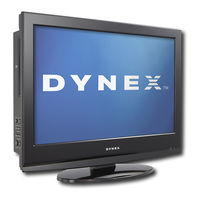
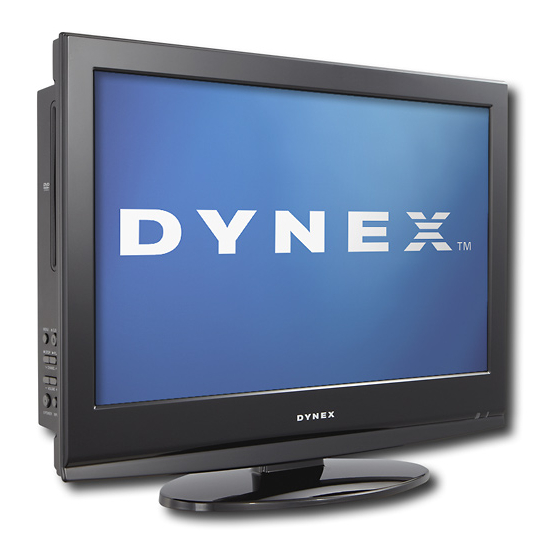
Before you begin fixing problems, it is important to understand how the Dynex TV DVD combo works. This device combines a television and a DVD player into one unit. Both parts share some components, like the power supply and display. However, each part also has its own controls and connections. Knowing this helps you find out if the problem is with the TV, the DVD section, or both.
A typical Dynex TV DVD combo has:
- A power button (often on the front or side)
- Separate input buttons for TV and DVD
- A remote control for easy operation
- Video, audio, and sometimes HDMI ports
- A slot or tray for DVD discs
Many issues happen because of confusion between the TV and DVD functions. For example, if the input source is not set to DVD, the disc will not play, even if you insert it correctly. Simple details like these can save you time and stress.
Common Problems And Causes
Most problems with Dynex TV DVD combos fall into a few categories. Understanding these can help you find the right fix faster.
- Power issues: The device does not turn on, or turns off by itself.
- No picture: The screen is blank or shows “No Signal”.
- No sound: You see images but hear nothing.
- DVD not reading: Discs do not play or give error messages.
- Remote control not working: Commands are not received.
- Disc stuck in tray: The DVD is stuck or will not eject.
- Input problems: The device does not switch between TV and DVD.
- Poor video quality: The picture is blurry, discolored, or has lines.
- Playback skipping or freezing: DVD playback is choppy or stops.
- Settings reset: Device loses settings after power off.
Each problem has its own set of possible causes. Sometimes, a simple fix can solve more than one problem. For example, a loose power cord can cause both power and picture issues. Let us look at how you can troubleshoot these problems, step by step.
Power Issues
If your Dynex TV DVD combo will not turn on, or keeps turning off, you need to check a few things before calling for repairs.
Power Cord And Outlet
First, make sure the power cord is plugged in tightly. Try a different electrical outlet to see if the problem is with the outlet itself. If you use a surge protector or extension cord, connect the TV DVD combo directly to the wall. Sometimes, these accessories fail and stop the flow of power.
Power Button And Remote
Press the power button on the device itself, not just the remote. If the TV turns on from the button but not the remote, the remote could be the problem. Replace the remote batteries and try again.
Signs Of Internal Failure
If the unit still does not turn on, listen for any clicking sounds or check for blinking lights. These signs could mean a problem inside the device, such as a blown fuse or a faulty power board. Some users try to open the unit to check fuses, but this is not recommended unless you know electronics.
In most cases, professional repair is safer.
Quick Data: Power Issue Checklist
| Step | What to Check | Possible Fix |
|---|---|---|
| 1 | Power cord connection | Re-seat or replace cord |
| 2 | Wall outlet function | Try another outlet |
| 3 | Device power button | Use button directly |
| 4 | Remote batteries | Replace batteries |
| 5 | Internal noises/lights | Seek professional help |
No Picture Or “no Signal”
When you turn on your Dynex TV DVD combo and see nothing, or get a “No Signal” message, it can be worrying. But often, the fix is simple.
Input Source
The most common cause is the wrong input source. Press the “Input” or “Source” button on the remote or the device until you see the screen for TV or DVD. If you are watching a DVD, make sure the input is set to DVD.
Cable Connections
Check all cables that go to the TV, such as HDMI, AV, or coaxial cables. If you use an external device (like a cable box or game console), make sure it is turned on and connected tightly.
Screen Brightness And Picture Settings
Sometimes, the brightness is set so low that the screen looks off. Use the menu button to enter the settings and increase the brightness or contrast.
Faulty Backlight
If the power light is on but the screen stays black, the backlight may be faulty. Shine a flashlight on the screen at an angle. If you see a faint image, the backlight needs repair.
No Sound
A silent TV can be as annoying as no picture. Here is how you can find the cause.
Volume And Mute
Check that the volume is turned up and the mute is off, both on the remote and the device.
Audio Connections
If you use external speakers or a soundbar, make sure the audio cables are plugged in tightly. Try removing any headphones to see if sound returns.
Audio Settings
Go into the audio settings menu and select the correct output (TV speakers, not external speakers). Sometimes, the device stays on the wrong setting after unplugging headphones.
Dvd Audio Track
Some DVDs have multiple audio tracks or languages. Try switching tracks using the “Audio” button on your remote.
Example: Dvd Plays But No Sound
Suppose your TV sound works for broadcast channels, but not for DVDs. In this case, check if the DVD is muted or if the disc itself is faulty. Try another DVD to see if the problem is with the disc.
Dvd Not Reading Or Playing
If you insert a DVD and nothing happens, or you get “No Disc” or “Error” messages, these tips can help.
Clean The Disc
A dirty or scratched disc is the most common cause. Wipe the disc with a soft, dry cloth from the center to the edge. Do not use a circular motion.
Correct Disc Format
Not all Dynex models play every disc type. Check the manual for supported formats (DVD, DVD-R, DVD+R, CD, etc. ). If your disc is homemade or from another region, it may not play.
Loading Mechanism
If you hear whirring or clicking sounds, the loading mechanism may be stuck. Turn off the device, wait a minute, and turn it on again. Try pressing the eject button several times.
Laser Lens Cleaning
Dust on the laser can stop it from reading discs. Use a DVD lens cleaner disc (available in stores) or, if you feel comfortable, gently clean the lens with a cotton swab and isopropyl alcohol.
Firmware Issues
Rarely, the DVD section may need a firmware update. Visit the Dynex support site to see if updates are available for your model.
Remote Control Not Working
If the remote does not control your Dynex TV DVD combo, try these steps.
Battery Check
Replace old batteries with fresh ones and check for any corrosion inside the battery compartment.
Line Of Sight
Point the remote directly at the TV, not at an angle or through objects. The sensor is usually at the front of the unit.
Universal Remotes
If you use a universal remote, make sure it is programmed for your Dynex model. Check the code list in the remote’s manual.
Ir Sensor Test
Use your smartphone camera to see if the remote’s infrared light blinks when you press a button. If it does not, the remote may be faulty.
Example: Remote Works For Tv But Not Dvd
Some Dynex remotes have separate buttons for TV and DVD. Press the correct mode button before trying to control the DVD player.
Disc Stuck In Tray
A stuck disc is a common problem, especially if the device loses power during playback.
Power Cycle
Turn the device off, unplug it for 30 seconds, then plug it back in and try the eject button.
Manual Eject
Many Dynex models have a small pinhole near the disc slot or tray. Insert a straightened paperclip to manually eject the disc.
Avoid Forcing
Never pry the tray open with tools, as this can break the mechanism. If the disc will not come out after several tries, seek professional help.

Input Problems: Switching Between Tv And Dvd
Switching between TV and DVD mode can sometimes fail, leaving you stuck on one function.
Input Button
Use the “Input” button on the remote or the device to switch modes. Wait a few seconds after each press; some units are slow to respond.
Menu Navigation
Some models require you to change the input through the on-screen menu. Use the arrow keys to select the correct source.
Resetting Input
Unplug the device for a minute to reset the internal settings. This often restores input switching.
Poor Video Quality
A blurry or distorted picture can ruin your viewing experience.
Check Cables
Loose or damaged cables can cause fuzzy images or color problems. Replace any worn cables.
Screen Settings
Go to the picture settings menu and adjust sharpness, contrast, and color balance.
Signal Source
If you use an antenna or external device, weak signal strength can cause poor quality. Try adjusting the antenna or replacing it with a stronger one.
Compare: Picture Quality Issues
| Problem | Likely Cause | Quick Fix |
|---|---|---|
| Blurry picture | Loose cables | Reconnect/replace cables |
| Wrong colors | Incorrect settings | Adjust color balance |
| Lines or flicker | Signal interference | Reposition antenna/device |
Playback Skipping Or Freezing
If your DVD skips, freezes, or stops, it can be caused by hardware or software issues.
Disc Condition
Check for scratches, smudges, or dust. Clean or replace the disc if needed.
Overheating
If the device feels hot, turn it off and let it cool. Overheating can cause the DVD section to malfunction.
Firmware Bugs
Sometimes, playback issues are due to firmware bugs. Check the Dynex website for any updates or patches.
Example: Old Dvds
Older DVDs may have data errors that modern players cannot read. Try the disc on another player to confirm.
Settings Reset After Power Off
When your settings (like channel list, language, or picture adjustments) reset every time you turn off the device, it usually means a problem with the memory backup.
Internal Battery Or Capacitor
Some models use a small battery or capacitor to keep settings saved. If this fails, settings will not stay after unplugging. This is a repair best left to a technician.
Power Surges
Frequent power outages or surges can also erase settings. Use a surge protector to help prevent this.
Advanced Troubleshooting Tips
If you have tried the basic steps and your Dynex TV DVD combo still does not work, try these advanced ideas.
Factory Reset
Most Dynex TV DVD combos have a factory reset option in the menu. This will erase all custom settings and return the device to its original state. Check your user manual for instructions.
Software Updates
For newer models, software or firmware updates can solve problems. Download updates from the official Dynex support site and follow their instructions.
Service Codes
Some issues can only be fixed by entering special service codes with the remote. These codes are not usually in the manual, but can sometimes be found on support forums.
Compare: When To Diy Vs. Call A Technician
| Problem | Try at Home? | Needs Technician? |
|---|---|---|
| Power cord loose | Yes | No |
| Settings reset | Try reset | Yes, for battery/capacitor |
| Laser lens dirty | Yes, clean carefully | No, unless problem remains |
| Disc tray stuck | Yes, use pinhole | Yes, if not resolved |
| No power, blinking lights | No | Yes |
Preventive Maintenance
Taking care of your Dynex TV DVD combo can prevent many problems.
- Dust regularly: Dust can block vents and get inside the disc tray. Use a soft cloth to wipe the device every week.
- Use surge protectors: Protect your device from voltage spikes.
- Avoid overheating: Keep the area around the device clear for air flow. Do not cover the vents.
- Clean discs before use: Dirty discs can scratch the lens.
- Handle with care: Do not move the device while a disc is playing.
Non-obvious tip: If you live in a very humid or dusty area, consider using silica gel packs near the device (but not inside) to absorb extra moisture.
When To Seek Professional Repair
Some problems are best left to experts, especially if they involve opening the device or replacing parts.
- No power, even after checking cord and outlet
- Burning smell or smoke
- Physical damage to screen or tray
- Settings never save, despite resets
- Strange noises from inside the unit
If your Dynex TV DVD combo is still under warranty, contact the store or manufacturer before trying repairs yourself. Opening the device may void your warranty.
Useful Resources
If you need more help, visit the official Dynex support page or check user forums for your specific model. Sometimes, other owners have faced and solved the same problem. For more general troubleshooting and electronics guidance, you can also check resources like the iFixit repair community.
Frequently Asked Questions
Why Does My Dynex Tv Dvd Combo Say “no Disc” Even With A Working Dvd?
This message appears when the device cannot read the disc. Try cleaning the disc, making sure it is the right format, and cleaning the laser lens. If none of these help, the DVD drive may need service.
Can I Use A Universal Remote With My Dynex Tv Dvd Combo?
Yes, most universal remotes work with Dynex devices. Make sure to program the remote using the correct code for your model. If functions are missing, use the original remote for advanced settings.
My Dynex Tv Works, But The Dvd Player Does Not. What Should I Do?
Check that you have selected the DVD input. Test with another disc to rule out disc problems. If the DVD section is still dead, the internal drive may need repair.
How Do I Reset My Dynex Tv Dvd Combo To Factory Settings?
Go to the main menu, choose “Settings” or “System,” and look for “Factory Reset” or “Restore Defaults. ” Follow the on-screen instructions. This erases all custom settings.
What Should I Do If My Dynex Tv Dvd Combo Keeps Turning Off By Itself?
First, check the power connection and try a different outlet. If the device overheats, let it cool before using again. If the problem continues, there may be an issue with the power supply or internal components. Seek professional repair if basic checks do not help.
Your Dynex TV DVD combo can provide years of entertainment with the right care and troubleshooting. Remember, most issues have simple solutions, and even advanced problems can be tackled step by step. With this guide at your side, you can solve most problems confidently, saving time and money on repairs.