
Are you struggling with GlobalProtect VPN not connecting when you need it most? It can be incredibly frustrating when your secure connection just won’t establish, especially if you rely on it for work or personal security.
But don’t worry—this problem is more common than you think, and there are simple steps you can take to fix it. You’ll discover why GlobalProtect VPN might be failing to connect and how to troubleshoot the issue quickly and effectively.
Keep reading to regain control over your VPN connection and get back online safely.
Common Connection Issues
GlobalProtect VPN may fail to connect due to several common issues. Understanding these issues helps in quick troubleshooting. Each problem affects the VPN connection differently and requires a specific fix. Below are the main reasons why GlobalProtect VPN might not connect.
Outdated Vpn Software
Using an outdated VPN client can cause connection failures. Updates often fix bugs and improve compatibility. Running the latest version ensures better stability. Check for updates regularly and install them promptly.
Incorrect Vpn Settings
Wrong settings block the VPN from connecting. Settings include username, password, and authentication method. Double-check these details for accuracy. Also, verify the security protocols and gateway settings.
Network Connectivity Problems
Weak or unstable internet disrupts VPN connections. Slow or intermittent network causes timeouts. Test your internet speed and stability before connecting. Switch to a more stable network if possible.
Portal Address Errors
Entering an incorrect portal address prevents VPN access. The portal address directs the client to the server. Verify the address with your network administrator. Use the exact portal URL without typos or extra spaces.

Quick Connection Fixes
Quick connection fixes can solve many GlobalProtect VPN issues fast. These simple steps help restore your VPN link without complex troubleshooting. Follow these clear actions to get back online quickly.
Refresh The Vpn Connection
Open the GlobalProtect app on your device. Click the disconnect button to end the current session. Wait a few seconds, then click connect again. This often resets the connection and fixes minor glitches.
Sign Out And Sign Back In
Sometimes your login session may expire or face errors. Sign out from the GlobalProtect app fully. Close the app, then reopen it. Enter your credentials carefully and sign back in. This refresh helps renew your session tokens.
Restart The Globalprotect Service
Restarting the service on your device can clear hidden errors. On Windows, open the Services app. Find “GlobalProtect Service” in the list. Right-click and choose “Restart.” On Mac, use Activity Monitor to quit and reopen GlobalProtect. This action resets the background process.
Portal Management
Portal management plays a key role in fixing GlobalProtect VPN connection issues. The portal acts as the gateway between your device and the VPN service. Managing it well can restore your VPN connection quickly. This section explains how to handle portal settings effectively.
Remove And Re-add Portal
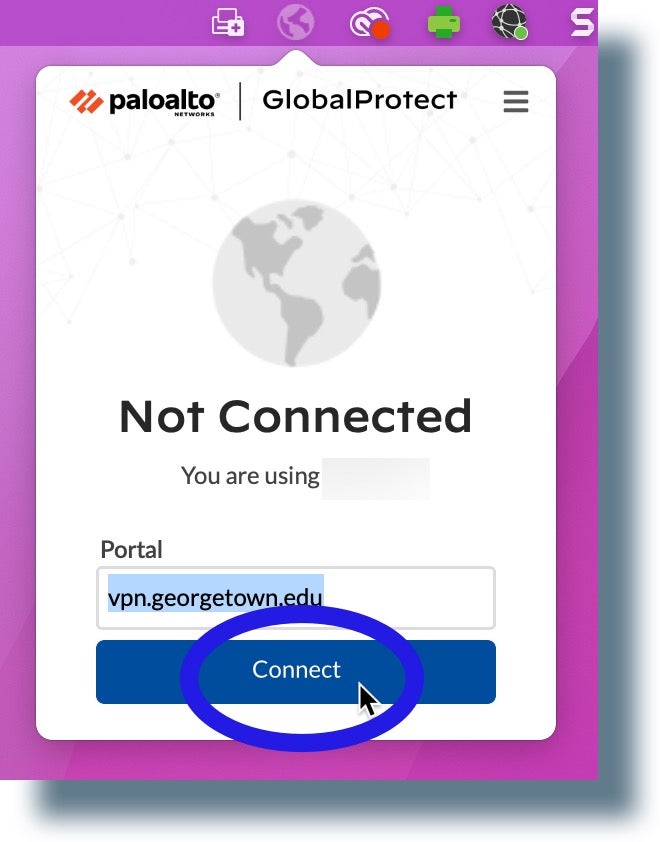
Sometimes, the portal configuration gets corrupted. Removing and re-adding the portal can clear errors. Open the GlobalProtect app and go to the settings menu. Find the portal list and select the one causing trouble. Remove it completely from the list. After that, add the portal again by entering the correct portal address. This simple step often fixes connection problems fast.
Verify Portal Address Accuracy
Check the portal address carefully. Even a small typo can stop the VPN from connecting. Confirm the portal URL matches the one provided by your network administrator. Avoid extra spaces or wrong characters. Double-check spelling and domain extensions. Correct portal addresses ensure your device connects to the right VPN server. This verification can prevent many connection failures.
Network And Permission Checks
Network and permission issues often stop GlobalProtect VPN from connecting. Checking these areas can solve many problems fast. Start by verifying your internet connection. Then, look at your MacOS security settings. Finally, check your firewall and router for blocks. Each step helps clear common connection barriers.
Confirm Internet Stability
Stable internet is crucial for VPN success. Test your connection speed and strength. Use a wired connection if possible. Avoid weak Wi-Fi spots or crowded networks. Restart your modem or router to refresh the connection. A steady internet link prevents VPN timeouts and errors.
Adjust Macos Security Settings
MacOS may block VPN apps for security reasons. Go to System Preferences and select Security & Privacy. Check the General tab for any blocked GlobalProtect prompts. Allow the app to run if needed. Also, enable Full Disk Access for GlobalProtect under Privacy settings. These tweaks avoid permission denials that stop the VPN.
Troubleshoot Firewall And Router Blocks
Firewalls and routers can block VPN traffic. Open firewall settings and allow GlobalProtect through. Look for any blocked ports used by the VPN. Common ports include UDP 4500 and TCP 443. On your router, enable VPN passthrough if available. This allows VPN packets to pass without interference. Adjusting these settings clears network roadblocks.
Clean Installation Steps
Performing a clean installation of the GlobalProtect VPN client often resolves connection issues. This process ensures that any corrupted files or incorrect settings are removed. It also installs the latest version, which may contain important fixes and improvements.
Follow these steps carefully to uninstall the old client, restart your device, and install the newest version. This method improves the chances of a stable VPN connection.
Uninstall Existing Client
Open the Control Panel on your device. Select “Programs and Features” or “Apps & Features.” Find the GlobalProtect VPN client in the list. Click on it and choose “Uninstall.” Follow the prompts to remove the software completely. This step removes any damaged or outdated files.
Restart Device
After uninstalling, restart your computer. This clears temporary files and resets network settings. A fresh start helps prevent conflicts during reinstallation. Wait for your device to fully power back on before proceeding.
Download And Install Latest Version
Visit the official GlobalProtect portal or your company’s VPN page. Download the latest version of the GlobalProtect VPN client. Run the installer file and follow the on-screen instructions. Complete the setup and log in with your credentials. This ensures you have the newest features and bug fixes.
Advanced Troubleshooting
Advanced troubleshooting helps solve tough GlobalProtect VPN connection problems. Basic fixes may not work for complex issues. This section guides you through deeper checks and settings adjustments. Follow each step carefully to find hidden causes of connection failures.
Check Split Tunnel Configuration
Split tunnel controls which traffic goes through VPN and which does not. Incorrect settings can block essential data or slow connections. Review your VPN portal and gateway settings carefully. Ensure the allowed IP ranges and apps are correct. Misconfigured split tunnel rules often cause VPN to fail connecting.
Review Certificate And Authentication Settings
Certificates prove your device’s identity to the VPN server. Expired or invalid certificates stop connections immediately. Check your system date and time; wrong settings can make certificates appear invalid. Confirm your authentication method matches the server’s requirements. Reset credentials if needed and verify LDAP or other authentication servers are reachable.
Contact Support For Persistent Issues
Some connection problems need expert help. Document your troubleshooting steps before reaching out. Provide details like error messages, device type, and network environment. Support teams can check logs and server status for hidden problems. They may suggest updates or configuration changes beyond user access.

Frequently Asked Questions
Why Is Globalprotect Vpn Not Connecting?
GlobalProtect VPN may not connect due to incorrect settings, outdated software, or poor internet. Restart the app, re-add the portal, or reinstall the client. Verify your internet connection and user credentials. Contact support if issues persist.
Why Is My Vpn Connection Not Connecting?
Your VPN might not connect due to outdated software, incorrect settings, or poor internet connection. Restart the app, check internet stability, and re-enter portal details. Reinstall the VPN client if needed. Contact support if problems persist.
Is Globalprotect Vpn Down?
GlobalProtect VPN may experience outages occasionally. Check your internet connection and GlobalProtect status online. Restart the app or device to fix issues. Contact your IT support if problems persist.
How To Get Globalprotect Vpn To Connect?
Download and install the GlobalProtect client from your portal. Enter your user ID and password to authenticate. Ensure a stable internet connection. Refresh the connection or restart the GlobalProtect service if it doesn’t connect. Re-add the portal address if needed, then click Connect.
Why Is Globalprotect Vpn Not Connecting On My Device?
GlobalProtect VPN may fail due to outdated software or wrong settings. Check your VPN version and update if needed. Also, verify your network connection is stable.
Conclusion
GlobalProtect VPN connection issues can feel frustrating. Simple fixes often work well. Restart the app or your device first. Check your internet connection for stability. Make sure your VPN software is up to date. Signing out and back in can refresh settings.
If problems continue, contact your IT support team. Staying calm and following these steps helps solve most issues. Keep trying, and you will get connected soon.