
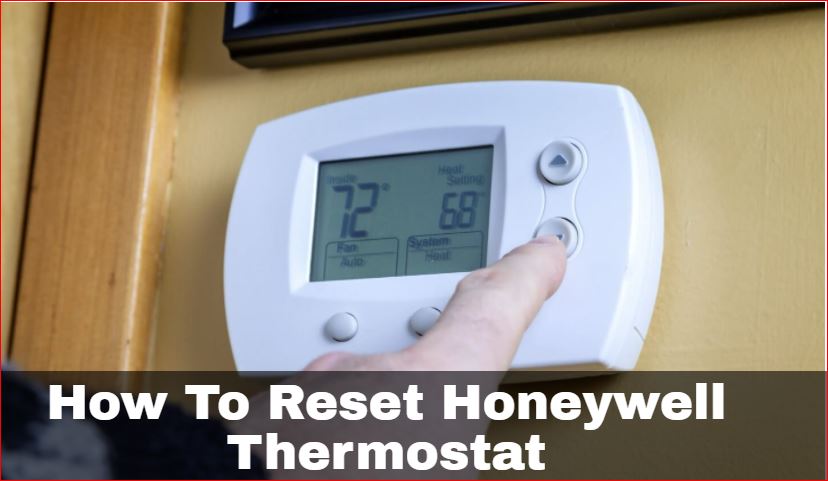
Every home relies on comfort, and for many, the Honeywell thermostat is the silent manager of that comfort. When your thermostat starts acting strangely or stops responding, it can be stressful, especially if the temperature is wrong. Resetting your Honeywell thermostat is often the fastest way to solve common problems, but the process can be confusing.
With so many models and types, and different reasons for resetting, it’s easy to feel lost. This guide brings clarity. Whether you own a basic non-programmable model or a smart Wi-Fi thermostat, you’ll find everything you need here. You’ll discover the right reset method for your device, understand when and why a reset is necessary, learn about common mistakes, and get practical troubleshooting tips.
Let’s make resetting your Honeywell thermostat simple and stress-free.
Understanding Honeywell Thermostats
Honeywell is a leading brand in home climate control, known for reliability and innovation. Their thermostats range from simple manual models to advanced smart systems. Knowing your thermostat type is important because the reset method can differ.
Types Of Honeywell Thermostats
1. Non-programmable Thermostats
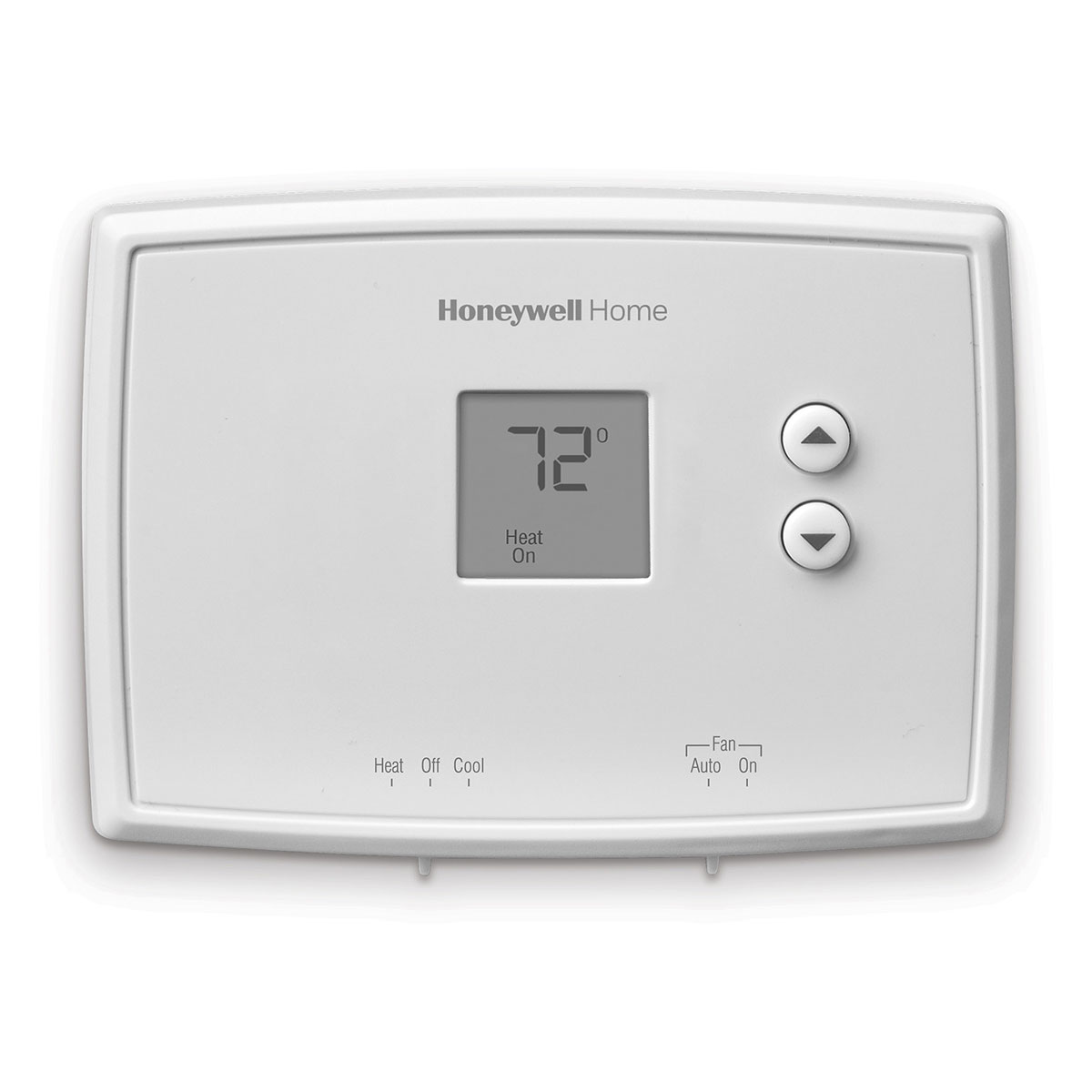
These are basic models, often with a simple dial or buttons. They control temperature but lack scheduling features.
2. Programmable Thermostats
These allow you to set heating and cooling schedules. You can program temperatures for different times of day.
3. Wi-fi/smart Thermostats
These connect to your home Wi-Fi and can be managed from your smartphone. They offer advanced features like geofencing, energy reports, and remote access.
4. Touchscreen Thermostats
Some models have a touchscreen interface for easier control and programming.
5. Line Voltage Thermostats
Used mostly for electric baseboard heaters, these are different from standard low-voltage systems.
Understanding your model helps you follow the correct reset steps. You can usually find the model number on the back of the device or inside the battery compartment.
Why Reset A Honeywell Thermostat?
There are several situations where a reset is recommended:
- Device is unresponsive: Buttons or touchscreen do not work.
- Temperature seems wrong: Room feels too hot or cold compared to the setting.
- Wi-Fi or app issues: Smart thermostats lose connection or show offline.
- Display problems: Blank screen, error codes, or flickering.
- Programming errors: Schedules not following your settings.
- After power outage or battery change: Restoring factory settings can solve glitches.
- Moving into a new home: Erasing previous owner’s settings is important.
A reset often resolves these issues by clearing stored settings and restoring the thermostat’s internal system.
Types Of Honeywell Thermostat Resets
Honeywell thermostats support different kinds of resets. Choosing the right one is crucial.
1. Soft Reset (system Reset)
This resets only the system operation, not your saved schedules or Wi-Fi data.
2. Factory Reset
This erases all settings, schedules, and Wi-Fi connections, returning the thermostat to its original state.
3. Wi-fi Reset
This disconnects the thermostat from your wireless network, useful if you change your router or network password.
4. Schedule Reset
This clears only programmed schedules but keeps other settings.
Some models allow only a factory reset, while others let you do all types. Always check your user manual or Honeywell’s support site for your specific model.
How To Identify Your Honeywell Thermostat Model
Before you reset, you need to know your thermostat’s model number. Here’s how:
- Remove the device from its wall plate. Most models snap off easily (never force it).
- Look for the model number on a sticker, usually inside the battery compartment or on the back.
- Check the front panel. Some models display the number on the screen during startup.
- Consult your user manual if you still have it.
- Use the Honeywell Home app for smart thermostats; the model number appears in device info.
Common model series:
- T3, T4, T5, T6 (e.g., T6 Pro)
- RTH (e.g., RTH9580WF)
- TH (e.g., TH8320R1003)
- Lyric (e.g., Lyric Round)
Knowing your model prevents mistakes and ensures you follow the right instructions.
Step-by-step Reset Instructions For Popular Honeywell Models
Reset procedures can vary greatly. Here’s how to reset the most common Honeywell thermostats.
Honeywell T5/t5+ And T6 Pro Smart Thermostats
Factory Reset:
- Press the Menu button on the thermostat.
- Scroll to Reset using the arrow buttons.
- Select Factory Reset.
- Confirm the reset by pressing Yes or OK.
- The thermostat will reboot and ask for initial setup.
Wi-Fi Reset:
- Press Menu > Wi-Fi > Change Network.
- Follow the screen prompts to reconnect to Wi-Fi.
Tip: After a factory reset, you will need to set up your Wi-Fi and schedules again.
Honeywell 8000 Series (e.g., Th8320r1003, Visionpro 8000)
Factory Reset:
- Press System on the touchscreen.
- Hold the center blank button (between arrows) for 5 seconds.
- When the Installer Setup menu appears, press Reset to Defaults.
- Confirm and exit.
Schedule Reset:
- Press Menu > Preferences > Restore Default Schedule.
Honeywell Rth9580wf And Rth9585wf Smart Thermostats
Wi-Fi Reset:
- Tap Menu > Wi-Fi Setup.
- The thermostat will scan for networks. Select your network.
- Enter your password and connect.
Factory Reset:
- Tap Menu > Preferences > Restore Factory Defaults.
- Confirm the reset. Device will reboot.
Honeywell T3, T4, T5 (non-smart Series)
Factory Reset:
- Hold both Menu and + (plus) buttons for 5-10 seconds.
- Release when the screen changes.
- Select Factory Reset.
Honeywell Lyric Round (t5, T6, T6 Pro, T6r)
Wi-Fi Reset:
- Press and hold the Cloud icon.
- When the Wi-Fi setup appears, follow prompts to reconnect.
Factory Reset:
- Press and hold the Weather and Home buttons together for 5-10 seconds.
- Release when the screen blinks.
Older Non-programmable Models
- Remove the thermostat from the wall.
- Take out the batteries.
- Reinsert batteries in reverse for 5 seconds, then put them back correctly.
- Return the thermostat to the wall plate.
Note: This battery trick clears most basic glitches.
Line Voltage Honeywell Thermostats
- Turn off power at the circuit breaker.
- Wait 1-2 minutes.
- Turn power back on.
- Adjust settings as needed.
These steps cover most Honeywell thermostats. Always check your manual for model-specific instructions.
When Should You Reset Your Thermostat?
Resetting is not always the first solution. Here are situations where a reset is helpful:
- After changing Wi-Fi networks (for smart thermostats)
- If the thermostat is locked or displays an error code
- When schedules are not working as intended
- If you move into a new house
- After a power surge or outage
- When troubleshooting persistent HVAC (heating, ventilation, air conditioning) issues
However, if your problem is with the heating or cooling system itself (not the thermostat), a reset may not help. In that case, check for blown fuses, tripped breakers, or contact a professional.
What Happens After A Reset?
A reset returns your thermostat to its original condition. Here’s what you can expect:
- All custom schedules and settings are erased
- Wi-Fi and app connections are lost (for smart models)
- System configuration returns to default
- You must set up everything again (date, time, preferences, and Wi-Fi)
Be prepared to re-enter your schedules and reconnect to your wireless network.
Common Mistakes To Avoid
Resetting a thermostat is simple but a few mistakes are common:
- Resetting unnecessarily: Sometimes a simple power cycle is enough. Reset only if you can’t fix the issue another way.
- Not recording your settings: Take a photo or write down your schedules and preferences before resetting.
- Forcing the device: Never force the thermostat off the wall. If it feels stuck, check for screws or consult the manual.
- Using the wrong reset method: Some models have multiple reset types. Make sure you choose the correct one for your issue.
- Ignoring wiring issues: If your system still doesn’t work after a reset, check for loose or damaged wires.
These mistakes can lead to frustration or even damage your thermostat.
Comparison Of Reset Methods
To help you choose, here’s a summary of the most common reset types and what they affect:
| Reset Type | What It Does | When to Use | Data Lost |
|---|---|---|---|
| Soft/System Reset | Restarts the thermostat’s system | Minor glitches, unresponsive device | None |
| Factory Reset | Restores to original settings | Major issues, new home, forgotten PIN | All settings, schedules, Wi-Fi |
| Wi-Fi Reset | Clears only Wi-Fi data | New router, password changes | Wi-Fi only |
| Schedule Reset | Deletes programmed schedules | Fixing schedule errors | Schedules only |
Troubleshooting After A Reset
Sometimes, resetting doesn’t solve the problem. Here’s what to check next:
- Thermostat remains unresponsive:
- Check batteries (replace with fresh ones).
- Ensure the device is firmly attached to the wall plate.
- Verify power from the HVAC system.
- Blank screen:
- Confirm the circuit breaker is on.
- Inspect for blown fuses in your furnace or air handler.
- No heating or cooling:
- Double-check system settings (heat/cool/off).
- Make sure the correct wires are connected.
- Wi-Fi won’t connect:
- Reboot your router.
- Move thermostat closer to the router temporarily.
- Check if your network uses 2.4GHz (most Honeywell Wi-Fi models don’t support 5GHz).
- Schedules not working:
- Confirm you saved the schedule after reprogramming.
- Check AM/PM settings (a common error).
If problems persist, visit the Honeywell Home Support page for model-specific help.
Credit: acplusfl.com
Real-world Examples: Resetting In Action
Let’s look at a couple of real situations where a reset solves an issue:
Example 1:
A family moves into a house with a Honeywell T6 Pro thermostat. The previous owner’s Wi-Fi and schedules are still set. After a factory reset, they reconnect the device to their own Wi-Fi and create new schedules tailored to their lifestyle.
Example 2:
A business owner’s Honeywell VisionPRO 8000 displays an error code after a power outage. A quick system reset via the hidden menu clears the error, restoring normal operation.
Example 3:
A user notices their RTH9585WF smart thermostat keeps disconnecting from Wi-Fi. Resetting the Wi-Fi settings and reconnecting to the router solves the problem.
These examples show how a reset can be a practical fix for both simple and complex issues.
Advanced Tips For Honeywell Thermostat Owners
Some insights go beyond the basics. Here’s what many beginners miss:
- Hidden Installer Menus:
Many Honeywell models have an installer or technician setup menu, accessed by holding certain buttons. This menu lets you adjust advanced settings, like system type and temperature calibration. Only access it if you know what you’re doing, or you could cause bigger problems.
- Firmware Updates:
Smart thermostats sometimes require software updates. If your device is acting up, check if a firmware update is available in the app or through the thermostat’s menu.
- Battery Life:
Weak batteries cause many “dead” thermostat issues. Always use fresh, high-quality batteries, and replace them once a year to prevent surprise failures.
- C-Wire Requirement:
Some Wi-Fi models need a “C” (common) wire for power. If you lose settings often after power outages, you may need to add a C-wire or use a power adapter.
- Vacation/Hold Modes:
Some models have “hold” or “vacation” settings. If your thermostat isn’t following schedules, check if it’s set to permanent or temporary hold.
- Geofencing:
Advanced Honeywell thermostats can use your phone’s location to change temperature automatically when you’re home or away. Resetting can disable this feature, so set it up again if you rely on it.
How Honeywell Resets Compare With Other Brands
How does Honeywell compare to other major brands like Nest or Ecobee? Here’s a quick overview:
| Brand | Reset Process | Data Loss | Special Notes |
|---|---|---|---|
| Honeywell | Menu-based or button press | Full or partial, model-dependent | Some models require battery removal |
| Nest | Settings > Reset | Usually full, easy to restore with Google account | Cloud backup for schedules |
| Ecobee | Menu > Reset | Schedules, Wi-Fi, configuration lost | App walks you through re-setup |
Honeywell’s reset methods are usually straightforward but require more attention to model numbers than some competitors.
Professional Help: When To Call An Expert
If you’ve reset your thermostat and problems continue, it may be time to contact a professional. Here’s when to seek help:
- Thermostat won’t turn on after a reset
- Display shows “No Power” or error codes you can’t clear
- HVAC system isn’t working (no heat/cool/fan)
- You see or smell burning near the device
- Wires look damaged or corroded
Trying to fix complex wiring or system errors yourself can be dangerous. An HVAC technician can diagnose and solve deeper issues.
Energy Savings After Resetting
A reset can also help you optimize energy use. After a factory reset, you have a chance to:
- Set more efficient heating/cooling schedules
- Use “away” or “eco” modes to save energy while you’re out
- Enable smart features, like geofencing and adaptive learning
According to the US Department of Energy, proper thermostat scheduling can save about 10% a year on heating and cooling. After a reset, take time to enter your ideal energy-saving schedule.
Reset Vs. Power Cycle: What’s The Difference?
Many people confuse a reset with a power cycle. Here’s the difference:
- Reset: Restores settings, erases data, and often fixes software errors
- Power cycle: Just turns the device off and on (like rebooting a computer); may fix small glitches
If your thermostat is just “frozen,” try removing it from the wall or removing batteries for 30 seconds before a full reset.
Keeping Your Settings Safe
To avoid losing important information, always:
- Write down your schedules and preferences before resetting
- Take a smartphone photo of your settings screens
- Save Wi-Fi passwords and login info for smart thermostats
This makes setup faster and less stressful after a reset.
Summary: The Right Way To Reset A Honeywell Thermostat
Resetting a Honeywell thermostat is one of the most effective ways to fix common problems, clear old settings, and get your home comfort back on track. Whether you own a simple dial model or a modern smart thermostat, the steps above cover almost every situation.
Always identify your model, choose the right reset method, and avoid common mistakes. If you follow these guidelines, you’ll save time, avoid frustration, and keep your house comfortable year-round.
Frequently Asked Questions
How Do I Know If My Honeywell Thermostat Needs A Reset?
If your thermostat is unresponsive, showing error codes, not following schedules, or has lost Wi-Fi, a reset can help. Also, if you move into a new house with an old thermostat, it’s wise to reset it.
Will A Factory Reset Delete All My Schedules And Wi-fi Settings?
Yes, a factory reset returns your Honeywell thermostat to its original state. All custom schedules, Wi-Fi connections, and preferences will be erased. You’ll need to set them up again.
What Should I Do If My Thermostat Screen Is Still Blank After Resetting?
Check the batteries, circuit breaker, and wiring. A blank screen usually means power isn’t reaching the thermostat. If you’ve checked everything and it’s still blank, call a professional.
Can I Reset My Honeywell Thermostat Without Removing It From The Wall?
Most modern models allow menu-based resets without removing the device. However, some older non-programmable models require battery removal or physical disconnection.
Where Can I Find Model-specific Instructions For My Honeywell Thermostat?
Visit the official Honeywell Home Support page and enter your model number for manuals and guides.
Resetting your Honeywell thermostat doesn’t have to be confusing. With the right information and careful steps, you can restore comfort and control to your home quickly and safely.