
Replacing the battery in your APC UPS is a smart move to keep your backup power running strong. But what happens next?
If you don’t reset your UPS properly after the battery swap, you might still see warning lights or get false alarms. That can be confusing and frustrating. You want your UPS to recognize the new battery and work smoothly without interruptions.
You’ll learn simple, step-by-step methods to reset your APC UPS after a battery replacement. Whether you use the PowerChute software, the UPS display menu, or a manual reset, we’ve got you covered. Keep reading to make sure your UPS is fully refreshed and ready to protect your devices again.
Battery Replacement Basics
Replacing the battery in your APC UPS requires some basic knowledge. This step ensures your UPS works correctly and protects your devices. Understanding the essentials helps avoid mistakes. It also makes the replacement process safer and smoother.
Start by knowing what battery to choose. Safety during replacement is critical. Having the right tools ready speeds up the job and prevents damage.
Choosing The Right Battery
Select a battery that matches your APC UPS model. Check the voltage and size to ensure compatibility. Use only batteries recommended by the manufacturer. A wrong battery can cause poor performance or damage. Look for sealed lead-acid (SLA) types, common in most APC UPS units. Avoid generic or used batteries to keep your system reliable.
Safety Precautions
Always unplug the UPS from the power source before replacing the battery. Wear safety gloves and eye protection to avoid injury. Handle the battery carefully to prevent leaks or spills. Work in a well-ventilated area and keep metal objects away from the battery terminals. Dispose of the old battery properly at designated recycling centers.
Tools Needed
Gather basic tools before starting the replacement. A screwdriver, usually Phillips head, is essential for opening the UPS case. Use a multimeter to check battery voltage if needed. Have a pair of pliers handy for disconnecting battery clips. Keep a clean cloth nearby to wipe any dirt or corrosion from terminals.

Resetting Apc Ups
Resetting your APC UPS after replacing its battery is crucial for proper operation. The UPS needs to recognize the new battery and clear any error messages. This process ensures the device works efficiently and provides reliable backup power. There are several ways to reset the UPS depending on your model and tools available. Choose the method that fits your setup best.
Using Powerchute Software
PowerChute is APC’s official management software. It allows you to monitor and control your UPS from a computer. After battery replacement, open PowerChute and connect to your UPS. Navigate to the settings or battery management section. Look for the reset or battery calibration option. Run the reset to update the UPS battery status. This method is easy and provides detailed control.
Via Smart-ups Display Menu
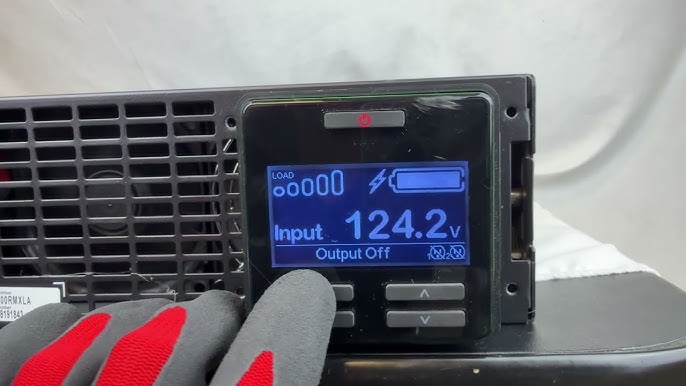
Many APC Smart-UPS models have a display panel with buttons. Use these to access the UPS menu directly. Press the menu button until you find the battery or system settings. Select the battery reset or battery test option. Confirm the reset and wait for the UPS to complete the process. The display will show the updated battery status. This method works well without any extra tools.
Performing A Manual Reset
Manual reset is a simple and quick method. First, turn off the UPS and unplug it from the wall outlet. Disconnect the battery connector carefully. Wait for about 30 seconds to clear the system memory. Reconnect the battery and plug the UPS back in. Turn the UPS on and check if the battery warning is gone. This reset resets the internal battery monitor and clears errors.
Running Self-test And Calibration
Running a self-test and calibrating your APC UPS after battery replacement ensures the device works properly. This process checks battery health and updates the UPS’s internal settings. It helps maintain accurate battery status and prevents false alarms. Follow the steps below to complete this essential procedure.
Initiating A Self-test
Turn on your APC UPS and connect it to power. Use the UPS control panel or software interface to start the self-test. The UPS will simulate a power outage briefly to check battery performance. Wait for the test to finish; it usually takes a few minutes. If the UPS passes, it means the new battery is functioning well.
Calibrating Battery Capacity
Calibration adjusts the UPS to the new battery’s actual capacity. Access the UPS menu to find the calibration option. Follow on-screen instructions to begin calibration. During this, the UPS measures how long the battery lasts under load. This data helps the UPS show correct runtime and battery health information.
Verifying Reset Success
After self-test and calibration, check the UPS display for normal status. Look for any error or warning messages. Confirm the battery icon shows full or near full charge. You can also run another self-test to double-check. The UPS should now recognize the new battery and work without alerts.

Troubleshooting Common Issues
Troubleshooting common issues after replacing the APC UPS battery helps keep your system running smoothly. Some problems might occur even after a proper battery swap. These issues include alerts that won’t clear, annoying beeping sounds, or persistent warnings. Addressing these problems quickly avoids unnecessary stress and ensures your UPS protects your devices.
Clearing Replace Battery Alerts
After installing a new battery, the UPS may still show a “Replace Battery” alert. This happens because the system needs to reset its battery data. To clear this alert, perform a manual reset or run a self-test. Press and hold the reset button for a few seconds. Check your UPS display or software for the reset option. If the alert stays, disconnect the UPS from power, remove the battery, wait 30 seconds, then reconnect. This resets the battery monitoring system.
Muting Ups Beeping Sounds
The UPS beeps to warn about battery issues or power problems. Sometimes the beeping continues after replacement. Use the mute button on your UPS to silence the alarm temporarily. Some models require pressing and holding the mute button for several seconds. Remember, muting only stops the sound; it does not fix the problem. Always check the battery status or power source to avoid damage.
Handling Persistent Battery Warnings
Persistent battery warnings may signal a deeper issue. Check the battery connections to ensure they are tight and clean. Old or faulty batteries might cause repeated alerts even after replacement. Run a self-test to verify battery health. Update the battery date in the UPS software or display to avoid false warnings. If warnings continue, consider consulting the user manual or contacting support for advanced troubleshooting.
Maintenance Tips
Maintaining your APC UPS after a battery replacement keeps it running smoothly and extends its lifespan. Simple habits help avoid common issues. Proper care ensures reliable power backup when needed. Here are key maintenance tips to follow regularly.
Regular Battery Checks
Check the battery status every few months. Look for swelling, leaks, or corrosion. Test the battery with the UPS self-test feature. Replace the battery if performance drops. Regular checks prevent unexpected failures.
Updating Battery Installation Date
After replacing the battery, update the installation date in the UPS settings. This stops false “replace battery” alerts. Use the UPS control panel or software to enter the new date. Keeping this information current helps the UPS track battery health correctly.
Best Practices For Battery Longevity
Keep the UPS in a cool, dry place away from direct sunlight. Avoid exposing the battery to extreme temperatures. Run periodic self-tests to ensure proper function. Disconnect the UPS from power during long periods of inactivity. These steps increase battery life and reliability.
Credit: www.youtube.com
Frequently Asked Questions
How To Hard Reset Apc Ups?
To hard reset an APC UPS, unplug its power cord, press and hold the Reset button, plug the power back in, and release the button when the first light turns on. This completes the master reset.
What To Do After Changing Ups Battery?
After changing the UPS battery, reconnect it to power and turn it on. Run a self-test to confirm the new battery works properly. Reset the battery installation date via the UPS display or software to clear warnings and ensure accurate monitoring.
What Happens If You Don’t Reset The Battery Monitoring System?
Failing to reset the battery monitoring system causes inaccurate battery status and false warnings. It may reduce UPS performance and lifespan.
How To Mute Sound Of An Apc Ups That Is Beeping With A Change Battery Light On?
Press and hold the mute or silence button on the APC UPS until the beeping stops. For some models, use PowerChute software to reset the battery status and silence alerts. Always ensure battery replacement is complete before muting alarms.
How Do I Reset Apc Ups After Replacing The Battery?
To reset your APC UPS, disconnect it from power and remove the battery. Wait a few minutes, reinstall the battery, plug in the UPS, and turn it on. This clears any fault signals and restarts battery monitoring.
Conclusion
Resetting your APC UPS after a battery change keeps it working properly. Always follow the right steps to avoid errors or warnings. Use the UPS display or PowerChute software to reset the battery date. This helps the UPS recognize the new battery.
Testing the UPS after reset ensures your power backup is reliable. Regular resets improve UPS performance and extend battery life. Stay safe and keep your equipment running smoothly with proper maintenance.