
Ring cameras have become a common part of many homes, offering peace of mind with their motion detection, live video, and two-way audio. But sometimes, you might want to turn off your Ring camera—maybe for privacy, to save power, or simply to stop notifications for a while. If you’ve tried searching for clear steps, you’ll notice most guides are either too simple or miss important details. In this article, you’ll learn every way to turn off a Ring camera, plus some crucial things most beginners don’t know.
Whether you own a Ring Doorbell, an Indoor Cam, or a Floodlight Cam, this guide will help you take control. You’ll understand not only how to turn off recording, but also how to manage motion alerts, disconnect from Wi-Fi, and use privacy features. By the end, you’ll be able to turn off your Ring camera with confidence—without risking your security or making mistakes that could affect your device.
Why People Want To Turn Off Their Ring Camera
There are several reasons why someone might want to turn off their Ring camera, and understanding these can help you choose the right method for your situation.
- Privacy Concerns: Sometimes, you want to have a private moment at home, or you have guests who don’t want to be recorded.
- Notifications Overload: Frequent motion alerts can feel overwhelming, especially if you live in a busy area with lots of movement.
- Battery Saving: For battery-powered Ring devices, turning off the camera can help extend battery life.
- Maintenance: You might need to clean the camera lens or change the battery without recording everything.
- Device Sharing: If you share your device with family or roommates, there may be times when everyone agrees to turn off monitoring.
Each reason can call for a different approach—sometimes you only need to mute alerts, other times you want to fully power down the camera. Let’s look at every method.
Understanding How Ring Cameras Work
Before turning off your camera, it helps to know how Ring devices operate. This can prevent mistakes, like thinking you’ve disabled the camera when only alerts are off.
- Always-On Power: Wired Ring cameras are always powered unless you disconnect them physically or at the circuit breaker.
- Cloud Recording: Most models upload videos to the cloud, so simply deleting the app won’t stop recording.
- Multiple Features: Turning off one feature (like motion alerts) doesn’t always stop others (like live view or recording).
A common mistake is to silence notifications but leave recording enabled. Another is to disconnect Wi-Fi, which stops uploads but not local recording or live view in some cases. The following sections explain all the right steps.

Different Ways To Turn Off A Ring Camera
There isn’t a single “off” button on most Ring cameras. Instead, you have several options, from quick solutions to more advanced controls.
1. Using The Ring App
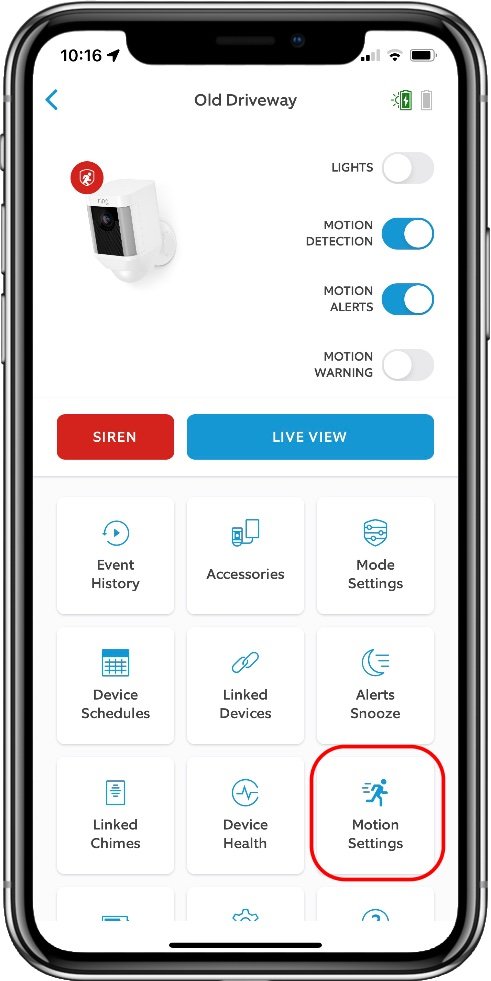
The Ring app is the main way most people control their cameras. Here’s how you can turn off your camera through the app.
A. Disable Motion Detection
- Open the Ring app on your phone.
- Tap the device you want to control.
- Tap Motion Detection.
- Toggle the switch to off (gray).
This stops the camera from detecting movement and recording motion events.
B. Turn Off Motion Alerts
- In the device settings, tap Motion Alerts.
- Toggle off the alerts.
Recording may still happen, but you won’t get notifications. This is useful if you only want to stop interruptions.
C. Turn Off Live View
Ring does not let you fully “disable” live view, but you can limit who has access:
- Remove shared users in the app under Device Settings > Shared Users.
- Log out of unused devices.
D. Turn Off Ring Camera Via Modes
The Modes feature is a powerful tool that many users overlook.
- In the app, open the Main Menu and select Settings.
- Tap Modes and Devices.
- Set up Home, Away, and Disarmed modes.
- Assign your camera to be “Off” in Disarmed mode.
Now, switching to Disarmed will stop the camera from recording or detecting motion.
2. Disconnecting From Wi-fi
Turning off Wi-Fi is a quick way to stop a Ring camera from uploading footage.
- Unplug your router or turn off Wi-Fi on your phone.
- The camera will show as offline.
Warning: This stops live view and notifications but may not power down the camera itself. Some models keep local recordings until Wi-Fi is restored.
3. Using A Physical Power Switch
Some Ring devices, like the Ring Stick Up Cam Battery, can be powered off by removing the battery.
- Open the back cover.
- Take out the battery.
For wired models, you can switch off the circuit breaker or unplug the device.
4. Using A Privacy Cover
A simple way to block the camera is with a physical privacy cover or tape. Make sure not to damage the lens.
- Place a sticker, cover, or cloth over the lens.
- Remove when you want to use the camera again.
This method only blocks the image, not the audio or actual power.
5. Disabling With Alexa Or Smart Home Integrations
If you have your Ring camera connected to Alexa or another smart home system, you can use voice commands or routines.
- “Alexa, turn off [camera name]” (if supported).
- Set up routines to enable or disable cameras at certain times.
Not all integrations support full power-off, but they can disable detection or alerts.
6. Removing The Device From Your Account
If you want to stop all activity, you can remove the camera from your Ring account.
- Open the Ring app.
- Tap your device.
- Go to Device Settings > General Settings > Remove Device.
This logs out the device and deletes it from your system. You’ll need to set it up again to use it.
7. Temporary Snooze Feature
Ring allows you to snooze motion alerts for a set time.
- In the device view, tap Snooze.
- Choose a time (15 minutes, 1 hour, etc. ).
This only stops notifications, not the recording.
8. Advanced: Network Control
If you control your home network, you can block the camera’s internet access.
- Log in to your router admin panel.
- Find the Ring camera in the device list.
- Block or pause its internet access.
This is more technical but gives you precise control. Some routers have app-based controls for this.
9. Using Geofencing
Ring’s geofencing can automatically change modes when your phone leaves or enters an area.
- In the Ring app, go to Settings > Geofencing.
- Set up your home location.
- Choose what happens when you arrive or leave.
For example, you can set the camera to Disarmed when you’re home, and On when you leave.
10. Scheduling
Some users want their camera off at certain times (like when children are home).
- Open the Ring app.
- Go to Device Settings > Motion Schedule.
- Set times when you want motion alerts disabled.
Recording may still happen, but this avoids unwanted alerts. For more advanced scheduling, use smart home platforms like Alexa Routines.
Comparing Ways To Turn Off Ring Cameras
Here’s a clear comparison of the most popular methods to turn off your Ring camera and what each one really does.
| Method | Stops Recording? | Stops Notifications? | Easy to Undo? | Best For |
|---|---|---|---|---|
| Disable in App (Disarmed Mode) | Yes | Yes | Yes | Full privacy, quick control |
| Remove Battery/Power | Yes | Yes | No (physical) | Long-term off, maintenance |
| Turn Off Wi-Fi | Partial | Yes | Yes | Quick, temporary break |
| Privacy Cover | No | No | Yes | Visual privacy only |
| Snooze Alerts | No | Yes | Yes | Short-term quiet |
| Remove Device | Yes | Yes | No (reset needed) | Leaving home, gifting |

Important Things Most People Miss
Turning off your Ring camera is not always as simple as it seems. Here are some insights that beginners often miss.
Cloud Recordings Still Exist
Even if you turn off the camera, old videos remain in your Ring cloud account until deleted. Anyone with access to your account can still view these unless you manually remove them.
Shared Users May Have Control
If you shared your Ring device with others, they can sometimes re-enable the camera or access recordings. Always check the Shared Users list in your app if privacy is your concern.
Motion Schedules Don’t Stop All Recording
Many people think setting a motion schedule stops all activity. It usually only stops notifications during scheduled times, not recording or live view access.
Disconnecting Power Can Affect Settings
If you remove the battery or disconnect power, some settings (like Wi-Fi or schedules) might reset. Always check your camera after restoring power.
Some Features Are App-only
Certain controls, like modes and geofencing, only work if you use the official Ring app. If you delete the app or use a third-party platform, you might lose these features.
Step-by-step Example: Turning Off A Ring Indoor Cam
Let’s walk through a real example, step by step.
- Open the Ring app and select your Indoor Cam.
- Tap Settings.
- Choose Modes and Devices.
- Edit the Disarmed mode.
- Set the camera to not detect motion and not record.
- Save changes.
- Switch to Disarmed mode.
Now, your camera will not record or alert until you switch modes again.
If you want to fully power it off, unplug the device from the wall. For a battery model, remove the battery.
How To Turn Off Ring Doorbell: Key Differences
The Ring Doorbell is a special case. While you can use all the app methods above, physical removal is a bit more involved.
- Use the app to set to Disarmed or disable motion detection.
- For battery models, remove the battery pack.
- For wired models, you must turn off power at the breaker.
Note: Removing the doorbell from the mount will also physically disconnect it, but may trigger tamper alerts.
Using Modes For Whole Home Privacy
If you have several Ring cameras, controlling them one by one can be a hassle. The Modes feature lets you set rules for all devices at once.
- In the app, open Modes and Devices.
- Set what each mode (Home, Away, Disarmed) does for each camera.
- Switch modes to control all cameras at once.
This is especially useful for:
- Family events
- Parties
- Overnight privacy
You can even automate modes with Alexa or geofencing.
Data Table: Ring Camera Models And Power-off Options
Different Ring cameras have different ways to turn off. Here’s a quick reference.
| Model | Battery Removal | Power Cord | App Control | Physical Switch |
|---|---|---|---|---|
| Ring Doorbell (Battery) | Yes | No | Yes | No |
| Ring Doorbell (Wired) | No | No | Yes | No |
| Ring Stick Up Cam Battery | Yes | No | Yes | No |
| Ring Indoor Cam | No | Yes | Yes | No |
| Ring Floodlight Cam | No | Yes (wired) | Yes | No |
Safety And Security Considerations
Turning off your Ring camera may protect your privacy, but it also means you lose security coverage. Here are some things to keep in mind:
- No Recording: If something happens while the camera is off, you will not have any video evidence.
- Insurance: Some insurance companies require active security cameras for certain policies.
- Legal: In some places, tampering with security cameras (like in a rental) may violate agreements.
Always balance privacy with security needs. For example, you might turn off indoor cameras but leave outdoor ones active.
Best Practices For Managing Ring Camera Privacy
If you want regular privacy without giving up security, try these best practices:
- Use Modes: Set up Home, Away, and Disarmed for different situations.
- Automate with Geofencing: Let your phone switch modes as you come and go.
- Limit Shared Access: Only give camera access to trusted people.
- Review History Regularly: Delete old videos if you’re concerned about stored data.
- Educate Guests: Let visitors know about your cameras and offer to turn them off if requested.
Troubleshooting Common Problems
Sometimes, turning off your Ring camera doesn’t work as expected. Here are fixes for common issues.
Camera Still Recording After Turning Off
- Check if you turned off both motion detection and recording in the app.
- Make sure you are in Disarmed mode, not just Home or Away.
Notifications Still Arriving
- Double-check that motion alerts and notification settings are off for the right device.
- Restart your phone or update the app.
Device Won’t Power Down
- For wired models, confirm you’ve turned off the correct circuit breaker.
- For battery models, make sure the battery is fully removed.
Settings Reset After Power Loss
- Some devices may lose Wi-Fi or schedules. Reconnect to the app and reconfigure if needed.
Advanced Tips For Power Users
If you want even more control, consider these advanced options.
- Network Schedulers: Some smart routers let you set “off” times for individual devices.
- Third-Party Integrations: Use services like IFTTT to automate when your camera turns off or on.
- Custom Voice Commands: With Alexa routines, you can create your own privacy commands.
These require more setup but give you the most flexibility.
Real-world Example: Family Privacy Scheduling
Let’s say you have kids at home in the afternoon and don’t want indoor cameras recording during that time. Here’s how you could set it up:
- In the Ring app, go to your indoor camera.
- Set a motion schedule for weekdays, 3–6pm.
- Use modes to set the camera to Disarmed during family times.
- Automate the mode switch using Alexa routines or geofencing.
This way, you keep your home secure but protect family privacy at key times.
What To Do If You Lose Access To The App
If you’re locked out of the Ring app but need to turn off a camera:
- For battery or plug-in models, remove power manually.
- For wired models, switch off the circuit breaker.
- Reset your Ring account online as soon as possible.
Always keep your account password secure and up to date.
Data Table: Typical Mistakes When Turning Off Ring Cameras
Here’s a summary of the most common mistakes and how to avoid them.
| Mistake | What Happens | Prevention |
|---|---|---|
| Only turning off alerts | Camera still records silently | Disable both alerts and recording |
| Forgetting shared users | Others can re-enable camera | Review shared access list |
| Disconnecting power without backup | Settings or Wi-Fi lost | Note settings before unplugging |
| Leaving cloud videos undeleted | Old footage still accessible | Delete recordings from app/cloud |
| Blocking lens only | Audio and detection still active | Use app to fully disable camera |
When To Turn Off Your Ring Camera (and When Not To)
There are times when turning off your camera is a good idea, and times when it’s not.
- Good times: Family gatherings, cleaning/maintenance, private moments, when children are home.
- Not recommended: When you’re away, at night, during travel, if you rely on the camera for security.
If you’re ever unsure, use modes or snooze features for temporary privacy without losing protection.
Privacy And Data Concerns
Privacy is a big reason people want to turn off their Ring camera. Here’s what you should know:
- Video data: Ring stores footage on its cloud servers. You can delete it any time.
- Account safety: Always use strong passwords and two-factor authentication.
- Legal: In some states or countries, recording audio or video without consent is illegal. Always tell guests about cameras.
For more on Ring’s privacy policy, check the official Ring Privacy Notice.
Frequently Asked Questions
What Happens To My Old Recordings If I Turn Off My Ring Camera?
Your old video recordings remain in your Ring account cloud storage until you manually delete them or they expire (usually after 30–60 days, depending on your plan). Turning off the camera only stops new recordings—it does not remove existing files.
Does Turning Off Motion Alerts Stop My Camera From Recording?
No, turning off motion alerts only stops notifications on your phone or tablet. Your camera will still record events unless you also disable motion detection or set the camera to Disarmed mode.
Can Someone Else Turn My Ring Camera Back On?
If you have shared users on your Ring account, they might be able to turn the camera back on or change settings. Always check and update your shared users list if you want complete privacy.
Will Removing The Battery Erase My Settings?
Removing the battery or unplugging a wired camera will usually keep your settings saved in the cloud. However, some advanced schedules or Wi-Fi settings may need to be set up again after a long power loss.
Is There A Single “off” Button For Ring Cameras?
No, most Ring cameras do not have a single physical “off” switch. You need to use the app, remove power, or set up modes for privacy. The best method depends on your camera model and your privacy needs.
Turning off a Ring camera is easy once you know all the options, but each method has pros and cons. By understanding the app features, physical controls, and privacy settings, you can protect your home and your personal life—without surprises.
Whether you want full security or just a little peace and quiet, you now have the knowledge to control your Ring camera in any situation.