
Are your hyperlinks in Outlook suddenly refusing to open? It’s frustrating when you click a link in an email, and nothing happens.
You might miss important information or waste time trying to figure out what’s wrong. The good news is that you’re not alone, and this problem has simple fixes you can try right now. You’ll discover why your Outlook hyperlinks might not be working and how to quickly get them back to normal.
Keep reading—you’ll be able to solve the issue and avoid future headaches with your emails.

Common Causes
Advanced fixes for hyperlinks not working in Outlook involve deeper system changes. These methods target issues beyond simple settings. They help restore hyperlink functionality effectively.
Edit Registry Settings
Editing the Windows Registry can resolve hyperlink problems in Outlook. This step fixes broken file associations for HTML links. Open the Registry Editor by typing regedit in the Start menu.
Navigate to HKEY_CURRENT_USERSoftwareClasses.html. Check the default value. It should be htmlfile. If not, right-click and select “Modify” to set it.
Next, go to HKEY_CURRENT_USERSoftwareClasses.htm and repeat the same process. Restart your computer to apply changes. Be careful while editing the registry to avoid system issues.
Consult Microsoft Support Guide
Microsoft provides detailed guides for fixing Outlook hyperlink problems. Their support pages include step-by-step instructions and official solutions. Visit the Microsoft Support website and search for “Outlook hyperlinks not working.”
The guide covers common causes, such as junk email settings and browser defaults. It also explains how to reset Office installation or repair Outlook. Using official resources ensures safe and reliable fixes.

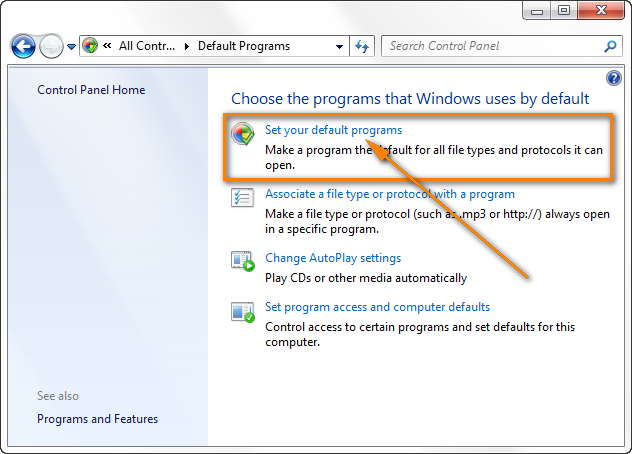
Check Default Browser
Preventing hyperlink issues in Outlook saves time and avoids frustration. Simple steps help keep links working smoothly. These tips focus on updates, browser settings, and junk mail management. Regular care reduces the chance of broken links and improves your email experience.
Keep Outlook Updated
Always install the latest Outlook updates. Updates fix bugs that cause hyperlink problems. They improve security and performance. Check for updates often to keep Outlook running well. Use the Microsoft Office update tool to stay current.
Regularly Check Default Browser
Outlook relies on your default browser to open links. Incorrect browser settings can block hyperlinks. Set your preferred browser as default on Windows or Mac. Restart your computer after changes to apply them. This ensures Outlook connects correctly to the web.
Manage Junk Mail Settings Proactively
Junk mail settings can disable links in suspicious emails. Review these settings to avoid blocking safe links. Add trusted contacts to your safe sender list. Move emails from Junk to Inbox to reactivate links. This keeps important messages accessible and clickable.
Frequently Asked Questions
Why Are My Hyperlinks Not Working In Outlook?
Hyperlinks in Outlook often fail due to incorrect default browser settings or email format issues. Set your default browser, use HTML format for emails, and check Junk Email restrictions. Repair Office or reset browser settings if needed. Switching to Classic Outlook may also restore hyperlink functionality.
How Do I Enable Hyperlinks In Outlook?
To enable hyperlinks in Outlook, change your email format to HTML or Rich Text. Also, ensure your default browser is set correctly. Check Junk Email settings to allow links, and avoid blocking links from safe senders. Restart Outlook after making these changes for links to work properly.
Why Is My Outlook Blocking Links?
Outlook blocks links due to security settings, junk email restrictions, or corrupt browser defaults. Adjust settings or reset defaults to fix.
Why Did My Hyperlinks Stop Working?
Hyperlinks stop working due to corrupt default browser settings, Outlook updates, or Junk Mail restrictions. Resetting the default browser or moving emails from Junk to Inbox often fixes this. Repairing Office or switching back to Classic Outlook can also restore hyperlink functionality.
Why Are Hyperlinks Not Working In Outlook Emails?
Hyperlinks may fail due to incorrect default browser settings or Outlook updates. Also, Junk Mail filters can block links, stopping them from working.
Conclusion
Fixing hyperlinks in Outlook often involves checking browser defaults and email settings. Make sure your default browser is correctly set and up to date. Review your Junk Email folder for blocked messages and move important emails to your Inbox. Resetting Internet Options or repairing Microsoft Office can also solve many issues.
These simple steps usually restore hyperlink functionality quickly. Stay patient and try each fix carefully. Your links should work smoothly again in no time.