
If you’ve ever tried to turn on your Insignia TV and nothing happened, you know how frustrating it can be. The screen stays black, the remote doesn’t work, and even pressing the power button on the TV itself does nothing. You might wonder if your TV is broken forever or if there’s a simple fix you’re missing. Before you rush to buy a new TV or call for expensive repairs, know that this is a common problem, and in most cases, you can solve it yourself. Whether you use your Insignia TV for streaming, gaming, or just watching the news, this guide will walk you through every possible reason why your TV won’t turn on and how to fix it.
Most people jump straight to blaming the TV itself, but often the problem is something else—like a remote issue, a power supply fault, or even a simple setting. Many users overlook things like surge protectors, loose connections, or even the possibility of software glitches.
This article will help you troubleshoot step by step, from the most obvious causes to the more advanced. You’ll also learn some non-obvious insights that many beginners miss, such as how HDMI-CEC can keep your TV off, or why a simple reset can work wonders.
By the end of this guide, you’ll have a complete understanding of why an Insignia TV won’t turn on, and what you can do about it—without wasting time or money. Let’s get started.
Understanding The Problem: Insignia Tv Won’t Turn On
When your TV refuses to power up, it’s important to stay calm and approach the issue logically. Insignia TVs, like most modern sets, can have both simple and complex reasons for not turning on. The symptoms may include:
- No lights or signs of power
- A blinking standby light
- Sound without picture
- The TV turning off right after turning on
Each clue can help you find the real cause. Understanding these symptoms will guide you toward the right solution and save time.
First Steps: Quick Checks Before Troubleshooting
Before diving into technical fixes, check a few basics that often solve the problem instantly.
1. Check The Power Outlet
Plug another device (like a lamp or phone charger) into the same outlet. If it doesn’t work, the outlet is likely the problem—not your TV.
2. Inspect The Power Cord
Look for damage, loose connections, or signs of wear. A damaged cord can stop power from reaching your TV.
3. Try A Different Power Outlet
Sometimes, outlets can fail even if they appear normal.
4. Remove Surge Protectors And Extension Cords
Plug the TV directly into the wall. Surge protectors can fail or block power without obvious signs.
5. Look For The Standby Light
Most Insignia TVs have a small LED on the front. If it’s off, the TV isn’t getting power. If it’s on or blinking, the TV is getting some power but might have another issue.
These quick checks solve the problem for many users. If your TV still won’t turn on, move on to deeper troubleshooting.
Power-related Issues
Power problems are among the most common reasons an Insignia TV won’t turn on. Here are the main possibilities and what to do.
Faulty Power Cord Or Adapter
Insignia TVs use standard or proprietary power cords. If the cord is loose, frayed, or damaged, the TV won’t receive power.
- Try another compatible power cord if you have one.
- Wiggle the cord gently at the connection points (both at the wall and the TV). If the TV flickers, the cord or socket may be bad.
Internal Power Supply Board Problems
If the power cord is fine but there are no lights or sounds, the internal power supply board could be faulty. Signs include:
- No LED lights at all
- No sound, no display
This problem is harder for beginners to fix. If you have electrical knowledge, you can open the back cover and check for burnt components or bulging capacitors. For most users, it’s best to contact a qualified repair technician.
Surge Protector Or Power Strip Failure
Many people forget that a failed surge protector or power strip can block power completely—even if its light is on. Always test the TV plugged directly into a known-good wall outlet.
Quick Comparison: Power Problems
Here’s a simple comparison of visible signs for different power-related issues:
| Issue | Standby Light | Sound | Display |
|---|---|---|---|
| Bad Power Cord | Off | Off | Off |
| Failed Power Board | Off | Off | Off |
| Surge Protector Issue | Off | Off | Off |
| Other Internal Fault | Blinking or On | Varies | Off |
Remote Control Issues
Sometimes, the TV itself is fine, but the remote control is the real culprit. This is often overlooked.
Weak Or Dead Batteries
Remote batteries can die unexpectedly. Always replace with fresh, high-quality batteries—even if the old ones seem fine.
Remote Not Paired
Some Insignia smart TVs require the remote to be paired using Bluetooth. If the pairing is lost, the remote won’t work.
- Try turning on the TV with the power button on the TV itself.
- If it works, re-pair the remote according to your TV’s manual.
Remote Sensor Blocked
Objects placed in front of the TV’s IR sensor can block the remote signal. Make sure the sensor is clear and clean.
Faulty Remote
Remotes can break. Test by using your smartphone camera—point the remote at the camera and press a button. You should see a light on the camera screen. If not, the remote is faulty.
Quick Tip: Use The Tv’s Power Button
Most Insignia TVs have a physical power button, often hidden under the bezel or on the side. Try turning on the TV manually. If it works, the remote is the issue.
Credit: www.pcguide.com
Software And Firmware Problems
Modern Insignia TVs use software and firmware to operate. Glitches here can prevent the TV from turning on.
Stuck In Standby Or “soft Brick”
If the standby light blinks or stays on but the TV does not start, it may be stuck in a loop due to a failed update or glitch.
Solution: Power Cycle
- Unplug the TV from the wall.
- Wait at least 60 seconds.
- Press and hold the TV’s power button (not the remote) for 30 seconds.
- Plug the TV back in and try to turn it on.
This drains any residual power and can reset minor software faults.
Failed Firmware Update
If your TV lost power during a firmware update, it might refuse to start. Unfortunately, this often requires a service technician or a firmware reinstallation via USB—something most users can’t do at home.
Hdmi-cec Issues
HDMI-CEC allows devices like game consoles or streaming boxes to control your TV’s power. Sometimes, a connected device can keep the TV off or cause it to turn on and off repeatedly.
- Disconnect all HDMI and USB devices.
- Unplug the TV for one minute.
- Plug in only the power cord and try again.
If the TV turns on, one of your devices is causing the problem.
Key Insight: Not All Black Screens Are “off” States
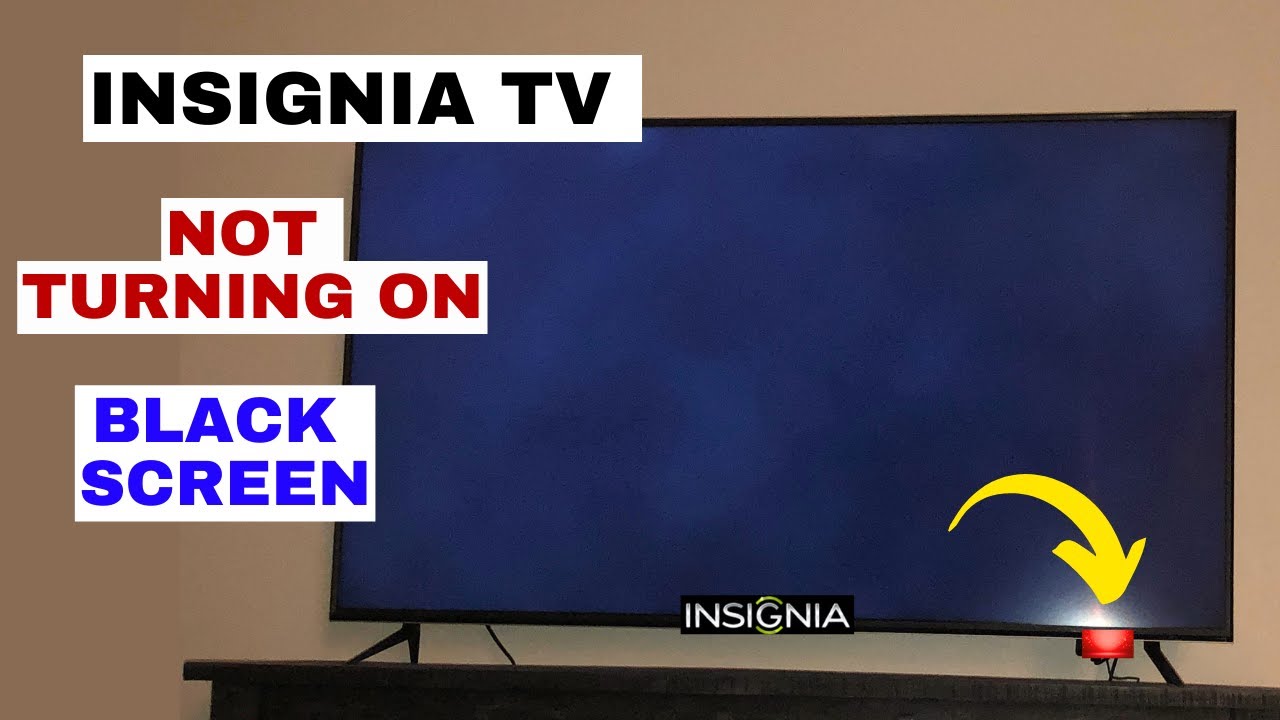
Sometimes, the TV is actually “on” but the display is stuck on black due to a software crash or failed startup. Listen for sound or use a flashlight to check for a faint image.
Display And Backlight Issues
If your TV has sound but no picture, the problem may be with the backlight or display.
Test For Backlight Failure
- Turn on the TV and shine a bright flashlight at an angle against the screen.
- If you see a faint image, the backlight is broken.
Backlight repairs are more advanced and may need a technician.
Loose Or Damaged Display Cable
Inside the TV, a cable connects the motherboard to the display panel. If it’s loose or damaged, you may get a black screen or flickering.
- If you’re comfortable, unplug the TV, remove the back cover, and check all internal cables.
- If not, seek professional help.
Quick Comparison: Sound Vs. Picture Problems
| Symptom | Likely Issue | DIY Fix? |
|---|---|---|
| Sound but no picture | Backlight/display fault | No |
| No sound or picture | Power/board issue | Sometimes |
| Blinking standby light | Software or hardware glitch | Often |
Credit: www.youtube.com
Input And Source Issues
Your TV might be on, but not showing a picture due to input or source selection mistakes.
Wrong Input Selected
If the wrong input (HDMI, AV, Component, etc. ) Is selected, the screen will be black.
- Use the “Input” or “Source” button on your remote or TV to cycle through all inputs.
Device Not Powered On
If your streaming box, console, or cable box is off or not working, the TV will show a black screen.
- Turn on or reconnect your external device.
Faulty Hdmi Cable Or Port
A bad HDMI cable or port can cause no signal.
- Try a different HDMI cable.
- Try a different HDMI port on your TV.
Cec Or Arc Conflicts
Features like CEC (Consumer Electronics Control) and ARC (Audio Return Channel) can sometimes conflict and keep the TV from turning on. Disconnect all HDMI devices and test again.
Environmental And External Factors
Sometimes, the problem is not inside the TV at all.
Power Surges Or Outages
A recent power surge or outage can trigger a TV’s internal protection, keeping it from turning on.
- Unplug the TV for 5-10 minutes and try again.
Extreme Temperatures Or Humidity
If your TV is in a very hot, cold, or humid room, it might refuse to turn on to protect itself.
- Move the TV to a normal environment, let it sit unplugged for an hour, and try again.
Insect Or Pest Damage
In rare cases, insects or small animals can enter the TV and cause short circuits. If you hear buzzing or smell burning, unplug the TV immediately and call a technician.
Factory Reset And Advanced Troubleshooting
If you’ve tried everything above and your Insignia TV won’t turn on, a factory reset or advanced methods may help.
Factory Reset With Buttons
Some Insignia TVs let you perform a reset using built-in buttons.
- Unplug the TV.
- Hold the “Volume Down” and “Input” buttons on the TV.
- Plug in the TV while holding the buttons.
- Continue holding for 20 seconds.
This may trigger a forced reset.
Service Mode Access
Certain models have a hidden service menu for diagnostics. Accessing this menu is usually not recommended for beginners, as it can change important settings. However, it can sometimes revive a non-responsive TV.
- Consult your user manual or manufacturer support.
Firmware Usb Recovery
If the TV is “bricked” after a failed update, some models allow for firmware recovery via USB. This requires downloading the correct firmware from the Insignia website and following exact instructions. Mistakes here can make the problem worse, so only attempt if you are confident.
When To Call A Professional
If you smell burning, see smoke, or hear popping noises, unplug the TV immediately. Internal component failures can be dangerous. If simple fixes fail, a professional can diagnose and repair most hardware faults.
Preventing Future Power-on Problems
Once your TV is working again, take steps to avoid future issues.
Use A Quality Surge Protector
A good surge protector can save your TV from lightning, outages, and voltage spikes.
Update Firmware Regularly
Keep your TV’s software up to date to avoid glitches. Most smart TVs check for updates automatically, but you can check manually in the settings.
Keep Vents Clear
Overheating is a common cause of TV failure. Ensure that air vents are clear of dust and not blocked by furniture.
Handle Power Cords Carefully
Never yank or twist the power cord, and avoid placing heavy objects on it.
Avoid Cheap Cables
Low-quality HDMI and power cables can cause problems. Invest in good cables for stable performance.
Quick Table: Prevention Tips
| Prevention Tip | Why It Matters |
|---|---|
| Surge protector | Protects against power spikes |
| Firmware updates | Fixes bugs, adds features |
| Clear vents | Prevents overheating |
| High-quality cables | Prevents connection issues |
When Replacement Is The Only Option
If your Insignia TV is out of warranty, the cost of repair may be close to or higher than buying a new TV. Here’s when to consider replacement:
- The power board or display panel is faulty (usually the most expensive parts).
- The TV is older than 5-7 years and parts are hard to find.
- Multiple repairs have already failed.
- Repair costs exceed 50% of a new TV’s price.
Non-obvious insight: Always check your credit card or home insurance—some policies cover electronics for power surge or accidental damage.
Getting Warranty And Support
Insignia TVs usually come with a one-year limited warranty. To make a claim:
- Find your purchase receipt.
- Write down the model and serial number (usually on the back of the TV).
- Visit the Insignia support website or call their service number.
Some retailers offer extended warranties or in-store support as well.
For genuine replacement parts or support, always use official Insignia channels. Avoid third-party parts unless you are certain about compatibility.
Frequently Asked Questions
Why Does My Insignia Tv’s Power Light Blink But Not Turn On?
A blinking power light usually means the TV detected a problem and is stuck in protection mode. Try unplugging the TV for 60 seconds, then plug it back in. If the light keeps blinking, the issue could be with the power supply, main board, or a failed firmware update.
If basic resets do not help, contact Insignia support.
Can A Bad Hdmi Device Stop My Insignia Tv From Turning On?
Yes, a faulty HDMI device or cable can sometimes prevent the TV from starting, especially if HDMI-CEC is enabled. Unplug all external devices and try turning on the TV again. If it works, reconnect devices one at a time to find the culprit.
How Do I Perform A Hard Reset On My Insignia Tv?
To do a hard reset: unplug the TV from power, then press and hold the physical power button on the TV for 30 seconds. Plug it back in and try again. This can clear minor software glitches and restore normal operation.
Is It Safe To Open My Insignia Tv And Check Inside?
Opening your TV should only be done if you are comfortable with electronics and the TV is unplugged. There is a risk of electric shock from capacitors inside, even after unplugging. If you’re not sure, it’s safer to call a professional.
Where Can I Find Official Firmware Updates Or Support For My Insignia Tv?
The official Insignia support site offers downloads, manuals, and troubleshooting help. Visit Insignia Support for genuine updates and repair information.
Troubleshooting an Insignia TV that won’t turn on can be stressful, but with the right approach, most problems can be solved at home. By following the steps above—from simple power checks to advanced resets—you can often avoid expensive repairs and get your TV working again. Remember to take care of your TV, update it regularly, and use quality accessories to prevent future issues. If all else fails, don’t hesitate to seek professional help or contact official support. With patience and a little know-how, you’ll be back to enjoying your favorite shows in no time.