
Is your Kwikset Halo Bluetooth not working and leaving you locked out of seamless smart home control? You’re not alone, and this problem can be frustrating when you rely on your lock’s Bluetooth connection for quick access.
Whether your phone won’t pair with the lock or the connection keeps dropping, understanding why this happens is the first step to fixing it fast. In this guide, you’ll discover simple, effective solutions to get your Kwikset Halo Bluetooth back up and running smoothly.
Keep reading—your smart lock’s full potential is just a few easy fixes away.

Common Bluetooth Issues
Bluetooth problems often stop the Kwikset Halo from connecting properly. These issues usually come from simple causes. Understanding them helps fix the lock quickly.
Many users face the same problems, making it easier to diagnose. The most common troubles include low battery levels, app permission conflicts, and cached Bluetooth data. Each can block the Bluetooth signal or prevent pairing.
Low Battery Problems
Low battery power can weaken the Bluetooth signal. The Kwikset Halo needs enough battery to maintain a strong connection. When batteries run low, the lock may fail to pair or lose connection often.
Replace the batteries with fresh ones to improve performance. Check battery levels regularly to avoid sudden disconnections. Low batteries can also cause the lock to behave unpredictably.
App Permission Conflicts
The Kwikset app needs proper permissions to use Bluetooth and location services. Without these, the app cannot communicate with the lock. Some phones block these permissions by default for privacy reasons.
Ensure Bluetooth and location access are enabled for the Kwikset app in your phone settings. Restart the app after changing permissions. This step often resolves communication failures between the lock and phone.
Cached Bluetooth Data
Old Bluetooth data stored on your phone can cause pairing errors. Cached connections may confuse the device and the lock. Removing this data helps the devices start fresh.
Go to your phone’s Bluetooth settings, find the Kwikset Halo, and choose “Forget This Device.” Then, try pairing again. Clearing cached data often fixes connection loops or failed pairings.
Check App Permissions
Checking app permissions is a key step when Kwikset Halo Bluetooth is not working. The Kwikset app needs specific permissions to function properly on your phone. Without these permissions, the app may fail to connect or communicate with your lock. Adjusting these settings can restore the Bluetooth connection quickly.
Enable Location Services
Location services must be turned on for the Kwikset app. This is because Bluetooth scanning requires location access on most smartphones. Go to your phone’s settings, find the Kwikset app, and enable location permissions. Choose “Allow while using the app” for best results. Without location services, the app may not detect the lock.
Allow Bluetooth Sharing
Bluetooth sharing permission lets the Kwikset app connect to nearby devices. This setting is often separate from the general Bluetooth toggle. Open your phone’s settings, select the Kwikset app, and ensure Bluetooth sharing is allowed. This permission helps maintain a stable link between your phone and the lock.
Restart And Reconnect
Restarting and reconnecting your Kwikset Halo Bluetooth can fix many connection issues. This simple process refreshes the app and your phone’s Bluetooth settings. It clears minor glitches that block communication between devices.
Start by restarting the Kwikset app. Then, forget the device in your Bluetooth settings. These steps help establish a fresh connection and often restore proper function.
Force-close And Reopen App
Close the Kwikset app completely. On iPhone, swipe up and pause, then swipe the app off the screen. On Android, open recent apps and swipe the Kwikset app away. Wait a few seconds.
Open the app again. This restarts the app’s background processes. It can clear errors that stop Bluetooth from working.
Forget Device In Bluetooth Settings
Open your phone’s Bluetooth settings. Find the Kwikset Halo device in the list. Tap the information icon or settings gear next to it.
Select “Forget This Device” or “Unpair.” This removes old pairing data. It forces your phone to start fresh when reconnecting.
After forgetting the device, open the Kwikset app and try pairing again. This often fixes connection problems caused by corrupted Bluetooth data.
Reset Bluetooth Pairing On Lock
Resetting the Bluetooth pairing on your Kwikset Halo lock can fix connection problems. This step clears old pairing information. It lets you start fresh with your smartphone or device. The process is simple and only takes a few minutes.
Follow these steps carefully to reset the Bluetooth pairing on your lock. Make sure you have access to the lock’s interior. You will need to press specific buttons inside the lock to complete the reset.
Remove Interior Cover
First, remove the interior cover of the lock. Use a screwdriver if needed. Gently lift the cover to expose the lock’s inner panel. This step gives you access to the reset button and program button.
Take care not to damage any wires or parts inside. Keep the cover and screws safe for reassembly after the reset.
Use Program Button To Reset
Locate the Program button inside the lock. It is usually a small black or red button. Press and hold the Program button for about 10 seconds. This action clears the Bluetooth pairing memory.
Release the button once you hear a beep or see a light change. This confirms the reset process started. Do not press any other buttons during this step.
Listen For Beep And Led Indicator
After pressing the Program button, listen carefully for a long beep. The beep signals the lock reset is successful. Watch the LED light near the button. A green light means the lock is ready to pair again.
If you do not hear the beep or see the green light, repeat the reset process. Make sure the batteries are charged and the buttons are pressed correctly.
Pairing Mode Steps
Pairing your Kwikset Halo lock with Bluetooth can solve connection problems. The process requires entering pairing mode and following app instructions carefully. These steps help your phone find and connect to the lock smoothly. Keep your lock nearby and batteries fresh to avoid issues.
Activate Pairing Mode
Start by opening the interior cover on your Kwikset Halo lock. Locate the Program button inside. Press and hold the Program button until you hear a long beep. The green LED will light up, showing the lock is in pairing mode. Release the button after the beep. This step clears old Bluetooth data and prepares the lock to connect.
Follow Onscreen Instructions
Open the Kwikset app on your smartphone. Tap “Start Pairing” to begin the connection process. The app will guide you through each step. Make sure Bluetooth and location services are enabled on your phone. Look for the lock’s name in the app and select it. Follow prompts to complete the setup. Wait for confirmation that pairing is successful before closing the app.
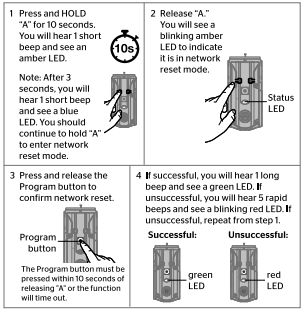
Network Reset For Smart Lock
Network reset is a key step to fix Kwikset Halo Bluetooth issues. It clears old network data and starts fresh. This process helps the lock reconnect with your phone or smart home system. A network reset can solve many common connection problems.
Reset Procedure
First, remove the lock’s interior cover carefully. Locate the reset button on the lock’s circuit board. Press and hold the reset button for about 10 seconds until the LED flashes. Release the button and wait for the lock to reboot. The lock will now erase all network settings. After the reset, reopen the Kwikset app and try pairing again.
When To Perform A Network Reset
Perform a network reset if the lock does not connect after several attempts. Use it when Bluetooth pairing fails despite checking app permissions. Try it when the lock shows no response to pairing commands. A reset helps if you changed your Wi-Fi or phone device. It is also useful after a firmware update that causes issues.
Troubleshooting Tips
Troubleshooting your Kwikset Halo Bluetooth connection can be simple. Follow these easy steps to fix common issues. These tips help clear minor glitches and restore connection fast.
Start with the basics and move to more advanced options if needed. Each step targets a common cause of Bluetooth problems with Kwikset Halo.
Check App Updates
Open the app store on your phone. Search for the Kwikset app. Check if an update is available. Updates fix bugs and improve Bluetooth performance. Installing the latest version can solve connection issues quickly.
Restart Your Phone
Turn off your phone completely. Wait for 10 seconds. Turn it back on. Restarting clears temporary software glitches. It refreshes the Bluetooth service and can restore the link to your lock.
Clear Bluetooth Cache
Go to your phone’s settings menu. Find Bluetooth settings or app management. Clear the cache for Bluetooth services. This removes old data that may block new connections. After clearing, try pairing your Kwikset Halo again.
Additional Resources
Finding the right help for Kwikset Halo Bluetooth issues can save time and frustration. Extra resources provide clear steps and advice from trusted sources. These tools guide users through troubleshooting and setup.
Use these resources to understand your lock better and fix Bluetooth problems effectively.
Official Kwikset Support
Visit Kwikset’s official support website for detailed guides and manuals. It offers step-by-step instructions for Bluetooth pairing and resetting. You can download user manuals and FAQs tailored for the Kwikset Halo model. The support page also provides contact options for direct help.
Video Tutorials
Video tutorials show the exact steps to connect or reset your Kwikset Halo Bluetooth. They make complicated processes easier by visual demonstration. Many videos cover common issues, including pairing failures and battery replacement. Watching these can clarify what to expect during setup.
Community Forums
Community forums host discussions from Kwikset users worldwide. People share their experiences and solutions for Bluetooth problems. You can ask questions and get answers from both users and experts. Forums provide real-life tips that may not be in official guides.
Frequently Asked Questions
Why Won’t My Kwikset Halo Keypad Connect To Bluetooth?
Your Kwikset Halo keypad may not connect to Bluetooth due to low batteries, disabled app permissions, or cached Bluetooth data. Enable location and Bluetooth permissions for the Kwikset app, forget the device in Bluetooth settings, restart the app, or reset the lock’s Bluetooth memory to fix it.
How Do I Turn On Bluetooth On Kwikset?
To turn on Bluetooth on your Kwikset lock, open the Kwikset app and follow the pairing instructions. Press the Program button on the lock until you hear a beep. Ensure your phone’s Bluetooth and location services are enabled for successful syncing.
How To Put Kwikset Halo In Pairing Mode?
Press and hold the Program button inside the lock until you hear a long beep and see a green LED. This activates pairing mode.
How Do I Fix The Bluetooth Pairing Problem?
To fix Bluetooth pairing issues, enable location and Bluetooth permissions for the Kwikset app. Restart the app. Forget the device in Bluetooth settings, then try pairing again. If it still fails, reset the lock’s Bluetooth by pressing the Program button inside.
Follow the app instructions to complete pairing.
Why Is My Kwikset Halo Bluetooth Not Connecting?
Low battery or app permission issues often block Bluetooth connection. Check battery level and ensure the Kwikset app has location and Bluetooth access enabled.
Conclusion
Kwikset Halo Bluetooth issues often come from simple problems. Check battery levels and app permissions first. Clear old Bluetooth connections on your phone. Restart the Kwikset app and try pairing again. Reset the lock’s Bluetooth memory if needed. Follow on-screen instructions carefully during pairing.
These easy steps usually restore your lock’s connection. Keep your smart lock working smoothly with regular checks. Visit Kwikset support for detailed guides if problems persist. Don’t let Bluetooth troubles stop your smart home convenience.