
Is your Logitech K270 keyboard suddenly not working, leaving you frustrated and stuck? You’re not alone—and the good news is, this common issue often has simple fixes.
Whether your keyboard won’t respond at all, types erratically, or refuses to connect, the problem usually lies in a few easy-to-check areas like the batteries, USB receiver, or software settings. In this guide, you’ll discover straightforward troubleshooting steps you can take right now to bring your Logitech K270 back to life.
Keep reading, and you’ll be typing smoothly again in no time!
Check Keyboard Power
Checking the keyboard power is the first step to fix the Logitech K270 keyboard. Without power, the keyboard will not respond or connect. Power issues often cause common problems with wireless keyboards.
Start by making sure the keyboard has fresh batteries. Old or weak batteries can stop the keyboard from working. Also, check the power switch. Sometimes the keyboard is accidentally turned off.
Replace Batteries
Remove the battery cover on the back of the keyboard. Take out the old batteries carefully. Insert new AAA batteries, matching the plus and minus signs. Even if the old batteries seem fine, weak power can cause connection problems. Fresh batteries often solve the issue quickly.
Toggle Power Switch
Locate the power switch on the keyboard’s side or bottom. Slide the switch to the off position and wait a few seconds. Then, slide it back to the on position. This simple reset can refresh the keyboard’s connection. Make sure the switch is not stuck or loose, which can prevent power flow.
Inspect Usb Receiver
Checking the USB receiver is key when the Logitech K270 keyboard stops working. The receiver connects your keyboard to the computer wirelessly. If it is not plugged in correctly or is faulty, the keyboard will not respond. Inspect the receiver closely to spot any problems. Small issues like loose connections or damaged ports can cause big trouble. Follow these steps to fix common USB receiver problems.
Replug Usb Receiver
Start by unplugging the USB receiver from your computer. Wait for a few seconds to clear any errors. Then plug it back in firmly. This simple action can reset the connection. Make sure the receiver fits snugly into the USB port. Avoid forcing it, as this may cause damage. Replugging helps the computer recognize the device again.
Try Different Usb Ports
Try connecting the USB receiver to another USB port on your computer. Some ports might be faulty or have low power supply. Use a port directly on your computer, not on the keyboard or monitor. Switching ports can fix detection problems. If your computer has both USB 2.0 and 3.0 ports, try both types. Different ports work better with certain devices.
Avoid Usb Hubs And Extensions
Plug the USB receiver directly into your computer. USB hubs, extension cables, or switches can cause connection issues. These devices may weaken the wireless signal. They add extra points of failure between your receiver and computer. Direct connection ensures stable communication. Keep the receiver close to the keyboard for better signal strength.
Sync Keyboard And Receiver
Syncing your Logitech K270 keyboard with its receiver is key to restoring its wireless connection. Without proper syncing, the keyboard won’t communicate with your computer. This process can vary depending on the receiver type. Follow the steps below to pair your keyboard effectively.
Use Logitech Unifying Software
Download the Logitech Unifying Software from the official Logitech website. Install and launch the program on your computer. Turn the keyboard off, then back on when prompted. Click “Add Devices” in the software to start pairing. The software will search for your keyboard and link it to the receiver. This method works only with receivers that have the orange Unifying logo. It allows multiple devices to connect to one receiver.
Pair Using Unifying Receiver
Ensure the Unifying receiver is plugged directly into your computer. Avoid USB hubs or extensions for better connection. Turn off your keyboard and remove the batteries for 10 seconds. Reinsert the batteries and turn the keyboard on. Open the Unifying Software and select “Add Devices.” Follow the on-screen instructions to complete pairing. Your keyboard should now work wirelessly with the receiver.
Pair With Non-unifying Receiver
Non-Unifying receivers are paired uniquely to their keyboards and cannot connect to other devices. If your keyboard does not respond, try unplugging the receiver and plugging it into a different USB port. Replace the keyboard batteries to ensure proper power. Turn the keyboard off, then back on. If this does not work, you may need to use the specific software or tools provided by Logitech for your model. Check the user manual for detailed instructions.
Update And Reinstall Drivers
Updating and reinstalling drivers can fix many issues with the Logitech K270 keyboard. Drivers help your computer communicate with the keyboard. Sometimes drivers become outdated or corrupted. This causes the keyboard to stop working properly. Following a few simple steps can refresh these drivers and restore keyboard function.
Uninstall Keyboard Driver
Open Device Manager by right-clicking the Start button. Find the “Keyboards” section and expand it. Locate your Logitech K270 or “HID Keyboard Device.” Right-click the keyboard entry and select “Uninstall device.” Confirm the uninstallation when prompted. This removes the current driver, clearing potential errors.
Restart Computer To Reinstall
After uninstalling the driver, restart your computer. Windows will detect the keyboard and reinstall the driver automatically. This process installs a fresh copy of the driver. It often solves hidden driver issues causing the keyboard to fail. Wait for the restart to complete before testing the keyboard again.
Check Device Manager
Return to Device Manager after the restart. Confirm the keyboard is listed under “Keyboards” without any warning symbols. A yellow triangle or red cross indicates driver problems. If the keyboard still does not work, right-click it and select “Update driver.” Choose the option to search automatically for updated driver software. This ensures the latest drivers are installed.
Clean Keyboard And Receiver
Cleaning the Logitech K270 keyboard and its receiver can solve many connection problems. Dust, crumbs, and dirt often block signals or keys. Regular cleaning keeps your keyboard responsive and reliable.
Use simple tools to clear away debris. Focus on both the keyboard and the USB receiver. A clean receiver ensures a strong wireless signal.
Use Compressed Air
Compressed air is a safe way to remove dust from the keyboard and receiver. Hold the can upright and spray short bursts between the keys. Avoid tilting the can to prevent moisture from coming out.
Also, blow air into the USB receiver’s small openings. This removes dust that may block the connection. Repeat this process regularly for best results.
Remove Debris From Keys
Sticky or stuck keys can stop the keyboard from working properly. Use a soft brush or cotton swab to clean around each key. Remove any visible dirt or crumbs carefully.
If keys still stick, gently pry them up with a small tool. Clean underneath and then press them back in place. This helps restore full key function.
Check Wireless Interference
Wireless interference often causes the Logitech K270 keyboard to stop working. Signals from other devices can block the keyboard’s connection to the receiver. Checking for wireless interference is a key step in fixing this issue. Simple changes can improve the connection and restore keyboard function.
Move Receiver Closer
Place the USB receiver closer to the keyboard. A shorter distance means a stronger signal. Avoid putting the receiver behind your computer or inside a metal case. Keep it in a clear, open spot for better communication.
Avoid Metal Objects And Electronics
Metal objects block wireless signals easily. Remove any metal near the receiver or keyboard. Electronics like routers, phones, and microwaves can cause interference too. Keep these devices away to improve performance. Clear space helps the keyboard connect without interruptions.
Test Keyboard On Another Device
Testing your Logitech K270 keyboard on another device helps find the root cause. This simple step shows if the problem lies with the keyboard or your computer. It saves time and avoids unnecessary fixes.
Try connecting the keyboard to a different laptop or desktop. Use the same USB receiver and fresh batteries. Watch for signs of response like typed letters or indicator lights.
How To Connect Logitech K270 To Another Device
Turn off the keyboard first. Remove the USB receiver from your current computer. Plug the receiver into the new device’s USB port. Switch the keyboard back on. Wait a moment for the device to recognize it.
Check For Keyboard Response
Open a text editor or any app where you can type. Press several keys to see if they register. Look for blinking lights on the keyboard. If keys work, the issue is with your original device.
What To Do If Keyboard Still Doesn’t Work
Try replacing the batteries with new ones. Confirm the USB receiver is fully inserted. Use a different USB port on the test device. If the keyboard still fails, it may need repair or replacement.
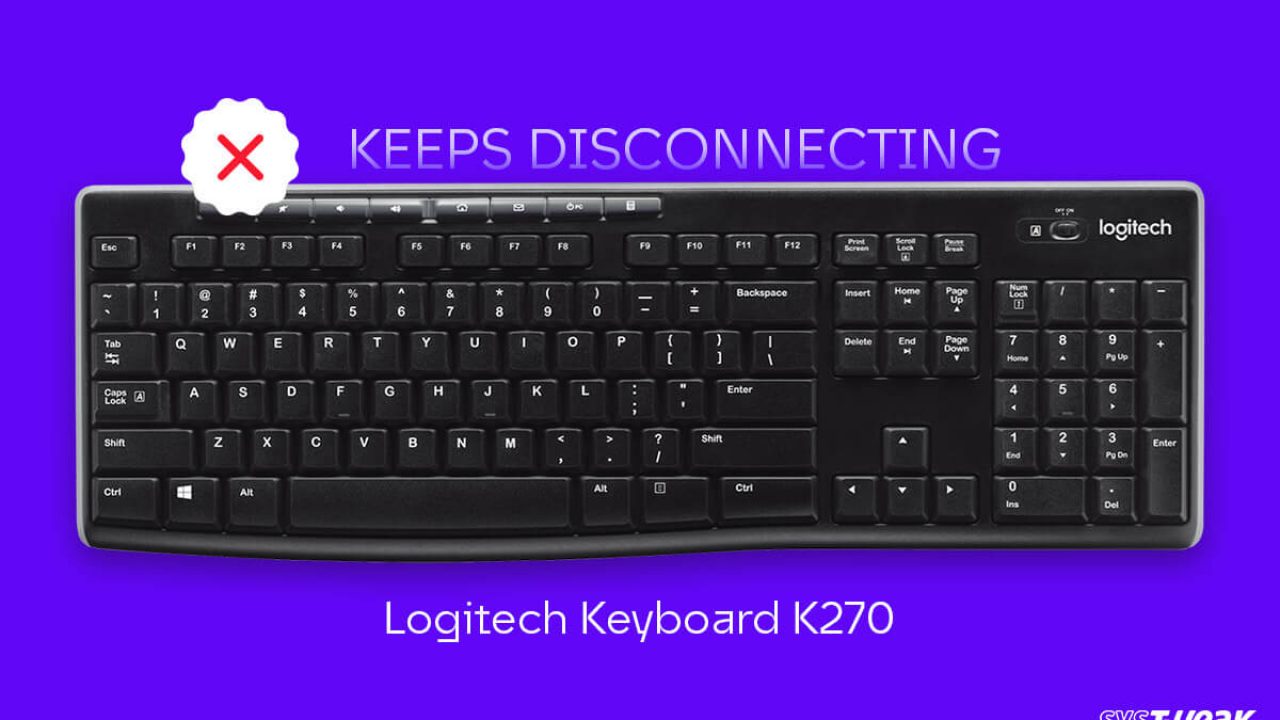
Credit: www.systweak.com
Reset Keyboard Settings
Resetting your Logitech K270 keyboard settings can fix many connection and responsiveness issues. This process clears previous pairings and configurations. It helps establish a fresh connection with your computer. Follow the steps below to reset and restore your keyboard to proper working order.
Unpair And Repair Keyboard
Start by unpairing your Logitech K270 from your computer. Open the Logitech Unifying Software on your PC. Select the option to remove your keyboard from the device list. Turn off the keyboard, then turn it back on. Click “Add Devices” in the software and follow the prompts to pair it again. This process refreshes the connection and often resolves input problems.
Restore Factory Defaults
Restoring factory defaults resets the keyboard’s internal settings. Remove the batteries from your Logitech K270. Press and hold any key for about 15 seconds to drain residual power. Reinsert the batteries and turn on the keyboard. This resets its hardware settings. Try reconnecting the keyboard to your computer after this step. It can clear hidden glitches affecting performance.
Update Firmware
Updating the firmware of your Logitech K270 keyboard can fix bugs and improve performance. Firmware controls the keyboard’s basic functions. New updates often fix connectivity and response issues. Keeping firmware current ensures your keyboard works smoothly.
Firmware updates can resolve problems like keys not responding or lag. The process is simple and safe when done correctly. Use Logitech’s official software to check for and install updates. Follow clear steps to avoid errors during installation.
Download Firmware Updates
First, visit Logitech’s official support website. Enter your keyboard model, K270, in the search bar. Locate the firmware update section for your device. Download the latest firmware file available for your keyboard. Save it to an easy-to-find location on your computer.
Ensure your computer is connected to the internet. This helps in downloading the correct and complete update file. Avoid downloading from third-party sites to prevent malware risks. Always choose the update that matches your operating system.
Install Via Logitech Software
Open the Logitech software installed on your computer. If you don’t have it, download Logitech Options or Logitech Unifying Software. Run the software and connect your K270 keyboard to the computer. Follow the on-screen instructions to start the firmware update.
Keep your keyboard powered on during the installation. Do not disconnect or turn off the device until the update finishes. Once complete, restart your computer to apply changes. Test the keyboard to confirm the update fixed the issue.
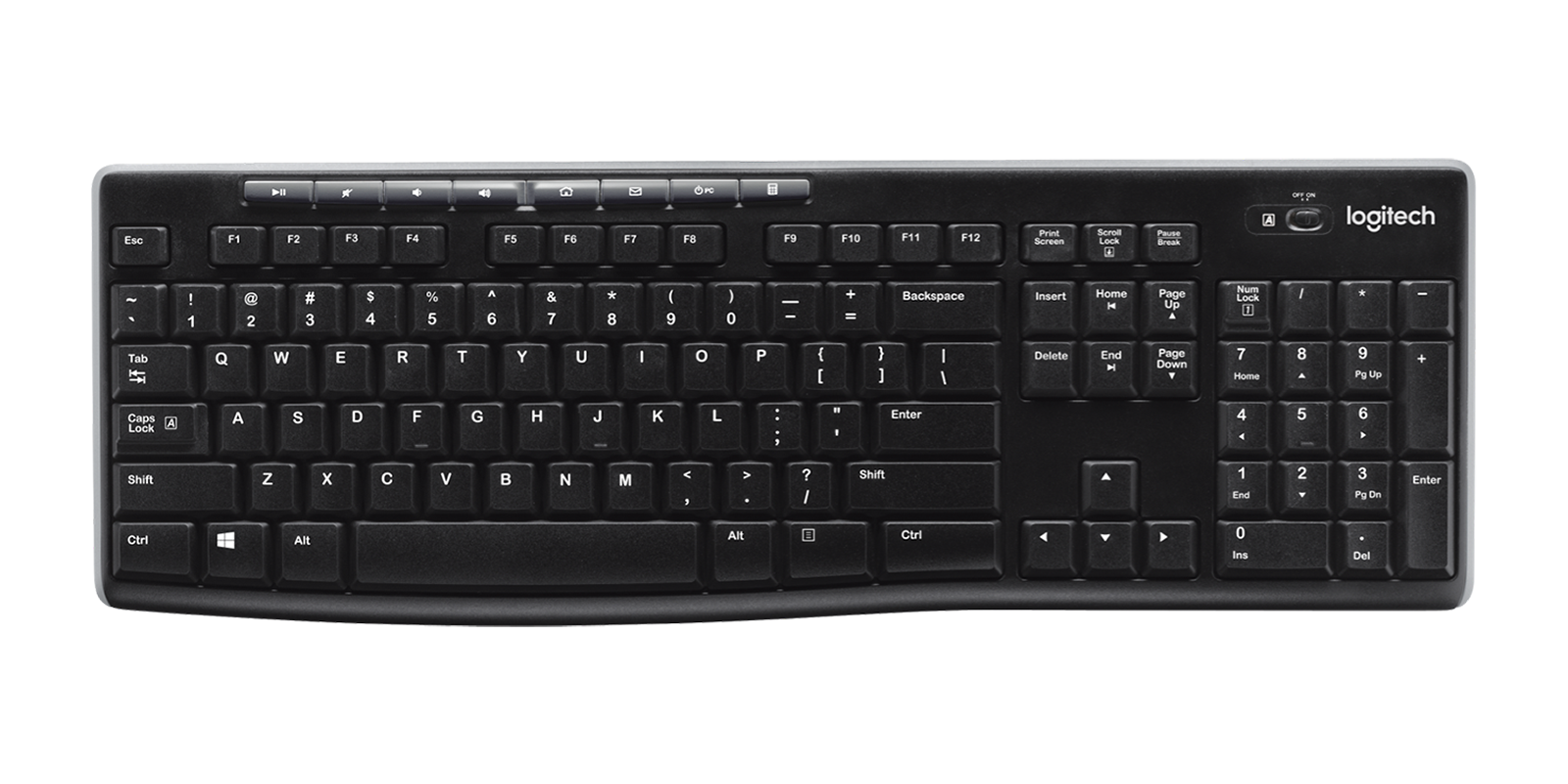
Credit: www.logitech.com
Contact Logitech Support
Contacting Logitech Support is a smart step if your K270 keyboard stops working. Their team can provide expert advice and solutions. They help users with common issues and guide on repairs.
Logitech offers various support options. These include warranty services and repair assistance. Support staff can also guide you through extra troubleshooting steps. This help can save time and effort.
Warranty And Repair Options
Check if your K270 keyboard is still under warranty. Logitech usually covers defects and hardware failures. You can find warranty details on their website or product documentation.
If your keyboard qualifies, you may get a repair or replacement. Logitech’s repair service ensures your device works like new. Sending your keyboard for repair is simple with their instructions.
Keep your purchase receipt handy. It helps confirm warranty status quickly. If the warranty expired, Logitech may still offer paid repair options.
Additional Troubleshooting Help
Logitech Support can provide troubleshooting steps beyond basic fixes. They may suggest driver updates or software tools. These steps often restore keyboard functionality.
Support agents can help identify if the issue is with the keyboard or your computer. They may ask you to test on another device. This isolates the problem for faster solutions.
Live chat, phone, or email support options are available. Choose the one that fits your needs best. Getting professional help prevents guesswork and frustration.
Frequently Asked Questions
How Do I Fix My Logitech Unresponsive Keyboard?
Unplug and replug the USB receiver into a different port. Replace or reinsert fresh batteries. Restart the keyboard and computer. Use Logitech software to re-pair devices. Clean keys with compressed air and update keyboard drivers if needed.
How To Reset A Logitech K270 Wireless Keyboard?
To reset a Logitech K270 keyboard, remove batteries, unplug the USB receiver, wait 10 seconds, reinsert batteries, and reconnect the receiver. Turn the keyboard off and on to complete the reset.
Why Are The Keys Not Working On My Logitech K270 Keyboard?
Check battery power and polarity, reconnect the USB receiver directly to a different port, and toggle the keyboard’s power switch. Clean keys with compressed air and update or reinstall drivers if needed. Avoid USB hubs or extenders to ensure a stable connection.
Why Is My Logitech Keyboard Connected But Not Typing?
Your Logitech keyboard may not type due to low batteries, USB receiver issues, or driver problems. Replace batteries, connect the receiver directly to a different USB port, and reinstall keyboard drivers to fix the issue.
Why Is My Logitech K270 Keyboard Not Responding?
The keyboard may have weak or dead batteries. Check and replace batteries if needed. Also, ensure the USB receiver is firmly plugged into the computer.
Conclusion
Troubleshooting the Logitech K270 keyboard can be simple and quick. Try changing the batteries or switching USB ports first. Make sure the receiver connects directly to the computer, not through a hub. Restarting your computer can also help fix driver issues.
Using Logitech’s software may improve the connection. Keep the keyboard clean and check the power switch. These steps often resolve common problems fast. Stay patient and follow each step carefully. Your keyboard should work smoothly again soon.