
Smart locks have become a popular choice for homeowners who value convenience and security. Among these, Kwikset smart locks stand out for their reliability and user-friendly features. But even the best devices sometimes need a reset—maybe you lost a code, changed tenants, or just want a fresh start. Resetting your Kwikset smart lock is not complicated, but it does require careful steps and a good understanding of your specific model.
This guide is here to make the Kwikset smart lock reset process simple and clear, even if English is not your first language. You’ll find explanations for why resets are important, instructions for every major Kwikset model, troubleshooting tips, and insights that most beginners miss. Whether you’re a homeowner, renter, property manager, or just curious, you’ll leave with the confidence to handle any reset situation.
Understanding Kwikset Smart Locks
Kwikset offers a variety of smart locks, each with its own features and reset steps. The most popular series include:
- Kwikset SmartCode 888
- Kwikset SmartCode 913
- Kwikset SmartCode 914
- Kwikset Halo Wi-Fi
- Kwikset Premis
- Kwikset Obsidian
Each model is designed for easy installation and daily use. But sometimes, you may need to reset your lock to restore it to factory settings or fix a problem. Let’s look at why and when a reset is needed.
Why Reset A Kwikset Smart Lock?
Resetting your Kwikset lock is not just for emergencies. Here are some common reasons:
- Forgotten user codes: If you can’t remember your code or the app isn’t working, a reset gives you a fresh start.
- New homeowners or tenants: Always reset the lock when moving in or out to prevent old codes from working.
- Technical glitches: Sometimes, the lock software gets stuck and a reset helps fix odd behaviors.
- Lost connection: If you’re using a Wi-Fi or Z-Wave enabled model and lose app control, a reset may restore communication.
- Security concerns: After a break-in or attempted tampering, resetting ensures only trusted codes work.
How Does A Factory Reset Work?
A factory reset deletes all user codes, settings, and connections. The lock returns to the state it was in out of the box. This means you must set up your codes and any smart home links again. Think of it as starting fresh—sometimes necessary, but always important to do carefully.
How To Identify Your Kwikset Model
Before you begin, find out which Kwikset lock you have. The reset process is different for each model. Here’s how to identify your lock:
- Check the interior cover: Most locks have the model number printed inside.
- Look at the keypad design: Touchscreen, button, and knob designs help tell models apart.
- Check your purchase receipt or app: The app often lists the model name.
- Visit the official Kwikset website for pictures to match your lock.
If you’re unsure, take a photo of your lock and compare it to images on the Kwikset support site.
Reset Instructions For Popular Kwikset Smart Lock Models
Now, let’s walk through the reset steps for each major Kwikset smart lock model. Read carefully and follow the steps that match your lock.
Kwikset Smartcode 888, 910, 912, 913, 914
These are some of the most commonly used keypad smart locks from Kwikset. The reset steps are similar across these models.
Steps For Factory Reset
- Remove the interior cover: Use a screwdriver to take off the inside cover of your lock.
- Find the Program button: This is usually a small round button on the interior mechanism.
- Press and hold the Program button: Hold it for 30 seconds until you hear a beep and the lock flashes red.
- Release the button: Wait for the lock to beep again.
- Test the lock: Try old codes—they should no longer work. The lock is now reset to factory settings.
Important tip: After a reset, you must add new user codes and set up smart home links again. The master code is now back to the default (check your manual for the default code).
Common Mistakes
- Not holding the program button long enough.
- Forgetting to re-link to a smart home hub after reset.
- Skipping battery checks before starting the process.
Kwikset Halo Wi-fi And Halo Touch
The Halo series connects directly to your Wi-Fi and smartphone app. Resetting these locks is a bit different.
Steps For Factory Reset
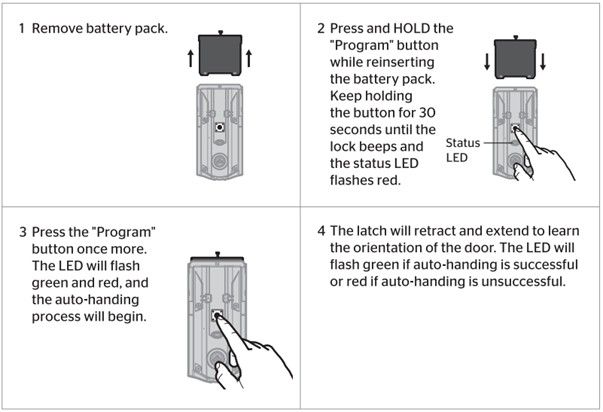
- Remove the battery pack: Slide the cover off and pull out the batteries.
- Press and hold the Program button: Keep holding the button while putting the battery pack back in.
- Continue holding: Wait for the lock’s LED to flash red and beep three times, then release the button.
- Wait for reset: The lock will beep and the light will turn amber.
- Setup again: Use the Kwikset app to set up your lock as new.
Non-obvious insight: The Halo lock must be close to your Wi-Fi router during setup for the best results. If you reset away from home, you may have trouble reconnecting.
Kwikset Premis
The Premis is designed for Apple HomeKit users. Resetting it is important if you change your iPhone or move to a new home.
Steps For Factory Reset
- Remove the interior cover: Find the reset button inside.
- Press and hold the reset button: Hold for about 20 seconds until the lock beeps and the LED blinks red.
- Release the button: The lock is now reset.
- Re-add to Apple Home: Open the Premis app and follow the setup process.
Extra tip: You’ll need the HomeKit setup code from the original packaging or the back of the lock. Keep it safe before starting the reset.
Kwikset Obsidian
The Obsidian is a sleek touchscreen lock. It has no keyhole, so digital codes are the only way in.
Steps For Factory Reset
- Remove the interior cover to access the reset button.
- Press and hold the reset button for 20 seconds.
- Release the button when the lock beeps and flashes.
- Test the lock: All codes should be erased.
Practical insight: Always keep a backup entry method (like a neighbor with a spare code) when resetting a keyless lock like Obsidian.
Kwikset Smart Lock Model Comparison
To help you see the main differences, here’s a quick comparison of popular Kwikset models:
| Model | Reset Method | Connection Type | App Support | Best For |
|---|---|---|---|---|
| SmartCode 888 | Program Button | Z-Wave | Yes | Smart home hubs |
| Halo Wi-Fi | Program Button + Battery | Wi-Fi | Yes | Direct smartphone use |
| Premis | Reset Button | Bluetooth | Yes (iOS) | Apple HomeKit users |
| Obsidian | Reset Button | Z-Wave | Optional | Keyless entry |
Step-by-step Troubleshooting: When The Reset Doesn’t Work
Resetting a Kwikset lock usually works the first time, but sometimes you may run into problems. Here’s what to do if the reset doesn’t seem to work.
1. Check The Batteries
Low batteries are a common cause of reset failures. Always use fresh, high-quality alkaline batteries. Rechargeable batteries can cause problems.
2. Hold The Reset Button Correctly
Many people don’t hold the button long enough. The lock should beep and lights should flash. If not, try again and count out loud for 20–30 seconds.
3. Confirm The Model
Using the wrong reset steps for your lock model will not work. Double-check your model number before starting.
4. Inspect For Damage
If your lock has been physically damaged or exposed to water, the reset button or electronics could be broken. In this case, contact Kwikset support.
5. App Issues
If your lock is connected to an app, delete the lock from the app before and after resetting. This prevents old data from causing problems during setup.
Troubleshooting Table
Here’s a quick guide to common reset problems and solutions:
| Problem | Possible Cause | Solution |
|---|---|---|
| No beep or light after reset | Dead batteries | Replace batteries and try again |
| Old codes still work | Didn’t hold reset long enough | Repeat reset and hold button longer |
| Can’t add to app after reset | App cache issue | Remove device from app, restart phone, try again |
| Lock won’t respond | Electronics damaged | Contact Kwikset support |
Setting Up Your Kwikset Lock After A Reset
After you reset your smart lock, it’s like you just installed it. Here’s how to set up your lock again:
1. Add User Codes
- Enter program mode (see your model’s manual).
- Add one or more user codes.
- Test each code to make sure it works.
2. Connect To Smart Home System
- For Wi-Fi or Z-Wave models, use the app to pair the lock with your hub or phone.
- Follow on-screen steps to complete the connection.
3. Set Security Features
- Add a master code if your model supports it.
- Turn on auto-lock and other security settings as needed.
4. Test Everything
- Lock and unlock with codes, app, and key (if available).
- Make sure the door opens smoothly.
Non-obvious insight: If you have multiple locks, set up each one separately to avoid mix-ups in codes or connections.
Resetting Kwikset Smart Locks: Security And Privacy Considerations
Smart locks store sensitive information—your codes, access times, and sometimes even Wi-Fi settings. Resetting removes this data. Here’s why this matters:
- Protects against old tenants or guests using old codes
- Prevents hackers from using previous Wi-Fi or app connections
- Resets lock to a secure state so you control who has access
Always reset your lock before selling or giving away a property or device.
Data Comparison: Before And After Reset
This shows how your lock’s memory changes when you reset it.
| Before Reset | After Reset |
|---|---|
| All user codes saved | No user codes saved |
| Wi-Fi/Bluetooth pairings active | No pairings, must set up again |
| Custom settings (auto-lock, etc.) | Factory default settings |

Advanced Tips For Power Users
If you’re a property manager or someone who resets smart locks often, these tips will help you save time and avoid headaches.
1. Keep A Reset Log
Write down the date and time of each reset, especially for rental units. This helps track when codes were changed and who had access.
2. Label Your Locks
If you manage many doors, use a sticker or label with the lock’s model and install date inside the battery cover. This makes future resets faster.
3. Backup Codes Securely
Before you reset, keep a record of current codes in a safe place, especially if you need to share access with trusted people during transition periods.
4. Schedule Regular Resets
For Airbnb hosts or similar, reset your Kwikset lock after each guest for maximum security. This is quick and stops old codes from working.
5. Use The Kwikset App Wisely
For Halo and Premis models, the app lets you manage codes and check lock status remotely. Always update the app for new features and security patches.
When To Call A Professional
Sometimes, a reset is not enough, or things go wrong. You may need professional help if:
- The lock is physically damaged or jammed.
- Reset steps do not work after several tries.
- Your door frame is warped, making the lock misalign.
- The electronics show errors or won’t respond at all.
A locksmith or Kwikset support can help fix these issues. Don’t force the lock or use tools that may break it.
The Role Of Support And Warranty
Most Kwikset smart locks come with a limited lifetime warranty on mechanical parts and a 1-year warranty on electronics. If your lock fails to reset and is still under warranty, contact Kwikset customer support. They may offer repair or replacement.
Extra tip: Always keep your proof of purchase and take a photo of the lock’s serial number. This makes warranty claims easier.
Common Myths About Kwikset Smart Lock Resets
There are several misunderstandings about smart lock resets. Let’s clear them up:
- Myth 1: Resetting erases the app account. Not true. Resetting only erases data on the lock, not your smartphone or Kwikset account.
- Myth 2: All locks reset the same way. Each model has its own method. Using the wrong steps can waste time or cause errors.
- Myth 3: You can’t reset without the master code. A factory reset does not need any code—just the physical button inside the lock.
Preventing The Need For Frequent Resets
Resetting is a powerful tool but shouldn’t be used too often. To avoid unnecessary resets:
- Keep your codes organized: Use the app or a notebook to track who has access.
- Change codes, not reset: If someone leaves, just delete their code instead of resetting the whole lock.
- Regular maintenance: Check batteries and clean keypads regularly to prevent glitches.
Frequently Asked Questions
How Do I Know If My Kwikset Lock Was Successfully Reset?
After a successful reset, all user codes are erased, and the lock returns to its factory settings. Old codes no longer work, and the lock may beep or show a light signal. Always test the lock with your old codes to confirm.
Do I Need Internet Access To Reset My Kwikset Smart Lock?
No, most resets are done using physical buttons on the lock itself. However, for Wi-Fi and app-connected models, you’ll need internet access to reconnect the lock after resetting.
Will A Factory Reset Remove My Kwikset App Account Or History?
No, a factory reset only erases data stored on the lock. Your Kwikset app account, history, and other locks stay unchanged. You may need to remove and re-add the lock in the app after resetting.
Can I Reset My Kwikset Lock If I Lost The Master Code?
Yes, you can still perform a factory reset without the master code. The reset uses a button inside the lock, not a code. After resetting, you can set a new master code.
What Should I Do If My Kwikset Lock Won’t Reset?
First, check the batteries and make sure you are following the correct steps for your specific model. If it still won’t reset, contact Kwikset support or a professional locksmith for help.
Final Thoughts
Resetting your Kwikset smart lock is not complicated when you follow the right steps for your model. Whether you’re fixing a problem, changing users, or securing your home, a reset gives you peace of mind. Always double-check your model, keep fresh batteries on hand, and take your time during the process.
By understanding the reset process and avoiding common mistakes, you can keep your smart home secure and easy to manage. Remember, technology is here to help—but a little care goes a long way in keeping things running smoothly.
For more details and the latest updates, you can always visit the official Kwikset support page.
By following these guidelines, you’ll be able to reset your Kwikset smart lock safely and efficiently, keeping your home secure and your mind at ease.