
If you use a Verizon router at home or work, you may have noticed a red globe icon lighting up on the device at some point. For many, this symbol can cause confusion or even anxiety, especially if it appears suddenly and your internet stops working. The red globe is one of the main status indicators on most Verizon routers, and it is important to understand what it means, why it appears, and what you can do to fix it. This article will guide you through everything you need to know about the red globe on Verizon router—from its meaning, possible causes, and how to troubleshoot, to when you should contact Verizon support.
Most people depend on a stable internet connection for work, study, and entertainment. When your router starts showing a new light, it’s natural to worry. But the red globe is not just a random warning—it’s a clear message from your router about what’s wrong.
Learning to interpret and respond to this signal can help you avoid unnecessary stress, downtime, and even costly technician visits.
Below, you’ll find a deep dive into the red globe problem, easy-to-follow solutions, and practical advice based on real-world experience. Whether you are a tech beginner or someone with a bit more know-how, this guide will give you the confidence to tackle the red globe issue with your Verizon router.
What Does The Red Globe Mean On A Verizon Router?
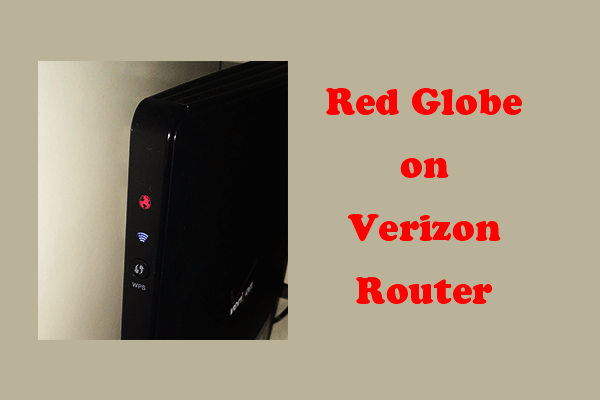
The red globe on a Verizon router is a warning indicator. It usually appears in place of the normal white or blue globe that signals a healthy internet connection. The color red is used to signal problems or errors, especially with your router’s ability to connect to the internet.
On most Verizon routers (like the Fios Quantum Gateway G1100 and newer models), the globe icon is located on the front of the device. It lights up in different colors depending on the current status:
- Solid white: Normal operation. Internet connection is active.
- Blinking white: Device is booting up or updating firmware.
- Solid blue: WPS pairing mode is active.
- Solid red: No internet connection, or a critical error.
- Blinking red: Hardware or connection problem; sometimes overheating.
A solid or blinking red globe nearly always means the router cannot connect to Verizon’s network. This does not always mean your router is broken—it could be a problem with your ISP, cables, or even a simple glitch.
Common Causes Of The Red Globe On Verizon Routers
Understanding what triggers the red globe is the first step to solving the problem. There are several common reasons you might see this warning light:
1. Internet Outage From Verizon
One of the most common reasons for a red globe is a network outage in your area. This can happen if Verizon is performing maintenance, if there is a fiber cut, or if a local problem affects multiple users. Outages may be planned or unplanned.
2. Loose Or Damaged Cables
If the Ethernet or fiber optic cables connecting your router are loose, unplugged, or damaged, the router cannot communicate with Verizon’s network. Even a slightly loose connection can trigger the red globe.
3. Router Firmware Or Software Errors
Sometimes, the router’s firmware (the internal software that makes it work) can crash, freeze, or get stuck in a bad state. This might happen after a power surge, failed update, or glitch.
4. Overheating
If your router overheats, it may show a blinking red globe and shut down the internet connection to protect itself. Overheating is often caused by poor ventilation or dust buildup.
5. Faulty Router Hardware
Routers, like any electronic device, can develop hardware faults over time. Internal components may fail, resulting in a red globe and total loss of connectivity.
6. Incorrect Router Configuration
A misconfigured router, such as wrong settings after a reset or incorrect login details, can prevent it from connecting to Verizon’s network. Sometimes, users accidentally change settings that break the connection.
7. Problems With The Ont (optical Network Terminal)
For Verizon Fios users, the ONT is the device that brings fiber optic internet into your home. If the ONT is not working, the router cannot connect to the internet, causing a red globe.
8. Isp Authentication Failure
If your router fails to authenticate with Verizon’s systems (for example, after moving or changing plans), it may show a red globe until the issue is resolved.
9. Firmware Updates In Progress
During a firmware update, the router may briefly show a red globe as it restarts and reconnects. If it stays red for more than 10 minutes, there might be a problem.
10. Power Issues
Unstable power, such as surges or outages, can interrupt the router’s function and lead to a red globe. Bad power supplies or old surge protectors are common culprits.
Troubleshooting Steps For The Red Globe
If you see the red globe on your Verizon router, there are several steps you can take to fix the issue. Start with simple checks, and move to more advanced solutions if the problem remains.
1. Check For Verizon Outages
Before you change anything, find out if Verizon is experiencing problems in your area:
- Visit the official Verizon outage page or use the My Fios app.
- Search for “Verizon outage map” online for third-party reports.
- Ask neighbors if they are also having issues.
If there is a known outage, you usually just have to wait. Verizon will fix the problem on their end.
2. Inspect All Cables And Connections
Check every cable connected to your router:
- Unplug and firmly replug the Ethernet and fiber optic cables.
- Inspect cables for visible damage (cuts, kinks, broken ends).
- Make sure the power adapter is secure and plugged into a working outlet.
- If you have pets, check for chew marks on wires.
Replacing a damaged cable often resolves the red globe instantly.
3. Power Cycle Your Router And Ont
Restarting (power cycling) your devices is a classic fix:
- Unplug the router’s power cable.
- Wait 30 seconds.
- If you have an ONT, unplug it as well, wait 30 seconds, then plug it back in.
- Plug the router back in and let it boot up (can take up to 5 minutes).
This clears temporary errors and often restores the connection.
4. Let The Router Cool Down
If the router feels hot, unplug it and let it cool for 10–15 minutes. Check that it sits in a well-ventilated area, away from heat sources and out of direct sunlight.
5. Check Router Settings
Login to your router’s admin page (usually by typing 192.168.1.1 in your browser):
- Make sure the WAN connection type is set to DHCP or Automatic.
- If you changed settings recently, reset them to default.
- Some routers have a “Restore Defaults” button—use this if you suspect a configuration error.
6. Update Firmware
Outdated firmware can cause connection problems. On the admin page:
- Check for firmware updates.
- Follow on-screen instructions to update if a new version is available.
Do not unplug the router during updates.
7. Test With A Different Router Or Device
If you have a spare router (or a friend’s), connect it using the same cables. If the new router works, your original router may be faulty.
You can also try connecting a computer directly to the ONT with an Ethernet cable to see if the internet works.
8. Replace Cables And Power Adapter
If you suspect a bad cable or power adapter, try a replacement. Use only genuine or high-quality cables and the correct voltage power supply.
9. Reset The Router
As a last resort, reset your router to factory settings:
- Use a paperclip to press and hold the reset button (usually on the back) for 10 seconds.
- Wait for the router to restart.
- Reconfigure Wi-Fi names and passwords as needed.
Warning: This will erase all custom settings.
10. Contact Verizon Support
If the red globe stays on after all troubleshooting, contact Verizon support. They can run remote diagnostics and send a technician if needed.
What To Do If The Red Globe Is Blinking Vs. Solid
The behavior of the red globe offers clues:
- Solid red globe: No internet connection, likely a WAN problem.
- Blinking red globe: Hardware failure, possible overheating, or firmware corruption.
Solid red often points to an external problem (cables, ONT, ISP), while blinking red usually means something is wrong inside the router itself.
When To Replace Your Verizon Router
Routers can last many years, but sometimes replacement is the only solution. Consider a new router if:
- The router is more than 5–6 years old.
- The red globe appears often, even after resets.
- The device is physically damaged or will not power on.
- Verizon support tells you the router is faulty.
Modern routers offer faster speeds, better security, and improved Wi-Fi range compared to old models.
How The Red Globe Differs From Other Verizon Router Lights
Verizon routers use a set of colored lights to show their status. Understanding what each color means helps you respond quickly to problems.
Here’s a comparison of common globe colors on Verizon routers:
| Globe Color | Status | What It Means |
|---|---|---|
| White (solid) | Connected | Internet working |
| White (blinking) | Starting up | Booting or updating |
| Blue | WPS mode | Device pairing |
| Red (solid) | Error | No internet connection |
| Red (blinking) | Critical error | Hardware/overheating |
Most users only see the white and blue lights in normal operation. Red means your attention is needed.

Advanced Troubleshooting: Ont And Network Interface
If you have tried all basic steps and still see the red globe, the problem might be with the ONT or the network interface outside your home.
Ont Checks
- Look for lights on the ONT—green usually means normal, red means a problem.
- If the ONT has no lights, check its power supply.
- Some ONTs have a reset button—press and hold for 10 seconds.
If the ONT’s lights are red or off, contact Verizon support.
Network Interface Box
The network interface is usually a gray box outside your house. Only Verizon technicians should open or service this box, as it contains fiber or copper lines.
If you notice exposed wires, water damage, or other visible problems, call Verizon for repairs.
How To Prevent The Red Globe Problem
While not all causes can be prevented, you can reduce the risk of red globe issues with these steps:
- Place your router in a cool, open space to avoid overheating.
- Use surge protectors to protect against power problems.
- Check and replace cables regularly.
- Update your router firmware at least twice a year.
- Avoid changing advanced settings unless you are sure what they do.

Real-world Examples And Data
According to a survey of Verizon Fios users on major forums, about 15–20% report seeing the red globe at least once a year. Most cases are solved by rebooting the router or checking cables. Less than 5% require a technician visit or hardware replacement.
One user shared that after a thunderstorm, their router showed a red globe. The fix was a simple power cycle and replacing a damaged Ethernet cable.
Another family had a blinking red globe every summer. The cause was overheating—the router was moved away from a hot window, and the problem stopped.
Verizon Router Models And Red Globe Behavior
Different Verizon routers use slightly different globe icons and colors. Here’s a quick comparison:
| Router Model | Globe Light | Red Globe Meaning |
|---|---|---|
| Fios Quantum Gateway (G1100) | Yes | No internet or hardware error |
| Fios Home Router (G3100) | Yes | WAN not detected |
| Fios CR1000A | Yes | Critical network issue |
| Older Actiontec models | No (different icons) | Uses other lights for errors |
Always check your router’s manual for model-specific details.
Key Insights Most Beginners Miss
Many first-time Verizon router users focus only on the router when they see the red globe. But in many cases, the problem is actually with the ONT or the cables outside your home. Don’t forget to check those, especially if you have no history of router problems.
Another common mistake is not waiting long enough after a reset or power cycle. Some routers take up to 10 minutes to fully reconnect, especially after a firmware update. Impatience can lead to unnecessary resets and even more confusion.
When Professional Help Is Needed
If you’ve followed all troubleshooting steps and the red globe remains, it’s time to call Verizon. Technicians have special tools to test your line, ONT, and router from their office. Sometimes, the fault is in the wiring outside your home or a failed ONT, which only a professional can fix.
Do not open or try to repair the ONT or outside network box yourself—this can cause more damage, void your warranty, or even be dangerous.
Verizon Support: What To Expect
When you contact Verizon support, have the following information ready:
- Your router model and serial number (found on the sticker under the device)
- Description of the problem (solid or blinking red globe, when it started)
- Steps you have already tried
- Any error codes from the admin page
Support may ask you to perform more troubleshooting, or they may schedule a technician visit. If your router is under warranty, a replacement is usually free.
For more details about Verizon routers and troubleshooting, see the official Verizon Router Support page.
Frequently Asked Questions
What Does A Solid Red Globe Mean On My Verizon Router?
A solid red globe means your router cannot connect to the internet. This could be caused by a service outage, loose cables, or a problem with your ONT. Start by checking connections and restarting the router.
Why Is The Red Globe Blinking Instead Of Solid?
A blinking red globe usually signals a hardware error, such as overheating or a failed component. Unplug the router, let it cool, and try again. If blinking continues, the router may need repair or replacement.
Can I Fix The Red Globe Issue Myself?
Yes, many red globe problems can be fixed at home by checking cables, restarting devices, and updating firmware. If these steps don’t work, contact Verizon support for further help.
How Long Should I Wait After Resetting My Verizon Router?
After a reset, it can take up to 10 minutes for your router to reconnect and the globe light to turn white. Be patient and avoid unplugging or resetting again during this time.
Will Replacing My Router Solve The Red Globe Problem?
Replacing the router can fix the red globe if the device itself is faulty. However, if the problem is with cables, ONT, or a Verizon outage, a new router will not help. Always check other possible causes first.
A red globe on your Verizon router is a clear sign that something needs your attention, but it is not the end of the world. With careful troubleshooting and a bit of patience, most users can restore their internet connection quickly.
Remember to check both the router and the ONT, replace any damaged cables, and don’t hesitate to contact Verizon if the issue persists. Knowing what the red globe means—and how to handle it—will help you stay connected and avoid unnecessary stress in the future.