
Are you frustrated because your LG TV’s AirPlay just won’t work? You’re not alone.
When AirPlay stops connecting or streaming properly, it can feel like your favorite shows and videos are out of reach. But don’t worry—this problem often has simple fixes that anyone can apply. You’ll discover easy steps to get your AirPlay back up and running smoothly on your LG TV.
Keep reading, and you’ll be streaming from your iPhone or Mac to your big screen in no time.
Check Network Connection
Network connection plays a key role in AirPlay functionality on your LG TV. Without a stable connection, AirPlay may fail to work properly. This section helps you verify and improve your network setup for smooth AirPlay streaming.
Ensure Same Wi-fi Network
Both your LG TV and Apple device must connect to the same Wi-Fi network. Different networks block AirPlay signals. Check the Wi-Fi name on your TV and device. Match them exactly. Using a dual-band router? Connect both devices to either 2.4 GHz or 5 GHz band. This prevents connection conflicts.
Restart Router And Devices
Restarting your router clears temporary network glitches. Turn off your router and wait 30 seconds. Power it on again and wait for full startup. Next, restart your LG TV and Apple device. This refreshes their network settings. After reboot, try AirPlay again. This simple step often resolves connection issues quickly.

Verify Airplay Settings
Verifying AirPlay settings is a key step to fix LG TV AirPlay not working. Both your TV and iPhone must have the correct settings enabled. Small changes can stop AirPlay from functioning properly. Checking these settings saves time and avoids frustration.
Enable Airplay On Lg Tv
Turn on your LG TV and press the Home button on the remote. Navigate to the Apple AirPlay and HomeKit settings. Make sure AirPlay is switched on. If it is off, toggle it to enable.
Check if your TV requires a code for AirPlay connection. You can set it to require a code always, first time only, or never. Choose the option that fits your needs. This helps your TV accept connections securely.
Restart your LG TV after changing settings. This refreshes the system and applies new settings correctly.
Adjust Iphone Airplay Settings
Open the Settings app on your iPhone. Tap on General, then select AirPlay & Handoff. Make sure AirPlay is allowed and active.
Check that your iPhone and LG TV are connected to the same Wi-Fi network. AirPlay only works on devices sharing the same network.
Swipe down from the top-right corner of your iPhone to open Control Center. Tap Screen Mirroring and select your LG TV from the list. If your TV doesn’t appear, try reconnecting your Wi-Fi or restarting the devices.
Update Software
Updating the software on your devices often solves AirPlay issues between your LG TV and iPhone. Software updates improve compatibility and fix bugs that may block AirPlay. Keeping both your LG TV and iPhone up to date helps ensure smooth screen mirroring and streaming.
Follow these steps to update the software on both devices for better AirPlay performance.
Update Lg Tv Webos
Turn on your LG TV and press the Settings button on the remote. Navigate to All Settings > Support > Software Update. Select Check for Updates and wait for your TV to search for the latest webOS version.
If an update is available, choose Download and Install. Your TV will restart automatically after the update finishes. This process fixes software glitches that can cause AirPlay to fail.
Update Iphone Ios Version
Open the Settings app on your iPhone. Tap General > Software Update. Your phone will check for the newest iOS version. If there is one, tap Download and Install to update your device.
Updating iOS can resolve AirPlay connection problems caused by outdated system files. Restart your iPhone after the update for best results.
Restart Devices
Restarting devices often fixes many connection problems. It clears temporary glitches and refreshes the system. This step is simple but effective for AirPlay issues on LG TVs.
Both your LG TV and Apple device need a fresh start. This helps them reconnect smoothly and work properly together.
Reboot Lg Tv
Turn off your LG TV completely. Unplug it from the power source. Wait for about 30 seconds to 1 minute. Plug it back in and turn it on. This resets the TV’s internal memory and clears any minor bugs.
After rebooting, check if AirPlay works. This step often solves problems caused by software hiccups.
Restart Iphone Or Mac
Restart your iPhone or Mac to refresh its system. On iPhone, press and hold the side button and volume button. Slide to power off, then turn it back on after a few seconds.
On Mac, click the Apple menu and select “Restart.” This closes all running apps and clears temporary files.
After restarting, try using AirPlay again. This helps fix syncing or connection issues between your devices.
Check Airplay Restrictions
Checking AirPlay restrictions on your LG TV helps fix connection issues fast. Sometimes AirPlay settings block your device from connecting. Adjusting these limits can restore smooth streaming. Two key settings to review are AirPlay security codes and AirPlay receiving permissions. These control who can send content to your TV and how the connection is secured. Ensuring these settings are correct will improve AirPlay performance and prevent errors.
Disable Airplay Security Codes
AirPlay security codes add a layer of protection. Your TV asks for a code before allowing connections. This can stop AirPlay if you do not enter the code properly. To disable the security code, open your LG TV’s AirPlay settings. Find the option for requiring a code and turn it off. This removes the need to enter a code each time you connect. Disabling security codes can simplify the connection process and fix AirPlay not working.
Allow Airplay Receiving
Allowing AirPlay receiving lets your LG TV accept streams from Apple devices. If this setting is off, your TV won’t appear as an AirPlay option. Go to System Settings on your LG TV. Select General, then AirPlay & HomeKit. Make sure AirPlay Receiving is switched on. You can also set permissions to accept AirPlay from everyone or only known devices. Enabling this feature ensures your TV is ready to receive AirPlay content without issues.
Use Wired Connection
Using a wired connection can solve many AirPlay issues on your LG TV. It offers a direct link between your TV and router. This reduces interruptions and improves signal strength. A stable connection helps AirPlay work smoothly without lag or disconnection.
Wired connections are less affected by walls or other devices. They provide steady internet speed. This is important for streaming high-quality videos from your Apple device. Switching to a LAN cable is a simple fix for AirPlay problems.
Connect Lg Tv Via Lan Cable
Find the LAN port on your LG TV, usually at the back. Plug one end of an Ethernet cable into this port. Connect the other end to your router or modem. This creates a stable network link. Turn off your Wi-Fi on the TV to use the wired connection only. Check the TV settings to confirm the connection is active. Your TV will now use the wired network for AirPlay.
Improve Network Stability
A wired connection reduces delays and disconnects during streaming. It prevents interference from other wireless devices. This results in smoother video and audio playback. Your AirPlay connection stays strong even with heavy internet use. Using a LAN cable helps keep your LG TV connected. This leads to a better AirPlay experience without unexpected drops.
Troubleshoot Playback Issues
Troubleshooting playback issues on your LG TV can fix AirPlay problems fast. Start by checking simple settings. Small changes often solve big problems.
Playback errors may come from app permissions or network glitches. Focus on these areas to restore smooth streaming.
Confirm App Playback Rights
Some apps restrict content from being shared via AirPlay. Check if the app allows playback on external devices. Streaming services often block this feature.
Open the app on your iPhone or iPad. Look for any message about playback restrictions. Some apps require a subscription or login to enable AirPlay.
Ensure your LG TV has the latest firmware. Outdated software can cause permission conflicts. Update the TV in the settings menu before trying again.
Test Different Apps
Try streaming from multiple apps to isolate the issue. Use apps like YouTube, Netflix, or Apple TV+. If AirPlay works on one app but not another, the problem lies with the app.
Close the app that does not work and restart it. Sometimes, a simple restart clears playback errors.
If AirPlay fails on all apps, check your Wi-Fi connection. Both devices must be on the same network for AirPlay to function properly.
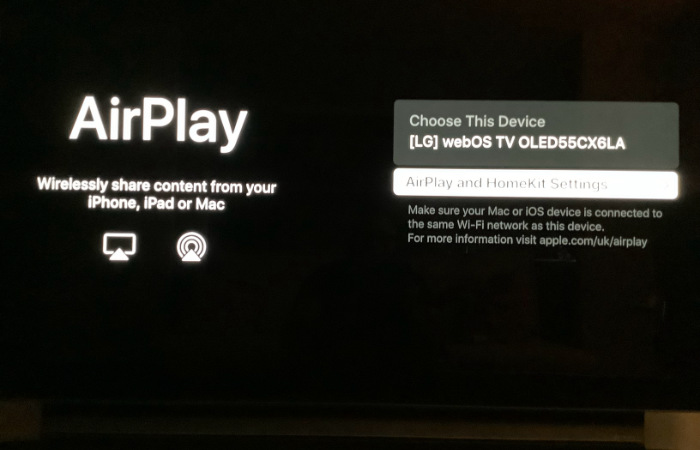
Reset Airplay Settings
Resetting AirPlay settings can fix many connection issues on your LG TV. Sometimes, AirPlay may stop working due to minor glitches or incorrect settings. Resetting helps clear these problems and restores smooth streaming. This process is simple and quick. Follow the steps below to reset AirPlay on your LG TV and get it working again.
Disable And Re-enable Airplay
Start by turning off AirPlay on your LG TV. Open the Settings menu, then go to the Apple AirPlay & HomeKit section. Switch AirPlay off and wait a few seconds. This action clears temporary bugs affecting the connection.
Next, turn AirPlay back on. This refreshes the system and often solves streaming problems. Check if your devices can connect now. This step fixes most minor AirPlay issues fast.
Factory Reset Airplay Settings
If disabling and enabling AirPlay does not help, try a factory reset of AirPlay settings. Go to the AirPlay & HomeKit settings on your LG TV. Find the option to reset AirPlay settings to factory defaults.
Confirm the reset and wait for the TV to apply changes. This action removes all saved AirPlay data and settings. It helps fix deeper problems caused by corrupted files or wrong configurations.
After the reset, set up AirPlay again from scratch. Connect your devices and test streaming. This method often restores full AirPlay functionality.
Additional Tips
Sometimes, simple fixes can resolve AirPlay issues on your LG TV. This section shares extra advice to improve your connection and enjoy seamless streaming. Follow these tips to reduce problems and get AirPlay working smoothly again.
Check For Interference
Wireless signals can face interference from other devices. Microwaves, cordless phones, and routers may cause signal drops. Keep your TV and iPhone away from these devices for better AirPlay performance.
Also, check your Wi-Fi network for congestion. Too many devices connected can slow the connection. Try disconnecting unused devices to free up bandwidth.
Contact Lg Support
If AirPlay still does not work, reach out to LG support. Their experts can help diagnose deeper issues. Use the official LG website or call their customer service.
Prepare your TV model and software version before contacting support. This information helps speed up the troubleshooting process.

Frequently Asked Questions
How Do I Activate Airplay On My Lg Tv?
Turn on your LG TV and press the Home button. Go to Settings > Apple AirPlay and HomeKit. Enable AirPlay. Connect both devices to the same Wi-Fi network to start streaming.
Why Can’t I Mirror My Iphone To My Lg Tv?
You can’t mirror your iPhone to your LG TV if both devices aren’t on the same Wi-Fi or AirPlay is off on the TV. Update software, enable AirPlay in TV settings, and restart both devices to fix connection issues.
Why Isn’t Airplay Working On My Tv Anymore?
Check that both TV and device run the latest software and connect to the same Wi-Fi. Enable AirPlay in TV settings. Restart devices and router to fix syncing issues.
Why Does Airplay Say Connected To Device But Not Playing?
AirPlay shows connected but won’t play due to network issues, outdated software, or app playback restrictions. Restart devices and ensure Wi-Fi and AirPlay settings are correct.
Why Is Airplay Not Connecting To My Lg Tv?
AirPlay may not connect if devices are on different Wi-Fi networks. Ensure both your LG TV and iPhone are using the same network. Also, check that AirPlay is enabled on your LG TV’s settings.
Conclusion
Troubles with LG TV AirPlay often come from simple settings or network issues. Check that both devices use the same Wi-Fi and have updated software. Turn on AirPlay on your LG TV and enable screen mirroring on your iPhone. Restart your devices to refresh the connection.
Small fixes usually solve the problem fast. Keep these tips in mind for smooth AirPlay use on your LG TV.