
Is your LG TV not recognizing the HDMI input? It’s frustrating when you’re ready to watch your favorite show or play a game, and your TV just won’t detect the device you’ve connected.
You might see a “No Signal” message or simply get a blank screen. But don’t worry—this is a common issue, and there are simple steps you can take to fix it. You’ll discover easy, effective ways to get your HDMI ports working again so you can enjoy seamless entertainment without the hassle.
Keep reading to find out how to troubleshoot and solve the problem quickly.

Check Hdmi Cable And Ports
Checking the HDMI cable and ports is the first step to fix your LG TV not recognizing HDMI input. Problems often come from loose connections or dirty ports. Cables can wear out or ports may get blocked. Simple checks here can save time and effort.
Reseat The Hdmi Cables
Unplug the HDMI cable from both the TV and the connected device. Wait a few seconds. Plug it back in firmly. Make sure the cable is pushed all the way into the port. Loose connections often cause signal issues.
Inspect And Clean Ports
Look inside the HDMI ports on your TV. Check for dust, dirt, or debris. Use a soft brush or compressed air to clean the ports gently. Make sure none of the metal pins are bent or damaged. Clean ports help maintain a strong connection.
Try A Different Hdmi Cable
HDMI cables can fail over time. Swap your current cable with a new or known working one. This step rules out cable faults. Using a different cable may restore the signal if the original is broken inside.
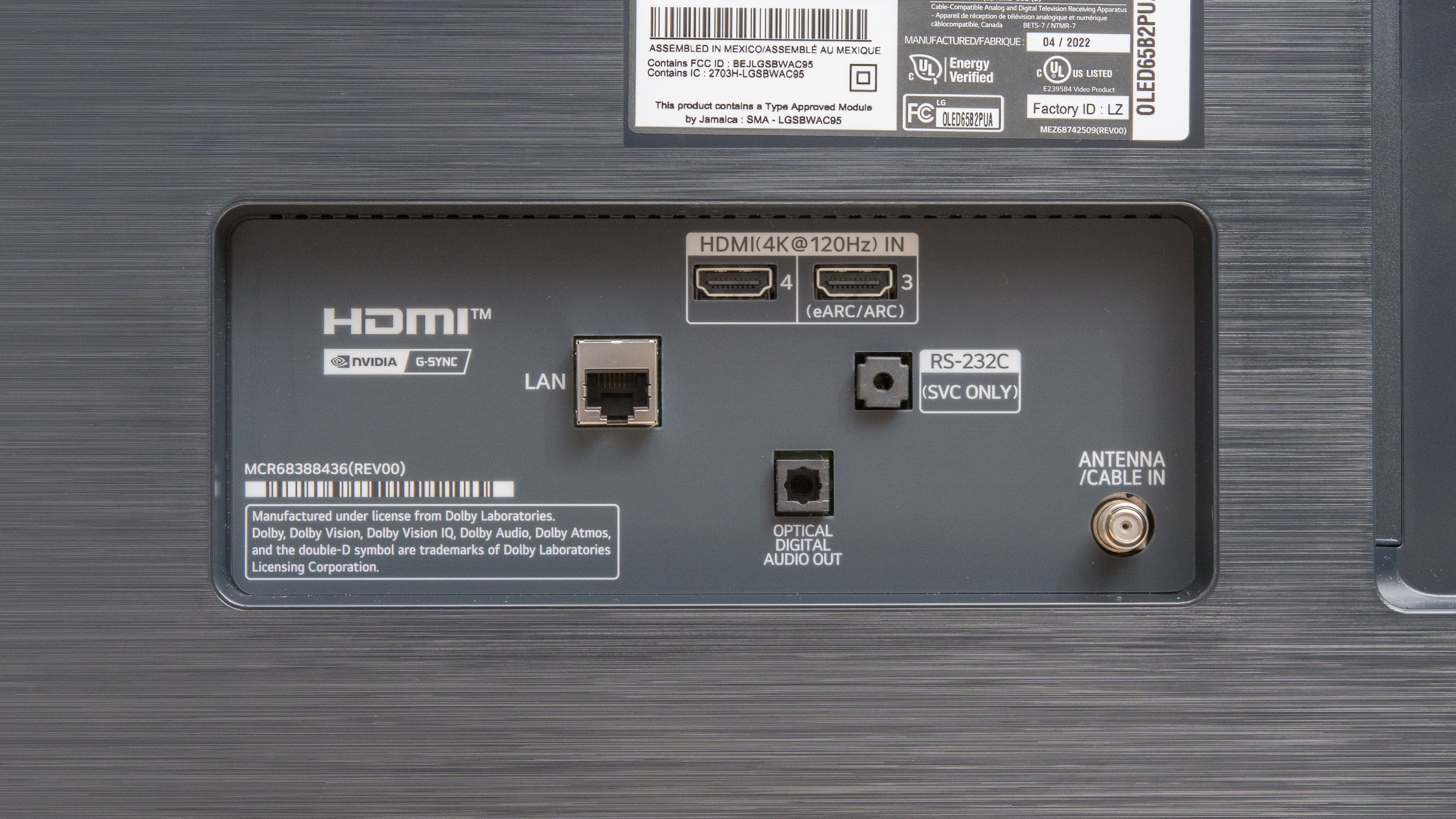
Test Another Hdmi Port
Your LG TV usually has multiple HDMI ports. Plug the device into another port. This test checks if one port is faulty. If the signal works on another port, the first port might need repair or cleaning.
Credit: en.community.sonos.com
Reset Tv And Devices
Resetting your LG TV and connected devices often solves HDMI recognition problems. This step clears temporary glitches that block the HDMI input from working properly. Try simple resets before moving to more complex fixes. Both the TV and the device connected via HDMI can benefit from a reset.
Perform A Power Cycle
Start by turning off your LG TV and the HDMI device. Unplug both from the power outlet. Wait at least one minute. This pause allows the internal memory to clear. Plug the devices back in. Turn on the TV first, then the HDMI device. Check if the HDMI input is now recognized. This quick power cycle often restores the signal connection.
Hard Reset The Tv
Perform a hard reset if a power cycle fails. Press and hold the power button on the TV for about 10 seconds until it turns off. Alternatively, unplug the TV and press the power button for 30 seconds. This drains residual power and resets the TV’s hardware. Plug the TV back in and turn it on. Test the HDMI input again to see if it detects the device.
Adjust Tv Settings
Adjusting your LG TV settings can fix HDMI input recognition problems. The TV may not detect signals due to specific settings being off. Simple changes inside the TV menu often restore the connection quickly. Focus on features designed for HDMI devices and video quality.
Toggle Simplink Feature
Simplink helps LG TVs communicate with connected devices. Turn it off and on to reset HDMI communication. Navigate to Settings > All Settings > Connection > Device Connector or Simplink. Switch Simplink off, wait a few seconds, then turn it back on. This can clear minor glitches blocking HDMI input detection.
Enable Ultra Hd Deep Color
Ultra HD Deep Color improves HDMI signal handling for high-quality video. It enhances color depth and clarity on compatible ports. Go to Settings > All Settings > Picture > HDMI Ultra HD Deep Color. Enable this setting on the HDMI port in use. This adjustment often resolves input recognition problems with 4K devices.

Credit: www.youtube.com
Update Software
Updating your LG TV’s software can fix many HDMI recognition issues. Software updates often contain fixes that improve HDMI port functionality. Keeping your TV software up to date ensures better device compatibility and performance.
Check For Firmware Updates
Start by checking if your LG TV has new firmware available. Go to the Settings menu on your TV. Select “All Settings,” then choose “Support.” Look for the “Software Update” option. Your TV will search for the latest firmware. If an update is found, it will prompt you to download it. This process helps fix bugs that may block HDMI input detection.
Install Latest Software
After downloading, install the latest software version. Follow the on-screen instructions carefully. Make sure your TV stays powered on during the update. The installation may take a few minutes. Once complete, your TV will restart automatically. Test the HDMI input again to see if the problem is resolved. Regular software updates keep your LG TV running smoothly and reduce HDMI issues.
Factory Reset Options
Factory reset options offer a way to solve HDMI recognition issues on your LG TV. Resetting can clear settings that block HDMI inputs. This method restores the TV to a fresh start without extra software.
Resetting may fix errors caused by software bugs or wrong settings. It is a useful step before seeking professional help. Learn about the reset options and when to contact LG support below.
Reset To Initial Settings
Resetting to initial settings wipes all custom changes on your TV. It returns the system to its original factory state. This step removes glitches that stop HDMI inputs from working.
To reset, open the Settings menu. Select All Settings, then General. Choose Reset to Initial Settings. Confirm your choice and wait as the TV restarts.
After the reset, check if the HDMI input works. You may need to set up your TV again. This reset can fix many problems without complex repairs.
When To Contact Lg Support
Contact LG support if the reset does not fix the HDMI issue. Persistent problems may signal hardware faults or deeper software errors. LG experts can guide you through advanced solutions or repairs.
Keep your TV model and purchase details ready. This information helps support provide quick and accurate help. Do not delay reaching out if the HDMI input stays unrecognized after resets.
Frequently Asked Questions
Why Is My Lg Tv Not Picking Up Hdmi Signal?
Your LG TV may not pick up HDMI signal due to loose cables, wrong input selection, faulty HDMI ports, outdated firmware, or damaged cables. Try reconnecting cables, switching HDMI ports, updating software, disabling Simplink, or performing a factory reset to fix the issue.
Why Is My Smart Tv Not Picking Up The Hdmi?
Check if the HDMI cable is securely connected and undamaged. Switch to a different HDMI port or cable. Restart your TV and device. Update your TV’s software. Reset HDMI settings or perform a factory reset if problems persist.
How To Reset A Hdmi Port On Lg Tv?
Unplug the HDMI cable and power off the LG TV. Wait 1 minute, then reconnect the cable and power on. Toggle Simplink off/on in Settings > Connection. Update TV firmware via Settings > Support > Software Update. Use a different HDMI port or cable if needed.
Why Is My Hdmi Input Not Detected?
Your HDMI input may not be detected due to loose cables, faulty HDMI ports, or damaged cables. Check connections, try another cable or port, and update your device’s software.
Why Is My Lg Tv Not Recognizing Hdmi Input?
Your LG TV may not detect HDMI input due to loose cables, faulty ports, or incorrect input selection. Check cable connections and ensure the TV is set to the right HDMI source.
Conclusion
Troubles with your LG TV not recognizing HDMI input can be fixed. Check cables and ports first for damage or loose connections. Try using a different HDMI cable or port to isolate the problem. Resetting the Simplink feature or updating your TV’s software often helps.
Cleaning the ports and reseating cables can also solve the issue. If problems persist, a factory reset might be necessary. Taking these simple steps can restore your HDMI connection quickly and easily. Don’t give up—your TV will work properly again.