
Many people love the simplicity of using touch buttons on their LG TVs. These buttons, usually located on the bottom edge or side of the TV, control power, volume, channels, and sometimes input selection. But what happens when you touch the buttons and nothing responds? You’re left stuck, frustrated, and unsure what to do next. If you’re facing the problem of LG TV touch buttons not working, don’t worry—you’re not alone, and there are solutions.
Touch buttons are designed for ease, but they can fail for several reasons. Sometimes it’s a quick fix, and sometimes the problem is deeper. This guide walks you through every possible cause and solution, whether you’re a beginner or someone who’s already tried a few things.
By the end, you’ll know exactly how to handle this issue, avoid common mistakes, and decide when you should call a professional.
How Lg Tv Touch Buttons Work
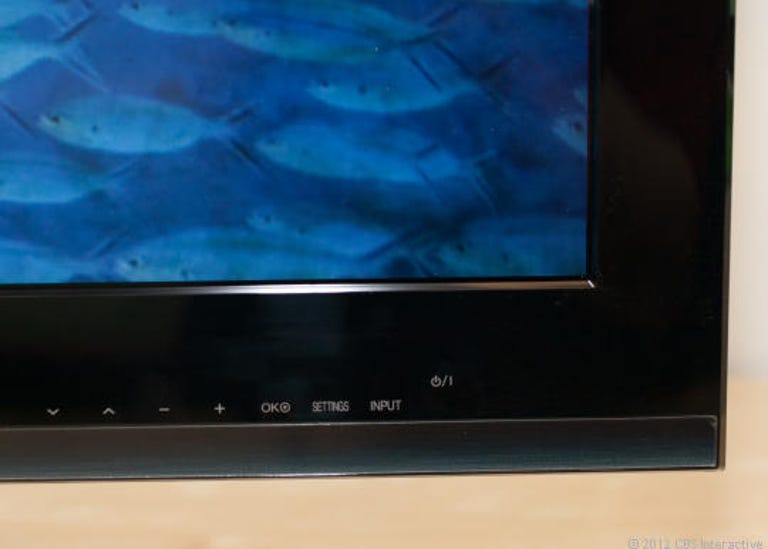
LG uses capacitive touch technology for its TV buttons. This means the TV detects your finger’s electrical charge when you touch the panel. It’s similar to how your smartphone screen works. The buttons may look like flat icons or small raised bumps, but they don’t physically move or click.
These buttons are connected directly to the main circuit board inside your TV. If the TV’s system doesn’t register the touch, nothing will happen. When touch buttons stop working, the problem could be with the buttons themselves, the TV’s software, or even something simple like dirt.
Common Causes Of Lg Tv Touch Buttons Not Working
Understanding why your touch buttons stopped working is the first step to fixing them. Here are the most frequent reasons:
- Dirt or oil buildup: Touch panels are sensitive. If you touch them with dirty, oily, or wet hands, the sensor can get blocked.
- Moisture or water damage: If you clean your TV with a wet cloth or there’s high humidity, water can interfere with the sensors.
- System freeze or software glitch: Sometimes, the TV’s operating system crashes. This can disable touch buttons temporarily.
- Physical damage: Dropping the TV or a strong impact can break the sensors or their connection.
- Power issues: A sudden power outage or unstable voltage can confuse the button system.
- Firmware bugs: Outdated or buggy software may stop the TV from detecting touch inputs.
- Child lock or hotel mode: Some LG TVs have settings that disable physical buttons for safety or security.
- Faulty mainboard: If the main circuit board is damaged, the touch panel might not communicate with the rest of the TV.
Quick Checks Before Troubleshooting
Before you start any repairs or complex steps, do these simple checks. Many users miss these and waste time on unnecessary fixes.
- Clean the buttons: Use a dry microfiber cloth to gently wipe the touch area. Avoid using liquids.
- Try with dry hands: Make sure your hands are clean and dry. Even sweat can affect touch sensors.
- Check for plastic film: New TVs sometimes have a thin protective film over the panel. Remove it if present.
- Try all the buttons: Sometimes only one button fails. Test power, volume, channel, and input buttons.
- Use the remote: If the remote works but touch doesn’t, the problem is with the buttons, not the TV’s main functions.
Step-by-step Solutions For Non-working Touch Buttons
If your touch buttons are still not responding, follow these solutions in order. They go from easiest to most advanced, so you can stop as soon as your problem is fixed.
1. Power Cycle The Tv
Many times, a simple restart clears software glitches.
- Turn off your TV using the remote or unplug it from the wall.
- Wait at least 2 minutes. This drains any leftover power.
- Plug the TV back in and turn it on.
- Test the touch buttons.
If it works, the problem was just a minor system freeze.
2. Update The Tv Firmware
Outdated software can cause touch controls to stop working.
- Go to the TV’s settings menu using your remote.
- Find Support or General > Software Update.
- If an update is available, download and install it.
- Restart the TV and test the buttons.
Many users don’t realize their TV firmware is old. LG releases updates to fix bugs, including touch sensor issues.
3. Turn Off Hotel Mode Or Child Lock
Some TVs have settings that disable touch buttons.
- Press the Settings button on your remote.
- Go to All Settings > General.
- Look for Hotel Mode or Child Lock (sometimes called Key Lock).
- If enabled, turn it off.
If you don’t have a remote, you may need to borrow one or use a universal remote to access these settings.
4. Clean The Touch Panel Properly
Touch sensors are easily blocked by grime or residue.
- Unplug the TV.
- Use a soft, dry cloth to gently clean the button area.
- For stubborn dirt, lightly dampen the cloth with water (never spray directly on the TV).
- Dry the area completely before plugging the TV back in.
Avoid using cleaning sprays, alcohol, or chemical wipes.
5. Reset The Tv To Factory Settings
If software glitches continue, a full reset might help. Warning: This will erase all settings, apps, and Wi-Fi passwords.
- Go to Settings > All Settings > General > Reset to Initial Settings.
- Follow the prompts to confirm.
- The TV will restart like new.
- Test the touch buttons.
If your remote is also not working, you may need to use physical buttons or a smartphone app to reach these settings.
6. Check The Power Supply
Unstable or low voltage can make the sensors unreliable.
- Plug the TV directly into a wall outlet, not a power strip.
- Try a different outlet in another room.
- If your area has voltage problems, consider using a voltage stabilizer.
If the problem disappears after changing the outlet, your old one may be faulty.
7. Inspect For Physical Damage
Carefully look for signs of damage.
- Are there cracks near the touch panel?
- Is the frame bent or loose?
- Has the TV been dropped or hit?
If you see physical damage, it’s likely a hardware issue.
8. Disconnect And Reconnect Cables
Loose cables inside or outside the TV can cause problems.
- Unplug all cables (power, HDMI, etc.) From the TV.
- Wait 1 minute.
- Plug everything back in firmly.
- Test the touch buttons.
Sometimes, moving the TV can loosen internal connectors.
9. Try A Hard Reset
Some LG models have a hidden reset button or sequence.
- Check your user manual for “hard reset” instructions.
- If available, follow the steps to reset the TV without a remote.
This can sometimes revive non-responsive touch controls.
10. Use The Lg Tv Plus App
If the touch buttons are dead and you can’t use the remote, download the LG TV Plus app on your smartphone.
- Connect your phone and TV to the same Wi-Fi network.
- Open the app and follow instructions to pair.
- Use your phone as a remote to access settings and troubleshooting menus.
Many users don’t know about this app, but it’s a powerful backup.
When You Should Call A Professional
If you’ve tried all the above and your LG TV touch buttons still don’t work, the problem is likely hardware-related. Here are signs you need expert help:
- The touch panel is cracked, loose, or feels different when touched.
- No button responds, even after resets and cleaning.
- The TV sometimes turns on or off by itself (could be a short circuit).
- Other features (like the remote sensor) stop working too.
A trained technician can open the TV and test the touch sensor connections. Sometimes, replacing the touch panel or mainboard is the only solution. Attempting this yourself can void your warranty or cause more damage.
How To Avoid Touch Button Problems In The Future
Prevention is always better. Here’s how to keep your LG TV’s touch buttons working smoothly:
- Clean regularly with a dry, soft cloth.
- Keep hands dry when using touch controls.
- Don’t press too hard—gentle touches work best.
- Avoid water and cleaning sprays near the button panel.
- Don’t let children play with or poke at the buttons.
- Keep the TV in a dry area to avoid moisture buildup.
- Update firmware when notified to fix bugs early.
Many people forget that even a small drop of water or hard press can cause long-term problems.
How Touch Buttons Compare To Physical Buttons
Some LG TVs have traditional physical buttons (that move when pressed), while others use touch-sensitive panels. Each has strengths and weaknesses.
Here’s a comparison:
| Feature | Touch Buttons | Physical Buttons |
|---|---|---|
| Design | Sleek, modern, hidden | Visible, sometimes bulky |
| Durability | Prone to sensor failure | Prone to mechanical wear |
| Ease of Cleaning | Easy (flat surface) | Gaps can collect dirt |
| Common Issues | Sensitivity, moisture | Sticking, breaking |
| Cost to Repair | Higher (panel/mainboard) | Lower (button swap) |
Touch buttons look better but are more sensitive to dirt and moisture. Physical buttons are easier to fix but can get stuck or break with heavy use.
Real-world Examples: What Users Experience
It’s helpful to see what actual LG TV owners have faced. Here are a few examples:
- A user noticed his volume button stopped working, but other buttons were fine. Cleaning with a microfiber cloth fixed the issue instantly—oil from his fingers had blocked the sensor.
- Another owner’s TV kept switching inputs by itself. It turned out the touch panel was stuck due to a small splash of juice from a child’s spill. After cleaning and drying, the problem disappeared.
- One user’s buttons failed after a power surge. The technician found that the mainboard was damaged, so he had to replace it.
- In a humid climate, a family found the touch buttons would work only in the morning when the air was dry. Running a small dehumidifier near the TV solved the problem.
Many people assume the TV is broken and replace it, when the solution is simple.
What If Only Some Buttons Don’t Work?
Sometimes only one or two touch buttons fail, while others are fine. This usually means:
- There’s dirt or oil only on those buttons.
- The sensor circuit for those buttons is damaged.
- A software bug affects specific buttons (rare).
Try cleaning, then updating firmware, then a reset. If only some buttons work after all attempts, the touch panel may need replacement.
Using Your Tv Without Touch Buttons
If you can’t fix the touch buttons right away, you can still use your LG TV:
- Remote control: Most functions are available on the remote.
- Smartphone app: Use the LG TV Plus app as a remote.
- Universal remote: Many universal remotes are compatible with LG TVs.
- External devices: If your TV turns on, you can use streaming devices (like Roku or Fire Stick) to control channels and volume.
Here’s a quick look at your options if touch buttons fail:
| Option | What You Can Control | Setup Required? |
|---|---|---|
| Original remote | All TV functions | No |
| LG TV Plus app | All smart TV features | Yes (Wi-Fi) |
| Universal remote | Most basic functions | Yes (pairing) |
| Streaming device remote | Apps, volume (limited) | Yes |
Many users don’t know they can control most TV functions without the built-in buttons.
How Much Does It Cost To Repair Lg Tv Touch Buttons?
Repair cost depends on the cause:
- Cleaning or reset: Free
- Firmware update: Free
- Touch panel replacement: $50–$150 (parts + labor)
- Mainboard replacement: $100–$250
- Out-of-warranty service call: $80–$200 (not including parts)
If your TV is under warranty, repairs may be free. Always check with LG support before paying for repairs.
Should You Fix Or Replace Your Tv?
If your LG TV is only a few years old and works fine except for the touch buttons, repair is usually worth it. However, if your TV is over 7 years old, parts may be hard to find, and buying a new TV might make more sense.
Here’s a quick comparison:
| Situation | Repair | Replace |
|---|---|---|
| Minor cleaning needed | Yes | No |
| Software issue | Yes | No |
| Mainboard failure (old TV) | No | Yes |
| Physical damage (new TV) | Yes (if affordable) | No |
| TV over 7 years old | No | Yes |
Warranty And Customer Support
Most LG TVs come with a 1-year warranty on parts and labor. If your TV is still under warranty:
- Contact LG support with your model and serial number.
- Describe the issue and the steps you’ve tried.
- They may send a technician or arrange for a repair.
Do not open the TV yourself if it’s under warranty; this could void your coverage.
For more on LG’s official support, you can visit the LG Support Center.
Frequently Asked Questions
Why Are My Lg Tv Touch Buttons Not Responding At All?
The most common reasons are dirt, moisture, a system freeze, or a hardware failure. Try cleaning the buttons, power cycling the TV, and making sure child lock is off. If nothing works, there may be a problem with the touch panel or mainboard.
Can I Fix Lg Tv Touch Buttons Myself?
You can try cleaning, resetting, and updating firmware yourself. However, if the issue is inside the TV (like a broken sensor or mainboard), it’s best to call a professional. Opening the TV yourself can be risky.
Are Lg Tv Touch Buttons Covered Under Warranty?
Yes, if your TV is still under the original warranty and there is no physical damage, LG usually covers touch button repairs. Always check with LG support before paying for service.
What Should I Do If Only Some Touch Buttons Work?
If only some buttons fail, it’s usually a dirt or sensor issue. Clean the panel and update firmware. If the problem remains, the touch panel itself may be damaged and need replacement.
Can I Use My Lg Tv Without Working Touch Buttons?
Yes! You can use the remote control, LG TV Plus app, or a universal remote to control your TV. Most functions are available through these alternatives.
No one wants their TV controls to stop working, but most problems with LG TV touch buttons are fixable. Start with simple solutions, avoid common mistakes, and don’t be afraid to get professional help if needed. Taking care of your TV can help you avoid these issues in the future and keep your entertainment running smoothly.