
Is your Logitech M310 mouse suddenly not working? It’s frustrating when a trusted device stops responding, especially when you rely on it every day.
But don’t worry—you’re not alone, and most issues with the M310 can be fixed quickly with a few simple steps. You’ll discover easy, effective solutions to get your mouse moving smoothly again. Whether it’s connection problems, battery issues, or software glitches, we’ll guide you through clear troubleshooting tips that anyone can follow.
Keep reading to take control and bring your Logitech M310 back to life in no time!
Battery Issues
Battery problems often cause the Logitech M310 mouse to stop working. Weak or old batteries may not supply enough power for the mouse to function properly. Replacing the battery with a new one usually fixes connection issues quickly.
Replace The Battery
The Logitech M310 mouse may stop working due to weak or dead batteries.
Replace the old battery with a new AA battery to restore power.
Even if the battery shows some charge, it might not deliver enough power.
Always use fresh, high-quality batteries for better performance.
After replacing, turn the mouse off and on to reset the connection.
Check Battery Alignment
Incorrect battery placement can cause the mouse to stop working.
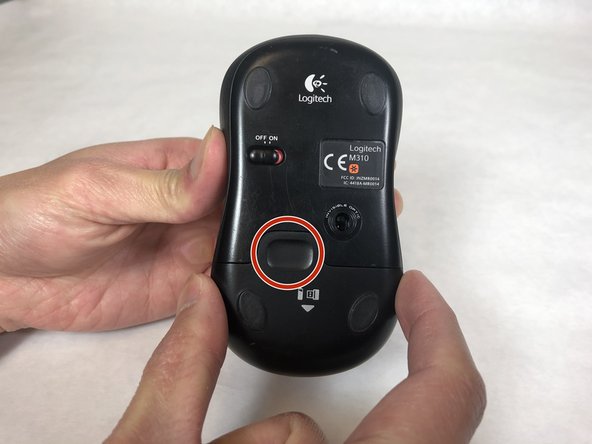
Open the battery compartment and check the battery’s orientation.
The positive (+) and negative (–) ends must match the markings inside.
Misaligned batteries can prevent the mouse from powering on.
Ensure the battery fits snugly without loose movement inside the compartment.
Usb Receiver Problems
The Logitech M310 mouse relies on its USB receiver to connect wirelessly to your computer. Problems with this receiver often cause the mouse to stop working. Understanding how to fix USB receiver issues can restore your mouse’s function quickly.
Several factors can affect the USB receiver’s performance. These include loose connections, faulty ports, and interference from other devices. Taking simple troubleshooting steps helps identify and solve these problems.
Re-plug The Receiver
Unplug the USB receiver from your computer. Wait a few seconds, then plug it back in firmly. This action resets the connection between your mouse and receiver. Sometimes, a loose connection causes the mouse to stop responding.
Make sure the receiver is fully inserted and not partially loose. A secure connection improves signal stability. Try this step before moving to more complex fixes.
Try Different Usb Ports
Some USB ports may not supply enough power or may be faulty. Remove the receiver and insert it into another USB port. Ports on the back of desktop computers usually perform better than front or hub ports.
Switching ports can also avoid conflicts with other USB devices. Test several ports to find one that works reliably with your Logitech M310 mouse.
Avoid Interference
Wireless signals can be disrupted by nearby electronics. Keep the USB receiver away from metal objects, Wi-Fi routers, and external hard drives. These can block or weaken the receiver’s connection.
Place the receiver in a clear line of sight with the mouse. Using a USB extension cable to position the receiver closer to the mouse may help. Reducing interference improves the mouse’s wireless performance.
Resetting The Mouse
Resetting the Logitech M310 mouse can fix many common issues. It helps clear minor glitches and restores connection. This process is simple and can be done quickly.
Try resetting before replacing parts or seeking repair. It often solves problems like freezing or unresponsiveness. Follow the steps below carefully to reset your mouse properly.
Hard Reset Steps
Start by turning off the mouse using the power switch. Remove the battery from its compartment. Unplug the USB receiver from your computer. Press and hold the left and right click buttons at the same time. While holding these buttons, press and hold the scroll wheel. Keep all buttons pressed and put the battery back in. Turn the mouse power switch to the “ON” position. Release all buttons after powering on. Plug the USB receiver back into your computer. This method forces the mouse to re-sync with the receiver.
Factory Reset Options
Logitech M310 does not have a direct factory reset button. Use the Logitech Unifying Software instead. Download and install the software from Logitech’s official site. Open the software and follow on-screen instructions to pair your mouse again. This helps fix pairing and connection issues. Also, check for any interference near the USB receiver. Avoid metal objects and wireless devices close to the receiver. Place the receiver in a different USB port for better signal. These steps simulate a factory reset by refreshing the device connection.

Software And Drivers
Software and drivers play a key role in the proper functioning of the Logitech M310 mouse. Outdated or corrupted drivers can cause the mouse to stop working or behave erratically. The right software can help maintain a stable connection and unlock additional features. Checking and updating these components often resolves many common issues with the mouse.
Update Mouse Drivers
Outdated drivers can cause your Logitech M310 mouse to stop working. Open Device Manager on your Windows PC. Find “Mice and other pointing devices” and expand it. Right-click the Logitech M310 entry and select “Update driver.” Choose “Search automatically for updated driver software.” Windows will look for the latest driver and install it if available. Restart your computer after the update. This simple step often fixes many driver-related problems.
Use Logitech Unifying Software
The Logitech Unifying Software helps connect your mouse to the USB receiver. Download the software from Logitech’s official website. Install and open the program. Follow the on-screen instructions to pair your mouse with the receiver. This can re-establish the connection if the mouse is not responding. The software also helps manage other Logitech devices connected to the same receiver. Keep the software updated for the best performance.
Power Management Settings
Power management settings can cause your Logitech M310 mouse to stop working. These settings control how your computer handles power usage for USB devices. Sometimes, Windows may turn off USB ports to save energy. This action can disconnect your mouse unexpectedly. Adjusting these settings helps maintain a steady connection and prevents power interruptions.
Adjust Usb Power Settings
Open Device Manager by typing it in the Windows search bar. Find the “Universal Serial Bus controllers” section and expand it. Right-click each “USB Root Hub” or “Generic USB Hub” and select “Properties.”
Go to the “Power Management” tab. Uncheck the box that says “Allow the computer to turn off this device to save power.” Click “OK” to save changes. Repeat this for all USB hubs to ensure the mouse receiver gets continuous power.
Disable Power Saving Features
Open Control Panel and select “Power Options.” Click on “Change plan settings” next to your active power plan. Then select “Change advanced power settings.”
Find “USB settings” and expand it. Expand “USB selective suspend setting” and set it to “Disabled.” This stops Windows from suspending USB devices to save power. Click “Apply” and “OK” to confirm.
Disabling these features reduces the chance of your Logitech M310 mouse disconnecting due to power-saving rules.
Connection Troubleshooting
The Logitech M310 mouse may stop working due to connection issues. Troubleshooting the connection helps fix most problems fast. This section guides you through simple steps to restore the wireless link.
Wireless mice depend on strong signals and proper syncing with receivers. Weak signals or lost sync can cause the mouse to become unresponsive. Checking these areas often solves the problem.
Check Wireless Signal
First, make sure the mouse is within range of the USB receiver. The ideal distance is about 10 feet or less. Walls and other objects can block the signal and reduce performance.
Remove any metal objects or devices that may cause interference nearby. Common culprits include Wi-Fi routers, external hard drives, and cordless phones. Moving the receiver to a different USB port can improve signal strength.
Also, check the mouse battery. Low power can weaken the signal. Replace the battery with a new AA battery to ensure stable connection.
Re-sync Mouse And Receiver
Sometimes the mouse and receiver lose their sync. Re-syncing them reconnects the devices and restores function. Begin by turning off the mouse and removing the battery.
Unplug the USB receiver from your computer. Press and hold the left and right mouse buttons together. While holding these buttons, press and hold the scroll wheel button.
Keep all three buttons pressed. Insert the battery back into the mouse and turn it on. Release the buttons after the mouse powers up.
Plug the USB receiver back into the computer. The mouse should now reconnect and work properly. If this does not help, try using Logitech’s Unifying Software for advanced pairing options.
Additional Tips
Additional tips can help solve issues with your Logitech M310 mouse. Simple checks often reveal easy fixes. Testing on different setups or inspecting the mouse physically might uncover hidden problems. These steps can save time and avoid unnecessary expenses.
Test On Another Computer
Try connecting your Logitech M310 mouse to another computer. This helps confirm if the problem lies with the mouse or your original device. If it works on a second computer, the issue likely involves your first computer’s settings or ports.
Use a different USB port or check for driver updates on the original computer. Testing on another device isolates the problem quickly and clearly.
Inspect For Physical Damage
Look closely at your mouse for any visible damage. Check the USB receiver, mouse buttons, and cable for cracks or dents. Physical damage can cause connection problems or erratic behavior.
Examine the battery compartment for corrosion or loose contacts. Clean any dirt or dust gently with a soft cloth. Even small debris inside the mouse can disrupt performance.
Frequently Asked Questions
How Do I Fix My Logitech Unresponsive Mouse?
Replace the battery with a new one. Turn the mouse off and on. Re-plug the USB receiver into a different port. Perform a hard reset by holding both click buttons and the scroll wheel while reinserting the battery. Use Logitech Unifying Software to re-pair if needed.
Where Is The Reset Button On Logitech M310 Mouse?
The Logitech M310 mouse has no dedicated reset button. To reset, turn it off, remove the battery, hold left and right buttons plus scroll wheel, then reinsert battery and power on.
Is There A Reset Button On Logitech Mouse?
Logitech mice do not have a dedicated reset button. To reset, turn off the mouse, remove the battery, press and hold both click buttons plus the scroll wheel, reinsert the battery, turn it on, then release the buttons and reconnect the receiver.
How To Set Up Logitech M310 Wireless Mouse?
Insert a new AA battery into the Logitech M310 mouse. Plug the USB receiver into your computer’s USB port. Turn the mouse on using the power switch. Wait for the system to recognize and connect the device automatically. Your mouse is now ready to use.
Why Is My Logitech M310 Mouse Not Responding?
Your mouse might have a low or dead battery. Also, try unplugging and re-plugging the USB receiver into a different port.
Conclusion
Troubleshooting the Logitech M310 mouse may take some patience. Try simple fixes like changing the battery or switching USB ports first. Resetting the mouse can often restore its connection quickly. Avoid placing the receiver near metal or wireless devices to reduce interference.
Updating drivers and adjusting power settings also help keep the mouse working smoothly. These steps usually solve common issues without needing extra tools. Keep your mouse clean and handle it gently for long-lasting use. Stay calm and follow each step carefully to get your Logitech M310 back in action.