
Is your Marantz TV suddenly silent? You’re not alone, and it’s frustrating when your favorite shows play without sound.
But don’t worry—fixing your Marantz TV audio not working issue might be easier than you think. Whether it’s a connection problem, a setting gone wrong, or a simple cable issue, you can get your sound back quickly. Stick with me, and I’ll guide you through the most effective steps to restore your TV’s audio so you can enjoy every moment without missing a word.
Ready to bring your sound back to life? Let’s dive in!
Check Volume And Mute Settings
Start by confirming the volume on your Marantz receiver and TV is set correctly. Sometimes, the volume may be too low or muted, causing no sound to come through.
Both devices have separate volume controls. Ensure both are turned up to a comfortable level.
Check The Tv Volume Level
Use your TV remote to increase the volume step by step. Watch for volume indicators on your TV screen.
If you see the volume bar but hear no sound, the issue may be elsewhere.
Verify Marantz Receiver Volume
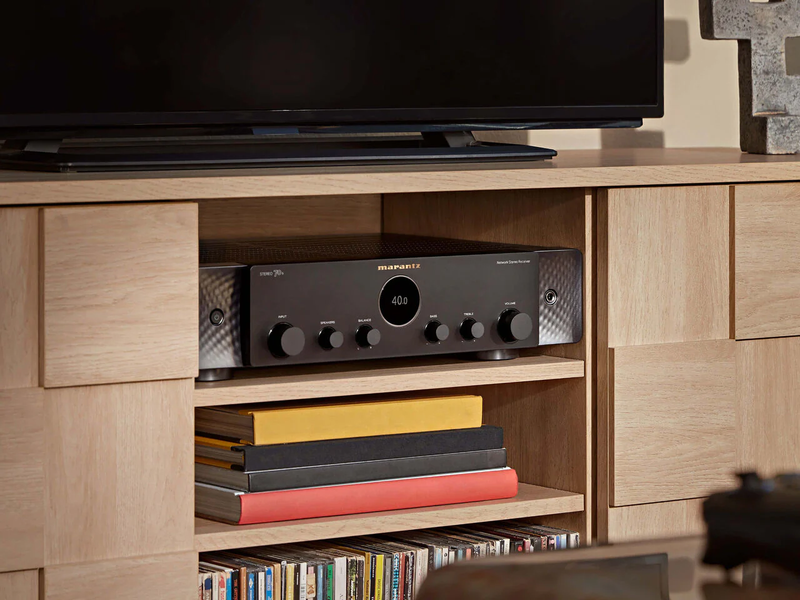
Look at the Marantz receiver display or front panel. Make sure the volume knob is not set to zero or very low.
Try raising the volume slowly and listen for any audio output.
Disable Mute On Both Devices
Check that neither the TV nor the Marantz receiver is muted. Press the mute button once to toggle sound back on.
Sometimes the mute icon may not appear clearly, so toggle mute a few times to be sure.
Inspect Physical Connections
Inspecting physical connections is the first step to fix Marantz TV audio issues. Loose or wrong cable connections often cause no sound problems. This check helps identify simple faults without complex settings changes. Focus on the cables and speaker wires attached to your devices. Even a small disconnection can stop audio signals from reaching your speakers. Take time to look carefully and handle cables gently.
Verify Hdmi Cable Placement
Check if the HDMI cable connects to the correct port on your TV and Marantz receiver. Use the HDMI port labeled ARC or eARC for audio return. Wrong ports often block sound signals. Make sure the cable fits tightly in the port. A loose HDMI cable can cause audio dropouts. Swap the cable if it looks damaged or old. Confirm that the TV and receiver settings support HDMI audio output. Proper HDMI placement ensures smooth sound transmission.
Secure Speaker Wire Connections
Look at the speaker wires connected to your Marantz receiver. Each wire must be firmly attached to the correct terminal. Loose wires can break the audio circuit. Check for frayed or broken wire ends and trim if needed. Match the positive and negative terminals on both speakers and receiver. Wrong polarity can cause poor sound quality. Press the wires down or tighten the screws to secure them. Good speaker connections deliver clear and steady audio output.
Adjust Tv Audio Output
Adjusting the TV audio output can fix sound issues with your Marantz receiver. Many TVs send audio in formats incompatible with some receivers. Changing the audio output setting helps your receiver understand the signal. This simple step often restores sound quickly without extra equipment or complex settings.
Below are key ways to adjust your TV audio output for better compatibility with your Marantz system. Each method improves audio communication between devices. Follow these steps carefully to get clear sound from your TV through your Marantz receiver.
Set Audio Output To Pcm Or Pass-through
Set your TV’s audio output to PCM or Pass-through in the sound settings menu. PCM sends a standard stereo signal that most receivers support. Pass-through allows digital audio formats to pass directly to your receiver. Choose the option that matches your receiver’s capabilities.
PCM is simpler and works well with most setups. Pass-through is better for surround sound if your receiver supports it. Avoid using “Auto” or “Bitstream” if you experience no sound. These modes can confuse some Marantz receivers.
Enable Hdmi Cec On Tv
Turn on HDMI CEC in your TV’s settings. HDMI CEC lets devices control each other through the HDMI cable. This feature allows the TV to send audio signals properly to the Marantz receiver.
Look for options named “CEC,” “Anynet+,” or “Bravia Sync” depending on your TV brand. Enabling this setting improves communication between your TV and receiver. It also allows volume control from the TV remote.
Configure Marantz Receiver Settings
Configuring your Marantz receiver settings is key to fixing audio issues with your TV. Incorrect settings often cause no sound problems. Adjusting these settings can restore clear sound quickly. This guide covers the main settings to check and change.
Select Correct Input Source
Start by choosing the right input source on your Marantz receiver. The input should match the device sending audio, like your TV or streaming box. Using the wrong input stops sound from playing through your speakers. Use the receiver remote or front panel to switch inputs until you find the correct one.
Set Hdmi Audio Out To Avr
Next, check the HDMI audio output setting. Your Marantz receiver must be set to send audio to AVR, not TV. This setting lets the receiver handle sound processing. Find this option in the receiver’s audio menu. Change the setting from “TV” to “AVR” to ensure sound passes through the receiver correctly.
Disable Bluetooth Only Mode
Bluetooth Only mode disables speaker output on your Marantz receiver. If this mode is active, sound plays only on Bluetooth devices, not the receiver speakers. Turn off Bluetooth Only mode in the settings menu. Switch it to “Bluetooth + Speakers” to allow sound from both Bluetooth and speakers.
Test Alternative Connection Methods
Testing alternative connection methods helps find the root cause of audio issues. Sometimes the problem lies in the connection type or port. Trying different ways to connect your devices can restore sound quickly. This method isolates the fault between the TV, receiver, and source device.
Connect Source Directly To Receiver
Plug your media source directly into the Marantz receiver. This bypasses the TV and tests the receiver’s ability to process audio. Use HDMI or optical cables for the connection. Play content and listen for sound through the receiver’s speakers. Hearing audio here means the issue may be with the TV connection or settings.
Direct connection reduces complexity. It shows if the receiver handles audio correctly. If sound works here, check TV output settings and cables next.
Try Different Hdmi Ports
Switch the HDMI cable to another port on the Marantz receiver. Some ports support ARC or eARC, which handle audio return from the TV. Using the wrong port can block sound. Try each HDMI input and output port to find one that works.
Also, change the HDMI port on your TV. Ports can wear out or fail over time. Testing multiple ports ensures a good physical connection. This simple step often solves no sound issues with Marantz receivers.

Power Cycle Devices
Power cycling your devices is a simple and effective first step to fix Marantz TV audio issues. This process clears temporary glitches in your TV and receiver. It helps reset the hardware and software connections. Many sound problems resolve by just turning off and on the devices.
Power cycling is fast and does not require technical skills. It can restore normal audio function without needing further troubleshooting. Follow these steps carefully to power cycle your TV and receiver.
Unplug Tv And Receiver
Start by turning off your TV and Marantz receiver. Unplug both devices from the power outlet. Leave them unplugged for at least 30 seconds. This pause allows the devices to fully reset. After waiting, plug the TV and receiver back in. Turn them on and check the audio again.
Restart Connected Devices
Restart any devices connected to your TV and receiver. This includes streaming boxes, gaming consoles, and Blu-ray players. Turn off each device and unplug it from power. Wait 30 seconds before plugging them back in. Power on each device one by one. This ensures all components start fresh and communicate properly.
Update Firmware And Software
Updating the firmware and software of your Marantz TV or receiver can solve many audio problems. Manufacturers release updates to fix bugs and improve device performance. Keeping your system up to date ensures the best audio quality and compatibility with other devices.
Old firmware can cause issues like no sound or unstable audio connections. Regular updates help maintain smooth operation and fix known audio glitches. The process is simple and can restore your Marantz audio to full function.
How To Check For Firmware Updates
Access the settings menu on your Marantz device. Look for the “System” or “Support” option. Select “Firmware Update” or “Software Update.” The device will search for available updates online. Follow the on-screen instructions to download and install the latest version.
Updating Via Usb Drive
Visit the official Marantz website on your computer. Download the latest firmware file for your model. Copy the file to a USB flash drive. Insert the USB drive into the Marantz device’s USB port. Use the device menu to start the update from the USB drive. Wait until the update completes and the device restarts.
Benefits Of Keeping Firmware Updated
Firmware updates fix audio bugs and improve sound quality. Updates add support for new audio formats and devices. They enhance system stability and reduce glitches. Regular updates extend the lifespan of your Marantz equipment.
Check Volume Limit Settings
Checking the volume limit settings on your Marantz TV can solve audio problems quickly. Sometimes, the volume limit is set too low. This prevents sound from reaching an audible level, even if the volume is turned up. Adjusting these settings can restore clear sound output.
Adjust Maximum Volume Limit
Access the Marantz TV settings menu first. Look for the sound or audio section. Find the option labeled “Volume Limit” or “Maximum Volume.” This setting controls the highest volume your TV can reach.
Increase the volume limit to a higher level. Avoid setting it to the maximum immediately. Test the sound after each adjustment. This helps you find a comfortable level without distortion.
Some TVs include a “Volume Lock” feature. This feature stops changes to the volume limit. Make sure this lock is turned off. It allows you to adjust the volume limit freely.
Use Remote Control Shortcuts
Remote control shortcuts offer a quick way to fix audio issues on your Marantz TV system. These shortcuts help adjust settings without diving deep into menus. Using them saves time and often restores sound fast. They are simple and effective for common audio problems.
Try these shortcuts before checking cables or settings. They can reset audio modes or switch inputs to the correct source. Keep your Marantz remote handy for easy access to these features.
Press Tv Audio Button On Marantz Remote
The TV Audio button on your Marantz remote controls the sound source. Pressing it switches audio between TV speakers and your Marantz receiver. This step can solve no sound problems instantly.
Press the TV Audio button once and listen for sound changes. If no sound returns, press it again to cycle through options. Sometimes, the remote may be set to the wrong audio source.
Using this button avoids confusion in audio input settings. It lets you toggle quickly without navigating the receiver’s menu. This shortcut is ideal for beginners and those wanting a fast fix.

Frequently Asked Questions
Why Is Audio Not Coming Through My Tv?
Check TV and device volume levels and audio settings. Inspect all cables and connections for damage or looseness. Ensure HDMI cables connect to ARC ports with HDMI CEC enabled. Verify TV audio output matches your speaker or receiver input settings.
Restart all devices to refresh connections.
Why Is There No Sound On My Marantz Receiver?
Check HDMI ARC connection and ensure the cable is in the correct ARC port. Enable HDMI CEC on both TV and Marantz. Set receiver input correctly and verify speaker wires are secure. Confirm TV audio output uses PCM or pass-through settings.
Disable “Bluetooth Only” mode if active.
Why Can’t I Hear My Tv Through My Receiver?
Check that your TV and receiver connect via HDMI ARC or eARC ports. Enable HDMI CEC on both devices. Set TV audio output to PCM or pass-through. Confirm receiver input matches the TV source. Ensure speaker wires and cables are securely connected and volume is up.
Why Is My Tv Sound Not Working Even Though It’s Connected To The Sound Bar?
Check HDMI ARC connection and ensure the cable is in the correct port. Enable HDMI CEC on your TV. Set TV audio output to PCM or Pass-through. Confirm sound bar input matches TV output. Verify speaker wires are securely connected and volume is not muted.
Why Is Marantz Tv Audio Not Working After Connection?
Check if HDMI or optical cables are firmly connected. Also, ensure TV audio output matches your Marantz input settings.
Conclusion
Troubles with Marantz TV audio can be fixed with simple steps. Check all cables and connections carefully. Adjust your TV and receiver audio settings for proper output. Make sure HDMI ARC is enabled and connected correctly. Confirm the receiver uses the right input source for TV audio.
Restart your devices if sound still does not work. These tips help restore clear sound quickly and easily. Keep your setup neat and settings correct to avoid future problems. Sound issues do not have to be frustrating or long-lasting.