
Is your ResMed AirSense 11 Bluetooth not working and leaving you frustrated? You rely on this connection to track your sleep data easily, and when it stops syncing, it feels like your therapy is missing a vital piece.
Don’t worry—you’re not alone, and this problem can be fixed. You’ll discover simple, effective steps to get your AirSense 11 Bluetooth back up and running. Whether you’re struggling with pairing issues, app glitches, or connection drops, we’ll guide you through clear solutions so you can regain control of your sleep therapy data.
Keep reading to solve your Bluetooth trouble once and for all.
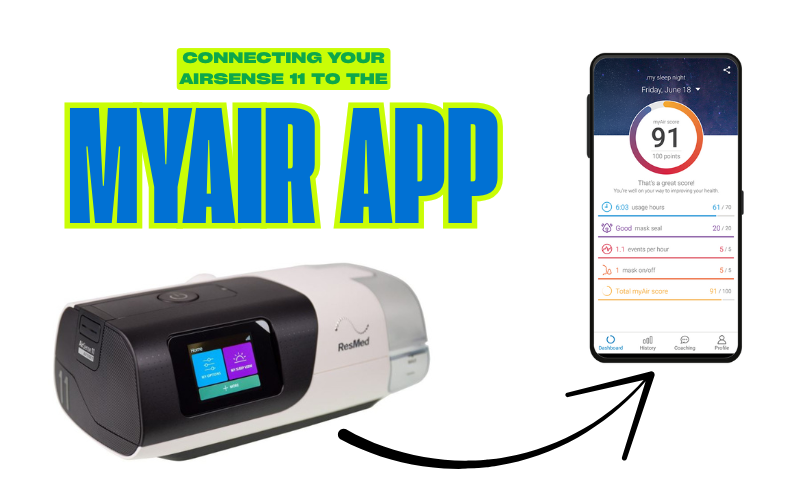
Common Bluetooth Issues
Many users face problems with the ResMed AirSense 11 Bluetooth feature. Common Bluetooth issues can stop your device from syncing properly. These problems often cause frustration and disrupt your therapy tracking.
Understanding these issues helps you fix them faster. The most frequent problems include connection failures, pairing problems, and signal interference. Each can affect your device’s ability to communicate with your phone or app.
Connection Failures
Connection failures happen when the device cannot link to your phone. This issue can occur due to outdated software on the CPAP machine or your phone. Sometimes, the Bluetooth on either device may be turned off or malfunctioning. Restarting both devices often solves this problem quickly.
Pairing Problems
Pairing problems prevent the devices from recognizing each other. This can happen if the AirSense 11 is not in pairing mode. Another cause is if the device is already paired with another phone. Clearing old connections and following the pairing steps carefully usually fixes this issue.
Signal Interference
Signal interference occurs when other wireless devices disrupt the Bluetooth connection. Common sources include Wi-Fi routers, microwaves, and other Bluetooth devices nearby. Moving the CPAP machine or phone to a different location can reduce interference and improve connection strength.
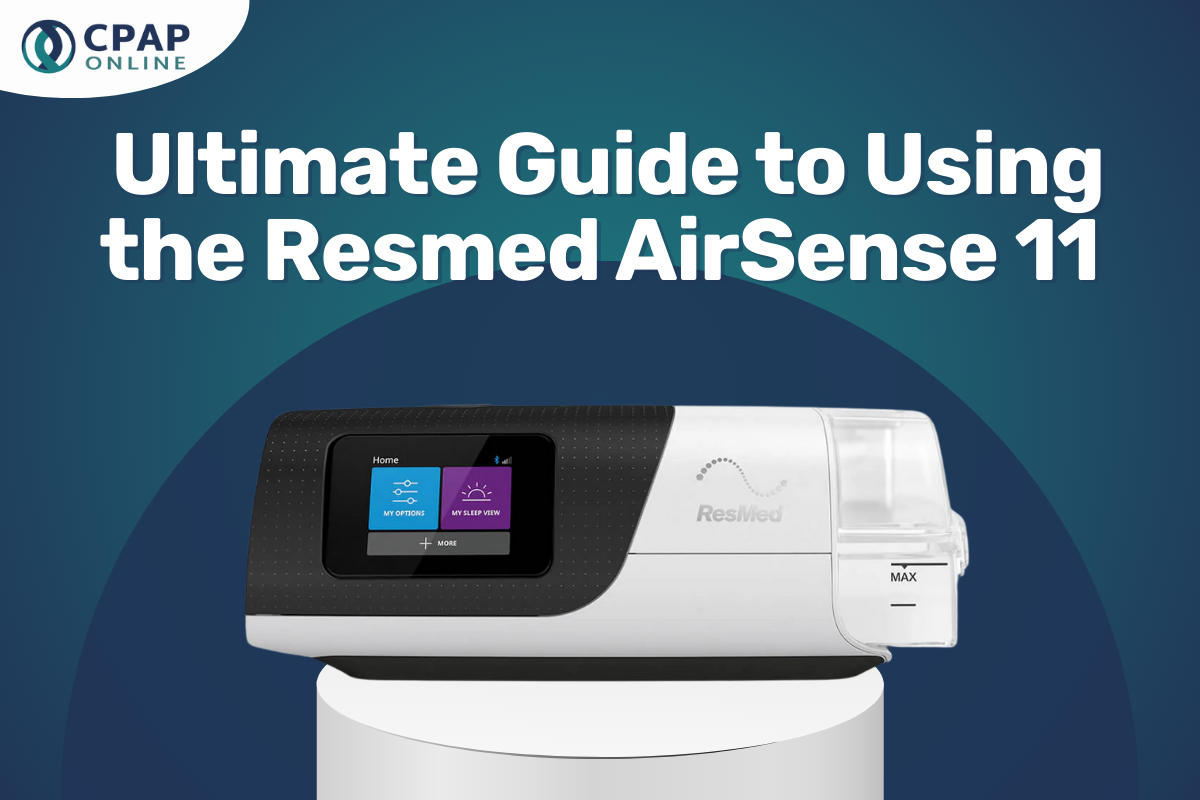
Quick Device Restarts
Quick device restarts often fix Bluetooth issues with the ResMed AirSense 11. Restarting both the CPAP machine and your smartphone can clear temporary glitches. This simple step refreshes the connection and may restore proper Bluetooth pairing. Follow these quick restart methods to troubleshoot your device’s Bluetooth.
Restarting The Airsense 11
To restart your AirSense 11, press the power button to turn it off. Wait about 10 seconds. Then press the power button again to turn it back on. This soft restart helps clear minor software bugs that block Bluetooth. Avoid unplugging the device unless the restart does not work.
Restarting Your Smartphone
Turn your phone off and on again to reset its Bluetooth system. Hold the power button until the shutdown option appears. Switch off the phone and wait 15 seconds. Power it back on and check if the AirSense 11 connects. This step refreshes Bluetooth services on your phone.
Power Cycling Tips
Power cycling means turning devices off and on to reset connections. For best results, first turn off the AirSense 11 and unplug it from the power source. Wait 30 seconds before plugging it back in and turning it on. Do the same with your smartphone. This method clears deeper connection faults than a simple restart.
App Troubleshooting
App issues often cause the ResMed AirSense 11 Bluetooth to stop working. Troubleshooting the myAir app can solve many common connection problems. Follow these simple steps to fix app-related glitches. Each step helps clear errors that block Bluetooth syncing.
Force-closing The Myair App
Force-close the myAir app to reset its connection. On iPhone, swipe up from the bottom and pause, then swipe the app away. On Android, open recent apps and swipe the myAir app off the screen. Reopen the app and check if Bluetooth pairs successfully.
Clearing App Cache And Data
Clearing cache removes temporary files that may cause errors. Go to your phone’s settings, find the myAir app, and tap “Storage.” Select “Clear Cache” first. If problems continue, choose “Clear Data” to reset the app. This deletes saved info, so log back in afterward.
Reinstalling The Myair App
Uninstall the myAir app completely to remove corrupted files. Visit the App Store or Google Play to download the latest version. After reinstalling, open the app and log in with your account details. Disable battery savers or “Low Power Mode” to prevent Bluetooth from disconnecting.
Bluetooth Settings Tweaks
Bluetooth issues with the ResMed AirSense 11 often stem from simple settings. Adjusting Bluetooth options on your phone or device can fix many connection problems quickly. These tweaks help ensure the device and app communicate smoothly.
Toggling Bluetooth Off And On
Turn Bluetooth off on your phone or tablet first. Wait for a few seconds, then turn it back on. This refreshes the connection and clears minor bugs. After toggling, try pairing your ResMed AirSense 11 again.
Disabling Battery Saver Or Low Power Mode
Battery saver modes can limit Bluetooth functions to save power. Check your phone’s settings to see if battery saver or low power mode is active. Turn it off while using the ResMed AirSense 11. This allows Bluetooth to work without restrictions.
Checking Bluetooth Permissions
Apps need permission to use Bluetooth on your device. Open your phone’s settings and find the myAir app. Confirm it has permission to access Bluetooth. Without permission, the app cannot connect to your ResMed machine properly.
Pairing Mode Activation
Activating pairing mode on the ResMed AirSense 11 is essential for Bluetooth connection. This mode allows your CPAP device to communicate with your smartphone or other Bluetooth-enabled devices. Without pairing mode, your AirSense 11 cannot sync data or connect to the myAir app. Understanding how to activate pairing mode helps resolve common Bluetooth issues quickly.
How To Enable Pairing On Airsense 11
Start by powering on your AirSense 11 device. Press the home button to access the main menu. Use the dial to scroll to the “Settings” option and select it. Next, find the “Bluetooth” menu and enter it. Choose “Pairing Mode” or “Add Device” to activate pairing mode. The device screen will show a message confirming that pairing mode is active.
Confirming Device Visibility
Once pairing mode is enabled, your AirSense 11 becomes visible to nearby devices. On your smartphone, open the Bluetooth settings menu. Look for “AirSense 11” or a similar name in the list of available devices. If you don’t see it, toggle Bluetooth off and on again on your phone. Also, ensure no other devices are already connected to the AirSense 11.
Completing The Pairing Process
Select the AirSense 11 from your phone’s available devices list. Follow any prompts to confirm the pairing request. The myAir app may ask for permission to access the device. Approve all permissions for successful connection. After pairing, the AirSense 11 screen will display a Bluetooth icon, confirming the link is active.
Signal Strength And Placement
Signal strength and device placement play a key role in Bluetooth performance. Poor signal or bad placement can cause connection issues. Checking these factors helps improve your ResMed AirSense 11 Bluetooth link. This section covers how to check Bluetooth bars, find the best device spot, and avoid interference sources.
Checking Bluetooth Signal Bars
Look at the Bluetooth icon on your AirSense 11 screen. Signal bars show connection strength. More bars mean a stronger signal. If the bars are low or missing, the connection may drop. Move your phone closer to the machine to test for better bars. Consistently low bars hint at placement or interference problems.
Optimal Device Placement
Place your phone within a few feet of the AirSense 11 device. Avoid thick walls or metal surfaces between the two. Keep the machine on a stable surface without clutter around it. The phone should be near your bed but not inside a drawer or pocket. Good placement ensures stable Bluetooth signals and fewer disconnections.
Avoiding Interference Sources
Other wireless devices can block Bluetooth signals. Move away from Wi-Fi routers, microwaves, or cordless phones. Metal objects and electronic appliances can also cause interference. Turn off unused Bluetooth devices nearby. Clear the area around your AirSense 11 for a cleaner signal path. Reducing interference helps keep Bluetooth working smoothly.
Data Syncing Tips
Syncing data from your ResMed AirSense 11 to the app helps track your therapy progress. Reliable syncing keeps your sleep data updated and accurate. Follow these tips to improve Bluetooth connection and ensure data sync works smoothly.
Ensuring Data Sync Completes
Keep your CPAP device close to your phone during syncing. Avoid physical barriers like walls or metal objects. Make sure your phone’s Bluetooth is turned on and not connected to other devices. Keep the myAir app open until the sync finishes. Wait for the app to confirm data upload before closing it. Charge both devices if battery levels are low, as this can interrupt syncing.
Verifying App And Device Sync Status
Open the myAir app and check the last sync time in the profile section. Confirm your AirSense 11 appears as a paired device in the app’s Bluetooth settings. The app should show recent therapy data, like usage hours and mask fit. If data is missing or outdated, the sync might not have completed. Restart the app and check your device’s Bluetooth status again to confirm connection.
Troubleshooting Sync Errors
Restart your phone and AirSense 11 to clear temporary issues. Close and reopen the myAir app to refresh its connection. Turn Bluetooth off and on again on your phone. Delete the device from the app’s Bluetooth list and pair it again. Update the myAir app to the latest version from the app store. Disable any battery saver or low power mode on your phone, as they may block Bluetooth. If problems continue, reinstall the app and reset Bluetooth settings on your phone.
Advanced Fixes
Advanced fixes for ResMed AirSense 11 Bluetooth issues help when basic steps fail. These methods dig deeper into the device’s system. They often solve stubborn connection problems that simple resets cannot fix.
These fixes require patience and care. Follow each step exactly to avoid new issues. Keep your device’s manual nearby for reference. Let’s explore these advanced solutions.
Unplugging And Waiting Before Restart
Unplug the AirSense 11 from power completely. Leave it off for at least 10 minutes. This pause lets the internal system clear any bugs.
Plug the device back in after waiting. Turn it on and check the Bluetooth connection again. This method resets temporary glitches without changing settings.
Factory Reset Considerations
Factory reset erases all user data and settings. Use this only if other fixes fail. It returns the device to original factory conditions.
Before resetting, back up your data if possible. Note your current settings to reconfigure later. To reset, follow the device menu instructions carefully.
After reset, pair your phone and AirSense 11 again. This often resolves deep software conflicts affecting Bluetooth.
Contacting Resmed Support
Contact ResMed support if advanced fixes do not work. Their team can provide specialized help and guide you through repairs.
Have your device serial number and purchase details ready. Explain the issue clearly and describe the steps you tried.
Support may suggest firmware updates or replacement options. They ensure your device functions properly and safely.
Frequently Asked Questions
How Do I Turn On Bluetooth On Resmed 11?
To turn on Bluetooth on ResMed 11, open the myAir app, go to Profile > My Equipment, and tap Pair Bluetooth. Follow on-screen prompts to connect.
Why Is My Resmed Bluetooth Not Connecting?
Your ResMed Bluetooth may not connect due to outdated app versions, low phone battery mode, or device pairing errors. Restart both devices, update the myAir app, disable battery savers, and ensure Bluetooth is on. Moving your CPAP machine closer can also improve signal strength.
Why Is My Bluetooth Not Connecting Anymore?
Bluetooth may stop connecting due to device glitches, outdated software, or interference. Restart both devices and update their software. Ensure Bluetooth is enabled and devices are in pairing mode. Clear previous pairings and move closer to avoid signal issues.
How To Put Resmed In Pairing Mode?
To put ResMed in pairing mode, open the myAir app, tap Profile, then My Equipment. Select Pair Bluetooth and follow prompts.
Why Is My Resmed Airsense 11 Bluetooth Not Connecting?
Bluetooth may fail to connect due to interference or outdated app versions. Restart your CPAP device and phone to refresh connections. Ensure the myAir app is updated to the latest version.
Conclusion
Bluetooth issues with your ResMed AirSense 11 can be frustrating. Simple steps often fix the problem quickly. Restart your devices and check app updates first. Make sure Bluetooth is enabled and your phone is near the machine. Turning off battery saver modes helps maintain connection.
Reinstalling the myAir app often resolves syncing problems. Keep the device in a spot with good signal strength. Regularly updating software improves performance and avoids glitches. These tips will help you get back to tracking your sleep data easily. Don’t give up—small fixes can restore your Bluetooth connection.