
Are your Sennheiser wireless headphones acting up when you least expect it? You’re not alone.
Whether the sound cuts out, Bluetooth won’t connect, or the controls stop responding, these issues can be frustrating. But don’t worry—you don’t have to give up on your favorite headphones just yet. In this guide, you’ll discover simple, step-by-step solutions to get your Sennheiser headphones back in perfect shape fast.
Keep reading, and you’ll soon enjoy crystal-clear sound and seamless wireless freedom again.
Common Connection Issues
Connection problems can disrupt your experience with Sennheiser wireless headphones. Most connection issues fall into a few common categories. Understanding these helps fix problems quickly. Here are the main connection challenges users face.
Bluetooth Pairing Problems
Bluetooth pairing often causes trouble. Headphones may not show up on your device list. Sometimes, devices fail to connect after pairing. Restart both headphones and the device. Clear old Bluetooth connections from your device. Make sure your headphones are in pairing mode. Updating firmware can also improve pairing stability.
Signal Interference
Wireless signals can face interference from other electronics. Wi-Fi routers, microwaves, and other Bluetooth devices cause interruptions. These interferences lead to audio dropouts or delays. Keep headphones away from sources of interference. Changing the location or turning off nearby devices helps. Using the Sennheiser Smart Control app can identify and reduce interference.
Range And Obstacles
Distance affects wireless headphone performance. The typical Bluetooth range is about 30 feet. Walls, furniture, and other obstacles block signals. Moving closer to the device often restores connection. Avoid placing the source device in pockets or bags. Open spaces provide better signal and sound quality. Remember, physical barriers reduce effective range.
Audio Problems
Audio problems can disrupt your experience with Sennheiser wireless headphones. These issues range from no sound output to crackling or cutting audio. Knowing how to troubleshoot helps you get back to enjoying clear sound quickly.
Several factors cause audio problems, including connection issues, settings errors, or hardware faults. This guide covers common audio problems and simple fixes for each.
No Sound From Headphones
Check if your headphones are fully charged. Low battery can stop sound output.
Ensure the headphones are properly connected to your device via Bluetooth. Sometimes, disconnecting and reconnecting solves the issue.
Verify the audio source is playing sound. Try another device to confirm if the problem is with the headphones.
Restart your headphones by turning them off and on. This can reset the connection and fix the sound issue.
Audio Cutting In And Out
Wireless signals can weaken due to distance or obstacles. Move closer to your device to improve signal strength.
Interference from other wireless devices can cause audio dropouts. Turn off nearby devices or switch to a less crowded frequency.
Update your headphones’ firmware using the Sennheiser Smart Control app. Firmware updates often fix connectivity issues.
Reset your headphones to factory settings if problems persist. This clears any software glitches affecting audio.
Volume And Sound Settings
Check your device’s volume level and make sure it is not muted or too low.
Adjust the headphone volume using the controls on the headset itself.
Explore your device’s sound settings to ensure the output is set to your headphones.
Disable any equalizer or sound enhancement features that may distort audio quality.
Power And Battery Troubles
Power and battery problems often cause frustration with Sennheiser wireless headphones. The headphones might not charge, hold a charge, or turn on properly. These issues affect your listening experience and device reliability. Understanding common power and battery troubles can help you fix problems quickly.
Charging Issues
Check the charging cable and adapter for damage. Use the original charger if possible. Clean the charging port gently to remove dust or dirt. Connect the headphones to a different power source to test charging. Avoid using low-quality or incompatible chargers. If the headphones do not charge, try a reset or update the firmware.
Battery Life Tips
Lower the volume to save battery power. Turn off extra features like noise cancellation when not needed. Store headphones in a cool, dry place to preserve battery health. Charge the headphones regularly, even when not in use. Avoid full discharges; recharge before the battery is empty. Follow the manufacturer’s guidelines for best battery care.
Power On/off Problems
Press and hold the power button for a few seconds to turn on. Ensure the headphones have enough battery to power up. If the device fails to turn off, try a forced shutdown or reset. Remove any cases or covers that might block buttons. Check for firmware updates that improve power management. Contact support if power issues continue after troubleshooting.
Reset And Firmware Updates
Resetting your Sennheiser wireless headphones and keeping their firmware updated solves many common issues. These actions help clear glitches and improve performance. Knowing how to perform a factory reset and update firmware keeps your headphones working smoothly.
Factory Reset Steps
To start a factory reset, power off your headphones. Press and hold the power button for about 10 seconds. Wait until the LED flashes in a certain pattern, usually white and red. Release the button once the light changes. Your headphones will now restore to factory settings. This process removes paired devices and resets preferences.
Updating Headphone Firmware
Firmware updates fix bugs and add new features. Connect your headphones to a computer or smartphone. Visit the Sennheiser website or use their app to check for updates. Download and install the latest firmware following on-screen instructions. Keep headphones fully charged during updates to avoid interruptions.
Using Sennheiser Smart Control App
Download the Sennheiser Smart Control app from the App Store or Google Play. Open the app and connect your headphones via Bluetooth. The app will automatically check for available firmware updates. Follow the prompts to update your headphones. The app also lets you customize sound settings and check battery status.
Hardware Checks
Hardware checks are essential when troubleshooting Sennheiser wireless headphones. These checks help identify physical issues that affect sound quality or connectivity. Examining the hardware ensures you catch simple problems before seeking professional help.
Inspecting Headphone Components
Start by looking closely at the main parts of your headphones. Check the headband for cracks or loose joints. Inspect the ear cups for any damage or misalignment. Make sure the buttons and switches move freely and are not stuck. Clean any dirt or dust from the surfaces gently. Small debris can block sensors or buttons.
Speaker And Ear Cup Issues
Listen carefully for any crackling or distortion in the sound. This may indicate speaker damage. Press lightly on the ear cups to check for loose parts inside. If one side sounds quieter, the speaker wire might be broken or disconnected. Check the ear pads for wear and tear. Worn pads can affect comfort and sound seal, reducing audio quality.
Cable And Connector Problems
Check all cables and connectors for signs of wear or damage. Even wireless headphones may have charging cables or audio cables for wired use. Look for frayed wires, bent connectors, or loose plugs. Ensure the charging port is clean and free of dust. A dirty or damaged port can prevent proper charging and connection.
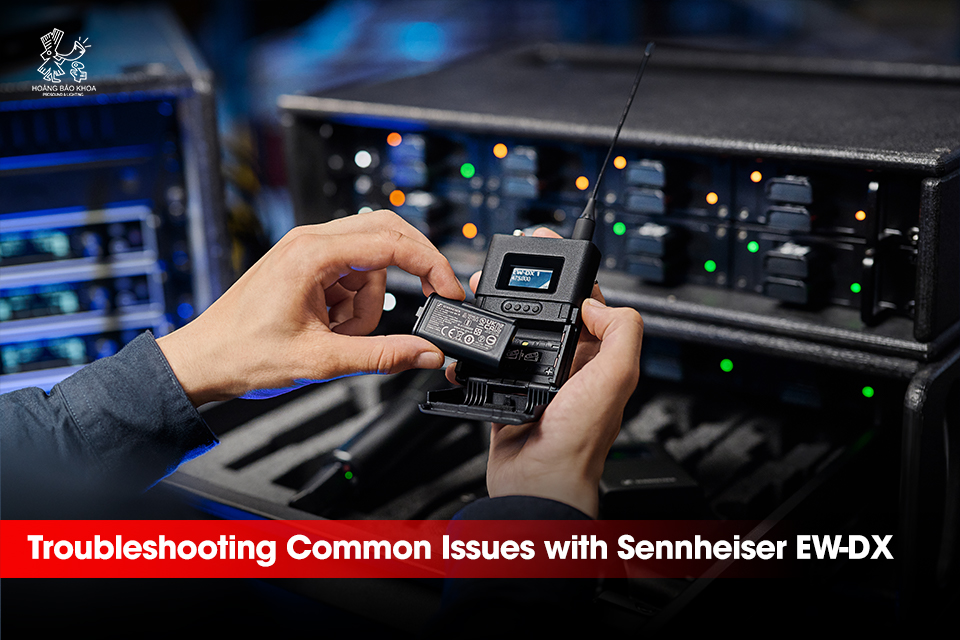
Credit: hoangbaokhoa.com
Troubleshooting Tips
Troubleshooting Sennheiser wireless headphones can be simple. Some issues resolve quickly with easy steps. This section covers practical tips to restore your headphones’ performance. Follow these methods to fix common problems fast.
Basic Restart Procedures
Start by turning off the headphones. Wait 10 seconds before switching them back on. This resets the internal system and clears minor glitches. If problems continue, try a full reset. Press and hold the power button for 10 seconds until the LED flashes. This restores factory settings and often solves connection or sound issues.
Cleaning And Maintenance
Keep headphones clean to avoid performance drops. Use a soft, dry cloth to wipe ear pads and headband. Remove dust from charging contacts with a dry cotton swab. Avoid water or cleaning chemicals on electronic parts. Regular cleaning prevents dirt buildup that blocks sound or causes connection errors.
Avoiding Common Mistakes
Charge headphones fully before use to prevent unexpected shutdowns. Pair with devices one at a time to avoid Bluetooth conflicts. Keep distance from other wireless devices to reduce interference. Avoid bending or pulling cables sharply. These small habits help maintain sound quality and connection stability.

Credit: www.youtube.com
Frequently Asked Questions
How Do I Reset My Sennheiser Wireless Headphones?
To reset Sennheiser wireless headphones, press and hold the power button until the LED flashes. Release to complete the factory reset.
What Is The Lifespan Of A Sennheiser Headset?
A Sennheiser headset typically lasts 3 to 5 years with proper care and regular use. Battery life and build quality affect longevity.
Can You Fix Sennheiser Headphones?
Yes, you can fix Sennheiser headphones by troubleshooting common issues or using authorized repair services. Check battery, firmware, and connections first.
Why Did My Wireless Headphones Suddenly Stop Working?
Wireless headphones may stop working due to low battery, Bluetooth connection issues, or firmware glitches. Restart and recharge them.
How Do I Reset My Sennheiser Wireless Headphones?
Press and hold the power button for about 10 seconds. Release when the LED flashes, indicating the reset is done. This clears previous settings and can fix many issues.
Conclusion
Troubleshooting your Sennheiser wireless headphones can be simple. Start with basic checks like charging and Bluetooth connection. Resetting the headphones often fixes many common problems. Keep your firmware updated for best performance. Avoid interference by staying close to your device.
If issues persist, contacting Sennheiser support helps. These tips ensure your headphones work smoothly and last longer. Enjoy clear sound without interruptions.