
When your TV won’t connect to WiFi, it can quickly turn a relaxing evening into a frustrating problem. Today, almost every smart TV relies on a stable internet connection to stream your favorite shows, update apps, or even display the latest news. If your TV suddenly refuses to connect, it can feel confusing—especially if you’re not a tech expert. But the good news is that most WiFi connection problems have simple solutions, and you don’t need advanced skills to solve them. This guide will walk you through every possible cause, explain clear steps for fixing each one, and help you understand why these problems happen in the first place. By the end, you’ll have the confidence to get your TV back online—and avoid future connection issues.
Common Reasons Why Your Tv Won’t Connect To Wifi
Understanding the main reasons behind WiFi connection problems is the first step to solving them. There isn’t just one cause. Here are the most common reasons:
- Incorrect WiFi password: Even a small typo will prevent your TV from connecting.
- Weak WiFi signal: If your router is far from the TV, the signal might not reach well.
- Outdated TV software: Old firmware can create bugs or incompatibility.
- Network congestion: Too many devices can slow down or block the connection.
- Router problems: Sometimes, the router itself needs a reset or update.
- Wrong network settings: Manual changes to IP addresses or DNS can cause problems.
- MAC address filtering: If your router blocks unknown devices, your TV may be denied access.
- Internet outage: The problem could be with your internet provider, not your TV.
- TV hardware issues: Internal WiFi chips can fail, especially in older TVs.
- Interference: Devices like microwaves or cordless phones can disrupt the signal.
Not all problems are easy to spot. For example, a TV may show “connected” but still not access the internet due to DNS issues. Let’s look at how to diagnose and fix each of these causes.
Step-by-step Troubleshooting Process
Fixing a TV not connecting to WiFi is easier if you take a systematic approach. Follow these steps in order, checking your TV after each one.
1. Check Other Devices
Before blaming your TV, see if other devices (like your phone or laptop) can connect to the same WiFi network. If none can connect, the problem is likely with your internet or router, not the TV. If only the TV has issues, keep going with the next steps.
2. Restart Your Tv And Router
Many connection problems are temporary glitches. A simple restart often solves them.
- Unplug your TV from the wall for 1-2 minutes.
- Turn off your router and modem, wait 2 minutes, then turn them back on.
- Plug your TV back in and try reconnecting to WiFi.
Waiting a few minutes is important. It allows both devices to reset fully, clearing memory errors.
3. Double-check Your Wifi Password
Typing mistakes are easy to miss, especially on TV remotes. Delete the saved network on your TV and re-enter the password carefully. Remember, passwords are case-sensitive.
4. Move Your Tv Or Router
Distance and physical barriers (like walls or floors) can weaken the WiFi signal. Try moving your TV closer to the router, or vice versa. If you can’t move them, consider using a WiFi range extender.
Signal Strength Comparison
| Location | Signal Bars | Typical Speed |
|---|---|---|
| Same room as router | 4-5 | 50-100 Mbps |
| One wall between | 2-3 | 20-40 Mbps |
| Two walls between | 1-2 | 5-15 Mbps |
If your TV shows only 1-2 bars, the signal is likely too weak for reliable streaming.
5. Update Your Tv’s Firmware
Manufacturers often release updates to fix WiFi bugs or compatibility issues. Go to your TV’s settings, look for “Software Update,” and follow the instructions. If you can’t connect to WiFi, some TVs let you update via USB.
6. Forget And Reconnect To The Network
Sometimes, your TV saves outdated network settings. Go to your TV’s WiFi settings, select your network, and choose “Forget. ” Then reconnect as if it’s a new network.
7. Check Router Settings
Log in to your router (usually by typing 192. 168. 1. 1 or 192. 168. 0. 1 in a web browser).
- Make sure MAC address filtering is off, or add your TV’s MAC address to the allowed list.
- Check the number of connected devices. Many home routers have a limit (e.g., 10-20 devices).
8. Test With A Wired Connection
If your TV has an Ethernet port, connect it directly to the router with a cable. If this works, the issue is definitely with WiFi, not your internet service.
9. Reset Network Settings On Tv
Most smart TVs have an option to “Reset Network Settings. ” This will clear all WiFi information and let you start fresh.
10. Factory Reset As A Last Resort
If nothing else works, try a full factory reset. This erases all apps and personal settings, returning your TV to its original state. Only do this if all other solutions fail.
Deeper Causes And Advanced Fixes
Sometimes, the usual steps don’t work. Here are less obvious causes and how to fix them.
Ip Address Or Dns Issues
Your TV needs the right IP address and DNS server to access the internet. If set incorrectly, it may connect to WiFi but not load content.
- In your TV’s network settings, choose “Automatic” for IP and DNS.
- If needed, manually set DNS to 8.8.8.8 (Google’s public DNS).
2.4 Ghz Vs 5 Ghz Band
Most routers offer two frequency bands: 2.4 GHz and 5 GHz.
| Band | Range | Speed | Best For |
|---|---|---|---|
| 2.4 GHz | Longer | Lower | Older TVs, walls between devices |
| 5 GHz | Shorter | Higher | Newer TVs, close to router |
Some TVs only see 2. 4 GHz networks. Try connecting to both, if your router supports it.
Router Firmware Problems
Just like TVs, routers get firmware updates. An outdated router may block new devices or have compatibility issues. Check your router manufacturer’s website for update instructions.
Hidden Or Guest Networks
If you’re trying to connect to a hidden SSID or a guest network, double-check the settings. Guest networks often have limited access or require extra steps.
Interference From Other Devices
Microwaves, cordless phones, and even Bluetooth speakers can interfere with WiFi signals. Try turning off nearby electronics to see if the connection improves.
Tv Hardware Failure
If your TV’s WiFi chip is damaged, it may not detect any networks at all. This is more common in older TVs or after a power surge. If you suspect this, contact the manufacturer or a repair professional.
Practical Examples: Brand-specific Tips
Different TV brands have unique menus and known issues. Here are specific tips for popular brands:
Samsung Smart Tvs
- Go to Settings > General > Network > Network Status to diagnose problems.
- Samsung TVs sometimes need a full power cycle (hold the power button on the remote for 5 seconds until the logo appears).
- A common fix is setting DNS manually to 8.8.8.8.
Lg Smart Tvs
- Use Settings > All Settings > Network > WiFi Connection.
- LG TVs can get stuck if the date and time are wrong; set them to “Automatic.”
- Some LG models need a “Quick Start+” feature turned off for stable WiFi.
Sony Smart Tvs
- Go to Settings > Network & Internet > Easy Setup.
- For Android TVs, clear the cache of the “WiFi Direct” app.
- Sony TVs often benefit from resetting network settings without a full factory reset.
Tcl And Roku Tvs
- Use Settings > Network > Check Connection for a step-by-step diagnostic.
- TCL TVs are sensitive to router firmware; updating your router can solve random disconnects.
- Roku TVs sometimes need a full restart (Settings > System > Power > System Restart).
Vizio Smart Tvs
- Vizio TVs with SmartCast can sometimes only connect to 2.4 GHz networks.
- Use the SmartCast Mobile app to set up WiFi if the remote is difficult to use.
- A “soft power cycle” (menu option) can solve minor glitches.
When To Contact Your Internet Provider
If you’ve tried all the above and still can’t connect, it’s possible your internet service provider (ISP) is having issues. Call them and ask:
- Are there any outages in your area?
- Is your account active and paid up?
- Can they see your devices trying to connect?
ISPs can also help you reset your modem or check for outside line problems.
Tips To Prevent Future Wifi Problems
Solving the problem is good—but preventing it is even better. Here are some tips to keep your TV connected:
- Keep firmware updated: For both TV and router.
- Place your router high up: WiFi signals spread better from above furniture.
- Limit connected devices: Disconnect old phones or smart gadgets you don’t use.
- Use a unique network name (SSID): Avoid default names like “Linksys” or “TP-Link.”
- Set a strong password: This keeps neighbors from slowing your network down.
- Reboot your router monthly: Prevents slowdowns and memory issues.
- Avoid interference: Place routers away from microwaves and thick walls.
- Check cables: Loose power or Ethernet cables can cause unstable connections.
Troubleshooting Checklist (quick Reference)
If you want a fast way to remember the steps, here’s a quick checklist:
- Restart TV and router
- Check other devices
- Re-enter WiFi password
- Move TV or router for better signal
- Update TV software
- Forget and reconnect to network
- Check router settings (MAC filter, limits)
- Try Ethernet cable
- Reset TV network settings
- Factory reset if necessary
Real-world Scenario
Imagine you buy a new smart TV and bring it home. You try to connect to WiFi, but it keeps failing. You double-check your password, reboot the router, and move the TV closer—but nothing works.
You remember your phone also can’t connect. After calling your ISP, you find out there’s a service outage in your area. The next day, when internet service returns, your TV connects perfectly. This example shows that sometimes, the issue is outside your control—and patience is the best solution.
Data: Tv Wifi Problems In Numbers
According to a 2023 survey by Statista, around 18% of smart TV owners experience WiFi connection problems at least once a month. The most common causes are:
- Weak signal (40%)
- Incorrect password (25%)
- Router problems (20%)
- TV software bugs (10%)
- Hardware failure (5%)
These numbers highlight that most problems are simple and fixable at home.
Should You Use A Wired Connection Instead?
WiFi is convenient, but Ethernet is more stable. If your TV is close to your router, an Ethernet cable gives:
- Faster speeds (up to 1 Gbps)
- Lower lag for streaming or gaming
- Less risk of interference
But, WiFi is still the best choice for rooms far from your router or where running cables isn’t practical.
Comparing Wired And Wireless Connections
| Feature | WiFi | Ethernet |
|---|---|---|
| Convenience | High | Medium |
| Speed | Variable | Consistent |
| Interference | Possible | Rare |
| Setup Difficulty | Easy | May require cables |
For most users, a strong WiFi connection is enough for streaming HD or 4K video. But Ethernet is a good backup if your TV is used for gaming or regular video calls.
Two Non-obvious Insights
Many guides miss these two important points:
- Time and date settings: If your TV’s clock is wrong, some WiFi networks (especially with security enabled) will refuse the connection. Set your TV’s time to automatic.
- Router “smart connect” features: Some routers automatically switch devices between 2.4 GHz and 5 GHz. This can confuse older TVs, causing random disconnects. Try turning off smart connect and naming each band differently.

What If Nothing Works?
If you’ve tried everything and your TV still won’t connect to WiFi, it may be time to get professional help. Call your TV’s customer support and provide details of what you’ve tried. If your TV is under warranty, repairs may be free.
If not, ask about the cost of replacing the WiFi module. As a last resort, you can also use a streaming stick (like Roku, Fire TV, or Chromecast), which has its own WiFi connection and often solves the problem for much less than buying a new TV.
Additional Resources
For more advanced solutions or help, visit the official support pages for your TV brand, or check out Microsoft’s troubleshooting guide.
Frequently Asked Questions
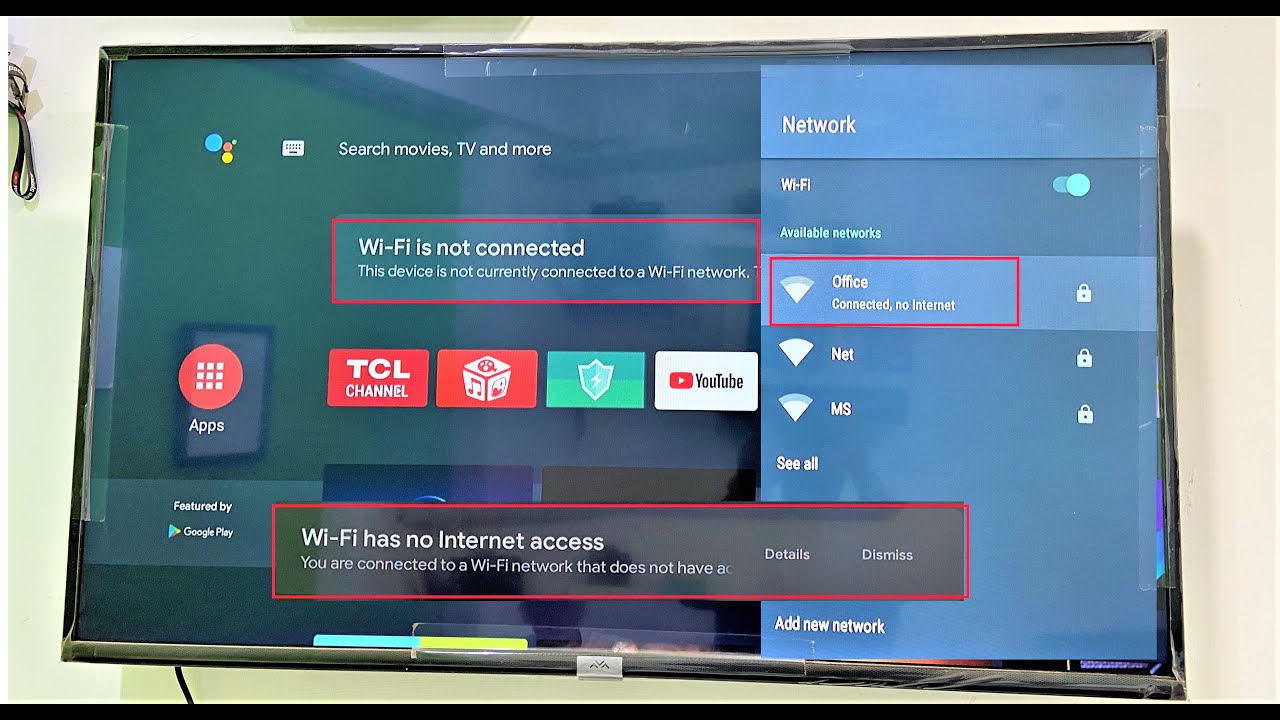
Why Does My Tv Say “connected, No Internet”?
This means your TV is talking to the router, but the router isn’t getting internet from your provider. Check if other devices work. If not, contact your ISP or restart your modem and router.
How Do I Find My Tv’s Mac Address?
Go to your TV’s network settings. There will be a section called “About,” “Network Status,” or “Advanced. ” The MAC address is a 12-digit code (letters and numbers). You may need this for router settings.
Can A Smart Tv Connect To A Public Wifi Network?
Yes, but some public networks (like hotels or airports) use a browser login page. If your TV doesn’t have a web browser, it may not connect. Try using your phone as a WiFi hotspot instead.
What Should I Do If My Tv Keeps Dropping The Wifi Connection?
Try moving your router closer or switching to a different WiFi band (2. 4 GHz or 5 GHz). Also, make sure your TV’s software is updated, and your router isn’t overloaded with devices.
Is It Safe To Reset My Tv To Factory Settings?
Yes, but it will erase your apps, sign-ins, and settings. Only do this as a last resort. Back up important information before resetting.
Getting your TV connected to WiFi doesn’t need to be complicated. By following these steps and understanding the causes, you can solve most problems quickly—and enjoy your favorite content without interruption. If you ever get stuck, don’t hesitate to reach out for professional support or check resources like Microsoft’s troubleshooting guide. With a little patience, your TV will be streaming smoothly again.