
Is your Verizon remote suddenly not working when you need it most? It’s frustrating when you can’t control your TV, pause your favorite show, or switch channels smoothly.
But before you consider buying a new remote or calling support, there are simple fixes you can try right now. In this guide, you’ll discover easy steps to get your Verizon remote back in action—whether it’s a battery issue, a connection problem, or something else.
Keep reading, and you’ll be able to troubleshoot like a pro and enjoy your TV again without the hassle.
Check Batteries
Checking the batteries is the first step to fix a Verizon remote that is not working. Weak or dead batteries often cause the remote to stop responding. Sometimes, batteries may look fine but have low power. Testing and replacing them can bring the remote back to life quickly.
Always use fresh batteries to avoid interruptions. Old batteries can leak or lose charge, causing the remote to fail. Keeping the battery contacts clean also helps the remote work properly.
Replace With Fresh Aa Batteries
Open the battery compartment of your Verizon remote carefully. Remove the old batteries and dispose of them properly. Insert new AA batteries, making sure to match the positive (+) and negative (-) ends as marked.
Use good quality batteries for longer life and reliable performance. After inserting new batteries, test the remote by pressing any button. The remote should respond immediately if the batteries were the issue.
Clean Battery Contacts
Sometimes the battery contacts inside the remote get dirty or corroded. This can block the flow of power from the batteries. Use a cotton swab or a soft cloth to clean the metal contacts inside the battery compartment.
If you see any corrosion, gently rub it away with a small amount of white vinegar or rubbing alcohol on the cloth. Let it dry completely before inserting fresh batteries. Clean contacts help ensure a strong connection and proper remote function.
Reset The Remote
Resetting your Verizon remote can fix many common issues quickly. This process clears minor glitches and restores normal function. The method differs slightly based on the remote type. Follow the steps carefully for the best results.
Voice Remote Reset
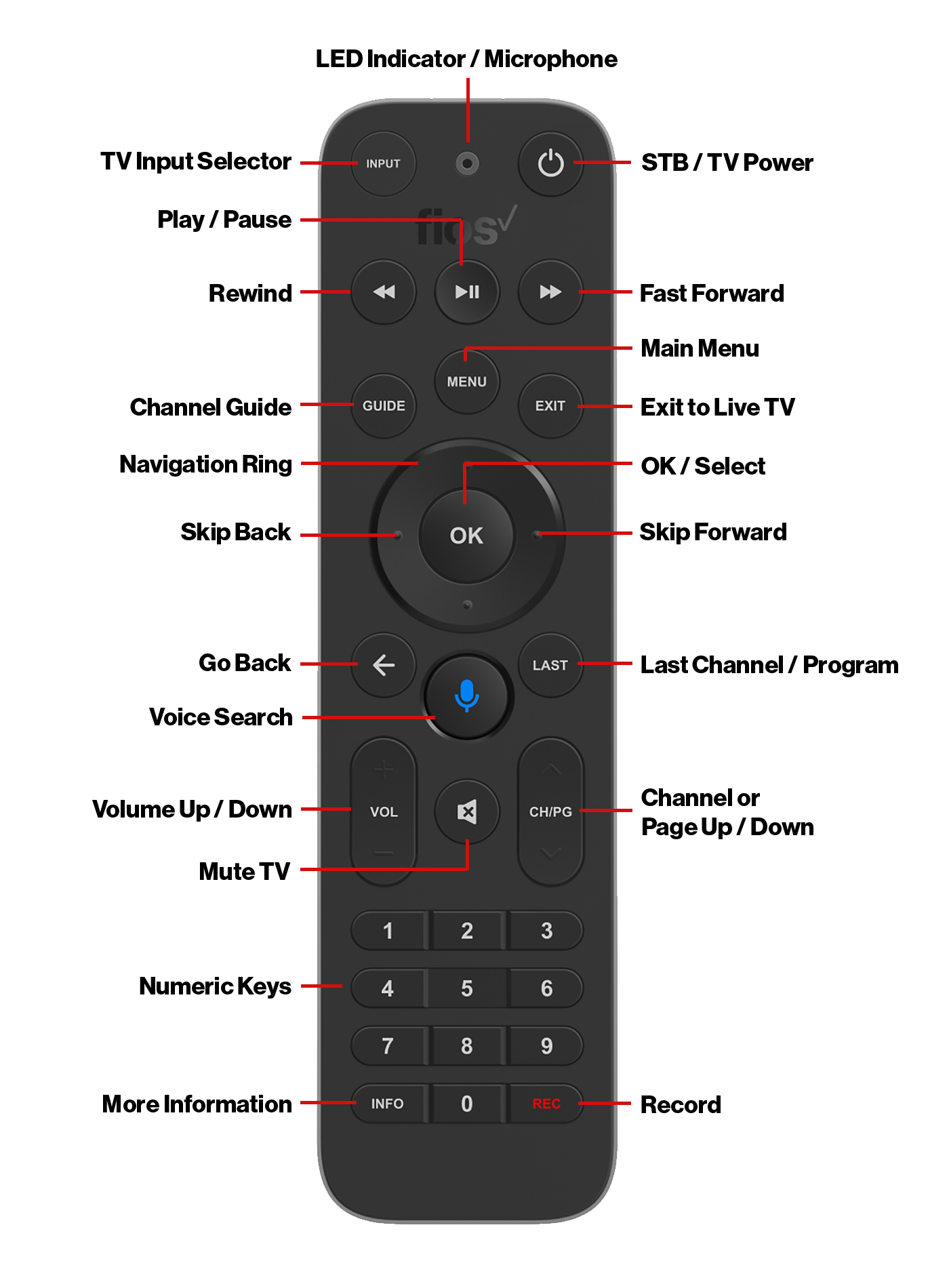
To reset the voice remote, press and hold the OK button and the Fios TV (or Menu) button at the same time.
Keep holding the buttons until the red light blinks twice. Then, release both buttons.
Wait a few seconds. The remote should reconnect to your Fios TV box automatically.
Standard Remote Reset
For a standard remote, press and hold the OK and TV buttons together.
Hold until the red light blinks twice, then release the buttons.
Allow a few moments for the remote to reset and sync with the TV box. This simple reset can restore remote function.
Re-pair The Remote
Re-pairing your Verizon remote is a key step to restore its connection with your TV box. This process helps fix issues like unresponsive buttons or blinking lights. It resets the communication link between the remote and the Fios box. Follow the correct pairing steps based on your remote model for best results.
Pairing Steps For Fios Tv One
Turn on your TV and the Fios TV One box. Press and hold the Play/Pause and the O (Options) buttons together. Keep holding until the remote’s light flashes blue. Release the buttons immediately after the light blinks. Wait a few seconds for the remote to pair with the box. If the light stops blinking, the pairing is complete. Test the remote by pressing any button to confirm it works.
Pairing For Other Models
Switch on your TV and the Verizon set-top box. Press and hold the OK and the Fios TV (or Menu) buttons at the same time. Keep holding until the LED light blinks twice. Release both buttons right after the second blink. Give the remote a moment to connect to the box. Check if the remote responds to commands. Repeat the steps if the remote still does not work.
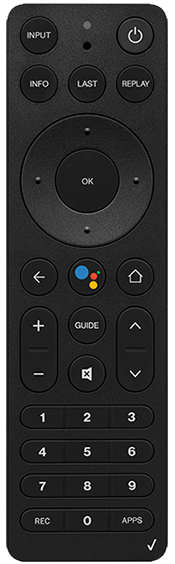
Clear Signal Path
Ensuring a clear signal path is essential for your Verizon remote to work properly. The remote sends signals to your TV or set-top box using infrared (IR) or Bluetooth technology. Any blockages or interference can stop these signals, causing the remote to stop working. Follow these simple steps to clear the path and improve remote performance.
Remove Physical Obstructions
Objects between your remote and the TV can block the signal. Keep the area in front of the TV clear. Remove items like books, decorations, or furniture that might be in the way. Even small objects can interfere with the infrared signals. Make sure there is a direct line of sight from the remote to the device.
Clean Infrared Sensors
Infrared sensors on both the remote and the TV must be clean. Dirt, dust, or smudges can weaken the signal. Use a soft, dry cloth to gently wipe the sensor areas. Avoid using liquids or harsh cleaners. Regular cleaning helps maintain strong communication between devices.
Reduce Bluetooth Interference
Bluetooth signals can be disturbed by other wireless devices. Keep other electronics like Wi-Fi routers, cordless phones, or microwaves away from your TV area. These devices may cause interference and affect remote performance. Turning off unused Bluetooth devices can also help improve connection.
Power Cycle Tv Box
Power cycling your TV box can solve many remote control issues. It resets the device and clears temporary glitches. This simple step often restores remote functions quickly.
Follow the steps below to power cycle your Verizon set-top box and check if the remote starts working again.
Restart Set-top Box
First, unplug the power cord from the back of the set-top box. Wait at least 30 seconds to let it fully shut down. Plug the power cord back in and turn on the box. Wait for the box to boot up completely before testing the remote. Restarting helps clear minor software bugs.
Check For Frozen Box
A frozen box may not respond to the remote commands. Look at the TV screen for any signs of freezing or no signal. If the box is frozen, the power cycle will force it to reboot. This clears the freeze and restores normal operation. Repeat the restart if needed.
Troubleshoot Common Issues
Troubleshooting common issues with your Verizon remote can save time and frustration. Many problems arise from simple causes. Following easy steps often restores full remote function quickly. Start with basic checks before exploring advanced fixes. This approach helps you fix issues efficiently.
Remote Not Responding Suddenly
Weak or dead batteries often cause sudden remote failures. Replace batteries with new, high-quality AA ones. Check the battery compartment for dirt or corrosion. Clean contacts gently if needed. After battery replacement, test the remote again.
If the remote still does not respond, try resetting it. For voice remotes, press and hold the OK and Fios TV (or Menu) buttons simultaneously. Release when the red light blinks twice. Wait a moment for the remote to reconnect to the TV box.
Blinking Lights On Remote
Blinking lights usually indicate pairing mode or connection issues. To fix this, re-pair the remote with your Fios set-top box. Turn on the TV and the Fios box first. For Fios TV One remotes, press and hold the Play/Pause and O (or Options) buttons together. Release when the light flashes blue.
The remote should pair automatically after this step. If blinking continues, restart your TV box. Unplug it for 30 seconds, then plug it back in. Retry the pairing process once the box powers on.
Replace Or Upgrade Remote
Sometimes, a Verizon remote stops working despite troubleshooting. Replacing or upgrading the remote can solve persistent issues. A new remote often improves reliability and supports new features. This step ensures smooth control of your Verizon TV service.
Before buying a new remote, check your warranty status. This could save you money and effort. Also, ordering from the Verizon store guarantees compatibility and quality.
Check Warranty Status
First, find out if your remote is still under warranty. Verizon often covers remote replacements within the warranty period. Check your account online or call Verizon customer service. If the remote is covered, you might get a free replacement. This option is faster and cheaper than buying a new remote.
Order From Verizon Store
Buy a replacement remote directly from the Verizon store. This ensures the remote matches your device model. Verizon remotes come with the right features for your TV box. Avoid third-party remotes that may not work well. The Verizon store offers easy ordering and quick delivery. Upgrading to a newer remote can also add voice control and better range.
Additional Tips
Additional tips can help solve Verizon remote problems quickly. These simple steps improve your remote’s response and reliability.
Try these helpful strategies to make your remote work without hassle.
Avoid Signal Interference
Keep other electronic devices away from your remote and TV. Devices like routers, cordless phones, or microwaves can block signals.
Use the remote close to the TV box. Walls or furniture may weaken the signal.
Make sure nothing covers the remote’s infrared sensor or the TV’s receiver. Clean dust or dirt from these areas often.
Use Video Tutorials For Help
Watch step-by-step videos to fix common remote issues. Visual guides make it easier to follow instructions.
Search for videos on resetting, pairing, or battery replacement specific to Verizon remotes. These resources often show tricks not found in manuals.
Pause and replay sections to understand each step well. This helps avoid mistakes and saves time.
Frequently Asked Questions
How Do I Reset A Verizon Tv Remote?
To reset a Verizon TV remote, press and hold the OK and TV buttons until the red light blinks twice. Release the buttons and wait for it to reconnect. Replace batteries if needed and ensure no objects block the remote’s signal to the box.
Why Is The Verizon Remote Not Working?
The Verizon remote may not work due to dead batteries, lost pairing, blocked infrared signals, or device interference. Replace batteries, reset, and re-pair it to fix issues. Ensure no obstacles block the remote’s signal and the set-top box is powered on.
Why Did My Remote Stop Working All Of A Sudden?
Your remote likely stopped working due to dead batteries, lost pairing, or signal interference. Replace batteries, reset, and re-pair it. Clean sensors and ensure no objects block the infrared path. Moving Wi-Fi routers away can reduce Bluetooth interference. If issues persist, the remote may be defective.
How Do I Replace A Verizon Fios Remote?
Replace a Verizon FiOS remote by installing fresh batteries, resetting it with OK and TV buttons, and re-pairing to the set-top box. Clean battery contacts and ensure no signal blockages. Order a new remote from Verizon if issues persist.
Why Is My Verizon Remote Suddenly Not Working?
Weak or dead batteries often cause sudden remote failure. Also, the remote may need resetting or re-pairing with the TV box.
Conclusion
Verizon remote issues often come from simple causes like weak batteries or lost pairing. Check batteries first and replace if needed. Resetting the remote can clear glitches quickly. Re-pair the remote to the TV box to restore connection. Keep the path clear if using an infrared remote.
Avoid signal interference with Bluetooth remotes by adjusting nearby devices. Following these easy steps usually fixes most problems fast. Stay patient and try each method carefully. Your remote should work smoothly again soon.