
Is your AT&T Visual Voicemail suddenly not working? You’re not alone, and it’s frustrating when you can’t access your messages the easy way.
Whether your voicemails aren’t loading, the app won’t update, or you’re stuck with error messages, these problems can disrupt your day and leave you missing important calls. But don’t worry—fixing your Visual Voicemail is often simpler than you think. You’ll discover quick, straightforward steps to get your voicemail back up and running smoothly.
Keep reading, and take control of your voicemail again without stress or hassle.
Common Visual Voicemail Issues
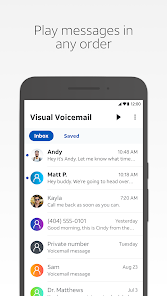
Visual voicemail issues can disrupt your daily routine. Many AT&T users face challenges that stop their voicemail from working correctly. These problems often affect app performance, syncing, and playback. Understanding common issues helps you fix them quickly and regain access to your messages.
App Not Updating
The visual voicemail app may stop updating new messages. This issue happens if the app cache is full or corrupted. Outdated app versions can also cause update failures. Restarting the phone or clearing the app cache often restores proper updates. Checking for app updates in the store can fix bugs and improve stability.
Voicemail Inbox Not Syncing
Sometimes, the voicemail inbox does not sync with the server. This problem blocks new voicemails from appearing on the device. Poor cellular data or Wi-Fi connection often causes syncing issues. Turning the cellular data off and on can refresh the connection. Resetting network settings may also solve syncing problems.
Playback Problems
Playback problems make it hard to listen to voicemail messages. These can include no sound, choppy audio, or messages that stop playing. Low volume or speaker issues might cause playback troubles. Restarting the phone or switching playback devices can help. Ensuring the app has proper permissions is also important for smooth playback.
Basic Troubleshooting Steps
Basic troubleshooting steps can fix many common issues with AT&T Visual Voicemail. These simple actions often restore the service quickly. Start with easy fixes before trying advanced solutions. Follow each step carefully and check if the problem resolves.
Restart Your Phone
Turn off your phone completely. Wait for about 30 seconds. Turn it back on to refresh the system. Restarting clears temporary glitches affecting Visual Voicemail. This step often fixes connection and app errors quickly.
Toggle Airplane Mode
Enable Airplane Mode on your device. Wait for 10 seconds to disconnect all networks. Disable Airplane Mode to reconnect cellular and Wi-Fi. This action resets your network connections. It helps refresh the voicemail syncing process.
Check Cellular Data Connection
Visual Voicemail needs a strong cellular data signal. Confirm mobile data is enabled in settings. Move to an area with better reception if needed. Turn off Wi-Fi to test if mobile data is working. A stable connection ensures voicemail messages download properly.
Clearing Cache And Data
Clearing cache and data is a useful step to fix Visual Voicemail issues on AT&T. Cached files may become corrupted or outdated. This can stop the app from working properly. Removing cache and data resets the app to its default state. This often restores normal function without affecting your stored voicemails.
Different devices have different methods to clear cache and data. Android users clear cache through the phone app settings. iPhone users reset network settings to refresh voicemail connections. These simple actions can resolve many common voicemail problems.
Clear Phone App Cache On Android
Open your phone’s Settings app. Scroll down to find Apps or Application Manager. Tap on the Phone app or Visual Voicemail app. Select Storage from the options. Tap Clear Cache to remove temporary files. You can also tap Clear Data to reset the app. This deletes saved settings but not your voicemails. Restart your phone after clearing cache and data. Check if Visual Voicemail works properly now.
Reset Network Settings On Iphone
Go to Settings on your iPhone. Tap General, then choose Reset. Select Reset Network Settings from the menu. Enter your passcode if asked. Confirm the reset to clear all network settings. This removes saved Wi-Fi passwords and cellular settings. Your Visual Voicemail connection will refresh after reset. Restart your iPhone to complete the process. Test Visual Voicemail to see if it is fixed.

App And Account Fixes
App and account settings play a key role in fixing Visual Voicemail issues with AT&T. Adjusting these can restore the service quickly. These steps focus on the app itself and your AT&T account setup.
Start by confirming you use the correct Visual Voicemail app. Then, check your Wi-Fi Calling settings. Finally, update your voicemail setup through your AT&T account. Each step targets common causes of failure.
Use Official At&t Visual Voicemail App
Always use the official AT&T Visual Voicemail app for your phone. This app receives regular updates and support from AT&T. Download it only from the Google Play Store or Apple App Store. Using unofficial apps can cause syncing errors and missed messages. The official app ensures compatibility with AT&T’s voicemail system. Check for updates frequently to keep the app running smoothly.
Enable Or Disable Wi-fi Calling
Wi-Fi Calling can affect Visual Voicemail performance. Try toggling Wi-Fi Calling off and on in your phone settings. This action can fix connection issues between your device and AT&T servers. Sometimes enabling Wi-Fi Calling improves voicemail syncing. Other times, disabling it helps if the feature conflicts with mobile data. Find the Wi-Fi Calling option under your cellular or network settings. Test your voicemail after each change to see if it works better.
Update Visual Voicemail Setup In My Att
Log in to your My AT&T account to manage your voicemail settings. Update or reset your Visual Voicemail configuration from the account dashboard. This step refreshes your voicemail service status on AT&T’s network. It can clear errors caused by account changes or network updates. Make sure your voicemail number and password are correct. Save any changes and restart your phone. This process helps re-establish a stable connection to your voicemail box.
Software Updates And Resets
Software updates and resets play a crucial role in fixing Visual Voicemail issues on AT&T. These steps help clear bugs and improve app performance. Updating your phone keeps the system compatible with AT&T’s latest services. Sometimes, resetting your phone can solve persistent problems that other fixes do not address.
Following a structured approach to updates and resets can restore Visual Voicemail functionality effectively. Start with software updates before considering more drastic measures like a factory reset. This method protects your data while troubleshooting.
Update Phone Software
Updating your phone’s software often fixes Visual Voicemail glitches. Phone makers regularly release updates to improve app compatibility and fix bugs. To check for updates, go to your phone’s Settings and look for Software Update or System Update. Download and install any available updates. A fresh update can restore Visual Voicemail access and improve overall phone stability.
Ensure your phone has enough battery and a strong internet connection before updating. Missing an update may cause Visual Voicemail to stop working or behave erratically. Regular updates keep your device secure and running smoothly with AT&T services.
Factory Reset As Last Resort
A factory reset erases all data and settings on your phone. Use it only if all other fixes fail. This step returns your phone to its original state, removing any software conflicts affecting Visual Voicemail. Before resetting, back up your contacts, photos, and important files.
To perform a factory reset, go to Settings, then System or General Management, and select Reset or Factory Data Reset. Follow the on-screen instructions carefully. After the reset, set up your phone again and check if Visual Voicemail works properly.
Factory resets are powerful but should be the last option. They solve deep software issues but erase all personal data. Always try updates and simpler resets first to save time and avoid data loss.
Credit: www.igeeksblog.com
When To Contact At&t Support
Knowing when to contact AT&T support can save you time and frustration. Visual voicemail issues often have simple fixes. Yet some problems need expert help. If basic troubleshooting fails, reaching out to AT&T is the best step. Below are key situations that require support intervention.
Persistent Sync Issues
Visual voicemail depends on syncing with AT&T servers. Sometimes, the app fails to update new messages. This issue can persist despite restarting your phone or toggling settings. If voicemails do not refresh after multiple attempts, contact AT&T support. They can check server status and reset your account sync remotely.
Account Provisioning Problems
Your AT&T account must have visual voicemail enabled. Occasionally, account settings may get corrupted or disabled. This causes voicemail access to stop working completely. Support agents can verify your account status and fix provisioning errors. They ensure your voicemail service is correctly activated and linked to your device.
Tips To Prevent Future Problems
Preventing problems with AT&T Visual Voicemail improves your phone experience. Taking simple steps helps avoid interruptions. These tips keep your voicemail working smoothly over time.
Maintaining your app and network connection plays a big role. Follow easy habits to reduce issues. Save time and frustration by staying prepared.
Regular App Updates
Keep your Visual Voicemail app updated. Updates fix bugs and add new features. They improve app stability and performance. Check for updates in the app store often. Enable automatic updates to stay current. Using the latest version prevents many common errors.
Maintain Strong Network Signal
Visual Voicemail needs a strong cellular or Wi-Fi signal. Poor signal causes delays and loading problems. Use your phone where reception is good. Avoid places with weak or no service. Restart your phone if the signal drops. Turn Airplane Mode on and off to reset connection. A stable signal ensures your messages sync properly.
Frequently Asked Questions
Why Is My Visual Voicemail Suddenly Not Working?
Visual Voicemail may stop working due to network issues, app glitches, or outdated software. Restart your phone, check cellular data, and clear the app cache. Toggle Airplane Mode or reset network settings. Contact your carrier if problems persist.
How Do I Activate My At&t Visual Voicemail?
To activate AT&T Visual Voicemail, open the Phone app, go to Voicemail, and follow on-screen setup prompts. Ensure mobile data is enabled and restart your phone if needed.
What Is 86 On Your Phone?
*86 on your phone is a shortcut to quickly access your voicemail. Dialing it connects you to your voicemail inbox.
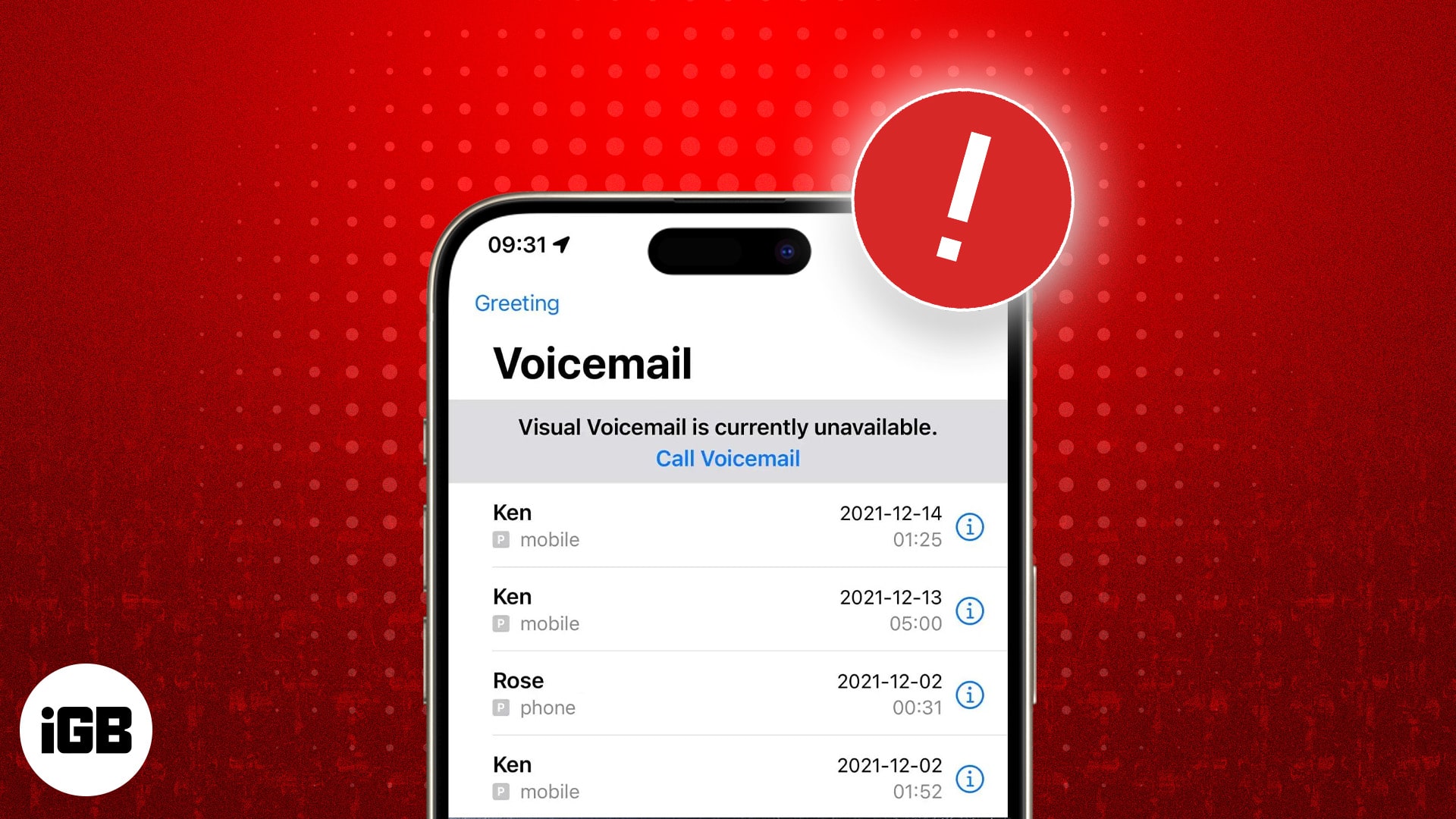
How To Fix Visual Voicemail Currently Unavailable?
Restart your phone and toggle Airplane Mode to refresh the connection. Ensure cellular data is on and signal is strong. Clear the Visual Voicemail app cache, update software, and reset network settings if needed. Contact your carrier for further assistance.
Why Is At&t Visual Voicemail Not Working On My Phone?
Visual Voicemail may fail due to weak cellular data or poor signal. Restart your phone and toggle Airplane Mode to refresh the connection.
Conclusion
Visual voicemail issues with AT&T can feel frustrating. Simple steps often fix the problem. Restart your phone and check your cellular data first. Make sure your app is updated and properly set up. Resetting network settings can clear hidden errors.
If problems continue, contact AT&T support for help. Staying patient and following these tips can restore your voicemail service. Don’t let technical glitches disrupt your communication. Keep your phone updated and settings correct for smoother use. Visual voicemail should work smoothly with these easy fixes.