
Imagine sitting in your living room, remote in hand, ready to relax with your favorite show. Suddenly, your Wi-Fi goes down. Many people wonder: will a smart TV work without an internet connection? This is a question that confuses a lot of users, especially those who are not tech experts. The truth is, smart TVs are designed for online features, but that’s not the whole story.
In this article, you’ll get a complete, practical answer to this common question. You’ll learn what a smart TV can and cannot do offline, the differences between smart and regular TVs, how you can use your smart TV without Wi-Fi, and what limitations you may face. We’ll explore the key features that do and do not require the internet, compare user experiences, and offer solutions for getting the most out of your device—even when you’re offline.
If you’re considering buying a smart TV, or you already own one and your internet is unreliable, this guide will give you clear, simple answers. Let’s break down everything you need to know.
Understanding What A Smart Tv Is
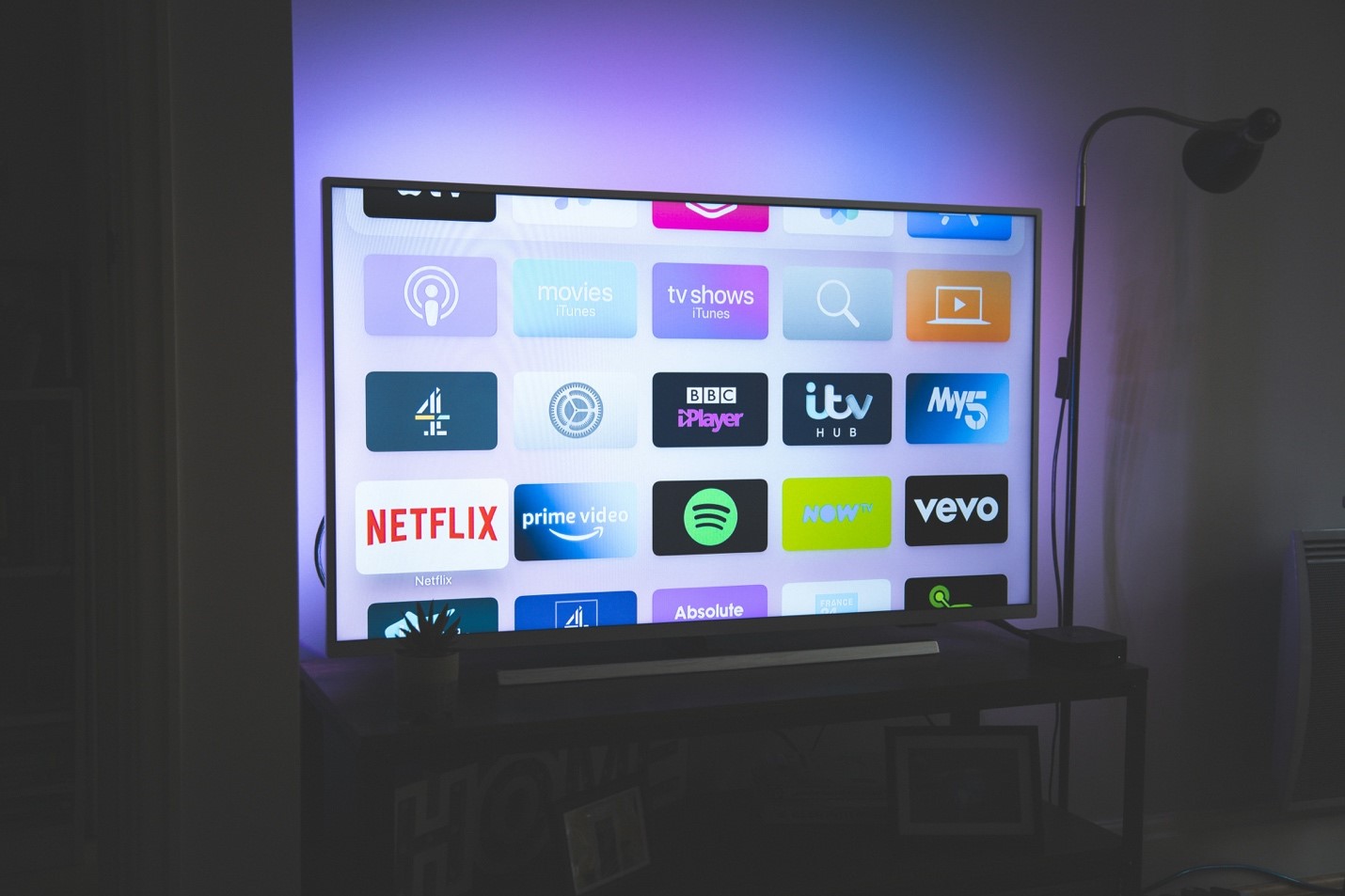
A smart TV is a television with built-in internet connectivity and apps. This means you can watch streaming services like Netflix, browse the web, or even use social media right on your TV. Unlike regular TVs, smart TVs have their own operating system, similar to your smartphone or computer.
How Do Smart Tvs Differ From Regular Tvs?
The main difference is that smart TVs have extra software and network capabilities. Regular TVs, often called “dumb TVs,” can only show content from cable, satellite, or connected devices like DVD players. Smart TVs go further by letting you download apps, stream content, and sometimes even control smart home devices.
Offline, however, both types of TVs can often do similar things: display content from connected devices. But a smart TV has more features waiting if you ever connect it online.
What Can A Smart Tv Do Without Internet?
The big question: do smart TVs become useless without the internet? The answer is no—but there are important details you should know.
Watching Cable Or Satellite Tv
You can always watch cable or satellite channels on your smart TV without the internet. Just connect your TV to the cable box or satellite receiver as usual. The TV acts like any other display.
Using Antennas For Local Channels
If you have a digital antenna, you can watch over-the-air channels. This is a popular choice for live sports, news, and local programming. Your smart TV’s “TV” or “Source” menu will let you pick the antenna input and scan for channels.
Connecting External Devices
Smart TVs have HDMI and USB ports. You can plug in:
- Blu-ray/DVD players
- Game consoles (PlayStation, Xbox, Nintendo)
- Streaming sticks (Roku, Amazon Fire Stick—though these need internet for streaming)
- Sound systems
- External hard drives or USB drives for movies, music, or photos
With these, your TV works just like a regular TV—no Wi-Fi needed.
Playing Media From Usb
Most smart TVs can play video, music, and photos from a USB flash drive. You just need to copy the files onto the drive, plug it into the TV, and use the built-in media player.
Screen Mirroring (sometimes)
Some smart TVs allow screen mirroring from a phone or tablet using technologies like Miracast or Chromecast. While many mirroring options require Wi-Fi, some models support direct (peer-to-peer) connections. Check your TV’s manual for details.
Basic Settings And Picture Controls
You can still adjust picture, sound, and other settings on your smart TV without the internet. Features like changing picture mode, setting sleep timers, and adjusting volume always work offline.
What You Cannot Do Without Internet
While smart TVs have many offline features, you lose access to the core “smart” functions when there’s no connection.
Streaming Services Don’t Work
Apps like Netflix, YouTube, Amazon Prime Video, and Disney+ need the internet. Without Wi-Fi, you cannot stream movies or shows directly from these apps.
App Downloads And Updates
You won’t be able to download new apps or update existing ones. Some apps may not even open if they need to check for updates online.
Smart Features Disabled
Many advanced features stop working, including:
- Voice assistants (like Alexa or Google Assistant)
- Smart home controls
- Online gaming
- Cloud-based services
Web Browsing Is Not Possible
If you use your smart TV’s built-in web browser, it will not load websites without the internet.
Some Epgs May Not Update
Electronic Program Guides (EPGs), which show TV schedules, sometimes need online access. Without it, you may not see updated program information.
Comparison: Smart Tv Vs. Regular Tv Without Internet
It helps to see side-by-side what you can do with and without the internet on each type of TV. Here’s a simple comparison:
| Feature | Smart TV (No Internet) | Regular TV |
|---|---|---|
| Watch Cable/Satellite | Yes | Yes |
| Use Antenna Channels | Yes | Yes |
| Play DVDs/Blu-rays | Yes | Yes |
| Stream Netflix/YouTube | No | No |
| Play Media from USB | Usually Yes | Rarely/Depends |
| Voice Assistant | No | No |
| Update Apps/Software | No | No |
You’ll notice that most “smart” features disappear offline, but basic TV functions work the same on both types.
Can You Use Pre-downloaded Content Offline?
Some users wonder if you can watch downloaded content on your smart TV without internet. The answer depends on the app and TV model.
Netflix, Amazon, And Other Apps
Streaming apps like Netflix and Amazon Prime Video allow downloads on phones and tablets, but not on most smart TVs. The TV version of these apps usually does not support offline downloads. This means you can’t “pre-download” shows to watch on the TV later.
Using A Usb Drive For Offline Viewing
One solution is to download movies or shows on your computer, then transfer them to a USB flash drive. Plug the USB into your smart TV and use the media player to watch offline. Just make sure the video format (like MP4 or AVI) is compatible with your TV.
External Media Players
If you have a media player device (like a portable hard drive or media box), you can store and play video files offline through your TV’s HDMI or USB ports.
Setting Up A Smart Tv Without Internet
Many people ask if they can set up a new smart TV without connecting to Wi-Fi. The answer is yes, but the setup process may be a bit different.
Initial Setup Screens
When you first turn on a smart TV, it usually asks you to connect to Wi-Fi. You can skip this step on most models by choosing “Set Up Later” or a similar option. You’ll be able to access basic TV functions, but some features may be hidden.
Skipping Account Sign-in
Some TVs ask you to sign in with a Samsung, LG, Google, or other account. You can often skip this as well, but you’ll lose access to personalized settings and online features.
Firmware Updates
If your TV’s software is out of date, you won’t be able to update it until you connect to the internet. Sometimes, you can download firmware updates to a USB from the manufacturer’s website and install them manually.
Choosing The Right Input
After setup, use the “Source” or “Input” button on your remote to select the device you want to use—cable box, antenna, DVD player, or USB drive.
How To Make The Most Of A Smart Tv Offline
Smart TVs are designed for the internet, but you can still get a lot of value when offline. Here are practical ways to enjoy your TV without Wi-Fi.
1. Use All Physical Inputs
Connect your DVD/Blu-ray player, game console, or other device to your TV’s HDMI or AV ports. Switch the input as needed.
2. Play Local Media
Transfer movies, TV shows, or music from your computer to a USB drive. Plug it into the TV and use the built-in media player to watch or listen.
3. Watch Live Tv
Use a digital antenna to get free over-the-air channels. This is a great way to watch news, sports, and local shows with no internet needed.
4. Use Offline Features
Explore your TV’s offline features, such as picture and sound adjustments, sleep timers, or closed captions.
5. Mirror Your Device (if Supported)
Some TVs let you mirror your phone or tablet screen directly via Wi-Fi Direct or Miracast, even without internet. This works for sharing photos or videos from your device.
6. Play Physical Games
If you have a gaming console, all offline games will work as usual on your smart TV.
Common Problems When Using Smart Tvs Offline
Smart TVs can be confusing when the internet is down. Here are some common issues and how to solve them.
Slow Or Unresponsive Tv
Some smart TVs may feel sluggish or freeze when offline. This is because some models are always trying to connect to the internet. If you notice this, restart your TV or unplug it for a few seconds.
Annoying Pop-ups
Without internet, you may see messages like “Network Not Connected” or “Unable to Update. ” Look in your TV’s settings for an option to turn off these notifications.
App Errors
Offline, apps like Netflix or YouTube may show error messages. You can hide or move these apps on your home screen, but you cannot use them until you reconnect.
Outdated Software
If you never connect your TV to the internet, you’ll miss out on software updates. These updates can fix bugs, add features, or improve security. Consider updating your TV’s firmware via USB if possible.
Offline Features That Still Add Value
Even if you never use your smart TV online, some features make your TV more useful than a basic model.
Better Picture And Sound Processing
Smart TVs often have advanced image processing and audio features that improve quality, even offline.
More Input Options
Most smart TVs offer more HDMI/USB ports than regular TVs, giving you flexibility for connecting devices.
Built-in Media Players
Most smart TVs have better media player apps, letting you play a wider range of video and audio formats from USB drives.
Customizable Settings
You can set picture modes (movie, sports, game), adjust colors, and use accessibility features like closed captions—no internet needed.
Data Usage: How Much Internet Do Smart Tvs Use?
If you’re worried about data limits, it’s helpful to know how much data smart TVs use for different tasks.
| Activity | Data Used per Hour |
|---|---|
| Streaming SD Video | ~1 GB |
| Streaming HD Video | ~3 GB |
| Streaming 4K Video | ~7 GB |
| Web Browsing | Minimal |
| Playing USB Media | None |
If you’re offline, your smart TV uses zero data. This is helpful for people with limited internet plans.

Credit: www.youtube.com
Do All Smart Tvs Work The Same Way Offline?
Not all smart TVs are equal. Different brands and models have their own strengths and weaknesses when used offline.
Samsung Smart Tvs
Samsung TVs have good media players, and you can easily use USB drives. Most features like picture settings, input selection, and watching cable/antenna work perfectly offline. However, the Samsung app store and smart features won’t work.
Lg Smart Tvs
LG’s webOS TVs let you play media from USB or external drives, and live TV works fine. Some models have a simple home screen that works offline, but app updates and smart features require internet.
Sony/android Tvs
Sony smart TVs running Android TV can play local media from USB, and you can use most basic TV features offline. Some models allow screen mirroring via Chromecast, but this usually needs Wi-Fi.
Tcl, Hisense, And Others
Most budget brands offer similar offline options: you can use HDMI, USB, and watch live TV, but smart apps and updates require the internet.
Security And Privacy When Not Connected
One benefit of using your smart TV offline is privacy. When your TV is not connected to the internet, it cannot send usage data, listen for voice commands, or receive remote updates. If you’re concerned about privacy, using your smart TV offline is actually safer.
However, you also miss out on security updates. If your TV has a vulnerability, it won’t get fixed unless you update it manually.
Should You Buy A Smart Tv If You Don’t Have Internet?
If you live in an area with poor internet, or you don’t want to use your TV online, is it still worth buying a smart TV? Here are some points to consider:
Why Buy A Smart Tv?
- Modern models: Most new TVs are smart by default, even at entry-level prices.
- Better hardware: You get more HDMI/USB ports, better processors, and improved picture quality.
- Offline media playback: Many smart TVs have better support for playing files from USB.
When To Choose A Regular Tv
If you never plan to use online features and want a simpler interface, a regular TV may be easier to use. However, regular TVs are becoming rare in many markets.
Practical Advice
If the price difference is small, choose a smart TV. You can always ignore the smart features if you don’t need them. If you want a “dumb” TV, look for commercial or hospitality models.
Alternatives To Smart Tvs Without Internet
If you want to add smart features later, consider these options:
Streaming Sticks
Devices like Roku, Amazon Fire Stick, or Google Chromecast plug into your TV’s HDMI port. They need internet, but you can unplug them when not in use.
External Media Boxes
Products like the NVIDIA Shield or Apple TV can play local media files from USB or network drives, sometimes without needing internet.
Old-fashioned Set-top Boxes
Cable or satellite boxes work with any TV, smart or not, and don’t require the TV to be online.
Non-obvious Insights And Tips
Many beginners miss these points when using a smart TV offline:
- Firmware Updates via USB: Even if you never connect to Wi-Fi, you can usually download firmware updates on your computer and install them via USB. This keeps your TV secure and bug-free.
- Choose the Right Video Format: Not all smart TVs play every video file type. Before transferring movies to a USB drive, check your TV’s manual for supported formats (like MP4, MKV, or AVI).
- Disable Wi-Fi to Save Power: If you never use online features, turn off Wi-Fi in your TV’s settings. This can save a small amount of electricity and may speed up your TV’s performance.
- Backup Your Settings: Some smart TVs let you save your settings to a USB drive. This is useful if you ever reset your TV or switch to a new model.
- Use Parental Controls Offline: Even without internet, you can set parental controls on most smart TVs to block unwanted channels or inputs.
Frequently Asked Questions
What Happens To My Smart Tv Apps When I Go Offline?
Most apps that require the internet, like Netflix or YouTube, will not work at all. You may see error messages if you try to open them. However, offline apps—like media players for USB drives—will still work normally.
Can I Install New Apps On My Smart Tv Without The Internet?
No, you need an internet connection to download and install new apps. Some smart TVs allow you to install apps via USB, but this is not common and may require technical steps.
Will My Smart Tv Be Slower Or Buggy When Offline?
Some smart TVs may run slower or show error messages if they are always trying to connect to the internet. Usually, you can ignore these messages, but restarting the TV or disabling Wi-Fi can help speed things up.
Can I Watch Netflix Offline On My Smart Tv?
No, smart TVs do not let you download Netflix shows for offline viewing. This feature is only available on phones and tablets. However, you can download movies on your computer and play them via USB on your TV.
Is There Any Benefit To Keeping My Smart Tv Offline?
Yes, using your smart TV offline improves privacy because the TV cannot send data to manufacturers or advertisers. However, you miss out on software updates and new features.
Smart TVs are built for internet use, but they remain useful even offline. If your internet is down or you prefer not to connect, you’ll still enjoy many core functions. For more about smart TVs and their features, visit Wikipedia for in-depth information.
Your smart TV is more than just a screen. With a little know-how, you can get the most out of it—online or offline.