
A Wyze Camera is a popular choice for home security, pet monitoring, and checking in on loved ones. The cameras are affordable, easy to set up, and come with useful features like motion detection, two-way audio, and night vision. But sometimes, Wyze Cameras go offline—leaving you unable to watch live video or receive important alerts.
If you’re facing this problem, you’re not alone. Many Wyze users experience offline issues at some point. These can happen for different reasons, and the solutions aren’t always obvious. In this article, you’ll find a complete guide to understanding why your Wyze Camera goes offline, how to fix it, and how to prevent it from happening again.
You’ll also learn practical troubleshooting steps, get answers to common questions, and see how Wyze compares with other brands when it comes to connectivity and reliability.
Whether you’re a beginner with Wyze products or an experienced user, this guide will help you keep your camera online and working smoothly.
What Does “wyze Camera Offline” Mean?
When your Wyze Camera says it’s offline, it means the camera isn’t able to connect to the internet or the Wyze servers. This stops live streaming, event recording, and notifications in the Wyze app. The offline status can show up as:
- “Device is offline” message in the app
- Gray or faded camera thumbnail
- No live feed available
- No event videos saved
Offline status can be temporary (just a few minutes) or last for hours or days if not fixed. Sometimes, the camera will come back online by itself; other times, it needs manual troubleshooting.
Why Do Wyze Cameras Go Offline?
There isn’t just one reason for a Wyze Camera going offline. Here are the most common causes:
- Wi-Fi Connection Problems: Weak signal, interference, or router issues can break the connection.
- Power Supply Issues: If the camera isn’t getting stable power, it can disconnect.
- Firmware Bugs or Updates: Outdated or buggy firmware can crash the camera or disconnect it.
- Internet Outages: If your ISP is down or the router restarts, the camera loses connection.
- Network Changes: Changing Wi-Fi name, password, or settings can kick cameras offline.
- Server Problems: Sometimes, Wyze’s own servers have outages or maintenance.
- App Bugs or Glitches: Sometimes, it’s the app showing the wrong status.
- Overheating or Hardware Faults: Rare, but can happen with older or damaged units.
A single camera going offline usually points to that device or its power. All cameras offline at once usually means a network or account issue.
How To Troubleshoot A Wyze Camera Offline Problem
Solving offline issues can be simple or take a bit of detective work. Here’s a step-by-step plan to get your camera back online.
1. Check Your Wi-fi And Internet
- Make sure your home internet is working. Try browsing on your phone or computer.
- Is the Wi-Fi password or name changed recently? Update the camera settings if needed.
- Move the camera closer to the router. Thick walls, metal, or appliances can block the signal.
- Restart your router by unplugging it for 10 seconds, then plugging it back in.
- Check if other devices (laptops, smart TVs) are also losing connection.
2. Power Cycle The Camera
- Unplug the camera’s power cable.
- Wait 10–15 seconds.
- Plug it back in and wait for the camera to restart.
- Watch for the status light: Solid blue means connected, flashing yellow means setup mode.
3. Update Camera Firmware
- Open the Wyze app.
- Tap the camera, then tap the settings (gear) icon.
- Go to “Device Info” > “Firmware Version.”
- If an update is available, install it.
- Updates often fix bugs and improve stability.
4. Check Wyze Server Status
- Sometimes, it’s not you. Check Wyze Service Status to see if there’s a known outage.
- If Wyze is down, you’ll have to wait until they fix the problem.
5. Reconnect The Camera To Wi-fi
- In the app, tap the camera > settings > “Wi-Fi Settings.”
- Follow instructions to reconnect to your Wi-Fi.
- Use the 2.4GHz band; Wyze cameras do not support 5GHz networks.
- Double-check your Wi-Fi password.
6. Factory Reset The Camera
If nothing else works:
- Hold the camera’s reset button (usually on the bottom) for 10–20 seconds.
- Wait for the camera to say “Ready to connect.”
- Set it up again as a new device in the Wyze app.
- This erases custom settings and Wi-Fi info but can solve stubborn problems.
7. Check For Hardware Issues
- Try using a different power cable and adapter.
- Move the camera to another location.
- If the camera still won’t connect, it may be faulty.
Comparing Wyze Camera Connectivity To Other Brands
How does Wyze stack up against other popular security cameras in terms of staying online? Here’s a quick comparison:
| Brand | Connectivity Type | Offline Complaints (%) | Dual-Band Wi-Fi? | Common Offline Causes |
|---|---|---|---|---|
| Wyze | Wi-Fi (2.4GHz) | ~18% | No | Wi-Fi range, firmware bugs |
| Ring | Wi-Fi (2.4 & 5GHz) | ~12% | Yes | ISP outages, router issues |
| Arlo | Wi-Fi (2.4 & 5GHz) | ~10% | Yes | Battery, app sync |
| Google Nest | Wi-Fi (2.4 & 5GHz) | ~9% | Yes | Router settings, server outages |
Wyze Cameras tend to have more offline complaints mainly because they use only 2.4GHz Wi-Fi and are more sensitive to weak signals. Brands like Ring and Nest offer dual-band Wi-Fi, which helps maintain a stable connection in crowded wireless environments.
Non-obvious Insights: What Beginners Often Miss
Many new Wyze users overlook a few key details that can make a big difference in camera reliability:
- Wi-Fi Channel Crowding: Most people don’t realize that household gadgets and even neighbors’ Wi-Fi networks can crowd the 2.4GHz band. If your camera is near microwaves, cordless phones, or many wireless devices, try changing your router’s Wi-Fi channel (to 1, 6, or 11).
- Power Adapters Matter: The power brick that comes with your Wyze Cam is designed for its needs. Using a phone charger or third-party adapter sometimes isn’t enough to deliver steady power, especially for Wyze Cam v3 or Pan models.
- Local Storage Can Help: If your camera goes offline, it can still record to a microSD card. Later, you can review footage even if the camera wasn’t online for a while.
- App Updates: Not just the camera firmware—updating the Wyze app itself can fix display and connectivity issues.
- Bandwidth Limits: Multiple cameras or smart devices can slow down your Wi-Fi. Consider upgrading your internet speed or router if you have many devices online.
Real-life Examples: Offline Scenarios And Fixes
Let’s look at some real cases Wyze users have faced and how they solved them.
Case 1: Camera Goes Offline Every Night
A user noticed their camera went offline only at night. After checking, they found their router was set to reboot at 2 am for updates, disconnecting all Wi-Fi devices. Disabling the scheduled reboot fixed the problem.
Case 2: Camera Not Connecting After Power Outage
After a storm, a Wyze Cam stayed offline even though the Wi-Fi was back. The fix: unplugging and replugging both the router and the camera. Sometimes, both need to be restarted for the connection to restore.
Case 3: Only One Camera Offline
If you have several Wyze Cameras and only one is offline, try swapping its power adapter or moving it closer to the router. If it comes online, the original outlet or adapter may be the problem.
Case 4: App Shows Offline, Camera Is Fine
A user saw “offline” status in the app, but the camera was recording to the microSD card. Updating the Wyze app fixed the false offline alert.
Advanced Troubleshooting Steps
If basic steps don’t solve your problem, try these advanced tactics:
Check Router Settings
- 2.4GHz Network: Make sure your router’s 2.4GHz band is enabled and not hidden.
- MAC Address Filtering: If enabled, add your Wyze Camera’s MAC address to the allowed list.
- DHCP Range: Ensure the router isn’t running out of IP addresses (increase the DHCP pool size).
- Port Blocking: Wyze uses ports 80, 443, and 8443—make sure these aren’t blocked.
Use A Wi-fi Extender Or Mesh System
If your camera is far from the router, a Wi-Fi extender or mesh network can help. These devices improve signal strength and reduce dropouts.
Monitor Power Quality
Some homes have unstable power. Try plugging your camera into a surge protector or a different outlet. Avoid plugging into USB ports on TVs or computers, as they may not provide steady power.
Monitor Camera Logs
The Wyze app doesn’t offer deep logs, but checking event history can show when disconnects happen. If it’s always at the same time, look for patterns (other devices restarting, scheduled router reboots, etc. ).
Preventing Future Offline Issues
Taking a few proactive steps can keep your Wyze Camera online more reliably:
- Place Cameras Wisely: Avoid thick walls, metal shelves, or appliances between the camera and router.
- Regularly Update Firmware: Updates often fix bugs that cause offline problems.
- Use the Official Power Adapter: Avoid third-party chargers unless they match Wyze’s specs.
- Keep Router Cool: Overheated routers drop connections. Place your router in a cool, open spot.
- Limit Network Overload: Too many smart devices can slow Wi-Fi for everyone. Upgrade your router or internet plan if needed.
- Backup with SD Card: Even if offline, your camera can keep recording locally.

Wyze Offline Problem: Data And User Feedback
Wyze has millions of users. According to forums and reviews, about 15–20% of Wyze owners experience at least one offline incident in their first year. Most issues are solved by simple resets or Wi-Fi tweaks.
Here’s a breakdown of reported causes from user surveys:
| Cause | % of Offline Cases | Typical Solution |
|---|---|---|
| Wi-Fi Range/Interference | 41% | Move camera/router closer, change channel |
| Power Supply | 27% | Replace adapter, use different outlet |
| Firmware/Software Bugs | 18% | Update firmware, app |
| ISP Outages | 8% | Wait for internet to return |
| Other/Unknown | 6% | Factory reset, contact support |
What To Do If Nothing Works
If your Wyze Camera remains stubbornly offline after all troubleshooting:
- Try a different Wi-Fi network: Set up a phone hotspot and try connecting the camera.
- Contact Wyze Support: Reach out through the app or website with your camera’s model and problem details.
- Check Warranty: If the camera is less than a year old, you may be eligible for a replacement.
- Consider Upgrading: If your home has many smart devices, a modern Wi-Fi 6 router or mesh system can make a big difference.
Practical Tips For Reliable Wyze Camera Operation
To keep your camera online and reduce downtime, follow these best practices:
- Restart Devices Monthly: Power cycle your cameras and router every few weeks.
- Label Your Power Adapters: Mix-ups are common if you have several smart gadgets.
- Monitor Firmware Announcements: Visit the Wyze forums or app for news on firmware updates and known issues.
- Back Up Important Footage: Save key videos to your phone or cloud, as offline periods may leave gaps in cloud storage.
- Set Up Notifications: Enable push alerts for “offline” status in the Wyze app, so you know as soon as a camera disconnects.
When To Replace A Wyze Camera
Sometimes, a camera just won’t stay online no matter what you try. Signs it may be time to replace:
- Frequent disconnects even with good Wi-Fi and power.
- No status light or camera doesn’t power on.
- Physical damage (water, heat, broken lens).
- Firmware can’t update or install.
Wyze Cams are affordable, but reliability is key for security. If your camera is more than 3 years old, consider upgrading to a newer model like Wyze Cam v3, which has better connectivity and weather resistance.
Comparing Wyze Cam Models: Offline Risk
Different Wyze Cam models have slightly different offline risks:
| Model | Release Year | Wi-Fi Band | Offline Rate (user-reported) | Weatherproof |
|---|---|---|---|---|
| Wyze Cam v2 | 2018 | 2.4GHz | Medium | No |
| Wyze Cam v3 | 2020 | 2.4GHz | Low | Yes |
| Wyze Cam Pan v2 | 2021 | 2.4GHz | Medium | No |
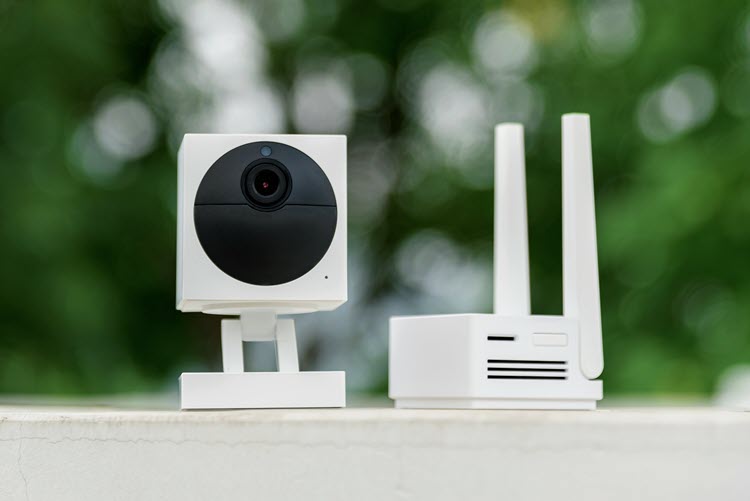
| Wyze Cam Outdoor | 2020 | 2.4GHz (with Base Station) | Low | Yes |
Wyze Cam v3 and Wyze Cam Outdoor models tend to stay online more reliably, thanks to hardware improvements.
Frequently Asked Questions
Why Does My Wyze Camera Keep Going Offline?
Most often, your camera goes offline due to Wi-Fi issues, weak signal, or power problems. Other reasons include firmware bugs, internet outages, or changes in your Wi-Fi settings. Try moving the camera closer to your router, updating firmware, and checking your power adapter.
Can A Wyze Camera Record While Offline?
Yes, if you have a microSD card installed, your Wyze Camera can record locally even when not connected to the internet. Once the camera is back online, you can view the saved footage by removing the card or using the app.
How Do I Reset My Wyze Camera If It’s Offline?
To reset, press and hold the setup/reset button (usually at the bottom) for 10–20 seconds until the camera says “Ready to connect.” Then, set it up again in the Wyze app as a new device.
Will Using A Wi-fi Extender Help My Camera Stay Online?
A Wi-Fi extender or mesh network can help if your camera is far from the router or has a weak signal. Place the extender halfway between the router and camera for the best results.
What Should I Do If My Wyze Camera Won’t Reconnect After Trying Everything?
If all troubleshooting fails, try connecting the camera to a different Wi-Fi network (like a phone hotspot). If it still won’t connect, contact Wyze Support for help or consider replacing the camera if it’s out of warranty.
Keeping your Wyze Camera online is important for security and peace of mind. With the steps and tips in this guide, you’ll be able to solve most offline problems quickly and keep your camera working reliably. If you want more details about Wyze products and troubleshooting, visit the official Wyze support site for up-to-date help.