
Many people love watching their favorite shows on YouTube TV. It offers live TV, movies, and sports with just a few clicks. But what happens when YouTube TV suddenly stops working on your Samsung TV? Frustration sets in, especially if you’re ready to relax after a long day. This is a common problem for Samsung Smart TV users, but the good news is that most issues have simple solutions.
You’re not alone if you’re facing a black screen, endless loading, or error messages. Problems can come from the app, the TV software, your internet, or even account settings. As a calm expert, I’ll guide you through every major reason YouTube TV might not work on your Samsung TV and show you the most effective ways to fix it.
You’ll also learn a few tricks that most beginners miss, so you can get back to streaming quickly and confidently.
Common Reasons Why Youtube Tv Is Not Working On Samsung Tv
Understanding the root of the problem is the first step. Here are the main reasons why YouTube TV might not work on your Samsung TV:
- Outdated TV software: Apps may not run well if your TV’s firmware is old.
- Outdated YouTube TV app: The app itself needs updates to function.
- Internet connection problems: Weak or unstable internet disrupts streaming.
- Device compatibility: Older Samsung TVs may not support the latest version of YouTube TV.
- Account or subscription issues: Problems with your Google or YouTube TV account can block access.
- App glitches or corrupted data: Temporary files or bugs can stop the app from working.
- Server outages: Sometimes, the problem is with YouTube’s servers, not your TV.
- Incorrect TV settings: Picture, sound, or network settings can affect performance.
Knowing the reason will help you choose the right solution and avoid unnecessary stress.
Quick Checks Before Troubleshooting
Before you dive into detailed fixes, try these quick checks. These simple steps often solve the problem within minutes:
- Restart your TV: Turn it off, unplug for 30 seconds, then plug back in.
- Check your internet: Test YouTube TV on your phone or computer to see if it loads.
- Try a different app: See if Netflix, Hulu, or another app works. If not, your TV or internet may be the issue.
- Look for error messages: Write down any error codes or messages you see. These can point to the exact problem.
- Check for service outages: Visit the YouTube TV Twitter page or use sites like DownDetector to see if others are having issues.
If these steps don’t fix the issue, read on for detailed solutions.

How To Fix Youtube Tv Not Working On Samsung Tv
Let’s go step by step through the most effective solutions. Even if you’re not tech-savvy, these instructions are designed to be easy to follow.
Update Samsung Tv Firmware
Your TV’s firmware is like its operating system. If it’s outdated, apps like YouTube TV might not work well.
- Press the Home button on your Samsung remote.
- Navigate to Settings > Support > Software Update.
- Select Update Now. If an update is available, download and install it.
- Restart your TV after the update completes.
Tip: Some older Samsung TVs stop receiving updates after a few years. If your TV is very old, this could be why the app is not working.
Update The Youtube Tv App
An outdated app can crash or fail to load.
- On your TV, go to Apps.
- Select YouTube TV.
- Look for an Update option. If you see it, select it and wait for the update to finish.
If there’s no update option, your app may already be up to date.
Clear Cache And Data For Youtube Tv
Over time, apps store temporary files (cache). If these files are corrupted, the app may misbehave.
- From the Home screen, go to Settings > Apps.
- Find YouTube TV.
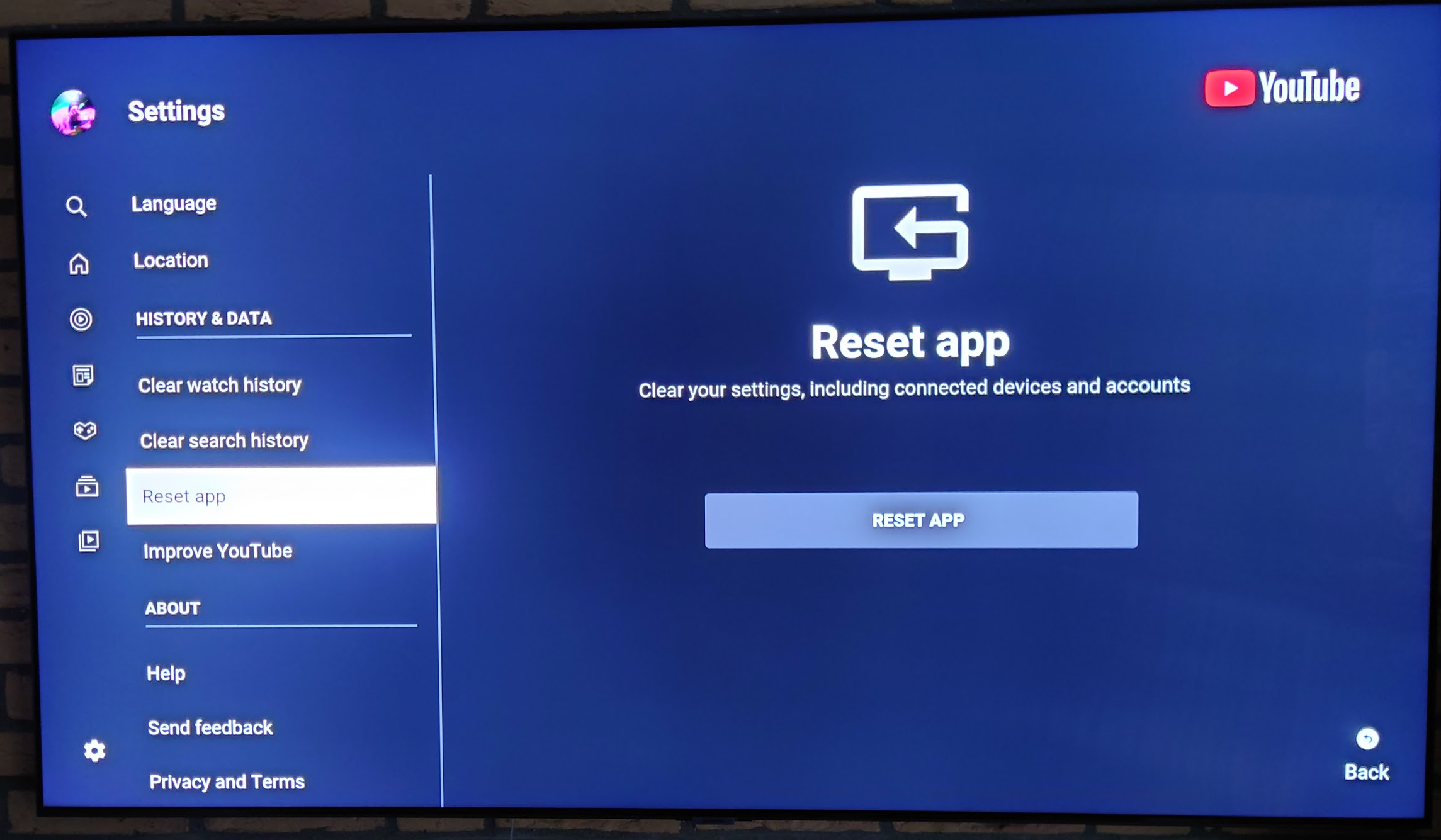
- Select Clear Cache and Clear Data (sometimes called Reinstall or Reset on Samsung TVs).
This removes stored data and can fix many glitches. You’ll need to sign in again after this.
Reinstall The Youtube Tv App
If clearing the cache doesn’t work, try reinstalling.
- Go to Apps.
- Highlight YouTube TV.
- Press the Down button on your remote and select Delete.
- After removing, search for YouTube TV in the app store and install it again.
This ensures you have the latest version and removes any corrupted files.
Check Internet Connection
A strong and stable internet connection is essential for streaming.
- Test your internet speed (YouTube TV recommends at least 3 Mbps for standard video, 7 Mbps for HD).
- Restart your router by unplugging it for 30 seconds.
- Connect your TV to the router with an Ethernet cable if possible. Wired connections are faster and more reliable than Wi-Fi.
If your internet is slow or unstable, other streaming apps will also struggle.
Check Device Compatibility
Not all Samsung TVs support YouTube TV. Here’s a simple comparison:
| Samsung TV Model Year | YouTube TV Support |
|---|---|
| 2016 and newer | Yes (full support) |
| 2015 and older | Often not supported |
If your TV is too old, you may need to use an external device like a Roku, Chromecast, or Fire Stick.
Sign Out And Back Into Your Account
Sometimes, account-related glitches cause streaming errors.
- Open the YouTube TV app.
- Go to Settings > Sign out.
- Close the app, reopen it, and sign in with your Google account.
This resets your session and can resolve access issues.
Reset Network Settings
If your TV’s network settings are corrupted, streaming apps may not work.
- Go to Settings > General > Network > Reset Network.
- Your TV will disconnect from Wi-Fi. Reconnect and enter your password again.
This step is especially helpful after changing your Wi-Fi router or password.
Check For Youtube Tv Service Outages
Sometimes, the problem is with YouTube TV’s servers. If so, nothing you do on your TV will help until the service is restored.
- Check social media for outage reports.
- Visit Downdetector to see if other users are affected.
If there’s a widespread outage, be patient—YouTube usually fixes these quickly.
Reset Samsung Tv To Factory Settings
If all else fails, a full reset can solve deep software issues. Be careful: This erases all your apps and settings.
- Go to Settings > General > Reset.
- Enter your PIN (default is 0000).
- Confirm the reset.
After restarting, reinstall YouTube TV and any other apps you use.
Non-obvious insight: Many people skip this step, but sometimes a factory reset is the only way to fix stubborn app problems, especially after a major firmware update.
Advanced Solutions For Persistent Issues
If basic fixes don’t work, try these advanced tips.
Connect Using An External Streaming Device
If your Samsung TV is too old, or the app keeps crashing, connect a streaming device like Roku, Amazon Fire Stick, or Google Chromecast.
| Device | Pros | Cons |
|---|---|---|
| Roku | Easy to use, regular updates, affordable | Needs HDMI port |
| Fire Stick | Great Alexa integration, fast performance | Amazon-focused interface |
| Chromecast | Simple casting, minimal setup | Controlled by phone, not remote |
Pro tip: External devices often get faster updates than built-in TV apps. If you want the best YouTube TV experience, this is often the smartest move.
Change Dns Settings For Better Streaming
Sometimes, your internet provider’s DNS servers are slow. Changing to Google DNS or Cloudflare DNS can improve streaming.
- Go to Settings > Network > Network Status > IP Settings.
- Change DNS Server to 8.8.8.8 (Google DNS) or 1.1.1.1 (Cloudflare).
- Save and restart your TV.
This is a lesser-known fix but can resolve buffering and loading errors.
Check For Regional Restrictions
YouTube TV is only available in the United States. If you’re traveling or using a VPN, the service may not work.
- Make sure your TV’s location is set to the US.
- Turn off any VPN or proxy.
Beginner mistake: Using a VPN or changing your region can block access or cause account problems.
Inspect Hdmi Ports And Cables
If you’re casting YouTube TV from a phone or computer, check your HDMI cable and ports.
- Try a different HDMI port on your TV.
- Use a new or certified cable.
- Check for loose connections.
Physical issues are often overlooked but can cause black screens or no audio.
Look For App-specific Error Codes
YouTube TV sometimes shows error codes like Error 400, Error 500, or License Error.
- Search for the specific code on the YouTube TV Help page.
- Many errors have unique solutions, like clearing cache, updating the app, or changing settings.
Expert tip: Don’t ignore error codes. They are clues to the root cause and can save you a lot of time.
Differences Between Youtube Tv And Youtube App On Samsung Tv
Many users confuse the YouTube TV app with the regular YouTube app. Here’s a quick comparison:
| Feature | YouTube App | YouTube TV App |
|---|---|---|
| Live TV | No | Yes |
| Recorded Shows | No | Yes |
| Free Access | Yes | No (Subscription required) |
| Available Worldwide | Yes | US Only |
If you open the regular YouTube app, you won’t see live TV or your YouTube TV library. Make sure you launch the correct app.
How To Prevent Youtube Tv Problems In The Future
Prevention is better than cure. Here’s how you can avoid most YouTube TV issues:
- Keep everything updated: Regularly check for app and firmware updates.
- Maintain a strong internet connection: Use a wired connection if possible, and place your router near the TV.
- Limit background apps: Close unused apps on your TV to free up memory.
- Avoid unsupported devices: If your TV is over 7 years old, consider upgrading or using an external device.
- Check your subscription: Make sure your payment and account details are up to date.
- Monitor outages: Stay informed about service outages to avoid unnecessary troubleshooting.
- Restart your TV weekly: This clears memory and reduces glitches.
When To Contact Support
If you’ve tried all the above and YouTube TV still isn’t working, it’s time to contact support.
- Samsung Support: For TV hardware, firmware, or network problems.
- YouTube TV Support: For account, app, or subscription issues.
Tip: Write down any error messages, steps you’ve tried, your TV model, and your app version. This helps support solve your problem faster.
You can find support links on the official Samsung and YouTube TV websites. For troubleshooting guides and official updates, visit the YouTube TV Help Center.
Real-world Examples
Let’s look at some real-life situations to show how these solutions work.
Case 1: Maria’s YouTube TV app kept crashing. She discovered her Samsung TV was from 2014. After connecting a Roku, YouTube TV worked perfectly.
Case 2: John’s app wouldn’t load past the logo. He cleared the cache and reinstalled the app, fixing the glitch.
Case 3: Priya had frequent buffering. Switching her TV from Wi-Fi to Ethernet solved the problem instantly.
Non-obvious insight: Many users try to fix the app but forget that network and hardware matter just as much as software.
Youtube Tv Not Working On Samsung Tv: Myths And Misunderstandings
It’s easy to believe rumors when you’re frustrated. Here are some common myths:
- Myth: “Samsung TVs don’t support YouTube TV.”
- Fact: Most new Samsung TVs (2016+) support it, but older models may not.
- Myth: “You need a super-fast internet for YouTube TV.”
- Fact: 7 Mbps is enough for HD. Problems often come from unstable, not slow, connections.
- Myth: “Factory reset is dangerous.”
- Fact: It deletes apps and settings but won’t damage your TV if you follow on-screen steps.
- Myth: “VPNs make YouTube TV work worldwide.”
- Fact: YouTube TV is US-only, and VPNs often cause more errors, not fewer.
Understanding the facts helps you make smart decisions and saves time.
Frequently Asked Questions
Why Does Youtube Tv Keep Buffering On My Samsung Tv?
Buffering is usually caused by a slow or unstable internet connection. Try restarting your router, using an Ethernet cable, or switching to a faster Wi-Fi network. Also, close other apps and devices that might be using bandwidth.
Can I Install Youtube Tv On All Samsung Smart Tvs?
No. YouTube TV only works on Samsung Smart TVs from 2016 or newer. For older models, use a streaming device like Roku or Fire Stick.
How Do I Fix A Black Screen On The Youtube Tv App?
A black screen often means the app has crashed or there’s a hardware problem. Try restarting your TV, reinstalling the app, or connecting through an external device. Also, check your HDMI cables if you’re casting.
Is Youtube Tv Down Right Now?
To check for outages, visit the official YouTube TV Twitter page or Downdetector. If many users report issues, wait until service is restored.
Will Resetting My Samsung Tv Delete My Youtube Tv Account?
A factory reset will remove all apps and settings from your TV, but it won’t delete your actual YouTube TV or Google account. You’ll need to reinstall apps and sign in again.
YouTube TV is a great way to watch live television, but technical issues can spoil the fun. By following these clear steps, most problems can be fixed quickly. Remember, keeping your TV and apps updated, maintaining a strong internet connection, and knowing your device’s limits will prevent most headaches.
And if you’re ever stuck, don’t hesitate to reach out to support or use an external streaming device for a smoother experience. With these solutions, you’ll spend less time troubleshooting and more time enjoying your favorite shows.