
A Blink camera is a helpful tool for home security, letting you see what happens around your home, day or night. But what happens when your Blink camera stops working? Suddenly, the peace of mind it gives disappears. Many people experience issues like the camera not connecting, not recording, or not showing live video. These problems can be frustrating, especially if you depend on your Blink camera for safety.
If you’re facing these issues, you’re not alone. There are many possible reasons why a Blink camera might not work as expected. Sometimes the fix is simple, like changing batteries or moving your Wi-Fi router. Other times, you might need to reset the camera or update the app.
In this article, you’ll learn why your Blink camera might not be working and how to solve the most common problems. You’ll also discover some advanced troubleshooting tips that many people miss, so you can get your camera back up and running quickly.
Let’s dive into the causes, solutions, and expert advice for fixing your Blink camera. Whether you’re a beginner or have used Blink cameras for years, you’ll find clear answers and practical help here.
Common Reasons Why Blink Camera Is Not Working
Understanding the main causes helps you fix issues faster. Here are the top reasons your Blink camera might not be working:
- Dead or Weak Batteries – Blink cameras are mostly battery-powered. If the batteries are low, the camera may stop working, lose connection, or fail to record.
- Wi-Fi Connection Problems – Blink cameras need a strong, stable Wi-Fi signal. Poor signal can cause the camera to go offline or not upload footage.
- Sync Module Issues – Most Blink cameras require a Sync Module. If it’s not working or connected, your camera won’t work either.
- Firmware or App Outdated – Old software in the camera or app can cause compatibility problems and bugs.
- Camera Placement – If the camera is too far from the router or blocked by thick walls, it may lose signal.
- Account or Device Settings – Wrong settings, such as incorrect time zones or privacy zones, can block camera functions.
- Network Changes – If you changed your Wi-Fi password or network, the camera will need to reconnect.
- Server Issues – Sometimes, Blink’s servers are down, causing temporary problems.
- Physical Damage – Weather, insects, or accidents can damage your camera.
- Subscription Problems – Some features, like cloud storage, require an active subscription.
Many people forget to check for simple issues first. For example, batteries can drain faster in cold weather, and interference from microwaves or wireless speakers can weaken your Wi-Fi signal. Always start with the basics before trying advanced fixes.
Quick Fixes For Blink Camera Not Working
If your Blink camera is not working, try these quick solutions first. They fix most common problems and only take a few minutes.
1. Check And Replace Batteries
Most Blink cameras use two AA lithium batteries. If your camera is offline or not recording, replace the batteries with new, high-quality lithium AA batteries (not alkaline). Alkaline batteries don’t last as long and may cause low-power errors.
- Remove the camera from its mount.
- Open the battery compartment.
- Replace both batteries, not just one.
- Wait for the camera to restart.
Tip: Cold weather drains batteries faster. If your camera is outdoors, check batteries more often in winter.
2. Check Wi-fi Signal Strength
A weak Wi-Fi signal is one of the most common problems. Open the Blink app and check the signal bars for your camera and Sync Module.
- Move your router closer to the camera or vice versa.
- Remove obstacles like thick walls or large metal objects.
- If possible, use a Wi-Fi extender for better coverage.
Extra Insight: Blink cameras don’t support 5GHz Wi-Fi. Make sure your router broadcasts a 2.4GHz network.
3. Power Cycle The Sync Module
The Sync Module connects your Blink cameras to the internet. If it’s not working, try this:
- Unplug the Sync Module from power.
- Wait 10 seconds.
- Plug it back in.
- Wait for the light to turn solid green (with blue).
This simple step often fixes connection issues.
4. Restart Your Camera
Sometimes, the camera itself needs a reset.
- Remove and reinsert the batteries.
- Wait for the camera to reconnect.
- Check if it appears online in the Blink app.
5. Update Your App And Camera Firmware
Outdated software can cause many issues.
- Go to your phone’s app store and check for updates to the Blink app.
- Open the app, go to camera settings, and look for firmware updates.
- Follow the instructions to update.
Pro Tip: Updates often fix bugs and add new features. Always keep your app and camera firmware current.
Advanced Troubleshooting Steps
If quick fixes don’t work, try these in-depth solutions. These steps help with stubborn or complex problems.
Reset The Sync Module
A full reset can solve many connection or pairing issues.
- Find the reset button on the Sync Module (usually a small hole).
- Use a paperclip to press and hold the button for 5 seconds.
- The lights will blink, then turn solid.
- Re-add the Sync Module in the Blink app (Settings > Add Device > Sync Module).
- Follow the instructions to connect to your Wi-Fi.
Note: You may need to re-add cameras after resetting.
Reconnect The Camera To Wi-fi
If you changed your Wi-Fi password or network, you must reconnect:
- Open the Blink app.
- Tap the camera, then tap Device Settings.
- Select “Change Wi-Fi.”
- Follow the steps to reconnect the camera.
Extra Insight: Some users forget to update Wi-Fi settings after changing routers. Always update both the Sync Module and camera.
Check Camera Placement
Distance and obstacles can block signals. Here’s how to improve placement:
- Place cameras within 100 feet (30 meters) of the Sync Module.
- Avoid placing cameras near large metal objects or electronics that emit wireless signals.
- If outdoors, make sure the camera is protected from rain and direct sun.
Example: A camera behind a brick wall or metal door may have a weak signal.
Inspect For Physical Damage
Look for cracks, water inside the lens, or insect nests. Clean the camera gently with a dry cloth. If you see damage, contact Blink support for repair or replacement.
Verify Account And Device Settings
Open the Blink app and check:
- Time zone settings (for correct scheduling)
- Armed/disarmed status (camera won’t record when disarmed)
- Privacy zones (parts of the view you want to block)
- Notification settings (to receive alerts)
Pro Tip: Accidentally arming “privacy zones” can make it look like the camera isn’t recording in certain areas.
Table: Common Blink Camera Problems And Fixes
Here is a quick overview comparing frequent problems and the best solutions.
| Problem | Likely Cause | Quick Fix |
|---|---|---|
| Camera offline | Dead batteries, Wi-Fi loss | Replace batteries, check Wi-Fi |
| No live view | Poor signal, app issue | Move camera/router, update app |
| Not recording motion | Disarmed, wrong settings | Check arm status, adjust sensitivity |
| Can’t connect to Wi-Fi | Network change, wrong password | Reconnect via app, check password |
| False alerts | High sensitivity, moving objects | Lower sensitivity, adjust zones |
| Cloud storage missing | No subscription, account issue | Renew subscription, check account |
Fixing Specific Blink Camera Models
Different Blink camera models have unique features and troubleshooting steps. Here’s how to deal with the most popular models.
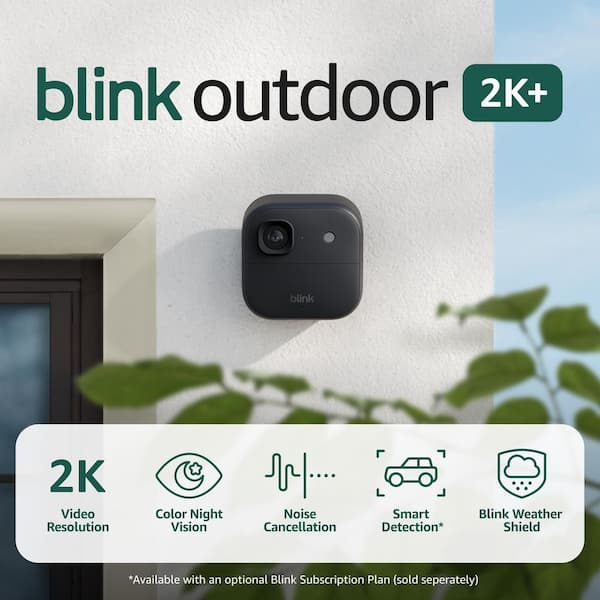
Blink Outdoor Camera
- Uses two AA lithium batteries
- Weather-resistant
Common issues: Battery drain, false alerts, night vision problems.
Solutions:
- Use only lithium batteries.
- Check for water inside the housing.
- Adjust motion sensitivity in the app.
- Clean the lens for clearer night vision.
Blink Indoor Camera
- Similar to Outdoor but not weatherproof
Common issues: Offline indoors, not recording.
Solutions:
- Keep away from microwaves, Wi-Fi routers, or baby monitors.
- Replace batteries regularly.
- Make sure the room is not too cold.
Blink Mini
- Wired (no batteries)
- Needs constant power
Common issues: Camera won’t turn on, can’t connect to app.
Solutions:
- Check power cable and outlet.
- Restart by unplugging and plugging back in.
- Use only original power adapters.
Blink Video Doorbell
- Battery or wired options
- Integrates with doorbell chime
Common issues: No notifications, not ringing indoor chime.
Solutions:
- Check app notification settings.
- Make sure wiring is correct if using existing chime.
- Replace batteries if on battery power.
Blink Xt And Xt2
- Older models, battery-powered
Common issues: Fast battery drain, can’t add to app.
Solutions:
- Use fresh lithium batteries.
- Reset Sync Module and camera.
- Check for firmware updates (these models need them more often).
Table: Blink Camera Models And Troubleshooting Differences
Here’s a quick comparison of troubleshooting for different Blink camera models.
| Model | Power Source | Unique Issues | Special Fixes |
|---|---|---|---|
| Blink Outdoor | Battery | Weather damage, battery drain | Check housing, use lithium batteries |
| Blink Indoor | Battery | Signal interference | Keep away from electronics |
| Blink Mini | Wired | No power, app sync | Check cable, restart device |
| Blink Doorbell | Battery/Wired | Chime not working | Check wiring, notification settings |
| Blink XT/XT2 | Battery | Firmware problems | Update firmware, reset devices |
Blink Camera Not Recording Motion
Sometimes, your Blink camera is online but doesn’t record when there’s movement. Here’s what to check:
- Armed/Disarmed Status: The camera only records when armed. Open the app and make sure the camera is “Armed.”
- Motion Detection Settings: Go to device settings and set motion sensitivity higher.
- Activity Zones: If you set privacy/activity zones, make sure they don’t cover the area you want to monitor.
- Schedule: Check that your recording schedule allows for recording during the times you want.
- Sync Module Issues: If the Sync Module is offline, the camera can’t save clips.
Practical Tip: Test motion detection by walking in front of the camera after making changes. Wait a few seconds for notifications.
Blink Camera Not Connecting To Wi-fi
If your camera won’t connect to Wi-Fi, try these steps:
- Restart Router – Unplug your router for 30 seconds and plug it back in.
- Move Closer – Place the camera near the router during setup. After connecting, you can move it to the final location.
- Check Wi-Fi Band – Make sure your router is set to 2.4GHz, not 5GHz.
- Correct Password – Double-check your Wi-Fi password for typos.
- Reset Network Settings – In the Blink app, select “Change Wi-Fi Network.”
Extra Insight: Some routers block new devices for extra security. Make sure your router allows new connections.

Credit: www.youtube.com
Table: Blink Camera Wi-fi Troubleshooting Steps
Compare solutions for Wi-Fi connection problems.
| Step | Action | Why It Helps |
|---|---|---|
| 1 | Restart router and camera | Clears temporary network errors |
| 2 | Check Wi-Fi band (2.4GHz) | Blink only supports 2.4GHz |
| 3 | Move devices closer | Improves signal for setup |
| 4 | Update app/firmware | Fixes bugs and improves connection |
| 5 | Reset Sync Module | Clears pairing issues |
Blink Camera Night Vision Not Working
Night vision allows your camera to see in the dark using infrared (IR) lights. If night vision fails:
- Clean the Lens: Dirt or fogging can block IR light.
- Check IR Settings: In the Blink app, enable “Night Vision” or “IR Illuminator.”
- Replace Batteries: Low power can reduce IR brightness.
- Test with Lights Off: Turn off room lights and see if the camera switches to night mode.
Example: If you see a black screen at night, but the camera works in daylight, it’s likely a night vision setting or power issue.

Blink Camera Not Sending Notifications
Notifications keep you updated about any motion events. If you’re not getting alerts:
- Check App Permissions: Make sure the Blink app can send notifications in your phone’s settings.
- Notification Settings: In the Blink app, check that alerts are enabled for each camera.
- Armed Status: The camera must be armed to send alerts.
- Phone Settings: Some power-saving modes block notifications.
Pro Tip: Test by triggering motion and watching for a push notification.
When To Contact Blink Support
If you’ve tried all the steps above and your Blink camera still doesn’t work, it’s time to contact support. Here’s when to ask for help:
- The camera has physical damage (cracks, water inside, broken lens).
- The Sync Module won’t turn on or keeps resetting.
- You can’t add the camera to your account after a reset.
- Firmware updates fail or freeze the camera.
- Subscription features (like cloud storage) don’t work even after payment.
Tip: When contacting Blink support, have your device model, serial number, and a clear description of the issue ready. This speeds up the process.
Preventing Future Problems
A little care goes a long way. Use these tips to keep your Blink camera working well:
- Use only lithium AA batteries (for battery models).
- Keep the camera dry and sheltered if used outdoors.
- Update your app and camera firmware every few months.
- Test camera placement for strong Wi-Fi signal.
- Regularly check recording and notifications to catch new problems early.
Non-obvious tip: Don’t place your camera near high-heat areas like grills or heaters. Extreme heat can cause long-term internal damage.
Useful Resources
For more details and official troubleshooting guides, visit the Blink Support Center.
Frequently Asked Questions
Why Does My Blink Camera Keep Going Offline?
The most common reasons are weak Wi-Fi signals, dead batteries, or issues with the Sync Module. Try moving your camera closer to the router, replacing the batteries with fresh lithium AA ones, and restarting the Sync Module. Also, check for router updates or network changes.
How Do I Reset My Blink Camera?
For most Blink models, remove the batteries, wait 10 seconds, then reinsert them. For models with a reset button (like the Sync Module), press and hold the button until the light blinks. You may need to re-add the camera in the Blink app after resetting.
Why Is My Blink Camera Not Recording Or Sending Notifications?
Check that the camera is armed in the app and that motion detection is enabled. Adjust motion sensitivity if needed. Also, confirm that the Blink app has permission to send notifications on your phone. If you use activity or privacy zones, make sure they are not blocking the areas you want to monitor.
Can Weather Affect My Blink Camera?
Yes. Extreme cold can drain batteries quickly. Water or humidity can damage the camera or lens. For outdoor models, always use weatherproof housing and check for water leaks. If your area has frequent storms or snow, check the camera more often for issues.
What Should I Do If My Blink Camera Won’t Connect To Wi-fi?
Restart your router and the camera. Make sure you use a 2. 4GHz Wi-Fi network (Blink does not support 5GHz). Move the camera closer to the router during setup. Double-check your Wi-Fi password. If nothing works, reset the Sync Module and reconnect all devices in the Blink app.
A reliable Blink camera is key to a secure home. With the steps above, you can fix most problems yourself, saving time and stress. Stay proactive with maintenance and updates, and you’ll enjoy smooth, dependable performance from your Blink security system.