
Is a blinking light on your Roku catching your eye and causing frustration? You’re not alone.
Whether it’s red, white, blue, or green, that flashing light is trying to tell you something important about your device’s health or connection. But what does it really mean, and how can you fix it quickly? You’ll discover easy-to-follow steps to decode those blinking signals and get your Roku back to smooth streaming in no time.
Keep reading—you’re just a few fixes away from enjoying your favorite shows without interruptions.
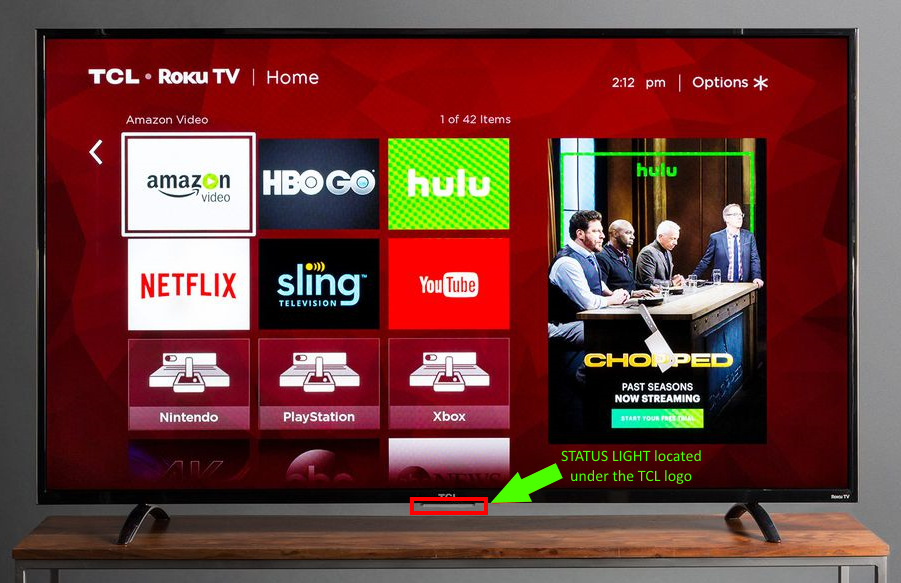
Credit: support.tcl.com
Blinking Red Light
A blinking red light on your Roku signals a power or heat problem. This blinking often means the device is struggling to get enough power or is running too hot.
Watching this light helps you spot issues early and keep your Roku working well. Below are simple checks to fix the blinking red light problem quickly.
Power Source Check
Plug your Roku directly into a wall outlet. Avoid USB ports on TVs or power strips. These may not give enough power.
Check the outlet by plugging in another device. Make sure it works well. A stable power source prevents the red light from blinking.
Use Original Cables
Always use the power cable and adapter that came with your Roku. Third-party or damaged cables can cause power issues.
Replace any frayed or bent cables. Original cables provide the right voltage and current for your device to work properly.
Overheating Signs
Overheating can make the red light blink. Check if your Roku feels hot to touch. Also, look for poor ventilation around the device.
Keep your Roku in a cool, open space. Avoid stacking other electronics on or near it. Overheating harms your Roku’s performance and lifespan.
Flashing White Or Blue Light
A flashing white or blue light on your Roku device signals it is trying to connect or update. This blinking often happens during startup or when streaming begins. The light means the Roku is active but facing some connection or setup challenges. Understanding why the light flashes helps you fix the issue quickly and enjoy your shows without interruption.
Hdmi Connection Tips
Check that your HDMI cable is firmly plugged into both the Roku and TV. A loose connection can cause the flashing light. Try a different HDMI port on your TV to rule out port problems. Use a high-speed HDMI cable for better signal quality. Avoid HDMI extenders or splitters, as they may interfere with the signal. Restart your Roku and TV after securing the HDMI connection for a fresh start.
Wi-fi And Signal Interference
Weak or unstable Wi-Fi can cause the Roku light to flash. Move your router closer to the Roku device if possible. Remove objects that block the signal, like walls or furniture. Avoid placing the Roku near other electronics that may cause interference. Restart your router to refresh the connection. Consider switching to a 5 GHz Wi-Fi band for faster and more stable streaming.
Firmware Update Status
The flashing white or blue light may indicate a firmware update is in progress. Do not turn off the Roku during this time to avoid errors. Check the update status in the Roku settings menu for confirmation. If the update fails, try restarting the Roku and running the update again. Keeping firmware up to date improves performance and fixes bugs. Regular updates prevent future flashing light issues.
Remote Blinking Green
The remote blinking green on your Roku signals a connection or power issue. This light shows the remote is trying to pair with the Roku device. It may also mean the remote’s batteries are low or a hardware problem exists. Fixing this usually involves simple steps to restore communication between the remote and the Roku player.
Battery Replacement
Start by removing the remote’s back cover. Take out the old batteries and replace them with fresh ones. Use the correct type of batteries recommended by Roku. Weak batteries often cause the green light to blink. Check the battery contacts for dirt or corrosion. Clean them gently if needed. After replacement, test the remote to see if the blinking stops.
Re-pairing The Remote
Press and hold the pairing button inside the battery compartment. Hold it for about five seconds until the green light starts blinking faster. The Roku device should detect the remote soon after. Follow any on-screen instructions to complete pairing. Re-pairing resets the connection and fixes common sync issues. If the light keeps blinking, try restarting your Roku before re-pairing again.
Hardware Error Signals
A blinking green light can also mean a hardware fault. Check if the remote buttons feel stuck or unresponsive. Inspect the remote for any visible damage or cracks. If re-pairing and battery changes do not work, the remote might be defective. Contact Roku support for repair or replacement options. Using a faulty remote can cause the blinking light to persist without resolving.

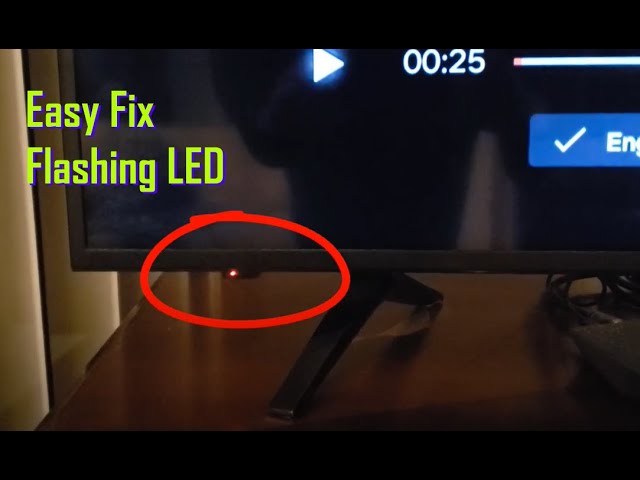
Credit: www.youtube.com
Power Cycling Roku
Power cycling your Roku is a simple way to fix many common issues. It clears temporary glitches and refreshes the system. This process can often stop the blinking light problem quickly. Power cycling means turning the device off and on again properly. It helps your Roku reconnect to the network and reset its settings without losing your personal data.
Following the correct steps is important to avoid damage. A quick restart is different from unplugging the device suddenly. You should allow the Roku to shut down safely to prevent errors or data loss. Power cycling can also improve your Roku’s speed and performance.
Proper Restart Steps
First, press the Home button on your Roku remote. Navigate to Settings and select System. Choose System restart from the options. Confirm the restart by pressing OK. Wait for the Roku to turn off and back on. This process takes about one to two minutes. Do not unplug the device during this time. After restarting, check if the blinking light stops.
When To Perform Factory Reset
Try a factory reset if power cycling does not fix the blinking light. A factory reset deletes all settings and returns the device to its original state. Use this only as a last resort. Backup any important information before resetting. To reset, go to Settings, then System. Select Advanced system settings, and choose Factory reset. Follow the on-screen instructions to complete the process. Your Roku will restart fresh, which may solve persistent issues.
Cable And Port Inspection
Inspecting cables and ports is a key step to fix a blinking light on your Roku. Faulty connections often cause power or signal issues. Careful checking helps spot loose or damaged cables quickly.
Roku devices rely on HDMI and USB ports for power and video signals. Dirt, dust, or bent pins can block signals. Using damaged cables also creates problems. Checking these parts ensures smooth operation.
Checking Hdmi Ports
First, unplug the HDMI cable from your Roku and TV. Look inside the ports for dust or debris. Clean gently with a soft brush or compressed air. Check the HDMI cable ends for bent or broken pins. Swap the cable with a new one to test. Reconnect firmly to make a tight fit. A loose connection can cause the blinking light problem.
Avoiding Usb Power Issues
Do not power your Roku from the TV’s USB port. Many TVs supply low power that can cause blinking. Use the original Roku power adapter plugged into a wall outlet. Check the USB cable for cuts or frays. Replace any damaged cable. A stable power source stops random blinking and keeps your Roku running well.
Software Updates
Software updates keep your Roku running smoothly and fix bugs. They improve performance and add new features regularly. Ignoring updates might cause the blinking light issue on your Roku. Understanding how to check and update the software helps avoid this problem.
Checking For Updates
Turn on your Roku and go to the home screen. Navigate to Settings, then select System. Choose System Update to check for available updates. Roku will show if an update is ready. If yes, it will start downloading automatically. Make sure your internet connection is stable during this process. Once done, your Roku will restart to apply the update.
Updating Firmware Manually
Sometimes, automatic updates fail or stop. You can update your Roku firmware manually. Download the latest firmware from the official Roku website. Transfer the file to a USB drive and plug it into your Roku device. Go to Settings, then System, and select Manual Update. Follow the on-screen instructions to complete the update. This method ensures your Roku has the latest software and may stop the blinking light issue.
When To Contact Support
Knowing when to contact Roku support can save time and prevent further issues. Some blinking light problems resolve with simple fixes. Others may signal a deeper problem needing expert help. Recognizing persistent issues is key to deciding if support is necessary.
Identifying Persistent Issues
Watch the blinking light pattern closely. A steady blink or repeated pattern often means a hardware or software fault. If your Roku restarts repeatedly or fails to connect to the internet, these issues may persist. Troubleshooting steps like restarting or checking cables might not solve these problems. When the same issue continues after basic fixes, support is the next step.
Using Roku Customer Service
Roku customer service offers help through chat, phone, or email. They can guide you through complex troubleshooting. Be ready to provide your device model and error details. Support agents can also help with warranty claims or replacements. Contacting them early in persistent cases can prevent bigger problems later.
Frequently Asked Questions
Why Is My Roku Light Just Blinking?
A blinking Roku light usually signals power issues, remote pairing problems, or connection errors. Check power sources, cables, and Wi-Fi. Restart or reset the device to fix the blinking light.
How Do You Know If Your Roku Is Going Bad?
Signs your Roku is going bad include frequent freezing, unresponsive remote, constant blinking lights, and failure to power on.
How To Reset Unresponsive Roku?
Unplug your Roku from power for 10 seconds, then plug it back in. Use the reset button if unresponsive. This restores factory settings and fixes freezes.
What Does A Blinking Power Light Mean?
A blinking power light on Roku usually signals a power issue, remote pairing problem, or connection error. Check power source, cables, and network to fix it.
What Does A Blinking Light On My Roku Mean?
A blinking light on Roku usually shows a power or connection issue. It could also mean the remote is not paired correctly. Checking the light color helps identify the problem.
Conclusion
A blinking light on your Roku shows it needs attention. Check power connections first and use original cables. Restart your device to clear common errors. Verify your remote’s batteries and pairing status. Make sure your Wi-Fi or HDMI cables work well.
These simple steps often fix blinking light issues. Keep your Roku updated to avoid future problems. Troubleshooting helps your Roku run smoothly and enjoyably. Don’t let a blinking light stop your streaming fun.