
Is your Fios TV remote control suddenly not working? It’s frustrating when you sit down to watch your favorite show and the remote just won’t respond.
But don’t worry—you’re not alone, and this problem is often easier to fix than you think. Whether your remote won’t power on, won’t pair with your TV, or just isn’t responding, there are simple steps you can take right now to get it back in action.
Keep reading, and you’ll learn exactly how to troubleshoot your Fios TV remote so you can get back to enjoying your entertainment without the hassle.
Check And Replace Batteries
Checking and replacing the batteries is a simple fix for a Fios TV remote control not working. Batteries lose power over time and can cause the remote to stop responding. Start by removing the old batteries to inspect their condition. Then, check the battery contacts for any dirt or corrosion. Finally, insert new batteries correctly to ensure proper power flow. These steps often restore your remote’s function quickly.
Remove Old Batteries
Slide open the battery cover on the back of the remote. Take out the old batteries carefully. Dispose of them properly according to local regulations. Removing old batteries prevents any power issues caused by weak or dead cells.
Inspect Battery Contacts
Look inside the battery compartment for the metal contacts. Clean any dirt or corrosion using a dry cloth or cotton swab. Dirty contacts can block the flow of electricity. Make sure the contacts are shiny and free from any buildup.
Insert New Batteries Correctly
Place new batteries in the compartment, matching the positive (+) and negative (-) ends to the markings. Incorrect placement stops the remote from working. Close the battery cover securely. Test the remote to see if it now responds properly.
Reset The Remote Control
Resetting the Fios TV remote control can solve many common issues. This process clears minor glitches and restores the remote’s normal function. It is simple and takes only a few moments.
Try resetting the remote before considering replacements. It often fixes unresponsive buttons and pairing problems. Below are two easy ways to reset your Fios TV remote control.
Reset Fios Tv Voice Remote Buttons
Start by replacing old batteries with fresh ones. Make sure they fit correctly with the right polarity. Remove any dirt or corrosion from the battery contacts to ensure good connection.
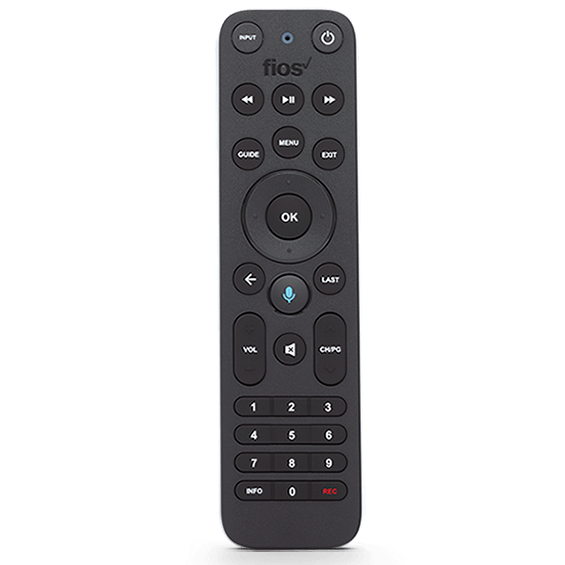
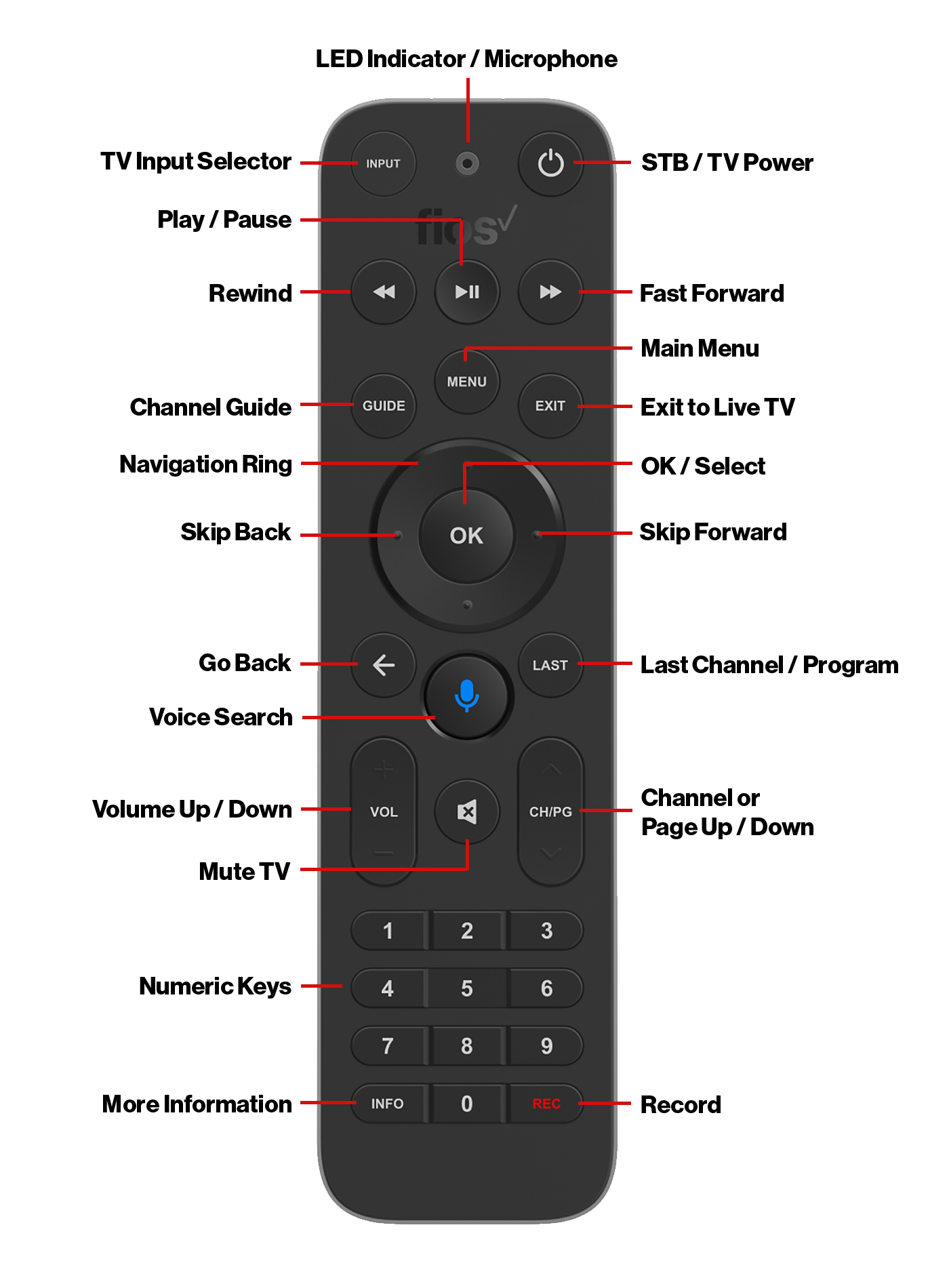
Next, press and hold the OK and Fios TV (or Menu) buttons together. Keep them held until the remote’s red light flashes twice. This signals the reset is complete. Your remote should now work properly.
Reset Via On-screen Menu
Turn on your Fios TV and access the main menu. Navigate to Settings, then select Voice Control. Find the option for Fios TV Voice Remote and choose Program Voice Remote.
Finally, select Reset Remote Setup. This resets the remote using the TV’s software. Point the remote at the box and follow any on-screen instructions to finish. This method works well if button resets do not help.
Re-pair The Remote With The Set-top Box
Re-pairing the remote control with the Fios set-top box often resolves connectivity issues. This process establishes a fresh connection between the remote and the box. It is essential if the remote stops responding or behaves unpredictably. Follow the specific steps for your remote model to restore normal function quickly.
Pair Fios Tv One Remote
First, point the remote at the Fios TV One set-top box. Press and hold the Play/Pause and 0 (zero) buttons together. Keep holding until the blue light on the remote flashes. Once it blinks, release the buttons. The remote should now be paired with the box. Test it by pressing the power or volume buttons.
Pair Fios Tv Voice Remote
To pair the Fios TV Voice Remote, press and hold the OK and Fios TV (or Menu) buttons at the same time. Watch for the red light to blink twice. After the blinking, release the buttons. The remote will now connect to the set-top box. You can also reset the remote via the on-screen menu. Go to Menu > Settings > Voice Control > Fios TV Voice Remote > Program Voice Remote > Reset Remote Setup.

Credit: www.youtube.com
Power Cycle The Fios Tv Box
Power cycling the Fios TV box can fix many remote control issues. It refreshes the system and clears temporary glitches. This simple step often restores normal remote function quickly. Follow the steps below carefully for best results.
Unplug And Reconnect Power
Start by unplugging the power cord from the back of your Fios TV box. Leave it disconnected from the outlet. This cuts off all power to the device, forcing it to shut down completely. Wait at least 30 seconds before plugging it back in. Reconnect the power cord firmly to ensure a good connection.
Wait For System Restart
After plugging the box back in, give it time to restart fully. The lights on the box will blink and change colors during this process. Wait until the box returns to its normal state, usually indicated by a solid light. This restart resets the box’s internal system and can restore remote control functions.
Clear Remote Signal Path
Ensuring a clear signal path between your Fios TV remote and the set-top box is crucial. The remote uses infrared (IR) signals that need an unobstructed path to communicate properly. Any blockage or interference can cause the remote to stop working.
Check the area between the remote and the TV box. Even small objects can block the IR signals. Keeping the path clear improves remote response and reduces frustration.
Remove Obstacles For Ir Remote
Objects like furniture, decorations, or electronic devices can block the IR signal. Move anything that might stand between the remote and the TV box. Items like glass tables, picture frames, or even pets can interfere.
Make sure nothing is directly in front of the set-top box’s IR sensor. Clear the space and test the remote again. A clean line of sight helps the remote work smoothly.
Maintain Proper Distance And Angle
Hold the remote within 20 feet of the Fios TV box. Being too far weakens the IR signal. Avoid pointing the remote at sharp angles or away from the sensor.
Aim the remote directly at the sensor on the TV box. Slight adjustments in angle can improve signal reception. Using the remote within the right distance and angle ensures commands reach the box quickly.
Use The My Fios App As A Temporary Remote
The My Fios app offers a quick fix when your Fios TV remote control stops working. It lets you control your TV from your smartphone. This app acts as a temporary remote until you can fix or replace the physical remote. You can change channels, adjust volume, and access menus easily. The app is user-friendly and connects directly to your Fios TV box.
Download And Install The App
First, download the My Fios app from the App Store or Google Play. The app is free and compatible with most smartphones. Search for “My Fios” and select the official app by Verizon. Tap the install button and wait for the app to download. Once installed, open the app and follow the on-screen instructions to set up your account.
Connect App To Your Fios Tv Box
Ensure your smartphone and Fios TV box are on the same Wi-Fi network. Open the My Fios app and sign in with your Verizon credentials. The app will scan for available Fios TV boxes on your network. Select your TV box from the list to pair it with the app. Once connected, you can use your phone as a remote control immediately.
Identify And Replace A Defective Remote
Identifying a defective Fios TV remote helps avoid frustration and wasted time. Faulty remotes often cause unresponsive controls and interrupted viewing. Knowing how to test and replace the remote restores smooth TV operation quickly. Follow clear steps to check the remote’s functionality and order a replacement if needed.
Test Remote Functionality
Start by checking the remote’s batteries. Replace old batteries with fresh ones, ensuring correct polarity. Look inside the battery compartment for dirt or corrosion and clean if necessary.
Next, test the remote’s signal. Point it at your Fios TV box and press any button. Watch for a blinking light on the remote. If no light appears, the remote may be faulty.
Try resetting the remote by holding the OK and Fios TV (or Menu) buttons together. Hold until the remote’s light flashes twice. This resets the connection and can fix minor issues.
Order Replacement From Verizon Store
If tests show the remote is defective, order a replacement from the Verizon Store. Choose the model compatible with your Fios TV box. Buying an official remote ensures full functionality.
Visit the Verizon website or call customer service to place your order. Delivery usually takes a few days. Keep your old remote until the new one arrives and works properly.
Troubleshoot Common Remote Issues
Troubleshooting common remote issues helps restore your Fios TV remote quickly. Many problems arise from simple causes like dirty buttons or outdated firmware. Fixing these improves remote response and saves time.
Fix Sticky Or Unresponsive Buttons
Sticky or unresponsive buttons often result from dirt or debris. Use a soft cloth slightly dampened with rubbing alcohol. Gently clean around the buttons to remove grime. Avoid pressing buttons hard while cleaning. Let the remote dry completely before testing again.
If buttons still don’t work, try pressing each button several times. This can free stuck contacts inside the remote. Be careful not to use sharp objects to avoid damage.
Update Remote Firmware
Outdated firmware can cause the remote to lag or stop working. Connect your Fios TV box to the internet for updates. Usually, the remote updates automatically when paired with the box.
To check, go to the Fios TV settings menu. Find the remote control or device update section. Follow the on-screen instructions to update the firmware. Keep the remote close to the box during this process.
Regular firmware updates improve remote performance and fix bugs. Check for updates if the remote acts oddly or loses connection often.
Frequently Asked Questions
Why Is My Fios Tv Not Responding To The Remote?
Replace old batteries and ensure correct polarity. Reset the remote by holding OK and Fios TV buttons until the light flashes. Point remote at the box and re-pair by pressing Play/Pause and zero until the light blinks. Restart the TV box if frozen.
How Do I Reset My Fios Remote Control?
Replace old batteries with new ones, ensuring correct polarity. Press and hold OK and Fios TV (or Menu) buttons until the light flashes. For Fios TV One, hold Play/Pause and 0 buttons until the light blinks. Unplug the box if frozen and retry.
Why Did My Remote Stop Working All Of A Sudden?
Your remote likely stopped working due to dead batteries, poor battery contact, or loss of pairing with the device.
How Do I Pair My Fios Remote To My Tv?
To pair your FiOS remote, press and hold Play and 0 buttons until the blue light flashes. Point remote at the set-top box.
Why Is My Fios Tv Remote Not Working Suddenly?
Batteries may be dead or inserted incorrectly. Also, the remote might need resetting or re-pairing with the TV box.
Conclusion
Troubles with your Fios TV remote can feel frustrating. Start by replacing the batteries with fresh ones. Reset the remote by holding the OK and Fios TV buttons until the light blinks. Make sure to point the remote directly at the set-top box.
Restart the TV box by unplugging it if it freezes. These simple steps often fix common issues quickly. If problems persist, consider using the My Fios app or order a replacement remote. Staying calm and following these tips helps restore your TV control smoothly.