
Have you ever tried to adjust your Honeywell thermostat only to find it locked and unresponsive? It can be frustrating when you want to change the temperature but can’t because the screen is locked.
Whether someone else set a PIN you don’t know or you accidentally activated the lock yourself, getting locked out doesn’t have to be a headache. In this guide, you’ll learn simple, clear steps to unlock your Honeywell thermostat quickly. You’ll also discover how to prevent this from happening again, so you stay in full control of your home’s comfort.
Keep reading, and you’ll be back to adjusting your thermostat in no time.
Reasons For Thermostat Lock
Locking a Honeywell thermostat serves several important purposes. It helps control who can change temperature settings. This can be useful in homes, offices, or public spaces. Understanding the reasons for thermostat lock helps users appreciate its value. It also guides them on when unlocking might be necessary.
Preventing Unauthorized Changes
Thermostat locks stop people from changing settings without permission. This keeps the temperature steady and avoids sudden shifts. Unauthorized changes can waste energy or cause discomfort. Locking the thermostat ensures only authorized users make adjustments. This is helpful in shared spaces like offices or rental properties.
Child Safety Features
Children may accidentally change thermostat settings while playing. This can cause the heating or cooling to stop working properly. A locked thermostat prevents this issue. Parents can keep their home comfortable and safe. Locking the device protects children from tampering with controls.
Energy Saving Measures
Locking a thermostat helps save energy by limiting temperature changes. This reduces heating or cooling costs. It also supports eco-friendly habits by avoiding unnecessary power use. Many businesses use thermostat locks to control energy bills. This simple step promotes better energy management.
Identifying Your Honeywell Thermostat Model
Before unlocking a Honeywell thermostat, you must identify its model. Different models have different lock features and unlocking methods. Knowing the model helps you follow the right steps. It also prevents damage or errors during the process.
Honeywell offers many thermostat models. Each model may look different and have unique buttons or screens. Some models are simple, while others are smart and connected to Wi-Fi. Identifying the model is the first step to solve any locking issue.
Common Models Overview
Honeywell thermostats include models like the T5, T6, T9, VisionPRO, and ProSeries. The T5 and T6 are popular for home use and have touchscreen displays. The T9 supports smart home integration and remote sensors. VisionPRO is more advanced, often used in larger homes or offices. ProSeries is designed for commercial use with extra features.
Finding Model Number
Look for the model number on the thermostat itself. It is usually on the back or inside the cover. Remove the thermostat from its wall plate carefully to see this. You may also find the model number in the user manual or on the original packaging. The model number helps you find exact instructions for unlocking and other settings.
Model-specific Lock Features
Each Honeywell model has unique lock features. Some use a simple PIN code to block access. Others have a touchscreen lock icon that you tap to start unlocking. Certain models let you lock temperature settings only, not the entire device. Knowing these details allows you to unlock the thermostat correctly without causing damage or losing settings.
Basic Steps To Unlock Your Thermostat
Unlocking your Honeywell thermostat is simple with the right steps. This guide shows easy ways to regain control. Follow these basic methods to disable the lock and adjust your settings freely. Each method works well for most Honeywell models.
Using The Center Or Select Button
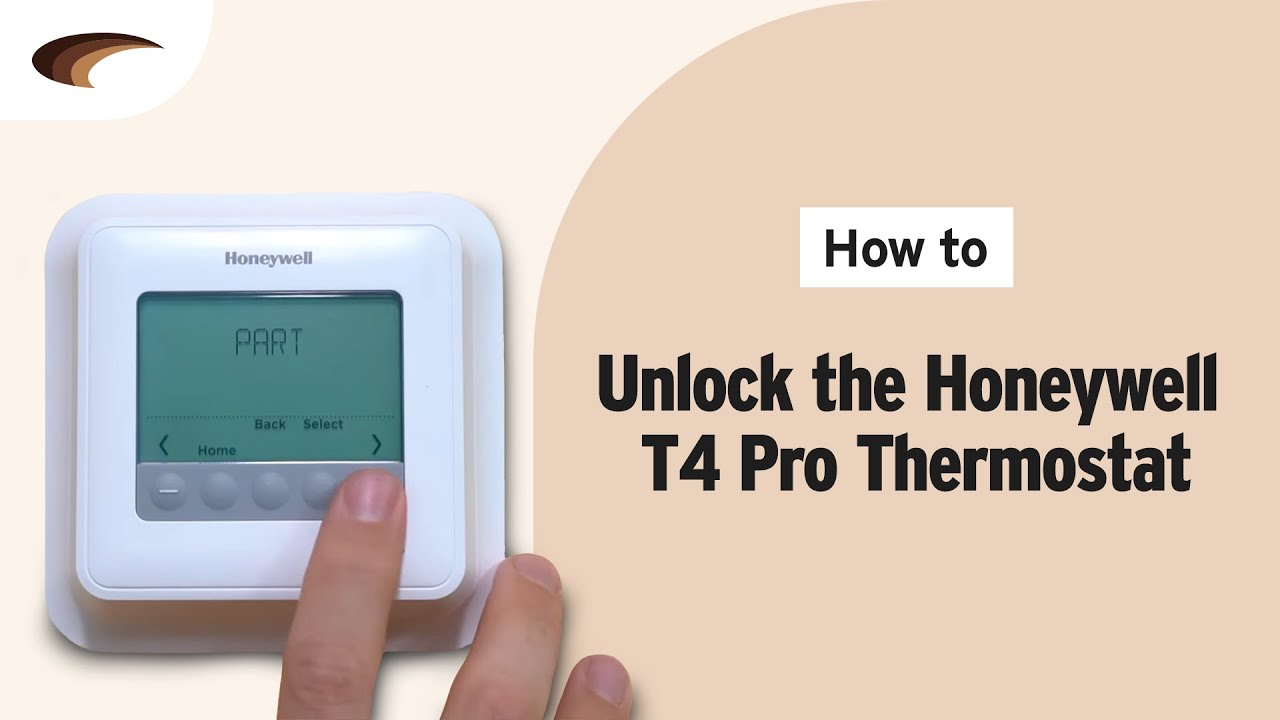
Start by pressing the center button on the thermostat. This button often acts as the main control. On some models, tap the lock icon instead. Doing this opens the password prompt. Use the plus and minus buttons to change numbers. Press the Select button after each digit to confirm. This method starts the unlock process quickly.
Entering The Pin Code
Enter your PIN code carefully to unlock the device. The code is usually a four-digit number. Use the plus and minus buttons to set each digit. Press Select after choosing each number. If the code matches, the lock will turn off. If you do not know the PIN, check your user guide or contact support.
Navigating Lock Menus
Access the lock settings through the menu if needed. Press the Menu button to open options. Look for a lock or security section in the menu. Use the arrow keys to navigate to the lock option. Select it and then choose to disable or unlock. Confirm your choice by pressing Select. This approach works on touch-screen models and basic displays.

Credit: www.wikihow.com
Unlocking Without The Pin
Unlocking a Honeywell thermostat without the PIN might seem tricky. Many users face this issue when they forget the code or buy a used thermostat. There are simple ways to get back control without the original PIN. This section explains easy steps to try first and what to do if those don’t work.
Default Pin Codes To Try
Some Honeywell thermostats use default PIN codes. Trying these codes can save time. Common default PINs include 1234, 0000, or 1111. Enter these codes carefully using the keypad. If one works, you can access the settings right away. This is the fastest way to unlock without the original PIN.
Resetting The Thermostat
If default PINs fail, resetting the thermostat is the next step. Most Honeywell models have a reset button or a reset option in the menu. Press and hold the reset button for 10 seconds or follow instructions in the user manual. Resetting clears all settings, including the PIN. The thermostat will return to factory defaults. Note this erases your saved preferences.
When To Contact Support
Contact Honeywell support if you cannot unlock the thermostat. They can guide you through model-specific solutions. Support may ask for proof of purchase or device details. Avoid guessing PINs too many times to prevent permanent lockout. Professional help ensures your thermostat works safely and correctly.
Disabling Lock To Prevent Future Issues
Disabling the lock on a Honeywell thermostat helps avoid future access problems. It lets you change settings without hassle. This step is useful if you want full control over your thermostat. Follow clear steps to disable the lock safely and easily. This prevents accidental lockouts and keeps your device user-friendly.
Accessing Lock Settings
Start by pressing the center button on the thermostat. On smart models, tap the lock icon on the screen. This opens the lock menu quickly. Use the +/- buttons to navigate through options. Look for the lock settings to make changes. You must enter the current PIN to proceed. This protects your thermostat from unauthorized changes.
Turning Off Keypad Lock
Once inside the lock menu, find the keypad lock option. Select it with the center or select button. Choose the option to disable or turn off the lock. Confirm your choice by pressing the select button again. The keypad lock will now be off. Your thermostat buttons will work without restrictions.
Setting A New Pin
To keep control, set a new PIN after disabling the lock. Enter the lock settings again and select “Change PIN.” Use the +/- buttons to set a new four-digit code. Press “Select” after each digit to save it. Remember this PIN for future use. It protects your thermostat while avoiding accidental lockouts.
Troubleshooting Common Lock Problems
Troubleshooting common lock problems on your Honeywell thermostat helps restore control fast. Locked screens or unresponsive buttons cause frustration. Identifying simple issues can save a service call.
Check basic functions before trying complex solutions. Many lock troubles link to screen, PIN, or power problems. Fixing these often unlocks the thermostat smoothly.
Screen Not Responding
The thermostat screen may freeze or fail to react. Dirt or moisture on the touch surface can block responses. Clean the screen gently with a soft cloth. Avoid harsh chemicals.
Restart the thermostat by removing it from the wall plate. Wait 30 seconds before reattaching it. This simple reset can restore screen function. If the screen stays blank, check the power supply next.
Incorrect Pin Attempts
Multiple wrong PIN entries lock the thermostat temporarily. Wait a few minutes before trying again. Use the correct PIN if you know it. Otherwise, reset the thermostat using the manual.
Some models allow resetting by holding the center button for 10 seconds. This clears the lock without erasing settings. Consult your Honeywell user guide for exact instructions based on your model.
Battery And Power Issues
Low or dead batteries cause lock screen problems. Replace batteries with fresh AA alkaline cells. Check battery contacts for corrosion. Clean gently if needed.
Thermostats powered by HVAC systems may have wiring issues. Ensure wires connect firmly to terminals. Check circuit breakers or fuses for power loss. Restoring power often restores full control.
Tips For Managing Thermostat Security
Managing thermostat security protects your home’s comfort and energy use. A locked Honeywell thermostat keeps settings safe from changes. This section shares simple tips to handle your thermostat’s security well. Follow these guidelines to keep control and avoid lockouts.
Choosing A Secure Pin
Pick a PIN that is hard to guess. Avoid common numbers like 1234 or 0000. Use a mix of numbers you can remember easily. Change your PIN regularly to improve security. Keep the PIN private and do not write it down where others can find it.
Sharing Access Responsibly
Only share your thermostat PIN with trusted people. Explain how to use the thermostat carefully. Limit the number of people who know the PIN. Remove access for anyone who no longer needs it. This helps prevent unwanted changes and keeps your settings safe.
Using Smart Thermostat Features
Use built-in security features on your Honeywell smart thermostat. Enable automatic lock settings to prevent accidental changes. Set up alerts to notify you of any access attempts. Use app controls to manage access remotely. These features add extra layers of protection to your system.
Credit: www.youtube.com
Frequently Asked Questions
How Do I Get My Honeywell Thermostat Out Of Lock Mode?
Press the center or Menu button to access the lock screen. Enter your PIN using +/- buttons, then press Select to unlock. Navigate to Lock settings and turn it off to prevent re-locking.
How Do I Get The Lock Off My Thermostat?
Tap the center or unlock button to trigger the password prompt. Enter the PIN using +/- buttons, then press Select to unlock. Access Menu, navigate to Lock, and set it Off to disable locking.
How To Unlock Temperature On Honeywell Thermostat?
Press the center or Menu button to access the lock screen. Enter your PIN using +/- buttons, then press Select to unlock. Navigate to Lock settings and turn it Off to disable future locks.
How Do I Turn Off The Child Lock On My Honeywell Thermostat?
Press the MENU button on your Honeywell thermostat. Scroll to “Lock” and press SELECT. Change the setting to OFF to disable the child lock.
How Do I Unlock A Honeywell Thermostat Keypad?
Tap the center button or the lock icon to start unlocking. Enter your PIN using the plus and minus buttons. Press “Select” after each digit to confirm.
Conclusion
Unlocking a Honeywell thermostat is simple with the right steps. Just follow the button presses carefully. Enter the correct PIN or use the default codes if needed. Once the lock is off, adjust settings to avoid future lockouts. This helps keep control easy and stress-free.
Take your time and keep instructions close by. Your thermostat will work smoothly again in no time.