
Is your Samsung TV not recognizing the HDMI ARC connection? It can be frustrating when your soundbar or home theater system suddenly stops communicating with your TV.
You’re not alone—this issue happens more often than you think. But don’t worry, you don’t have to live with poor sound or complicated setups. In this guide, you’ll discover simple, step-by-step solutions to get your HDMI ARC working smoothly again.
Whether it’s a quick setting tweak or a cable swap, you’ll learn exactly what to do to bring your audio back to life. Keep reading, and let’s fix your Samsung TV’s HDMI ARC issue together.
Check Hdmi Arc Port
Start by examining the HDMI ARC port on your Samsung TV. This port is the key to connecting your TV with soundbars or AV receivers. It sends audio signals both ways, allowing better sound control.
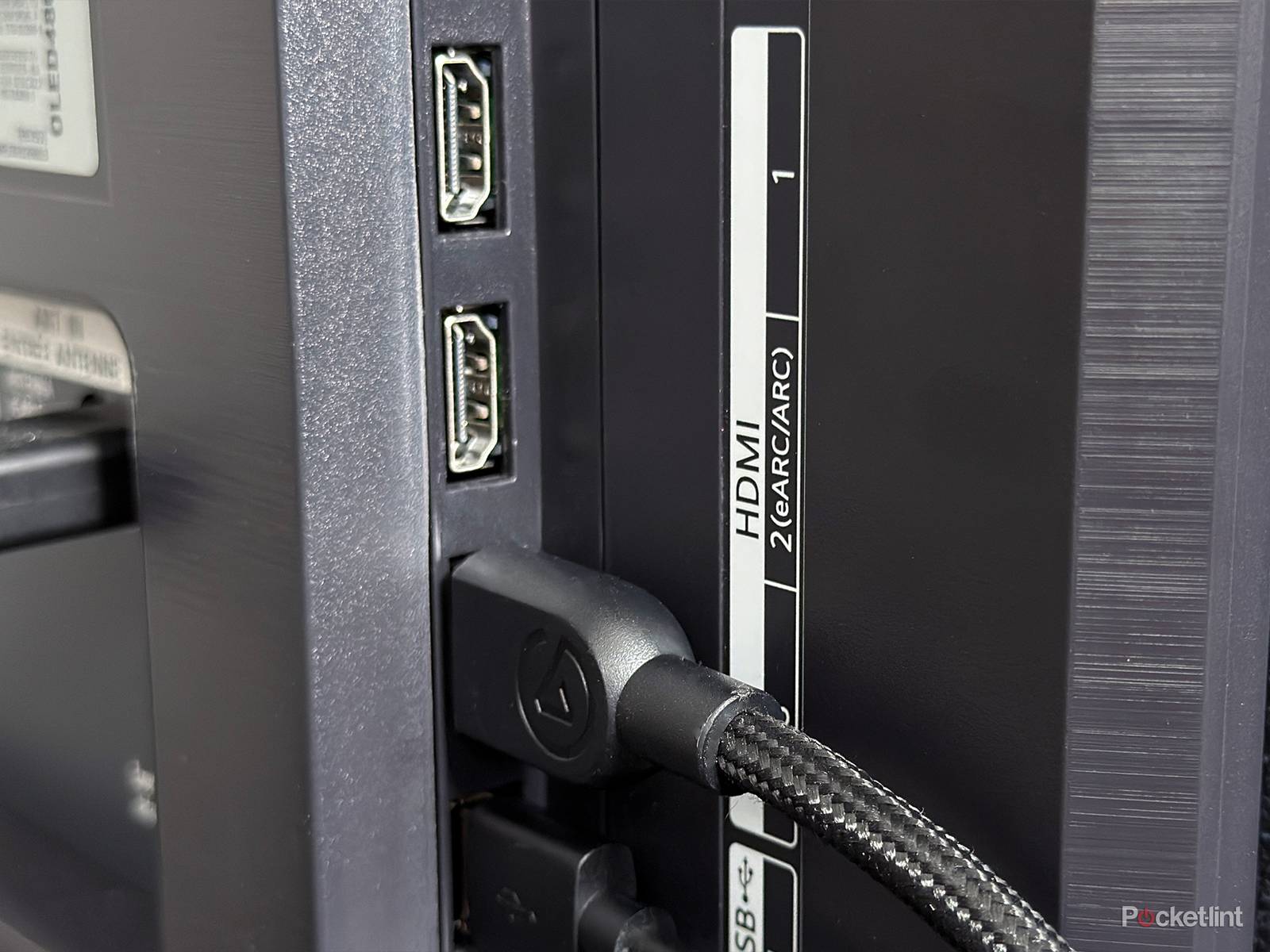
Make sure you use the HDMI port labeled “ARC” or “eARC.” Connecting to a different HDMI port stops ARC from working properly. Also, check the port for any dust or damage.
Locate The Hdmi Arc Port
Look at the back or side of your Samsung TV. The HDMI ARC port usually has a label next to it. It may say “ARC” or “eARC.” Use this port for your HDMI cable.
Using any other HDMI input will not enable ARC functions. Confirm you plug the cable into the correct spot on both the TV and the audio device.
Inspect The Hdmi Arc Port For Damage
Check the port for bent pins or debris. Dust or dirt can block the connection. Use a soft brush or compressed air to clean the port gently.
If the port looks damaged, ARC may not work. Contact Samsung support or a repair service for help. Avoid using force when inserting the cable.
Verify Cable Connection In Hdmi Arc Port
Ensure the HDMI cable is firmly plugged into the ARC port. Loose connections cause signal drops or no sound. Push the cable until it clicks or feels secure.
Test the connection by unplugging and replugging the cable. Sometimes this resets the connection and restores ARC functionality.
Swap Hdmi Cable
Swapping the HDMI cable is an easy way to fix Samsung TV not recognizing HDMI ARC. The cable might be damaged or not support ARC properly. Using the right cable ensures smooth communication between your TV and sound system.
Many HDMI cables look the same but differ in quality and speed. Older or low-quality cables may cause connection problems. Choosing a high-speed or Ultra High-Speed HDMI cable improves signal quality. This helps the ARC function work correctly.
Check For Cable Damage
Look at your HDMI cable carefully. Cracks, bends, or fraying can cause signal loss. Even small damages inside the cable can stop ARC from working. Replacing a damaged cable often solves the issue fast.
Use High-speed Or Ultra High-speed Hdmi Cable
Not all HDMI cables support ARC or eARC features. High-speed cables handle higher data rates needed for ARC. Ultra High-Speed cables support the latest standards and better audio quality. Swap your old cable with one of these for better results.
Test With A Different Cable
Try a different HDMI cable to find if yours is the problem. Borrow a cable from another device or buy a new one. Connect it to your TV’s HDMI ARC port and sound system. Check if the TV now recognizes the ARC connection.
Enable Anynet+ (hdmi-cec)
Enabling Anynet+ (HDMI-CEC) is essential for your Samsung TV to recognize HDMI ARC. This feature allows your TV to communicate with connected devices using a single HDMI cable. It simplifies control by syncing power and volume functions between devices.
Without Anynet+, your TV and soundbar or receiver might not interact properly. This can cause issues like no sound or no signal through the HDMI ARC port. Turning on Anynet+ ensures smooth data exchange and better device compatibility.
How To Enable Anynet+ On Samsung Tv
Start by pressing the Home button on your Samsung remote. Navigate to Settings, then select Connection. From there, choose External Device Manager. Find Anynet+ (HDMI-CEC) and switch it to ON. This activates the feature across connected devices.
Confirm Hdmi Arc Port Connection
Make sure the HDMI cable plugs into the port labeled HDMI ARC or eARC on both your TV and audio device. Using the wrong port can prevent ARC from working. Check both ends carefully for proper connection.
Set Audio Output To Receiver
Go to Settings, then Sound. Select Sound Output and change it from TV Speakers to Receiver (HDMI) or Audio Out. This step directs the TV audio through the connected sound system using HDMI ARC.
Set Audio Output Correctly
Setting the audio output correctly is key to fixing HDMI ARC issues on Samsung TVs. The TV must send sound through the right channel for the connected device to work properly. If the audio output is wrong, the TV will not recognize the HDMI ARC connection.
Checking and adjusting audio output settings is simple but crucial. This step makes sure your TV and audio system speak the same language. It helps avoid silent screens and no-sound problems.
Check Sound Output Settings
Open your Samsung TV’s settings menu. Find the “Sound” section. Look for “Sound Output.” Change it from “TV Speakers” to “Receiver (HDMI)” or “Audio Out.” This directs sound through the HDMI ARC connection. Without this, the TV uses its own speakers only.
Enable Anynet+ to let your TV control external devices. Go to Settings > Connection > External Device Manager. Turn on “Anynet+ (HDMI-CEC).” This feature lets the TV and soundbar communicate. It also activates the ARC channel automatically.
Set Digital Audio Format
Go to Settings > Sound > Expert Settings. Find “Digital Output Audio Format.” Choose “Auto” or “Pass-Through.” This setting sends the correct audio signals. It prevents format mismatches that block sound output.
Adjust Audio Format Settings
Adjusting the audio format settings on your Samsung TV can fix HDMI ARC issues. Incorrect audio formats may cause the TV not to recognize the ARC connection. Changing these settings helps the TV and sound system communicate properly.
Sometimes the default audio format is not compatible with your soundbar or receiver. Setting the correct format allows clear sound transfer through the HDMI ARC port. This step is easy and often solves the problem quickly.
Accessing Sound Settings
Start by pressing the Home button on your Samsung remote. Navigate to Settings, then select Sound. Here, find the Expert Settings option. This menu controls detailed audio preferences.
Setting Digital Output Audio Format
Within Expert Settings, locate Digital Output Audio Format. Change this setting to Auto or Pass-Through. These options ensure the TV sends audio in a compatible format to your sound system.
Testing Different Audio Formats
If Auto or Pass-Through does not work, try selecting PCM. PCM sends uncompressed audio to your soundbar. This setting can help if your sound system has limited format support.
Saving Changes And Restarting
After adjusting the audio format, save your settings. Turn off your TV and sound system. Wait a few seconds, then power them back on. This refreshes the connection and applies the new settings.

Credit: www.youtube.com
Verify Soundbar Input Source
Verifying the soundbar input source is key when Samsung TV does not recognize HDMI ARC. The TV sends audio signals through the HDMI ARC port. The soundbar must be set to the matching input to receive sound.
Without the correct input source, the soundbar will not play the TV’s audio. This step often gets overlooked but it is simple to fix. Confirming the input source aligns with the connected HDMI ARC port can restore sound quickly.
Check Soundbar Input Settings
Look at your soundbar remote or front panel. Find the input or source button. Press it until it shows “HDMI ARC” or “ARC” on the display. This switches the soundbar to receive audio from the TV’s ARC port.
Confirm Hdmi Arc Port Connection
Ensure the HDMI cable is plugged into the soundbar’s HDMI ARC port. Some soundbars have multiple HDMI inputs. Using a non-ARC input will block the signal from the TV’s ARC port.
Cycle Input Sources
Cycle through all input options on the soundbar. Stop when you see the TV audio playing or the display reads “ARC.” This helps detect if the soundbar recognizes the HDMI ARC signal from the TV.
Power Cycle Devices
Power cycling devices is a simple and effective method to fix HDMI ARC issues on your Samsung TV. It resets the connection between your TV and soundbar. This process clears temporary glitches that may block communication. Power cycling can restore proper HDMI ARC functionality without complex steps.
Start by unplugging your devices. This cuts power and allows the system to refresh. After a short wait, reconnect everything carefully. Then restart the TV and soundbar. This sequence often resolves recognition problems and improves device syncing.
Unplug And Reconnect Hdmi
First, unplug the HDMI cable from both the TV and soundbar. Wait about 30 seconds to let devices fully power down. Check the cable for any visible damage or loose connections. Reconnect the HDMI cable firmly into the HDMI ARC ports on both devices. Ensure you use the correct ARC-labeled ports. This action resets the physical connection and helps the devices detect each other correctly.
Restart Tv And Soundbar
After reconnecting the HDMI cable, turn off both the TV and soundbar. Unplug them from the power source for 1 to 2 minutes. Plug them back in and turn on the soundbar first. Then power on your Samsung TV. This restart refreshes the software and hardware settings. It often resolves HDMI ARC detection problems and restores sound output through your audio system.
Update Tv Software
Keeping your Samsung TV software up to date can fix many issues. This includes problems with HDMI ARC recognition. Software updates improve compatibility and fix bugs.
Outdated software may cause your TV to not recognize HDMI ARC signals. Regular updates ensure your TV works well with all connected devices.
Check For Software Updates
Turn on your Samsung TV and press the Home button. Navigate to Settings > Support > Software Update. Select “Update Now” to search for the latest update.
If an update is available, the TV will download and install it automatically. Wait until the process finishes before using HDMI ARC again.
Enable Auto Update
Enable auto update to keep your TV current without manual checks. Go to Settings > Support > Software Update and turn on “Auto Update.”
This feature downloads and installs updates automatically when your TV connects to the internet.
Restart Tv After Update
Restart your TV after updating the software. This helps apply changes fully and can solve HDMI ARC detection issues.
Power off the TV, unplug it for 30 seconds, then plug it back in and power on. Test the HDMI ARC connection again.
When To Seek Professional Repair
Knowing when to seek professional repair for your Samsung TV not recognizing HDMI ARC saves time and frustration. Small issues can be fixed at home, but some problems require expert help. Understanding these signs helps you decide the best course of action.
Professional repair ensures your TV and audio system work properly and safely. It also prevents further damage from incorrect handling. Here are key moments to contact a technician for your HDMI ARC issue.
Signs Of Hardware Damage
Visible damage to HDMI ports or cables needs expert inspection. Bent pins or loose ports can cause connection failures. Professionals have the right tools to repair or replace these parts safely.
Persistent Connectivity Problems
When the TV repeatedly fails to detect HDMI ARC despite troubleshooting, call a repair service. Issues like no sound or intermittent signal may show deeper hardware faults. Experts can diagnose and fix these complex problems.
Firmware And Software Issues
Software glitches or outdated firmware can affect HDMI ARC functions. Sometimes, manual updates or resets do not work. Certified technicians can update or reinstall firmware without risking your device.
Complex Audio Configuration Needs
If your setup includes multiple devices or advanced audio systems, professional help is wise. Incorrect settings can cause HDMI ARC to stop working. Repair experts understand these systems and can optimize settings for you.
Warranty And Safety Considerations
Opening your TV or attempting repairs can void warranties. Professional repair protects your warranty rights. It also ensures repairs follow safety standards, reducing risk of electrical hazards.
Frequently Asked Questions
Why Is My Samsung Tv Not Detecting Hdmi Input?
Your Samsung TV may not detect HDMI input due to a faulty cable, incorrect input selection, or disabled Anynet+ (HDMI-CEC). Check the HDMI cable, select the right input source, enable Anynet+ in settings, and update the TV software to fix the issue.
How Do I Enable Arc On My Samsung Tv?
To enable ARC on your Samsung TV, connect the HDMI cable to the ARC-labeled port. Then, go to Settings > Connection > External Device Manager, and turn on Anynet+ (HDMI-CEC). Finally, set Sound Output to Receiver (HDMI) under Settings > Sound.
Why Isn’t My Samsung Tv Connecting To My Soundbar?
Check that the HDMI cable is connected to the HDMI ARC ports on both devices. Enable Anynet+ (HDMI-CEC) in TV settings. Set the TV’s audio output to Receiver or HDMI. Use a high-speed HDMI cable and update your TV’s software.
Power cycle both devices if needed.
Why Is My Hdmi Arc Saying No Signal?
Your HDMI ARC shows no signal if the cable is not in the ARC-labeled port, Anynet+ is off, or audio output is incorrect. Use a high-speed HDMI cable, enable Anynet+, set sound output to Receiver, and power cycle devices to fix the issue.
Why Is My Samsung Tv Not Recognizing Hdmi Arc?
Your Samsung TV may not recognize HDMI ARC if the cable is not connected to the ARC port. Also, Anynet+ (HDMI-CEC) might be turned off in settings. Check both and ensure the audio output is set to Receiver or HDMI.
Conclusion
Troubleshooting HDMI ARC on your Samsung TV can restore your sound quickly. Check cable connections and use the correct HDMI ARC port. Enable Anynet+ in your TV settings for proper device communication. Set the audio output to your receiver or sound system.
Try swapping cables if sound issues persist. Power cycling the TV and soundbar often fixes handshake glitches. Following these simple steps can solve most HDMI ARC problems. Enjoy your TV and sound system working together smoothly again.