
If you’ve ever tried to turn up the volume on your Samsung TV only to find it stuck, silent, or not changing at all, you know how frustrating it can be. Maybe the remote is working for everything except volume. Or perhaps the volume bar appears, but nothing happens. For many users, this is not just a small annoyance—it ruins the entire viewing experience. The good news? Most Samsung TV volume not working issues can be fixed at home, often in just a few minutes, once you know where to look and what steps to take.
This guide will walk you through every possible cause and solution, from the simplest problems to advanced fixes. We’ll cover remote control issues, software glitches, audio settings, hardware problems, and even smart features that can unexpectedly mute your TV. Whether you have a new Samsung QLED, a classic LED model, or a smart TV, you’ll find answers right here.
Let’s dive in and get your sound back—loud and clear.
Common Causes Of Samsung Tv Volume Problems
Understanding why your Samsung TV volume is not working is the first step to fixing it. Here are the main reasons users face volume issues:
- Remote control faults – Dead batteries, stuck buttons, or pairing errors.
- Muted or low TV settings – Accidentally muted or volume set too low.
- Audio output misconfiguration – TV sending sound to the wrong device.
- Software glitches – Bugs after updates or app conflicts.
- External device interference – Connected soundbars, receivers, or HDMI devices causing conflicts.
- Hardware damage – Speaker or mainboard faults.
- Accessibility features – Settings like Audio Description or Voice Guide interfering with sound.
Many people overlook hidden settings or connected devices, assuming the TV itself is broken. In reality, the problem is often simple. Let’s break down each area to find your solution.
Initial Checks: The Fastest Fixes
Before diving into advanced troubleshooting, try these quick checks. They solve many Samsung TV volume issues in seconds.
- Check if the TV is muted. Press the mute button on your remote and make sure the volume is above zero.
- Try adjusting volume directly on the TV. If the remote doesn’t work, use the TV’s physical buttons (usually under the screen or on the back).
- Look for the volume bar. If you see the bar moving but hear nothing, the speakers or settings could be the issue. If the bar doesn’t move, the remote or TV buttons may be faulty.
- Replace remote batteries. Weak batteries often cause inconsistent remote signals.
- Check external devices. Disconnect soundbars, game consoles, or set-top boxes, then test the TV speakers alone.
- Inspect all cables. Loose or damaged HDMI, optical, or audio cables can cut sound.
Many users miss the step of testing the TV without any external device attached. This isolates the problem to the TV itself and avoids chasing the wrong solution.
Fixing Remote Control Issues
Your remote is often the first thing to check when Samsung TV volume controls fail. Here’s how to troubleshoot it:
Test The Remote
- Replace the batteries with new, high-quality ones.
- Clean the remote. Dirt or sticky residue around the volume buttons can block signals.
- Reset the remote. Remove the batteries, press each button twice to discharge, then re-insert batteries.
Use The Tv Buttons
If the remote fails, use the TV’s built-in buttons. If these work but the remote doesn’t, the issue is likely with the remote, not the TV.
Pair Or Re-pair A Smart Remote
Some Samsung remotes need Bluetooth pairing. To re-pair:
- Point the remote at the TV.
- Hold Return and Play/Pause together for 3 seconds.
- Wait for the pairing message.
If pairing fails, check for interference from nearby wireless devices.
Test With A Universal Remote
If possible, try a universal remote. If it controls volume, your original remote may be faulty or unpaired.
Non-obvious insight: Many Samsung Smart Remotes can become unpaired if you change batteries while the TV is off. Always replace batteries while the TV is on to keep pairing.
Audio Output And Sound Settings
Your TV’s audio settings can route sound incorrectly, especially if you use soundbars or home theater systems.
Check Sound Output
Navigate to:
- Settings > Sound > Sound Output
- Select TV Speaker (not HDMI or Optical).
If “TV Speaker” is not available, disconnect all external audio devices and restart the TV.
Reset Sound Settings
Corrupted settings can block sound. To reset:
- Go to Settings > Sound > Expert Settings.
- Choose Reset Sound.
- Confirm reset.
This returns all audio settings to default.
Hdmi And Arc Issues
If you use HDMI ARC for soundbars or receivers:
- Use only high-speed HDMI cables.
- Make sure Anynet+ (HDMI-CEC) is ON in Settings > General > External Device Manager.
- Power cycle both TV and audio device.
Example: Common Audio Output Mistake
Suppose your TV is set to Bluetooth Speaker List but no Bluetooth device is connected. The TV will not play sound through its speakers until you switch back to TV Speaker.
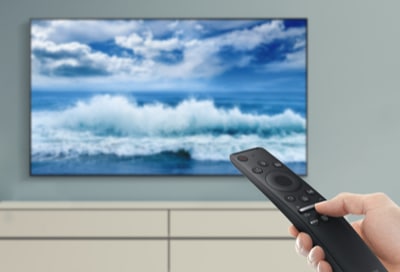
Software Bugs And Glitches
Samsung TVs sometimes develop software bugs that affect sound. These can happen after firmware updates or when using certain apps.
Simple Power Cycle
- Turn off the TV and unplug it from the wall.
- Wait 1 minute (important: This clears temporary glitches).
- Plug in and turn on.
Update Tv Firmware
Outdated software can cause volume issues. To update:
- Go to Settings > Support > Software Update > Update Now.
- If no update is available, restart the TV.
Factory Reset
If all else fails, perform a factory reset:
- Settings > General > Reset
- Enter your PIN (default is 0000).
- Confirm.
Warning: This erases all apps and settings.
Non-obvious insight: Some Samsung TVs freeze the volume after a failed app update. Deleting recently installed apps sometimes fixes the issue without a full reset.
Troubleshooting With External Devices
Devices like set-top boxes, streaming sticks, and game consoles can sometimes “take over” volume controls or mute the TV.
Disconnect All Devices
- Unplug all HDMI, optical, and analog cables.
- Test the TV with nothing but power connected.
If the sound returns, reconnect devices one by one to find the culprit.
Check Device Volume Controls
Some cable boxes and streaming sticks (like Apple TV) control the TV’s volume through HDMI-CEC. If their remotes are set to minimum volume or mute, it affects the TV too.
Soundbars And Home Theater Systems
Soundbars often have their own volume controls. Make sure:
- The soundbar is powered on and set to the correct input.
- The TV’s audio output matches the soundbar’s input type (HDMI ARC, optical, etc. ).
- If your soundbar uses Bluetooth, check for pairing issues.
Example: Hdmi Cec Loop
If both your TV and soundbar have HDMI-CEC enabled, commands can loop, causing the volume to get stuck. Try disabling CEC on one device.

Advanced Fixes For Persistent Issues
If your Samsung TV volume is still not working, deeper troubleshooting may be needed.
Check For Stuck Volume Data
Some Samsung TVs develop a “volume stuck” error, often after installing third-party apps.
- Press and hold the Power button on the remote for at least 10 seconds. This forces a deeper reboot than just turning the TV off and on.
- Wait for the Samsung logo to appear, then test the volume.
Remove Problematic Apps
Certain apps (especially free streaming apps) can interfere with sound. Remove any app installed just before the issue started.
- Settings > Apps > Downloaded Apps
- Highlight the app and select Delete
Access The Secret Service Menu (advanced)
Warning: This is risky and can void your warranty. Proceed only if comfortable.
- With the TV off, press the following on the remote: Mute, 1, 8, 2, Power
- Navigate carefully and look for audio tests or resets.
If unsure, skip this step and contact Samsung support.
Hardware Problems: When To Seek Repair
If no solution above works, you may be facing a hardware issue. Symptoms include:
- No sound at all, even after resetting everything.
- Volume bar does not move, or jumps randomly.
- Crackling, popping, or distorted sound.
Internal Speaker Fault
Speakers can fail due to age, power surges, or manufacturing defects. If your TV is under warranty, contact Samsung for service.
Mainboard Or Audio Ic Failure
The mainboard controls all sound output. Repairing it usually requires a technician.
Professional Repair Costs
Here’s a quick comparison of common repair costs in the US:
| Problem | Average Cost | Repair Time |
|---|---|---|
| Speaker Replacement | $80 – $150 | 1-2 hours |
| Mainboard Replacement | $150 – $300 | 2-3 hours |
| Remote Replacement | $20 – $50 | Immediate |
If the TV is out of warranty and repair costs are high, sometimes buying a new TV is more cost-effective.

Accessibility Features That Can Affect Sound
Samsung TVs have accessibility options for users with hearing difficulties. Sometimes, these features can accidentally mute or change sound output.
Voice Guide
Voice Guide reads aloud menus and options. If enabled, it can lower TV sound. To disable:
- Settings > General > Accessibility > Voice Guide Settings
- Turn Voice Guide OFF.
Audio Description
Audio Description adds narration for visually impaired users, sometimes routing sound differently.
- Settings > General > Accessibility > Audio Description
- Turn OFF.
Multi-output Audio
Some models allow audio to go to multiple outputs (speakers and Bluetooth). If not set correctly, you may get no sound.
- Settings > Sound > Expert Settings > Multi-Output Audio
- Choose TV Speaker.
Non-obvious insight: On some Samsung TVs, enabling both Audio Description and Bluetooth audio can mute the main speakers, even if the volume bar moves.
Using Samsung Support And Warranty
If your Samsung TV volume still isn’t working, it’s time to reach out for help.
Find Your Tv’s Model And Serial Number
You’ll need this for support. Usually, it’s on the back of the TV or in:
- Settings > Support > About This TV
Contact Samsung Support
- Visit the official Samsung Support page.
- Use live chat, phone, or schedule a repair.
Warranty Coverage
Most Samsung TVs come with a one-year warranty. Extended warranties may cover up to three years. Always check if your issue qualifies before paying for repairs.
Preventing Future Volume Problems
Once you’ve fixed your sound, a few simple habits can help keep it working:
- Avoid installing unknown apps. Stick to official app stores.
- Update software regularly. Check for updates every few months.
- Use high-quality cables. Cheap HDMI or optical cables cause many hidden problems.
- Unplug devices safely. Don’t yank out cables while the TV is on.
- Keep the remote clean. Wipe it down and avoid dropping it.
Comparing Samsung Tv Volume Controls
It’s useful to understand how Samsung’s volume controls compare across models:
| TV Model | Volume Control Method | Common Issues |
|---|---|---|
| LED/LCD (pre-2018) | IR Remote, TV Buttons | Stuck buttons, IR sensor failures |
| Smart TV (2018+) | Bluetooth Remote, App Control | Pairing loss, app conflicts |
| QLED/OLED | Voice, Smart Remote, App | Software bugs, accessory interference |
Older TVs rely more on IR signals, which can be blocked by objects. Newer models use Bluetooth and Wi-Fi, which are affected by wireless interference.
When To Buy A New Remote Or Tv
Sometimes, the cheapest fix is to replace the remote or, if hardware is failing, the TV itself. Here’s a simple comparison:
| Situation | Best Action | Estimated Cost |
|---|---|---|
| Remote lost or broken | Buy Samsung or universal remote | $20 – $50 |
| Speaker/mainboard failure, out of warranty | Replace TV | $200 – $800+ |
| Software bug, no hardware fault | Factory reset | Free |
Universal remotes work with most Samsung TVs and are easy to program.
Real-world Examples
- Smart TV volume stuck after app update: A user installed a free streaming app, and the TV volume froze. Deleting the app and restarting the TV restored sound.
- Soundbar muting TV: Another user switched to a soundbar but left TV Speaker selected as output. The TV sent sound nowhere until they switched to HDMI ARC output.
- Remote not responding: Batteries were changed with the TV off, causing pairing loss. Re-pairing fixed the volume control.
These cases show the importance of checking software and external devices, not just the TV itself.
Frequently Asked Questions
Why Does My Samsung Tv Show The Volume Bar But No Sound Comes Out?
This usually means the TV is sending audio to the wrong output. Check Settings > Sound > Sound Output and select TV Speaker. Also, disconnect any soundbars or Bluetooth devices to test if the built-in speakers work.
My Remote Controls Everything Except The Volume. What Should I Do?
Replace the remote batteries first. If that doesn’t work, try using the TV’s physical buttons. If those work, the remote may need to be re-paired (hold Return and Play/Pause together on most Smart Remotes). If not, the remote may be faulty.
How Do I Reset The Sound On My Samsung Tv?
Go to Settings > Sound > Expert Settings > Reset Sound. Confirm the reset. This returns all sound settings to default. If problems persist, try a full factory reset in Settings > General > Reset.
Can A Software Update Cause The Volume To Stop Working?
Yes. Sometimes, after a software update, certain apps or settings can conflict and mute the TV. Try a power cycle (unplug for 1 minute) or install any pending updates. Deleting recently added apps can also help.
Is It Worth Repairing A Samsung Tv With No Sound?
If your TV is under warranty, repair is usually covered. For older TVs, if the repair cost (see table above) is more than 40% of the price of a new TV, replacement is often a better value.
No sound can ruin your Samsung TV experience, but most volume problems are fixable with patient troubleshooting. By following the steps above, you’ll usually find a solution—whether it’s a simple remote fix, a settings adjustment, or, in rare cases, a repair. For more technical details, you can always consult the official Samsung Support site.
With a little effort, you’ll have your favorite shows and movies sounding great again. Don’t let volume issues keep you in silence—take control and enjoy your Samsung TV to the fullest.