
When you turn on your TV and see the message “No Media Device,” it can be confusing and frustrating. You might have plugged in your USB drive, streaming stick, or another device, expecting your favorite show or movie to start.
Instead, your TV tells you it can’t find anything. This is a common problem for many people, and it can happen with smart TVs, older flat screens, or even new models. Understanding why this happens and how to fix it will save you time and stress.
This guide will break down the causes, solutions, and tips for dealing with the “No Media Device” message, using clear language and practical advice.
What Does “no Media Device” Mean?
The message “No Media Device” usually appears when your TV cannot detect or read an external device connected to it. This could be a USB drive, external hard drive, set-top box, streaming stick (like Roku, Fire TV, or Chromecast), or a DVD/Blu-ray player. Instead of showing content from these devices, your TV says it doesn’t see any compatible device.
This message tells you that the TV’s input source (such as USB, HDMI, or AV) is not receiving any data or signal from the connected device. Sometimes, this is caused by a simple issue, such as a loose cable. Other times, it can mean a problem with the device itself, the TV’s ports, or even the settings on your TV.
Main Reasons Why Tvs Show “no Media Device”
Understanding the causes helps you find the right solution. Here are the most common reasons:
- Loose or Damaged Cables – If the HDMI, USB, or AV cable isn’t properly connected, or if it’s damaged, the TV won’t recognize the device.
- Incorrect Input Source – Your TV must be set to the correct source (HDMI, USB, AV) to show the device’s content.
- Unsupported File System or Format – Many TVs only support specific file systems (like FAT32 for USB drives) or media formats (like MP4, JPEG). If your device uses an unsupported format, the TV can’t read it.
- Device Not Powered On – Devices like set-top boxes or streaming sticks need their own power. If they’re off, your TV can’t detect them.
- Faulty Device or Port – The device itself or the TV’s port may be malfunctioning.
- Software or Firmware Issues – Outdated TV software can cause compatibility problems.
- Device Needs Initialization – Some new drives need to be formatted or set up before use.
- High Power Requirement – Some external drives need more power than the TV’s USB port can provide.

Credit: www.youtube.com
How To Fix “no Media Device” On Your Tv
You don’t need to be a tech expert to solve most “No Media Device” issues. Here are step-by-step solutions for different situations.
1. Check Your Cables And Connections
- Make sure all cables (HDMI, USB, AV) are plugged in securely.
- If possible, unplug and re-plug the cables.
- Try using a different cable to rule out damage.
Loose or faulty cables are a very common cause. Sometimes, dust or dirt inside ports can also prevent a good connection. Gently clean the port with compressed air if needed.
2. Select The Correct Input Source
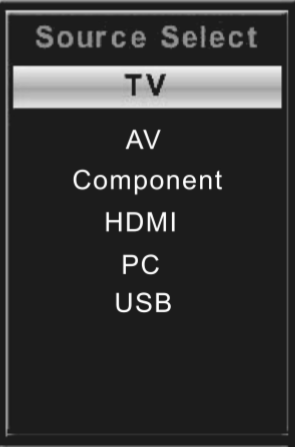
- Use the TV remote’s “Input” or “Source” button.
- Cycle through the options (HDMI 1, HDMI 2, USB, AV, etc.) Until you find the one where your device is connected.
- If you’re unsure, unplug all devices except the one you want to use, then try each input.
Many people forget to change the source, especially after switching from a set-top box to a USB drive. TVs don’t always switch automatically.
3. Check Device Power And Function
- Make sure the external device (like a streaming stick or set-top box) is powered on.
- If it has an indicator light, check if it’s lit up.
- Some devices use USB power from the TV; others need to be plugged into a wall outlet.
If your device is not turning on, try another power outlet or adapter. For battery-powered devices, check or replace batteries.
4. Test The Device On Another Tv Or Computer
- Connect your device (USB drive, streaming stick, etc.) To another TV or a computer.
- If it works there, the problem may be with your TV or its ports.
- If it doesn’t work elsewhere, the device itself may be the issue.
This step helps you figure out if the TV or the device is at fault.
5. Check Usb Drive Or External Storage Compatibility
- TVs usually support USB drives formatted as FAT32 or exFAT.
- Drives larger than 32GB sometimes use NTFS, which many TVs do not support.
- Some TVs have a maximum supported storage size (like 2TB).
Solution: If your USB drive isn’t recognized, reformat it on a computer to FAT32 or exFAT. Warning: This will erase all data, so back up important files first.
How To Format A Usb Drive (windows Example)
- Insert the USB drive into your computer.
- Open “This PC” or “My Computer.”
- Right-click the USB drive and select “Format.”
- Choose FAT32 or exFAT as the file system.
- Click “Start.”
6. Check File Types And Folders
- TVs often only support certain file types (e.g., MP4, AVI, MKV for video; JPEG, PNG for images).
- Files must be placed in the root directory (not inside many folders).
If your TV cannot play a file, try converting it to a supported format using a free converter tool.
7. Update Tv Software Or Firmware
- Go to your TV’s settings menu.
- Look for “Software Update” or “Firmware Update.”
- If an update is available, install it.
Many TV brands release updates to improve device compatibility. A simple update can solve hidden issues.
8. Try A Different Port
- If your TV has multiple USB or HDMI ports, try plugging your device into another port.
- Sometimes, only one port supports media playback, or a port may be broken.
9. Use A Powered Usb Hub (advanced Tip)
Some large external drives need more power than a TV’s USB port provides. A powered USB hub (one with its own power supply) can solve this. Connect your drive to the hub, then the hub to the TV.
10. Reset Tv To Factory Settings
If none of the above works, try resetting your TV:
- Find “Factory Reset” or “Reset TV” in the settings.
- Follow the prompts.
- This will erase all settings, so only do this as a last resort.
Device-specific Troubleshooting
Different devices connect to TVs in different ways. Here’s how to fix “No Media Device” problems for some common devices.
Usb Drives And External Hard Drives
- Make sure the drive uses FAT32 or exFAT.
- Avoid using drives larger than your TV can support (check your TV’s manual).
- Try a smaller-capacity USB stick as a test.
- Some TVs require you to safely remove the drive each time.
Streaming Sticks (roku, Fire Tv, Chromecast)
- Use the included power adapter, not just the TV’s USB port.
- Make sure the HDMI connection is firm.
- Restart both the stick and the TV.
- Check for device updates via their app or settings.
Set-top Boxes And Game Consoles
- Use the HDMI cable that came with the device.
- Make sure the box or console is powered on.
- Check TV input source.
- If you see a “No Signal” message instead, it may be a different issue.
Dvd/blu-ray Players
- Use the correct input (HDMI or AV).
- Make sure the disc is inserted properly.
- Try a different HDMI or AV cable.
Smart Tvs
- Some smart TVs have built-in apps for media playback. Make sure you’re using the correct app (like “Media Player”).
- Check for app or firmware updates.
Comparison Of Tv Port Types
Choosing the right port can affect whether your TV recognizes your device. Here’s a quick look at common TV ports and what they’re used for:
| Port Type | Main Use | Common Issues |
|---|---|---|
| HDMI | Streaming sticks, consoles, set-top boxes, Blu-ray players | Loose cable, wrong input, cable damage |
| USB | Flash drives, external hard drives, some streaming sticks | Unsupported file system, low power, large drive issues |
| AV (Composite/Component) | Older DVD players, VCRs, retro game consoles | Cable order, poor connection, outdated standards |
| Optical/Audio | Soundbars, audio receivers | Audio only, not for video/media devices |
Common Mistakes People Make
Even experienced users can overlook simple mistakes. Here are some to watch for:
- Plugging into the wrong port: Many TVs have multiple HDMI or USB ports. Double-check which one you’re using.
- Not switching input sources: The TV won’t switch automatically in most cases.
- Ignoring power needs: Some devices need more power than a TV’s USB port can provide.
- Using unsupported file types or formats: TVs can be picky about what files they read.
- Not updating software: Old software can block new devices.
- Skipping the user manual: Most TVs and devices have online manuals with troubleshooting steps.
What To Do If Nothing Works
Sometimes, after trying everything, your TV still says “No Media Device.” Here are steps to take next:
- Check Warranty and Support
- If your TV or device is under warranty, contact the manufacturer or seller.
- Use official support channels for your brand.
- Try Professional Help
- Local electronics repair shops can diagnose hardware issues.
- If a port is broken, a professional might be able to fix it.
- Test With Other Devices
- Try connecting different devices (USB stick, another streaming stick, etc.) To your TV.
- If none work, the TV might have a hardware fault.
- Consider a Media Player
- If your TV’s USB or HDMI ports are unreliable, an external media player (like a Roku, Fire TV, or Apple TV) can bypass these issues.
Preventing “no Media Device” Problems In The Future
You can avoid many common problems by following a few habits:
- Always safely remove USB drives from your TV before unplugging.
- Keep your TV’s software updated for better compatibility.
- Use high-quality cables and avoid cheap, unbranded options.
- Check your device’s compatibility with your TV before buying.
- Label your cables and ports if you have multiple devices to avoid confusion.
- Read your TV’s manual for specific supported formats and devices.
Real-world Examples: Troubleshooting In Action
Sometimes, the solution is not obvious. Here are two real-world scenarios:
Example 1: Usb Drive Not Working
Maria plugged her 64GB USB stick into her Samsung TV, hoping to watch videos. The TV said “No Media Device. ” She checked the manual and saw that her TV only supports FAT32 drives up to 32GB. She reformatted her USB stick as FAT32 and moved the videos to the root folder.
The TV recognized it, and her videos played.
Insight: Always check your TV’s supported formats and storage sizes.
Example 2: Streaming Stick Not Detected
John bought a Fire TV Stick and plugged it into his TV’s HDMI port. He powered the stick using the TV’s USB port. The TV displayed “No Media Device. ” After reading online, he learned that some USB ports don’t provide enough power for streaming sticks.
He used the included power adapter plugged into the wall, and the TV detected the device immediately.
Insight: Devices with high power needs should use a dedicated power adapter.
Data: Most Common Devices That Cause “no Media Device” Errors
Here’s a summary of devices most likely to trigger this error, based on user reports:
| Device Type | Common Error Cause | Fix Success Rate |
|---|---|---|
| USB Drives | Wrong format, large size, unsupported files | 85% |
| Streaming Sticks | Low power, wrong input, faulty HDMI | 90% |
| Set-Top Boxes | Power off, cable issues | 80% |
| External Hard Drives | Insufficient power, large size, unsupported format | 75% |
| DVD/Blu-ray Players | Cable connection, input selection | 80% |
Note: “Fix Success Rate” means how often the problem was solved by following basic troubleshooting steps.

Credit: www.youtube.com
Advanced Tips For Persistent Issues
If standard solutions don’t work, these advanced tips can help:
- Try a smaller USB drive: Some TVs can’t handle large capacities (over 32GB or 64GB).
- Convert videos to a universal format: Use MP4 for videos and JPEG for images, as these are the most widely supported.
- Use a different power source: For devices that use USB power, a wall adapter is usually more reliable than the TV’s USB port.
- Update device firmware: Not just your TV, but also the firmware of your streaming stick or set-top box.
- Disable power-saving features: Some TVs turn off USB ports when they enter sleep mode. Check your TV’s power settings.
- Try a different HDMI port: Sometimes one HDMI port is defective or reserved for a specific function (like ARC).
How Tv Brands Handle “no Media Device” Errors
Different brands have unique features and support. Here’s a quick comparison:
| Brand | Common Fixes | Special Notes |
|---|---|---|
| Samsung | Update firmware, format USB as FAT32/exFAT | Some models only support up to 32GB USB drives |
| LG | Use Media Player app, check input source | Older models may not support NTFS drives |
| Sony | Update software, use correct folder structure | Some models require “Video” or “Photo” folders |
| TCL | Check input, use powered USB hub for large drives | Roku models use specific media apps |
| Vizio | Check supported formats, update firmware | Some models limited to 2TB drives |
If you’re unsure, always check your TV brand’s official support page or manual.
When To Replace Cables Or Devices
Sometimes, a cable or device is simply broken or too old for your TV. Signs you need a replacement:
- Visible damage to cables (frayed, bent, or loose ends)
- Device not detected on any TV or computer
- Intermittent connection (works, then disconnects)
- Device heats up unusually or makes noise
Invest in good-quality cables from known brands. Cheap cables often cause problems.
Additional Resources
For more detailed support, you can visit the manufacturer’s official support sites or trusted tech guides. For example, the Sony official troubleshooting guide offers step-by-step help for common problems.
Frequently Asked Questions
Why Does My Tv Say “no Media Device” When I Plug In My Usb Drive?
This usually means your TV cannot read the format or file system of the USB drive. Make sure the drive is formatted as FAT32 or exFAT, and that the files are in supported formats (like MP4 for videos, JPEG for pictures).
Try using a different USB port or a smaller capacity drive.
Can I Fix “no Media Device” On My Tv Without Professional Help?
Yes, in most cases you can fix this yourself. Check your cables, select the correct input, format your USB drive properly, and update your TV’s software. If those steps don’t work, test the device on another TV or computer to find out if the issue is with the device or the TV.
Why Won’t My Tv Recognize My Streaming Stick Or Set-top Box?
This can happen if the streaming stick isn’t getting enough power, if the HDMI cable is faulty, or if the TV is set to the wrong input. Use the included power adapter for the streaming device, check the HDMI connection, and cycle through the TV’s input sources to find the right one.
Does The Size Of My Usb Drive Matter For My Tv?
Yes, many TVs have a maximum supported USB drive size (often 32GB or 2TB, depending on the model). Drives that are too large or formatted with NTFS may not be recognized. Use a smaller drive and format it as FAT32 or exFAT for best results.
What Should I Do If My Tv Still Says “no Media Device” After Trying Everything?
If you have tried all basic troubleshooting steps—checking cables, input sources, device compatibility, and formatting—and your TV still doesn’t detect the device, contact the manufacturer’s support or a local repair service. There may be a hardware issue with your TV’s ports or internal circuits.
Getting the “No Media Device” message on your TV can seem like a big problem, but it’s usually simple to fix. By checking connections, using the right formats, and understanding your TV’s settings, you can quickly get back to enjoying your media.
Remember, most issues can be solved with a few careful steps. If you run into trouble, don’t hesitate to use official support channels or ask for professional help. With these tips, you’ll be ready to handle the “No Media Device” message confidently every time.