
Is your Xbox 360 controller not syncing with your console? It’s frustrating when you just want to jump into your favorite game, but your controller won’t connect.
You might see blinking lights or no response at all, and that can bring your gaming session to a sudden halt. Don’t worry—this problem is common, and there are simple steps you can take to fix it quickly. You’ll learn exactly what causes syncing issues and how to get your controller back online, so you can get back to playing without the headache.
Keep reading to discover easy, effective solutions that really work.

Check Battery And Power
Checking the battery and power of your Xbox 360 controller is a simple first step to fix syncing issues. A low or dead battery can stop the controller from connecting to the console. Power problems often cause the controller to blink or fail to sync. Confirm your controller has enough power before trying other fixes. This check saves time and can quickly restore your gaming experience.
Replace Or Recharge Batteries
Remove the old batteries from the controller. Use fresh AA batteries for best results. If you use a rechargeable battery pack, charge it fully before testing. Low power can cause syncing problems even if the controller turns on. Always keep spare batteries or a charged pack nearby to avoid interruptions.
Test With New Battery Pack
Try a different battery pack if you have one. A faulty battery pack can stop syncing. Swap your current pack with a new or known working one. This step isolates the issue to power supply or controller hardware. Using a new battery pack often fixes the problem quickly and easily.
Reset The Controller
Resetting the Xbox 360 controller can resolve syncing issues quickly. It clears minor glitches and resets the connection process. This method is simple and effective for restoring proper communication between your controller and console. Follow these steps carefully to reset your controller and improve syncing.
Power Off And Remove Batteries
First, turn off the controller by pressing and holding the Xbox button. Wait until all lights go off completely. Open the battery compartment on the back of the controller. Remove the batteries carefully and set them aside. This step ensures no power is left in the controller during the reset.
Wait And Restart Controller
Leave the controller without batteries for about two minutes. This pause helps clear any temporary issues inside the device. After waiting, insert fresh or fully charged batteries back into the controller. Press the Xbox button to power it on and try syncing with your console again.
Use Sync Button
Using the sync button is a simple way to connect your Xbox 360 controller to the console. This method helps fix syncing problems quickly. Follow these steps to get your controller working again.
Locate Console Sync Button
First, find the sync button on your Xbox 360 console. On older models, it is near the memory card slots. On newer Slim or E models, look near the USB ports. The button is small and round.
Press Controller Sync Button
Turn on your controller by pressing the Xbox guide button. Then, press and hold the sync button on the controller. This button is located near the LB button on the front edge. Hold it until the controller light starts flashing.
Watch For Flashing Lights
After pressing both sync buttons, watch the lights on your console and controller. The lights will flash in a circle while connecting. When syncing is complete, the lights will stay solid. This means your controller is now connected.
Connect Via Usb Cable
Connecting your Xbox 360 controller via USB cable offers a quick way to fix syncing problems. This method bypasses wireless issues and links the controller directly to the console. It also charges the controller while playing. Follow these steps to ensure a smooth connection.
Choose Genuine Or Data-capable Cable
Use a genuine Xbox 360 USB cable or a data-capable cable. Some third-party cables only provide power and do not transfer data. These cables cause the controller to blink and fail to sync. A proper cable ensures both charging and data transfer. This step helps avoid frustration and saves time.
Plug Into Console And Controller
First, connect one end of the USB cable to the Xbox 360 console. Then, plug the other end into the controller’s charging port. The controller should power on automatically. Watch for a solid light on the controller, indicating a successful connection. If the light keeps blinking, try another cable or USB port on the console.
Power Cycle The Console
Power cycling the console can fix many syncing problems with the Xbox 360 controller. This simple process resets the hardware and clears temporary glitches. It ensures the console starts fresh and can recognize the controller properly. Follow these easy steps to power cycle your Xbox 360.
Hold Xbox Button To Turn Off
Press and hold the Xbox button on the console for about 10 seconds. The console will power down completely. Do not just use the controller to turn it off. This step fully shuts down the system, which helps fix connection issues.
Unplug And Wait
Unplug the power cable from the back of the console. Leave it unplugged for at least 30 seconds. This allows the internal components to reset fully. Waiting is important because it clears any lingering power or memory errors.
Restart Console
Plug the power cable back into the console. Press the Xbox button on the console to turn it on. Give the system a moment to boot up completely. Try syncing your controller again after the restart. This often solves syncing problems quickly.
Check For Wireless Interference
Wireless interference can disrupt your Xbox 360 controller’s connection. Signals from other devices may block the controller’s sync process. Checking for interference helps restore smooth gameplay. Simple steps can reduce or remove these signal disruptions.
Remove Nearby Electronic Devices
Move any electronic devices away from your Xbox and controller. Devices like routers, cordless phones, and microwaves can cause interference. Even small gadgets can affect wireless signals. Keeping them at a distance improves controller connectivity. Turn off unnecessary electronics near your gaming area.
Test In Different Location
Try using your Xbox 360 and controller in another room. Different locations have different levels of wireless interference. A new spot may have fewer devices blocking the signal. This test helps find a clearer area for gaming. Changing location can quickly solve syncing problems.
Update Controller Firmware
Updating the controller firmware can fix syncing problems with your Xbox 360 controller. Firmware controls how your controller communicates with the console. Outdated firmware may cause connection issues. Updating ensures your controller runs smoothly and pairs properly. The process is simple and takes only a few minutes.
Connect Controller Via Usb
Start by connecting your Xbox 360 controller to the console or PC using a USB cable. This direct connection helps transfer the firmware update safely. Use a genuine USB cable to avoid interruptions. Once connected, the controller should power on automatically. This step is necessary before starting the update.
Use Xbox Accessories App
Open the Xbox Accessories app on your console or Windows 10/11 PC. The app detects your connected controller instantly. Look for a message prompting a firmware update. Follow the on-screen instructions to download and install the latest firmware. Keep the controller connected during the entire update. Do not disconnect or turn off your device until the update finishes.
Inspect Hardware Issues
Hardware issues often cause Xbox 360 controllers to fail syncing. Checking the physical parts can reveal simple problems. Start with the controller itself and its connection points. This step saves time and avoids unnecessary repairs.
Examine Controller Buttons And Ports
Look closely at all buttons on your controller. Press each button to see if any stick or fail to respond. Dirt or damage can block signals and stop syncing. Next, check the controller’s ports for dust or debris. Clean gently with a soft brush or cloth. Damaged ports may need professional attention.
Test With Another Controller
Try syncing a different Xbox 360 controller to your console. This test helps find if the problem lies with the controller or console. If the second controller syncs fine, your first controller likely has hardware issues. If neither controller syncs, the console may need checking.
Consider Repair Or Replacement
If hardware faults appear, decide on repair or replacement. Small fixes like cleaning or button adjustment can work. Severe damage may require buying a new controller. Check warranty status before spending on repairs. Choose quality parts to ensure better performance and durability.
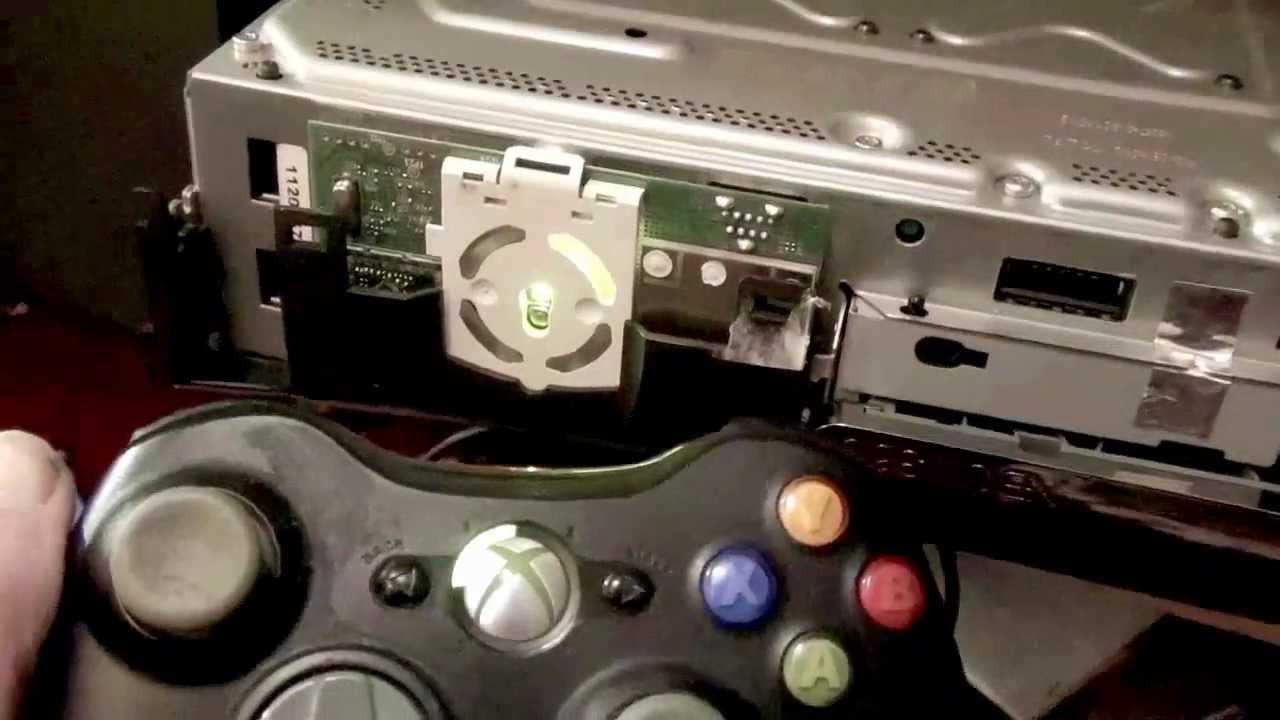
Credit: www.youtube.com
Frequently Asked Questions
How Do I Resync My Xbox 360 Controller?
Turn on your Xbox 360 console. Press the console’s sync button. Then press and hold the controller’s sync button until lights flash. The controller will resync automatically.
Why Is My Xbox Controller Just Flashing And Not Connecting?
Your Xbox controller flashes because it can’t sync with the console. Try resetting it, replacing batteries, or using a genuine USB cable to reconnect.
How Do I Reset A 360 Controller?
To reset a 360 controller, hold the Xbox button until it turns off. Remove the batteries for a minute, then reinsert them. Turn the controller back on and press the sync button to reconnect.
Why Is My Wired Xbox 360 Controller Flashing And Not Connecting?
Your wired Xbox 360 controller flashes and won’t connect due to a syncing issue or faulty cable. Try reconnecting, using a different USB port, or replacing the cable. Ensure the controller is fully plugged in. If flashing persists, the controller or console port may be damaged.
Why Is My Xbox 360 Controller Not Syncing Wirelessly?
Wireless syncing may fail due to low batteries or interference. Replace batteries and move closer to the console for a better signal.
Conclusion
Xbox 360 controller syncing issues can be frustrating but fixable. Try syncing carefully and check the batteries first. Using a genuine charging cable often helps. Restarting your console and controller can refresh connections. If problems persist, hardware might need repair or replacement.
Keep these steps handy for quick troubleshooting. Enjoy smoother gaming with a properly synced controller. Don’t let syncing troubles stop your fun. Stay patient and follow simple fixes for best results.