
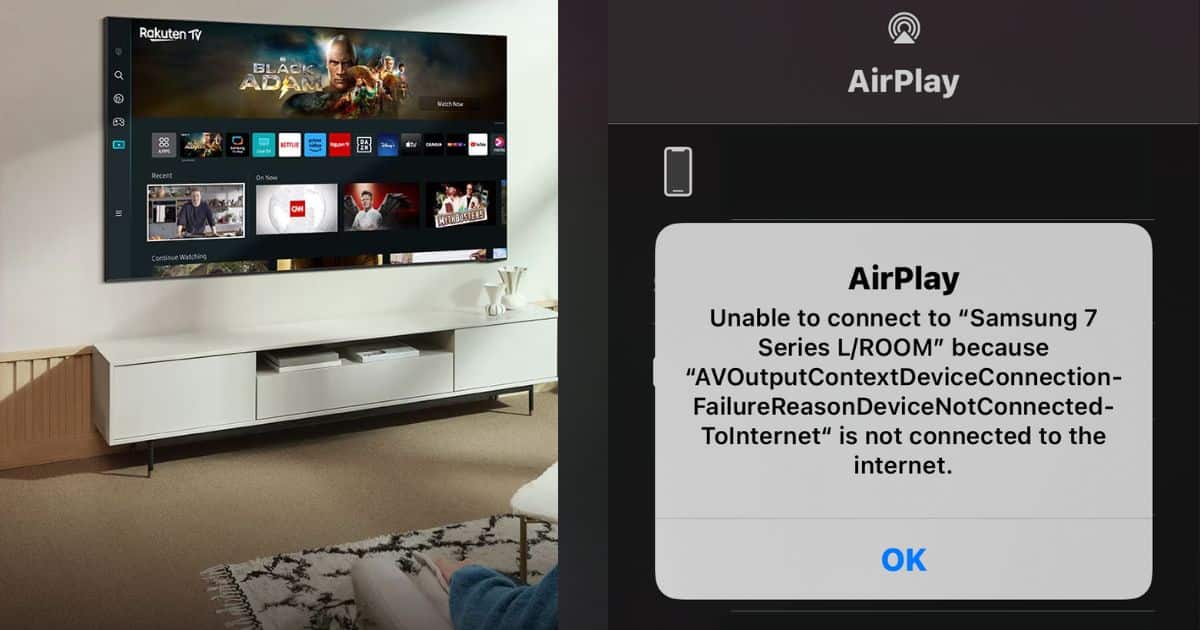
AirPlay has changed the way people share content from their Apple devices to other screens, especially smart TVs. For many Samsung TV owners, the dream is simple: watch videos, share photos, or listen to music from an iPhone, iPad, or Mac with just a tap. But sometimes, this magic fails. AirPlay doesn’t work, no matter how many times you try. If you’ve found yourself frustrated, staring at a blank screen, or seeing endless loading circles, you’re not alone. This guide will walk you through why AirPlay is not working on Samsung TV, what you can do about it, and how to prevent future issues.
What Is Airplay And How Does It Work On Samsung Tvs?
AirPlay is a wireless technology developed by Apple. It allows you to stream or mirror content from your Apple device to another compatible device, like a TV or speaker, without using cables. On supported Samsung TVs (generally models from 2018 and newer), you can use AirPlay to play videos, music, show photos, or even mirror your device’s screen.
For AirPlay to work, your Apple device and Samsung TV must be on the same Wi-Fi network. When you select AirPlay on your iPhone or Mac, your TV should appear as an option. You can then stream content directly.
However, even with the right devices, problems can happen. Sometimes your TV does not show up, or content won’t play. The reasons can be technical, network-related, or simple misconfigurations.
Common Reasons Why Airplay Is Not Working On Samsung Tvs
AirPlay issues can happen for many reasons. Understanding the most frequent causes will help you fix the problem faster.
- Device Compatibility: Not all Samsung TVs support AirPlay. Only models from 2018 onwards include this feature.
- Outdated Software: Both your Samsung TV and Apple device need up-to-date software. Old firmware can break AirPlay.
- Wi-Fi Network Issues: If your devices are on different Wi-Fi networks, AirPlay will not work.
- Network Firewalls or Restrictions: Some routers block the ports AirPlay uses.
- Disabled AirPlay Settings: AirPlay can be turned off on your Samsung TV’s settings.
- Wrong Input Source: If your TV is not on the correct input or app, AirPlay cannot connect.
- Device Glitches: Random bugs in your phone, tablet, or TV can interrupt AirPlay.
- Bluetooth Interference: Sometimes, Bluetooth can interfere with Wi-Fi signals.
- Insufficient Bandwidth: Crowded networks or slow internet can cause streaming problems.
- Temporary Service Outages: Rarely, Apple or Samsung services might be down.
Many users overlook these basics and jump straight to complicated solutions. Most AirPlay problems can be fixed by focusing on these core areas.
How To Check If Your Samsung Tv Supports Airplay
Not every Samsung TV is ready for AirPlay. Here’s how you can check:
- Model Year: Most models from 2018 or newer support AirPlay 2. You can find your model year by checking your TV’s manual or the back panel.
- Settings Menu: On your TV, go to Settings > General > Apple AirPlay Settings. If you see this menu, your TV supports AirPlay.
- Samsung’s Official Website: Look up your TV’s model number for AirPlay compatibility.
If your TV doesn’t support AirPlay, you’ll need an external device like an Apple TV.
How To Fix Airplay Not Working On Samsung Tv
Now, let’s dive into practical steps to get AirPlay working again. Move through these steps in order. Often, you’ll solve the problem before reaching the end.
1. Restart Your Devices
A simple restart can solve many issues.
- Turn off your Samsung TV and unplug it for 1-2 minutes.
- Restart your Apple device.
- Plug the TV back in and turn it on.
This clears temporary glitches that could block AirPlay.
2. Make Sure Both Devices Are On The Same Wi-fi Network
AirPlay only works if both your Apple device and TV are on the same local network.
- On your iPhone/iPad: Open Settings > Wi-Fi and check the connected network.
- On Samsung TV: Go to Settings > General > Network > Network Status.
If they’re on different networks (like “Home” vs “Guest”), AirPlay won’t connect. Switch one device to match the other.
3. Update Your Samsung Tv Software
Outdated firmware can cause AirPlay to malfunction.
- On your TV, go to Settings > Support > Software Update > Update Now.
- Let the TV download and install any updates.
Updates often fix bugs and improve compatibility with Apple devices.
4. Update Your Apple Device
Apple often fixes AirPlay bugs in iOS, iPadOS, or macOS updates.
- On iPhone/iPad: Settings > General > Software Update.
- On Mac: Apple Menu > System Preferences > Software Update.
Install any available updates.
5. Enable Airplay On Your Samsung Tv
Check if AirPlay is actually enabled.
- Go to Settings > General > Apple AirPlay Settings.
- Make sure AirPlay is On.
- You can also set Require Code to First Time Only for easier access.
If AirPlay is off, your TV will not appear on your device.
6. Check For Network Restrictions
Some routers have security settings that block AirPlay.
- Log in to your router settings (usually via a web browser).
- Look for options like AP Isolation or Guest Network; these should be off.
- Make sure ports 7000, 7100, 6000, and 6010 are open (AirPlay uses these).
If you’re on a work or school network, restrictions might be in place that you cannot change.
7. Reset Network Settings
Corrupted network settings can block AirPlay.
- On your iPhone/iPad: Settings > General > Transfer or Reset iPhone > Reset > Reset Network Settings.
- On your Samsung TV: Settings > General > Network > Reset Network.
You’ll need to reconnect to Wi-Fi after this step.
8. Re-login To Your Apple Id
Sometimes, a glitch with your Apple ID can cause AirPlay to fail.
- Sign out of your Apple ID on your device, restart, and sign back in.
This is rarely needed, but can fix stubborn issues.
9. Turn Off Bluetooth (if Not Needed)
Bluetooth can sometimes interfere with Wi-Fi.
- On your Apple device, turn off Bluetooth if you’re not using it for audio.
10. Reduce Network Traffic
If many devices are streaming or downloading at the same time, AirPlay performance can drop.
- Pause large downloads or streaming on other devices.
- Move your TV and Apple device closer to the router if possible.
11. Factory Reset Your Samsung Tv (last Resort)
If nothing else works, a factory reset can fix deep software glitches.
- Go to Settings > General > Reset.
- Enter your PIN (default is 0000).
- The TV will restart and revert to original settings.
You’ll need to set up your TV again, including Wi-Fi and apps.
Advanced Troubleshooting For Persistent Airplay Issues
If AirPlay still does not work after basic steps, try these advanced solutions.
Check For Interference
Microwave ovens, cordless phones, and other electronics can disrupt Wi-Fi. Try moving your TV and router away from such devices.
Assign Static Ip Addresses
Sometimes, dynamic IP addresses cause communication issues.
- In your router’s settings, assign a static IP to your Samsung TV and Apple device.
- This keeps their network addresses consistent.
Use 2.4 Ghz Or 5 Ghz Bands Wisely
Some routers broadcast both 2. 4 GHz and 5 GHz Wi-Fi.
- For best results, connect both TV and Apple device to the same band.
- 5 GHz is faster but has less range; 2.4 GHz covers a larger area.
Test With Another Apple Device
Try using AirPlay from a different iPhone, iPad, or Mac. If it works, the original device may have a deeper problem.
Use A Wired Connection
If possible, connect your Samsung TV to your router with an Ethernet cable. This provides a more stable connection.
Contact Support
If all else fails, you may need to contact Samsung Support or Apple Support. There could be a hardware problem or a bug that requires professional help.
Real-world Example: Airplay Fix In Action
Let’s look at a typical scenario. Jane has a 2021 Samsung TV and an iPhone 13. AirPlay worked perfectly until last week. Now, the TV won’t show up as an option.
Jane tries these steps:
- Restarts both devices—no luck.
- Checks Wi-Fi. Her iPhone is on “Home-5G,” but the TV is on “Home-2G.” She switches the TV to “Home-5G.”
- AirPlay now shows up, but the video stutters.
- Jane pauses a big download on her laptop. The video plays smoothly.
This example shows how small network differences or bandwidth issues can block AirPlay.
Hidden Airplay Settings You Might Miss
Some AirPlay settings are easy to overlook.
- Require Code: If this is set to “Every Time,” you’ll be asked for a code on your TV each time you AirPlay. This can be confusing if you miss the code prompt.
- Subtitles and Captioning: AirPlay can send subtitles, but you must enable them in the video app.
- Allow Access: In the AirPlay settings, check who can use AirPlay on your TV. If set to “No One” or “Only People on the Same Network,” guests may be blocked.
Make sure you review these options if AirPlay is not behaving as expected.
When Airplay Works, But No Sound Or Picture
Sometimes, AirPlay connects, but you see no video or hear no audio. Here’s how to fix this:
- Check TV Volume: It seems obvious, but sometimes the TV is muted or at low volume.
- Audio Output: Go to Settings > Sound > Sound Output and make sure it’s set to “TV Speaker” or your preferred option.
- App Restrictions: Some video apps don’t allow AirPlay due to copyright restrictions.
- HDMI-CEC Conflicts: If another device (like a soundbar) is connected via HDMI-CEC, it can sometimes take over audio output. Try disconnecting or disabling HDMI-CEC.
Comparing Samsung Tv Airplay Support By Year
Here’s a quick overview of which Samsung TV years support AirPlay:
| Model Year | AirPlay Support | Notes |
|---|---|---|
| 2017 and earlier | No | Requires Apple TV device |
| 2018 | Yes | Firmware update may be required |
| 2019 | Yes | Native AirPlay 2 support |
| 2020-2023 | Yes | Full support, regular updates |
This helps you quickly see if your model is compatible.
Comparing Airplay Vs. Other Streaming Methods On Samsung Tv
Many users want to know if AirPlay is the best way to stream. Here’s a comparison.
| Feature | AirPlay | Smart View (Samsung) | HDMI Cable |
|---|---|---|---|
| Wireless | Yes | Yes | No |
| Works with iOS/macOS | Yes | Limited | Yes |
| Quality (Video/Audio) | High | Medium | Very High |
| Setup Difficulty | Easy | Medium | Medium |
| Latency | Low | Medium | Lowest |
AirPlay is the most convenient for Apple users, but wired connections still offer the lowest latency and best quality.
Key Insights Most Users Miss
Many beginners try to fix AirPlay by restarting devices repeatedly, but miss the importance of network band selection (2.4 GHz vs 5 GHz). AirPlay can be sensitive to which band your devices use. Connecting both your TV and Apple device to the same band often solves mystery connection failures.
Another overlooked factor is router-level security settings. Features like client isolation or firewalls can silently block AirPlay traffic, even if both devices seem to be on the same network. Always double-check your router’s advanced settings if all else fails.
Preventing Future Airplay Problems
Once you fix AirPlay, you want it to stay fixed. Here’s how:
- Keep Software Updated: Set your TV and Apple devices to auto-update if possible.
- Use a Strong Wi-Fi Password: Prevents unauthorized connections that can slow your network.
- Limit Network Devices: Too many devices slow down streaming.
- Regularly Power Cycle: Restart your TV and router occasionally to clear memory issues.
- Label Your Networks: Use clear names for your Wi-Fi bands so you always connect to the right one.

When To Consider Alternatives To Airplay
If you keep having problems, AirPlay may not be the best option for your setup.
- Apple TV Device: This external box offers the most reliable Apple streaming experience.
- HDMI Cable: Directly connect your laptop or iPad (with adapter) for a wired connection.
- Streaming Apps: Many streaming services have native apps for Samsung TVs.
Each method has pros and cons, but if AirPlay is unreliable in your home, alternatives may save you time.
Trusted Resources For Further Help
If you need more help, Samsung has an official support page and Apple offers detailed troubleshooting. For network-level guidance, check your router manufacturer’s site or consult an expert. For the latest compatibility lists and AirPlay updates, visit the official Apple AirPlay page.
Frequently Asked Questions
Why Does My Samsung Tv Not Show Up As An Airplay Option?
Most likely, your TV and Apple device are not on the same Wi-Fi network, or AirPlay is disabled on your TV. Check both network connections and ensure AirPlay is turned on in your TV’s settings.
Can I Use Airplay On A 2017 Or Older Samsung Tv?
No, you cannot use AirPlay directly on Samsung TVs made before 2018. You will need an external device like an Apple TV to add AirPlay functionality.
Why Is There Sound But No Picture When Using Airplay?
This can happen if the app you’re using does not support AirPlay video, or if there’s a problem with your TV’s video settings. Try a different app, check your TV’s video settings, or restart both devices.
How Do I Make Airplay More Stable On My Samsung Tv?
Use a strong, stable Wi-Fi connection. Connect both devices to the same Wi-Fi band (preferably 5 GHz), reduce other network activity, and keep your TV and Apple device’s software updated.
Does Airplay Use A Lot Of Internet Data?
AirPlay streams over your local Wi-Fi network. It does not use your internet data unless you’re streaming online content (like YouTube or Netflix). Local videos, photos, or music use almost no internet bandwidth.
Final Thoughts
AirPlay is a powerful tool that makes sharing content easy—when it works. For Samsung TV owners, the key to solving most AirPlay problems is understanding the basics: device compatibility, Wi-Fi setup, software updates, and a few hidden settings. With the steps and tips above, you can get AirPlay running smoothly and avoid future headaches. Don’t forget to keep your devices updated and your network organized. And if you ever hit a wall, there are always trusted resources and alternatives to keep your content flowing.