
If you own a Blink camera, you expect it to work quietly in the background, keeping your home safe. But what happens when you see a flashing red light? Many people feel anxious or confused when their Blink camera flashes red. Is it a warning? Is something broken? Or could it be a simple error? This guide will help you understand exactly what the Blink camera flashing red means, why it happens, and how to fix it. You’ll get practical solutions for every situation, easy steps to follow, and answers to the questions most people have. No more guessing – you’ll know what’s going on and what to do next.
Understanding The Blink Camera Flashing Red
A red light on your Blink camera is not just a random signal. It has a purpose. Most Blink cameras use LEDs to tell you about their status. The flashing red light is one of the main ways the camera communicates with you. Sometimes, it’s a sign of an error. Other times, it’s normal behavior.
Common Reasons For The Red Light
There are a few main reasons why your Blink camera might flash red:
- Low battery
- Wi-Fi connection issues
- Camera setup mode
- Motion detection activation
- Firmware update
- Server communication problem
- Hardware malfunction
- Sync module problem
Each of these causes has its own solution. Knowing which one applies to your situation is the key to fixing the problem.
Types Of Blink Cameras And Their Indicators
Different Blink models have different LED patterns. Here’s a comparison:
| Camera Model | Red Light Meaning | Other Indicators |
|---|---|---|
| Blink Indoor/Outdoor | Setup, battery, Wi-Fi | Blue for recording |
| Blink Mini | Setup, Wi-Fi | Green for power |
| Blink XT2 | Battery, Wi-Fi | Blue for motion |
The Blink Mini and Blink Outdoor are the most common models. While they share similar LED signals, the meanings can be slightly different. Always check your camera manual for exact details.
What Does The Flashing Red Light Mean?
The red light on a Blink camera is not always bad news. Let’s look at the most frequent meanings:
Camera Is In Setup Mode
When you first install or reset your Blink camera, the red light flashes to show it’s ready for setup. This is normal and expected.
- The camera waits for you to connect it to Wi-Fi.
- The flashing stops once setup is complete.
Wi-fi Connection Problems
If your camera loses its Wi-Fi connection, it will flash red. This helps you see there’s a problem.
- The camera cannot record or send alerts without Wi-Fi.
- The light may flash continuously or blink in a pattern.
Low Battery Warning
Blink cameras are battery-powered. When the batteries run low, the red light warns you.
- You may also see a message in the Blink app.
- Replace batteries as soon as possible.
Motion Detection Activation
Some Blink models briefly flash red when they detect motion. This is a sign the camera is working.
- The light flashes once or twice.
- Not all models do this.
Firmware Update
During a firmware update, the red light might flash. Updates help keep your camera secure and working well.
- Do not turn off or reset the camera during an update.
- The light should stop after a few minutes.
Server Communication Problem
If the camera cannot reach Blink’s servers, it may flash red.
- This can happen during internet outages.
- Wait for the connection to restore.
Hardware Malfunction
Rarely, the red light means a hardware issue.
- If the light won’t stop flashing after troubleshooting, the camera may need repair.
- Contact Blink support.
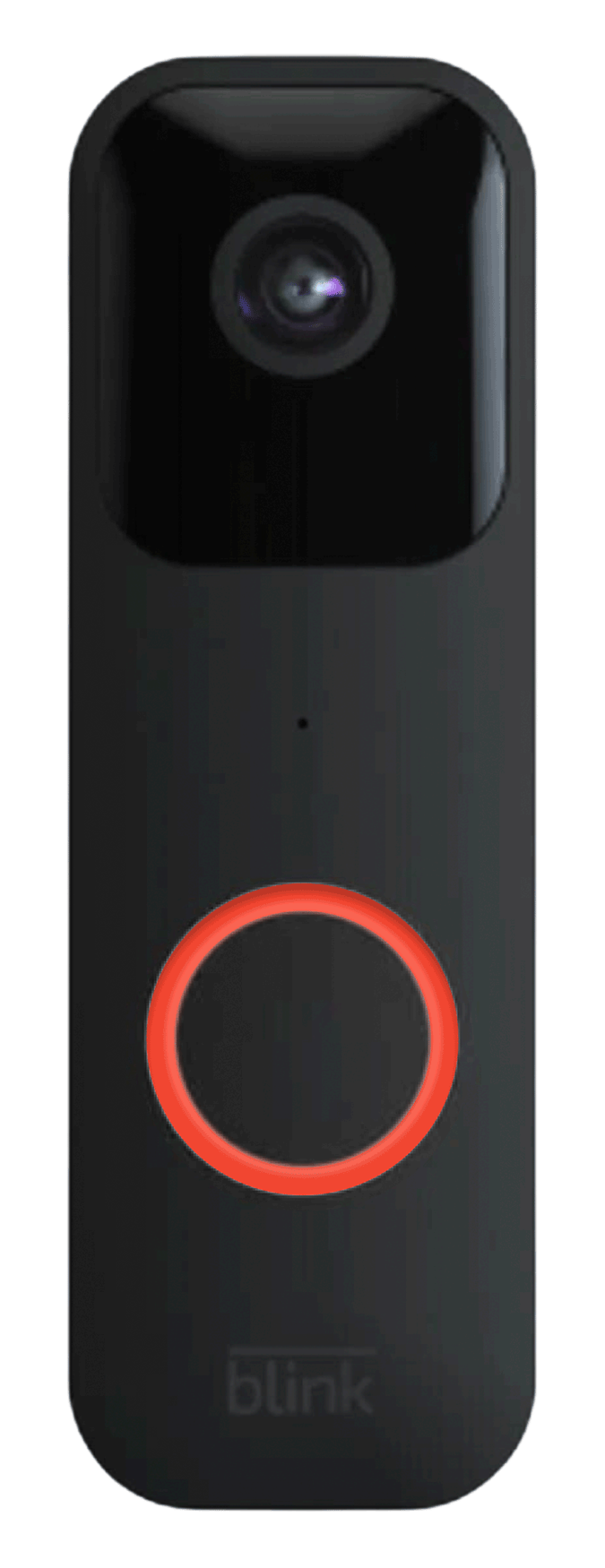
Credit: support.blinkforhome.com
Troubleshooting The Blink Camera Flashing Red
When you see a flashing red light, your first step is to identify the cause. Here’s a practical approach:
Step 1: Check The Camera Status In The App
Open the Blink app and look for alerts:
- Battery status
- Wi-Fi strength
- Error messages
The app often gives clues about what’s wrong.
Step 2: Inspect The Camera Placement
Where your camera is placed affects its performance.
- If it’s far from your Wi-Fi router, it may lose connection.
- Thick walls or metal objects can block the signal.
Step 3: Test The Wi-fi Connection
Try these actions:
- Move the camera closer to the router.
- Restart your router.
- Connect your phone to Wi-Fi and see if the signal is weak.
If Wi-Fi is the issue, improving the signal usually solves the problem.
Step 4: Replace The Batteries
Blink cameras use AA lithium batteries. If the red light is due to low power:
- Remove the old batteries.
- Insert fresh, high-quality lithium batteries.
- Check if the light stops flashing.
Don’t use alkaline or rechargeable batteries unless the manual says they’re allowed.
Step 5: Reset The Camera
If other steps fail, a reset can help.
- Find the reset button on your camera.
- Press and hold for 5–10 seconds.
- Set up the camera again in the Blink app.
Resetting is useful for setup errors or firmware issues.
Step 6: Update Firmware
Sometimes, old firmware causes problems.
- Check for updates in the Blink app.
- Let the camera update fully.
- Don’t unplug during updates.
Firmware updates fix bugs and add features.
Step 7: Check The Sync Module
Blink cameras need a sync module (except Blink Mini). If the sync module fails:
- Check its lights. Green means good, red means trouble.
- Restart the sync module.
- Re-add the camera if needed.
Step 8: Contact Support
If nothing works, reach out to Blink support.
- They can guide you or repair your camera.
- Use the serial number and app info for faster help.
Real-life Examples: Blink Camera Flashing Red
Let’s look at some common situations:
Example 1: New Camera Setup
Emily just bought a Blink Outdoor camera. After mounting it, she sees a flashing red light. She opens the app, starts setup, and connects to Wi-Fi. The red light stops. This is normal during first-time installation.
Example 2: Lost Wi-fi Connection
Carlos notices his camera flashing red after a storm. His internet is down. Once the router is back online, the camera reconnects and the flashing stops.
Example 3: Low Battery Alert
Jenna’s Blink XT2 starts flashing red. The app shows “Low Battery. ” She replaces the batteries, and the camera works normally again.
Example 4: Motion Detection
Ray’s Blink Mini flashes red once when he walks by. This is just motion detection working. No action is needed.
Example 5: Hardware Problem
Linda’s camera keeps flashing red, even after new batteries and reset. She contacts support, who confirm the camera needs repair.
Advanced Troubleshooting Tips
Sometimes, the basic steps are not enough. Here are deeper solutions:
Check For Interference
Other devices (microwaves, cordless phones) can cause Wi-Fi problems.
- Move the camera and router away from such devices.
- Use a 2.4 GHz Wi-Fi network, as Blink does not support 5 GHz.
Examine Power Source
If your Blink Mini is plugged in and still flashes red:
- Check the outlet.
- Try a different power adapter.
Confirm App Permissions
If the Blink app doesn’t show errors:
- Make sure the app has permission to access your camera and network.
- Update the app to the latest version.
Inspect Camera Lens And Sensors
Dirt or spider webs on the lens can affect motion detection.
- Clean the lens gently.
- Make sure sensors are not blocked.
Update Router Firmware
Old router firmware can cause connection issues.
- Log into your router settings.
- Check for firmware updates.
Use A Wi-fi Extender
If your camera is far from the router, a Wi-Fi extender can help.
- Place the extender halfway between the router and camera.
- Connect the camera to the extender’s signal.
Monitor Blink Server Status
Sometimes, Blink’s servers are down.
- Check Blink’s official status page.
- Wait until the issue is resolved.
How Blink Camera Led Patterns Work
Understanding LED patterns helps you know what’s happening. Here’s a quick guide:
| LED Pattern | Meaning |
|---|---|
| Flashing red | Setup, error, battery, Wi-Fi |
| Steady red | Hardware fault |
| Flashing blue | Recording video |
| Steady green | Sync module ready |
Blink cameras use these patterns to help you quickly understand their status. If you’re unsure, check your model’s manual.
Preventing The Blink Camera Flashing Red
Preventing problems is easier than fixing them. Here are ways to avoid seeing the red light:
Use High-quality Batteries
Always use lithium AA batteries. They last longer and perform better than cheap alternatives.
Place Cameras Close To Wi-fi
Keep cameras within 20–30 feet of your router or sync module. Walls and floors reduce signal strength.
Regularly Update Firmware
Set your Blink app to allow automatic updates. This keeps your camera secure and reliable.
Clean Cameras And Sensors
Dust, cobwebs, and moisture can affect performance. Clean your camera every few weeks.
Monitor Battery Levels
Check battery status in the Blink app. Replace batteries before they run low.
Use Surge Protectors
Power surges can damage cameras and sync modules. Protect your devices with a surge protector.
Secure Your Wi-fi Network
Strong passwords and updated settings help prevent hacking and disconnections.
Common Mistakes When Fixing The Flashing Red Light
Many people make mistakes when dealing with the red light:
- Ignoring the signal: Hoping the light will go away usually makes things worse.
- Using the wrong batteries: Alkaline or rechargeable batteries may cause problems.
- Resetting too quickly: Sometimes, patience during setup or updates solves the problem.
- Moving cameras too often: Frequent changes can confuse the sync module.
- Skipping firmware updates: Updates fix bugs that cause flashing lights.
Avoid these mistakes to keep your Blink camera working smoothly.
When To Replace Your Blink Camera
If your camera continues to flash red after all troubleshooting, it may be time for a replacement. Signs that a new camera is needed:
- The camera does not connect to Wi-Fi, even after reset.
- The LED is stuck on red, with no change.
- Blink support confirms a hardware fault.
Newer models have improved reliability and battery life. Consider upgrading if your camera is old or out of warranty.
Blink Camera Vs. Other Security Cameras: Red Light Indicators
How does Blink compare to other brands? Here’s a look:
| Brand | Red Light Meaning | Ease of Troubleshooting |
|---|---|---|
| Blink | Setup, battery, Wi-Fi | Simple app support |
| Ring | Setup, error | Advanced app support |
| Arlo | Battery, error | Web and app support |
| Wyze | Setup, error | Basic troubleshooting |
Blink’s app-based troubleshooting is easy for beginners. Other brands may use similar LED indicators, but solutions can be more complex.
Data And Statistics: How Often Blink Cameras Flash Red
Blink does not publish official numbers, but user forums and surveys offer insight:
- About 30% of new Blink camera users report seeing a flashing red light during setup.
- Less than 10% see red lights due to hardware problems.
- Over 50% of flashing red issues are solved by replacing batteries or improving Wi-Fi.
These numbers show most problems are easy to fix.
Blink Camera Flashing Red: Non-obvious Insights
Most guides stop at basic troubleshooting. Here are two deeper insights:
Insight 1: Camera Placement And Signal Reflection
If your camera is near large mirrors or metal surfaces, Wi-Fi signals can bounce or weaken. This causes connection drops and flashing red lights. Try placing your camera in open areas with fewer obstacles.
Insight 2: Environmental Temperature
Blink cameras work best in temperatures between 32°F and 104°F (0°C to 40°C). Extreme cold or heat drains batteries and can trigger flashing red warnings. If your camera is outdoors, protect it from harsh weather.

Credit: www.ciadapostagem.com.br
Blink App Features For Troubleshooting
The Blink app is your main tool for fixing problems. Useful features include:
- Live View: Check if the camera streams video.
- Battery Indicator: See battery level and health.
- Signal Strength Meter: Shows Wi-Fi quality.
- Firmware Update Prompts: Alerts for needed updates.
- Device Status: Shows errors and warnings.
Learning to use these features makes troubleshooting easier.
When To Call Professional Help
Sometimes, you need expert assistance:
- If the camera is under warranty, Blink will replace it.
- For installation in complex homes (thick walls, multiple floors), a professional can improve Wi-Fi coverage.
- If you suspect electrical problems, an electrician can check outlets and surge protection.

Credit: www.youtube.com
Blink Camera Flashing Red: Summary Of Solutions
Here’s a quick summary of what to do:
- Check the Blink app for alerts.
- Inspect Wi-Fi and battery status.
- Move the camera for better signal.
- Replace batteries with lithium AA.
- Reset the camera if needed.
- Update firmware in the app.
- Restart the sync module.
- Contact Blink support if the problem persists.
Following these steps solves most flashing red light issues.
Frequently Asked Questions
Why Does My Blink Camera Flash Red After Installation?
A flashing red light during installation means the camera is in setup mode. It’s waiting to connect to Wi-Fi and be added to your Blink system. Once setup is complete, the light will stop flashing.
Can I Use Rechargeable Batteries In My Blink Camera?
Blink recommends lithium AA batteries for most models. Rechargeable batteries may cause performance issues or shorter battery life. Always check your camera manual before using other types.
What Should I Do If My Blink Camera Flashes Red After Replacing Batteries?
If the red light keeps flashing, check the Wi-Fi connection and reset the camera. Make sure the new batteries are high-quality lithium. If the problem continues, try updating firmware or contact support.
Does The Red Light Mean My Camera Is Recording?
Not always. Some models flash red for motion detection, but recording usually shows a blue LED. The red light mainly signals setup, errors, or battery issues.
How Can I Improve My Blink Camera’s Wi-fi Signal?
Place the camera closer to your router or sync module. Avoid thick walls and metal objects. Use a Wi-Fi extender if needed. Check your router’s firmware and set up your network for 2. 4 GHz, as Blink does not support 5 GHz.
Final Thoughts
The Blink camera flashing red is a signal you shouldn’t ignore, but it’s rarely a sign of disaster. Most problems are easy to fix with simple steps. From checking batteries to improving Wi-Fi, you can solve the issue and keep your camera working. Pay attention to camera placement, use quality batteries, and update firmware regularly. If basic solutions don’t work, Blink support is ready to help. With the right approach, you can enjoy reliable home security without worrying about mysterious lights.
If you want more official details, visit the Blink Support Page for up-to-date information and troubleshooting guides.