
If you have a Blink camera and it’s not working, you’re not alone. Many people use these cameras to keep their homes safe, but sometimes things go wrong. Maybe the camera won’t turn on, the app won’t connect, or you keep getting false alerts. Problems like these can be stressful, especially when you count on your camera for security. The good news is that most issues can be fixed with some simple steps. This guide will walk you through every common Blink camera problem, explain why they happen, and show you exactly how to solve them. Even if you’re not a tech expert, you can get your camera working again.
Common Reasons Your Blink Camera Is Not Working
Before jumping into advanced fixes, it helps to know what usually causes Blink camera issues. Understanding these basics saves you time and avoids frustration.
1. Power Problems
Many Blink cameras use AA batteries or a power cable. If the camera isn’t getting enough power, it may stop working. Sometimes, batteries run out faster than expected, or the power adapter isn’t plugged in well.
2. Wi-fi Connectivity Issues
Blink cameras need a strong Wi-Fi connection. If your internet is slow, or the camera is too far from your router, it can’t send video or alerts. Sometimes, a network change or a new password causes the camera to drop offline.
3. App Glitches Or Bugs
The Blink app controls your camera. If the app is outdated, buggy, or crashes, it can cause live view errors, failed recordings, or notification problems.
4. Sync Module Malfunction
Some Blink models use a Sync Module to connect the camera to Wi-Fi. If the Sync Module loses power or connection, all linked cameras may go offline.
5. Outdated Firmware
Like most smart devices, Blink cameras need firmware updates for bug fixes and new features. If your firmware is old, you might see weird problems.
6. Camera Placement
Where you install your Blink camera matters. If it faces direct sunlight, heavy rain, or is near strong magnets or metal, it may malfunction or miss motion.
How To Fix Blink Camera Not Working: Step-by-step Solutions
Knowing the cause is only half the battle. Here’s how to solve the most common Blink camera problems, one step at a time.
1. Check Power Supply
First, make sure your camera has enough power.
- If you use batteries, open the camera and replace both AA batteries with new, high-quality lithium ones. Avoid mixing old and new batteries.
- For wired models, check that the USB cable and power adapter are securely plugged in. Try a different outlet if possible.
- Look for a blinking or steady light. If there’s no light, it’s likely a power issue.
2. Test Wi-fi Connection
A weak or unstable Wi-Fi signal can break your camera’s connection.
- Move your router closer to the camera, or the camera closer to your router.
- Use the Blink app to check the signal strength (usually found in camera settings).
- Restart your router by unplugging it for 30 seconds, then plug it back in.
- Make sure your camera and Sync Module (if you have one) are both on the same network.
3. Restart Or Power Cycle The Camera
Sometimes, a simple reset fixes the issue.
- Remove the batteries or unplug the camera for 10 seconds, then reconnect.
- For a Sync Module, unplug it for 10 seconds, then plug it back in.
- Wait until the lights stabilize, then check the app.
4. Update The Blink App And Firmware
New updates solve many bugs and compatibility issues.
- Open the App Store (iPhone) or Google Play (Android) and update the Blink app.
- In the Blink app, check for firmware updates (in camera settings).
- If the camera won’t update, restart it and try again.
5. Reconnect Or Reset The Sync Module
If all cameras are offline, your Sync Module may need attention.
- In the app, go to Sync Module settings and select “Reconnect to Wi-Fi.”
- If that fails, press the reset button (usually a small hole on the device) with a paperclip for 5 seconds.
- Follow the app instructions to reconnect.
6. Reinstall The Blink App
If the app is glitchy or won’t load, reinstalling can help.
- Delete the Blink app from your phone.
- Restart your phone.
- Reinstall the Blink app from your app store.
- Log in and set up your cameras again if needed.
7. Check For Account Or Subscription Issues
Some features, like cloud recording, require an active Blink subscription.
- Check your account status in the Blink app.
- Renew or update your payment method if needed.
- Log out and log back in to refresh your session.
8. Review Camera Placement
Make sure the camera is in a good spot.
- Avoid areas with direct sunlight, strong magnets, or heavy rain.
- Place the camera within 100 feet (30 meters) of your Sync Module or router.
- Make sure nothing blocks the camera’s view.
9. Factory Reset As A Last Resort
If nothing works, a factory reset can solve deep problems, but you’ll lose your settings.
- For most Blink cameras, press and hold the reset button for 10–20 seconds.
- Follow the setup steps in the app as if it’s a new camera.
- Only do this if other fixes fail.
Troubleshooting Specific Blink Camera Problems
Some issues are less common but still annoying. Here’s how to handle them.
Blink Camera Won’t Connect To Wi-fi
- Double-check your Wi-Fi password.
- Make sure your network uses 2.4 GHz, not 5 GHz (most Blink cameras don’t support 5 GHz).
- If your router uses both 2.4 GHz and 5 GHz, separate the network names (SSIDs).
- Move other wireless devices away from the camera to avoid interference.
No Live View Or Video Feed
- Check if your internet speed is fast enough (at least 2 Mbps upload and download).
- Make sure your phone is connected to the internet.
- Try using live view on another device to rule out phone problems.
- If live view works but recordings don’t, check your cloud storage or USB drive.
Motion Detection Not Working
- Open camera settings and adjust motion sensitivity.
- Make sure “Motion Detection” is enabled in the app.
- Clean the camera lens to remove dirt or moisture.
- Avoid pointing the camera at moving trees or busy streets, which can confuse sensors.
False Alerts Or Too Many Notifications
- Lower motion sensitivity in the app.
- Use activity zones to block out busy areas (like roads or trees).
- Turn off “Early Notification” if it sends alerts too soon.
Night Vision Problems
- Clean the lens and infrared sensor.
- Make sure “Night Vision” is enabled in the app.
- Avoid pointing the camera at windows at night, as reflections can blind the sensor.
Audio Not Working
- Check your phone’s volume and mute settings.
- Make sure “Audio” is enabled in the camera settings.
- Try using a different phone or device for live view.
Blink Camera Keeps Going Offline
- Check for Wi-Fi signal drops (test with another device).
- Move the Sync Module closer to the camera.
- Avoid putting the camera near microwaves, cordless phones, or thick walls.
Quick Reference: Blink Camera Troubleshooting Table
Here’s a fast way to match common problems with solutions.
| Problem | Likely Cause | Quick Fix |
|---|---|---|
| No power | Dead batteries or unplugged | Replace batteries or check cable |
| Offline in app | Wi-Fi or Sync Module issue | Restart router/Sync Module |
| No video | App or firmware bug | Update app/firmware |
| No motion alerts | Settings or camera angle | Adjust sensitivity/placement |
| Night vision blurry | Dirty lens or reflections | Clean lens/avoid windows |
Blink Camera Models And Their Unique Issues
Each Blink camera has its own strengths and weaknesses. Knowing your model helps you solve problems faster.
| Model | Power Source | Common Problems | Special Features |
|---|---|---|---|
| Blink Indoor | AA Batteries | Short battery life, Wi-Fi drops | Wire-free, easy setup |
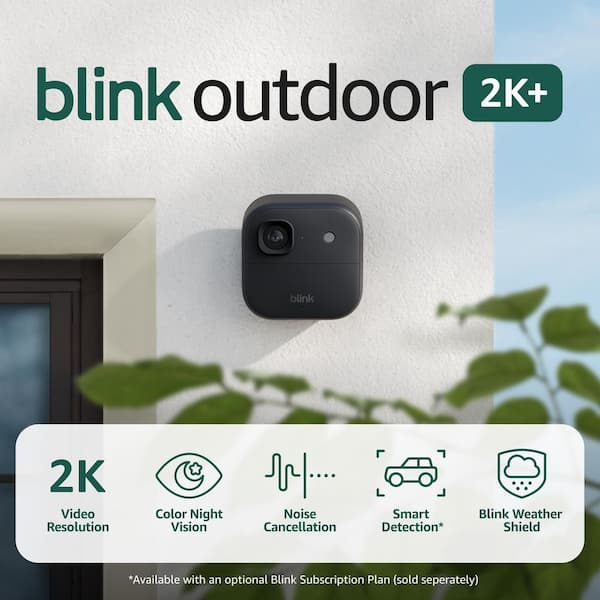
| Blink Outdoor | AA Batteries | Weather issues, false motion alerts | Weatherproof, night vision |
| Blink Mini | USB Power | App bugs, live view errors | Indoor only, 2-way audio |
| Blink Video Doorbell | AA Batteries or Wired | Doorbell not ringing, slow alerts | Doorbell integration, 2-way talk |
Non-obvious Insights About Blink Camera Problems
- Low-quality or mixed batteries often cause strange errors. Always use high-quality lithium batteries, and never mix brands or old/new batteries.
- Firmware updates are sometimes delayed if your camera is offline for a while. Plug in or power up your camera for a few hours to allow updates to finish.
- Wi-Fi extenders can confuse some Blink cameras. If you use one, try connecting your camera directly to your main router.
Advanced Solutions For Persistent Blink Camera Issues
Sometimes, basic steps aren’t enough. Here are deeper fixes for tough problems.
1. Assign A Static Ip Address
If your camera drops offline often, your router may be giving it a new IP address each time. Assigning a static IP can help.
- Log in to your router settings (usually a web page like 192.168.1.1).
- Find your Blink camera in the device list.
- Assign it a static IP address.
- Reboot the camera and router.
2. Check For Network Interference
Many things can weaken Wi-Fi signals: microwaves, baby monitors, or thick concrete walls. Try these tips:
- Change your Wi-Fi channel in router settings to avoid crowded channels.
- Move cameras away from large metal objects.
- Use a mesh Wi-Fi system for better coverage.
3. Use A Dedicated 2.4 Ghz Network
Some routers combine 2. 4 GHz and 5 GHz into one network name, which confuses Blink cameras.
- Log in to your router and create a separate 2.4 GHz network.
- Connect only your Blink devices to this network.
- This often improves stability.
4. Update Your Router Firmware
Just like your camera, your router needs updates. Visit your router’s brand website for instructions. Updated routers often fix compatibility and speed issues.
5. Contact Blink Support
If you’ve tried everything and your camera still won’t work, contact official Blink support. They can check for hardware faults and may offer a replacement if your device is under warranty. Visit the Blink Support Center for more help.

Credit: www.youtube.com
How To Prevent Future Blink Camera Problems
Prevention is better than cure. Here’s how to keep your Blink camera working smoothly:
- Change batteries every 6–12 months, or when the app warns you.
- Keep your app and camera firmware up to date.
- Restart your router monthly to clear glitches.
- Avoid installing cameras near electronics or thick walls.
- Clean the lens and sensors every few months.
- Review camera placement if you move furniture or install new electronics.
Blink Camera Vs. Other Smart Cameras: Reliability Comparison
How Does Blink Stack Up Against Other Brands For Reliability?
| Brand | Main Issues | Ease of Troubleshooting | Customer Support |
|---|---|---|---|
| Blink | Batteries, Wi-Fi drops | Easy app-based fixes | Good, with warranty |
| Ring | Cloud storage, subscription limits | App and web support | Strong, 24/7 chat |
| Arlo | Firmware bugs, expensive batteries | Somewhat complex | Mixed reviews |
| Wyze | App bugs, privacy issues | App-based, but limited | Basic support |
Blink cameras are known for easy setup and solid reliability. Most problems can be fixed without special tools. Compared to other brands, Blink offers a good balance of value and support.

Credit: www.reddit.com
Real-world Examples Of Blink Camera Fixes
Let’s look at a few real scenarios:
- Case 1: “My Blink Outdoor camera stopped sending alerts.” The owner found out the batteries were low. Replacing with Energizer Ultimate Lithium batteries fixed it instantly.
- Case 2: “The app shows my camera is offline, but my Wi-Fi works.” After moving the Sync Module closer and restarting the router, the camera came back online.
- Case 3: “Live view never loads.” Updating the app and rebooting the camera solved this for a Mini camera user.
- Case 4: “Too many false alerts at night.” Lowering motion sensitivity and adjusting the camera angle away from moving tree branches made a big difference.
When To Replace Your Blink Camera
Sometimes, even the best troubleshooting won’t help. Here’s when to consider a new camera:
- The camera won’t power on, even with new batteries or a different outlet.
- The camera gets hot, makes noise, or smells burnt.
- The image is always blurry or the lens is cracked.
- You’ve tried all support steps and Blink recommends a replacement.
Most Blink cameras last 2–4 years with regular use. If yours is older, newer models offer better video quality, battery life, and features.
Blink Camera Security And Privacy Considerations
Beyond fixing issues, it’s smart to keep your Blink camera secure:
- Use a strong, unique password for your Blink account.
- Enable two-factor authentication in the app.
- Change your Wi-Fi password regularly.
- Only share camera access with trusted family members.
- Review privacy settings in the Blink app.
For more on smart camera security, see this Surveillance overview on Wikipedia.
Frequently Asked Questions
Why Does My Blink Camera Keep Disconnecting From Wi-fi?
Your camera may be too far from the router, or there could be interference from other electronics. Try moving the Sync Module or router closer, and keep the camera away from microwaves or thick walls.
How Long Do Blink Camera Batteries Really Last?
Most users get 6–12 months from good lithium AA batteries. Using live view often, cold weather, or poor Wi-Fi can shorten battery life. Always use high-quality lithium batteries for best results.
Can I Use Blink Cameras Without A Subscription?
Yes, but some features like cloud storage and advanced motion alerts require a subscription. You can still use live view, basic alerts, and local storage (with a Sync Module 2 and USB drive) without a plan.
My Blink Camera Is Not Recording—what Should I Do?
Check that motion detection is enabled, and your storage (cloud or USB) has space. Make sure your subscription is active if you use cloud storage. Restart the camera and app, and review your privacy zones.
Is Blink Support Helpful For Hardware Problems?
Yes, Blink offers support via chat, email, and phone. If your camera is under warranty and has a hardware fault, they often replace it. Always try the troubleshooting steps first, as support will ask about them.
A reliable Blink camera gives you peace of mind. Most problems have simple fixes, but it’s important to check power, Wi-Fi, app updates, and camera placement first. For stubborn issues, use advanced troubleshooting or contact Blink support. With good maintenance, your camera will protect your home for years to come.
Credit: streetphotographersfoundation.com