
Pairing your Firestick remote should be simple, but sometimes it isn’t. Maybe you bought a new remote, or your old one stopped responding. Perhaps you want to use a second remote for family or friends. Many people get stuck, feeling lost or frustrated. The good news: pairing your Firestick remote is possible for everyone, even if you aren’t a tech expert. With the right steps, your device will work smoothly again.
This guide will help you pair your Firestick remote—whether it’s the first time, a replacement, or an extra remote. You’ll learn every method, get troubleshooting tips, and see how to handle older models, third-party remotes, and even your smartphone. Along the way, you’ll find answers to common questions and helpful tables to compare remote types and features. If you want to watch your favorite shows without delay, you’re in the right place.
Understanding Firestick Remotes
Before pairing, it helps to know about the different Firestick remotes. Amazon has released several models over the years, and each has unique features. Knowing which remote you have can save you time and confusion during pairing.
Firestick Remote Generations
Amazon Firestick remotes fall into a few main generations:
- 1st Generation: No power or volume buttons, simple layout.
- 2nd Generation: Adds voice control (Alexa button), still no power or volume buttons.
- 3rd Generation (Current): Includes power, volume, and mute buttons, Alexa voice control.
Some specialized versions exist, like the Fire TV Cube remote (which looks similar to the 3rd generation). Universal and third-party remotes are also popular.
How To Identify Your Remote
Look for these clues:
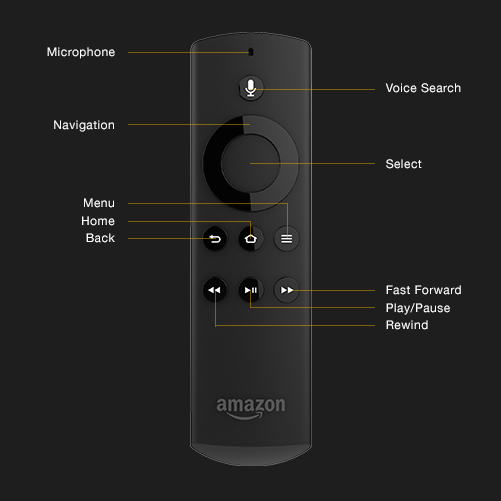
- Alexa Button: Most newer remotes have a blue Alexa button at the top.
- Power/Volume Buttons: Only 3rd generation and newer remotes have these.
- Remote Shape: Older remotes are shorter and simpler.
- Model Number: Check the battery compartment for a model number (like L5B83G for 2nd/3rd gen).
Why Remote Model Matters
Pairing steps are mostly the same, but some older remotes need special attention. Features like volume control may not work if your TV isn’t compatible.
When And Why You Need To Pair A Firestick Remote
Pairing isn’t just for new devices. Here are common scenarios:
- Lost or Damaged Remote: You bought a replacement.
- Extra Remote: You want to add a second remote for guests.
- Remote Not Responding: Unpaired after a reset or battery change.
- Upgrading Remote: Switching to a newer model.
- Factory Reset: Device forgot all remotes.
Pairing ensures your Firestick recognizes and accepts commands from the remote you want to use.
Credit: kb.nex-tech.com
Preparing To Pair Your Firestick Remote
Before starting, do these basic checks to avoid problems:
- Check Batteries: Use fresh, high-quality batteries. Weak batteries often cause pairing failure.
- Remove Obstacles: Make sure nothing blocks the remote’s signal to the Firestick or Fire TV.
- Restart Firestick: Unplug your Firestick for 30 seconds, then plug it back in. This can fix software glitches.
- Stand Close: Pair from within 10 feet (3 meters) of the device.
If your remote still doesn’t work after these checks, continue with the pairing steps below.
How To Pair A New Or Replacement Firestick Remote
The process is straightforward for most Firestick models. Here’s how to pair a new or replacement remote:
- Power On Your Firestick: Make sure your TV and Firestick are both on.
- Access the Home Screen: If the old remote still works, go to the Home menu.
- Hold the Home Button: On the new remote, press and hold the Home button (the house icon) for 10 seconds.
- Wait for Confirmation: The Firestick screen will show a message: “New Remote Connected” or “Remote Paired.”
- Test the Remote: Try using the navigation or volume buttons to confirm it’s working.
If nothing happens, repeat the process, holding the Home button even longer (up to 20 seconds). Sometimes the first attempt doesn’t work due to interference or battery issues.
Pairing Without The Old Remote
If your old remote is lost or broken, you can still pair a new one:
- Plug your Firestick into the TV and power it on.
- Insert batteries into the new remote.
- Press and hold the Home button for 10-20 seconds as soon as the Firestick starts.
- Wait for the pairing confirmation.
If you don’t see confirmation, don’t panic. Try restarting your Firestick and repeat the process.
Pairing Multiple Remotes To One Firestick
Your Firestick can support up to seven remotes at the same time. This is useful for families or parties.
Here’s how to add an extra remote:
- Go to Settings: Use your existing remote to open the Firestick Home menu, then select Settings.
- Navigate to Controllers & Bluetooth Devices: Choose Amazon Fire TV Remotes.
- Add New Remote: Select Add New Remote. Press and hold the Home button on the new remote for 10 seconds.
- Select the New Remote: After the Firestick detects the remote, use the old remote to select it from the list.
Both remotes will now work with your Firestick.
Removing A Paired Remote
If you want to unpair a remote:
- Go to Settings > Controllers & Bluetooth Devices > Amazon Fire TV Remotes.
- Select the remote you want to remove.
- Choose Remove.
This is useful if you’re selling or giving away a remote.
Using Your Smartphone As A Firestick Remote
If you have no remote at all, your smartphone can help. Amazon offers the Fire TV app for Android and iOS.
How To Set Up The Fire Tv App
- Download the App: Search for “Amazon Fire TV” in the App Store (iOS) or Google Play (Android).
- Connect to Wi-Fi: Make sure your phone and Firestick are on the same Wi-Fi network.
- Launch the App: Open the app and sign in with your Amazon account.
- Select Your Device: The app will scan for nearby Fire TV devices. Tap yours.
- Enter the Code: A 4-digit code appears on your TV. Enter it in the app.
Now your phone acts as a remote. You can navigate menus, type with the keyboard, and even use voice search.
Advantages Of The Fire Tv App
- Full Keyboard: Type passwords and search faster.
- Voice Control: Use Alexa through your phone.
- Touchpad Navigation: Swipe and tap instead of clicking.
This is a lifesaver if your physical remote is lost or broken.
Credit: www.androidauthority.com
Troubleshooting Firestick Remote Pairing
Even with the right steps, things sometimes go wrong. Here are solutions for common problems:
Remote Not Detected
- Try holding the Home button longer (20 seconds).
- Remove and reinsert batteries.
- Move closer to the Firestick.
- Restart the Firestick by unplugging it.
Buttons Not Working
- Check for battery corrosion.
- Test with another set of batteries.
- Make sure you’re using the correct remote for your Firestick model.
Remote Disconnects Repeatedly
- Replace with new, high-quality batteries.
- Remove other Bluetooth devices nearby that may interfere.
- Update your Firestick’s software in Settings > My Fire TV > About > Check for Updates.
Factory Reset The Remote
If all else fails, reset the remote:
- Unplug the Firestick from power.
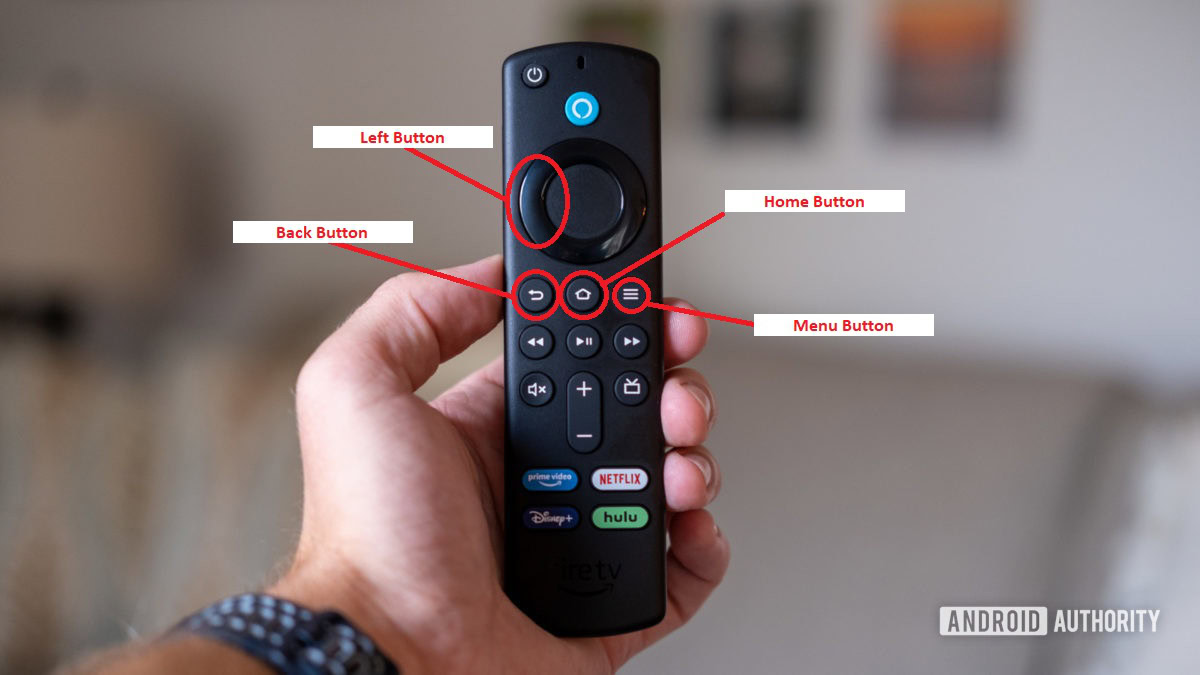
- Hold Back + Menu + Left navigation button for 10 seconds.
- Remove batteries.
- Plug in the Firestick and wait 1 minute.
- Insert batteries and hold Home for 10 seconds.
This resets and re-pairs the remote.
Pairing Other Types Of Remotes
Not all Firestick remotes are made by Amazon. You might use a third-party, universal, or Bluetooth remote. Here’s what you need to know.
Pairing A Bluetooth Remote
Many Bluetooth remotes work with Firestick:
- Go to Settings > Controllers & Bluetooth Devices > Other Bluetooth Devices.
- Put your remote in pairing mode (check the manual).
- Select the device when it appears on the Firestick screen.
This is popular with game controllers or universal remotes.
Pairing A Universal Remote
Some universal remotes use infrared (IR) or Bluetooth. Only Bluetooth models work directly with Firestick. For IR, you need an adapter (like the Logitech Harmony Hub).
Using Tv Remote With Hdmi-cec
If your TV supports HDMI-CEC, you can control your Firestick with the TV’s remote.
- Enable HDMI-CEC in your TV’s settings (name varies by brand: Anynet+ for Samsung, Bravia Sync for Sony, etc. ).
- Enable CEC on your Firestick: Settings > Display & Sounds > HDMI CEC Device Control.
Now basic navigation works from your TV remote.
Table: Firestick Remote Types And Compatibility
To make things clear, here’s a quick comparison of common Firestick remote types and which Fire TV models they work with:
| Remote Type | Features | Compatible Firestick Models | Pairing Method |
|---|---|---|---|
| 1st Gen (No Alexa) | Basic controls | Fire TV (2014), Stick (1st Gen) | Home button (10 sec) |
| 2nd Gen (Alexa) | Voice, navigation | Stick (2nd Gen), Cube, Smart TVs | Home button (10 sec) |
| 3rd Gen (Alexa, Power/Volume) | Voice, TV controls | All Firestick, Cube, Smart TVs | Home button (10 sec) |
| Bluetooth Remote | Varies | All with Bluetooth | Settings menu |
| TV Remote (HDMI-CEC) | Navigation only | All with HDMI-CEC TV | HDMI-CEC setup |
Advanced Pairing: For Older And Special Remotes
Some remotes, especially older models or those used with the Fire TV Cube, need special steps.
Pairing An Old Firestick Remote
- Remove batteries for 30 seconds.
- Insert batteries.
- Hold Home for at least 20 seconds.
- If not working, try the pairing process up to five times. Old remotes often need repeated attempts.
Pairing The Fire Tv Cube Remote
The Cube uses the same steps, but it’s more sensitive to interference. Remove Bluetooth headsets or speakers nearby before pairing.
Table: Common Pairing Problems And Solutions
Here’s a fast way to match your issue with a solution:
| Problem | Possible Cause | Solution |
|---|---|---|
| Remote doesn’t pair | Weak batteries, interference | Replace batteries, move closer, unplug other devices |
| Remote paired but no button response | Wrong remote generation | Check compatibility, try another remote |
| Remote disconnects randomly | Battery or software issue | Update Firestick, use fresh batteries |
| Cannot add new remote | Paired devices limit reached | Remove unused remotes in Settings |
| Volume/power buttons don’t work | TV not supported | Check TV compatibility, enable HDMI-CEC |
Using Alexa Voice Features After Pairing
Many people forget that pairing unlocks voice features. If your remote has an Alexa button, you can:
- Search for shows and movies.
- Launch apps by name.
- Control smart home devices.
- Ask for weather, sports scores, and more.
Just hold the Alexa button and speak. If voice doesn’t work, check your Firestick’s internet connection and try re-pairing the remote.
Updating Firestick Software For Best Pairing
Outdated software can cause pairing problems and missing features.
How To Update
- Go to Settings > My Fire TV > About > Check for Updates.
- If an update is available, install it.
- Restart your Firestick.
This ensures maximum compatibility with new remotes and features.
Table: Firestick Remote Features Comparison
Let’s compare what each remote can do:
| Feature | 1st Gen | 2nd Gen | 3rd Gen | Bluetooth/Universal | Fire TV App |
|---|---|---|---|---|---|
| Navigation | Yes | Yes | Yes | Yes | Yes |
| Voice Search | No | Yes | Yes | Some | Yes |
| Volume Control | No | No | Yes | Some | No |
| Power Button | No | No | Yes | Some | No |
| App Shortcuts | No | No | Yes | No | No |

Credit: www.youtube.com
Non-obvious Tips For Better Pairing
Many guides skip these advanced tips:
- Remove Interference: Wi-Fi routers, Bluetooth speakers, and even microwaves can block the remote signal. Move these away during pairing.
- Pair in Low Light: Some users report better results when pairing in dim lighting, as TV screens can interfere with the infrared sensor.
- Try a Different USB Port: If using a Fire TV box, try plugging it into another USB port or wall adapter.
- Use Official Accessories: Cheap batteries or third-party chargers can cause issues.
What To Do If All Else Fails
If your remote still won’t pair after all steps:
- Try on Another Firestick: If possible, test the remote with a friend’s Firestick. If it pairs, the problem is your device—not the remote.
- Contact Amazon Support: Sometimes hardware is faulty. Visit Amazon Device Support for help or a replacement.
- Consider a Universal Remote: If your Firestick is old, a newer universal remote may be more reliable.
Frequently Asked Questions
How Many Remotes Can I Pair With One Firestick?
You can pair up to seven remotes with one Firestick device. If you try to add another, you’ll need to remove one in the Settings menu first.
Can I Use My Firestick Without A Remote?
Yes. Download the Amazon Fire TV app on your smartphone or tablet. Connect to the same Wi-Fi network, and you can control your Firestick fully—including typing and voice search.
Why Won’t My Firestick Remote Pair After A Factory Reset?
After a factory reset, the Firestick forgets all remotes. Insert fresh batteries in your remote and hold the Home button for 10-20 seconds. If it still won’t pair, try unplugging the Firestick and starting again. If you’re using a very old remote, it may not be compatible.
Do I Need The Internet To Pair A Firestick Remote?
No internet is needed for basic pairing. However, for voice features, software updates, and the Fire TV app, you’ll need an active internet connection.
Can I Control Firestick With My Tv Remote?
If your TV supports HDMI-CEC, you can use your TV remote for basic controls. Enable HDMI-CEC on both your TV and Firestick in the settings. Note that not all remotes or TVs support this feature.
Pairing your Firestick remote doesn’t have to be a headache. With the right method, you’ll be back to streaming your favorite shows in minutes. Whether you’re using the official remote, your phone, or a universal controller, these steps will cover every situation you’re likely to face. For more official guidance, check the Amazon Device Support page.
Remember, patience is key. Most problems have simple fixes. If you follow these steps, your Firestick will work the way you want—making your TV time easy and enjoyable.